Do You Need to Format a New Hard Drive Before Partitioning
A new disk is normally initialized first, then partitioned, then formatted. If Windows asks to initialize the disk, choose the partition style based on the PC and disk size.
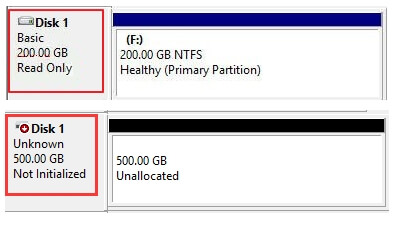
Correct Order for a New Disk
- Install or connect the disk.
- Open Disk Management and initialize it as GPT or MBR.
- Create one or more partitions.
- Format each partition with NTFS or exFAT.
- Assign a drive letter.
GPT or MBR
Use GPT for modern UEFI PCs and disks larger than 2TB. Use MBR only for older systems that require Legacy BIOS compatibility.
Use Qiling Disk Master to Prepare a New Hard Drive
A new hard drive should be initialized first, then partitioned, then formatted. Qiling Disk Master lets you complete the same order from a visual disk map.
Step 1. Select the New Disk
Install or connect the new hard drive, open Qiling Disk Master, and identify the disk by model and capacity. A brand-new disk may appear as uninitialized or unallocated.
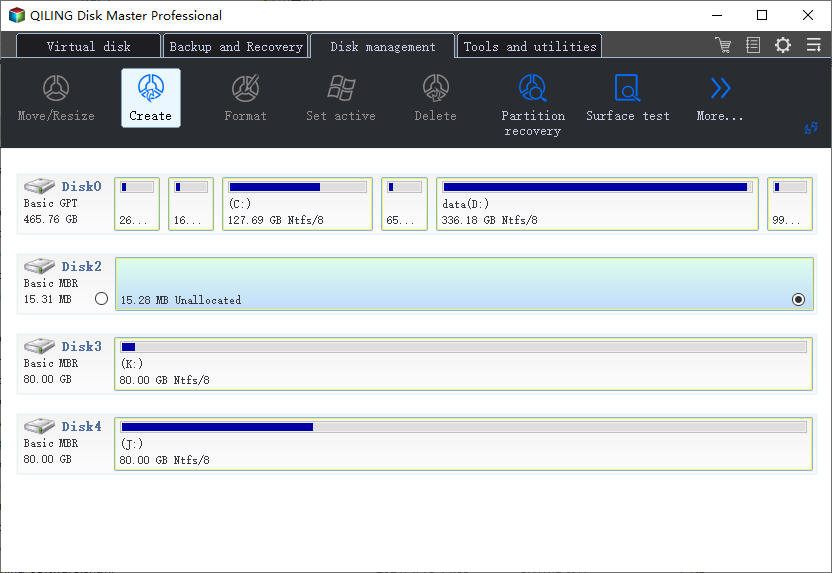
Step 2. Initialize the Disk
Choose GPT for modern Windows 10 or Windows 11 computers, especially when the disk is larger than 2TB. Choose MBR only when the computer must boot or work with older Legacy BIOS systems.
Step 3. Create a Partition
Select the unallocated space and choose Create. Set the partition size. You can create one large partition for simple storage or split the disk into several partitions for data organization.
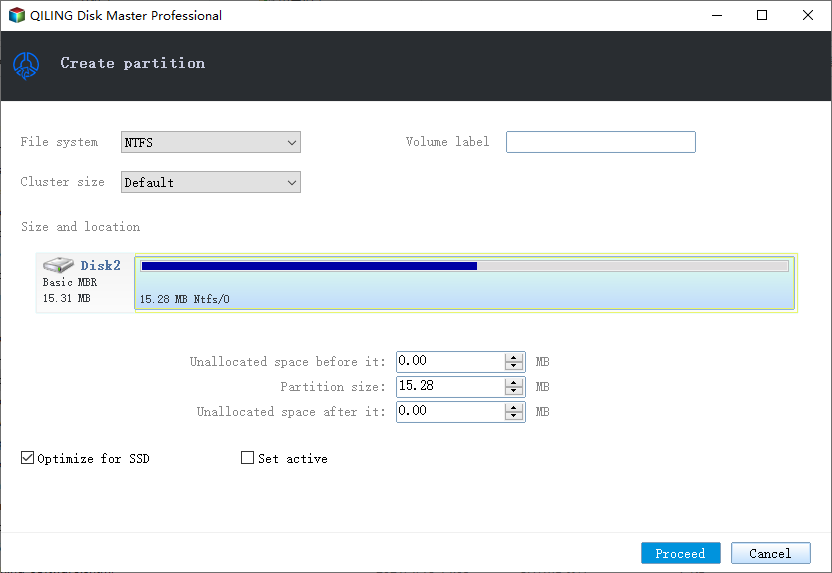
Step 4. Set File System and Drive Letter
Choose NTFS for a normal internal Windows drive. Use exFAT for an external drive shared with other devices. Assign a drive letter so the partition appears in File Explorer.
Step 5. Preview and Click Proceed
Confirm the pending operations show the correct new disk, partition size, file system, and drive letter. Click Proceed, then open File Explorer to verify the new volume.
Conclusion
You do not format a new drive before partitioning. The correct order is initialize, create partition, format, and assign a drive letter.
Related Articles
- Windows Partition Management Tutorials
- Windows Data Recovery Tutorials
- How to Format a Hard Drive While Installing Windows - Qiling
Format a hard drive during Windows installation safely. Learn what each partition means and how to avoid deleting the wrong data.
Products
Articles & Tutorials
- Data Recovery
- Data Backup
- File Recovery
- File Backup
- System Backup and Restore
- Disk and Partition Clone
- Technical articles
- Mobile articles
- Disk Master Help
- Windows Data Recovery Tutorials
- Windows Secure Delete Tutorials
- Windows Partition Management Tutorials
- Windows File Backup and Restore Tutorials
- Windows System Backup and Restore Tutorials
- Windows Disk Backup and Restore Tutorials
- Windows Clone Tutorials