How Much Slower Is an HDD Than an SSD?
An HDD is usually much slower than an SSD for scattered reads and writes because it must move a physical head and wait for a rotating platter. Sequential file-copy speed is only one part of the story. Startup and application launches involve many small files, where access latency matters more.
Understand the measurements
A typical consumer HDD can transfer large contiguous files at roughly 100-200 MB/s, while a SATA SSD is often limited by its interface to roughly 500-550 MB/s. NVMe SSDs can be faster still, but rated peak speeds depend on the PCIe interface and test conditions. These are approximate categories, not a promise for a specific drive.
Random I/O and latency usually create the stronger day-to-day difference. An HDD's mechanical seeks can make Windows updates, multitasking, and many game loads feel sluggish even when a large-file copy looks acceptable. A faster NVMe drive may not reduce a game load in proportion to its sequential speed because decompression, CPU work, and network requests also take time.
Check your own PC
Step 1. Identify the system and game drive models in Task Manager or Device Manager.
Step 2. Check free space and health first. A failing drive can make any comparison misleading; back it up before testing.
Step 3. Time a repeatable task, such as launching the same local application after a full restart. Repeat it several times under similar background load.
Step 4. For file transfers, use the same file set and a destination fast enough not to be the bottleneck. Distinguish one large file from thousands of small files.
Step 5. Do not compare advertised peak SSD speed with a Windows Explorer copy as if they measured the same workload.
Choose an upgrade that helps
Replacing an HDD that holds Windows with a SATA or NVMe SSD is often more noticeable than replacing a healthy SATA SSD with a higher-rated NVMe model. Check slot compatibility, available PCIe lanes, physical clearance, target capacity, and backup status first. If your PC has only one storage slot, an external adapter can help stage a clone, but verify the new drive boots internally before reusing the original.
Move Windows with Qiling Disk Master Pro
If you want to keep your installed Windows system and applications, Qiling Disk Master Pro offers System clone. Connect the compatible SSD, back up your files separately, and make sure its usable capacity holds the Windows partitions. The destination will be overwritten.
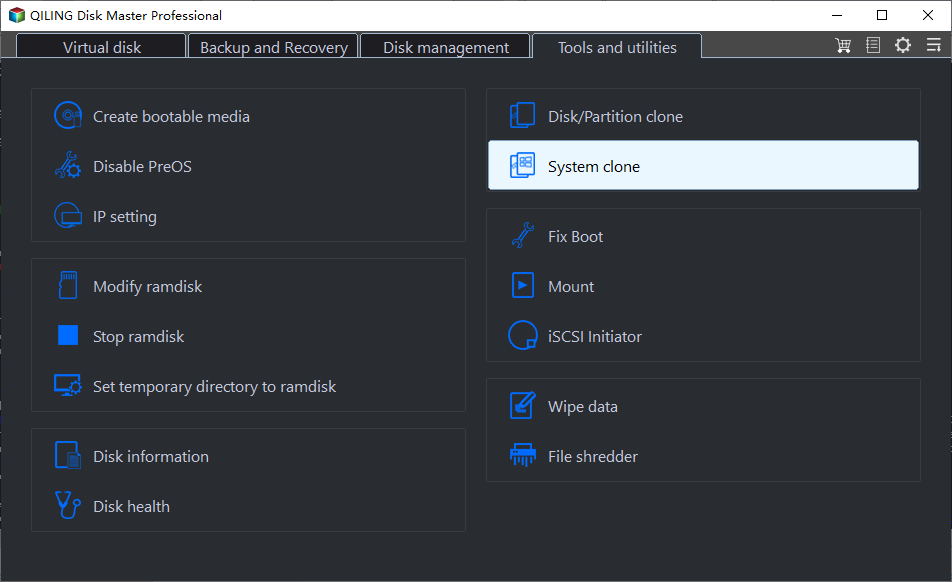
Step 1. Open Tools and utilities > System clone and confirm the Windows source disk.
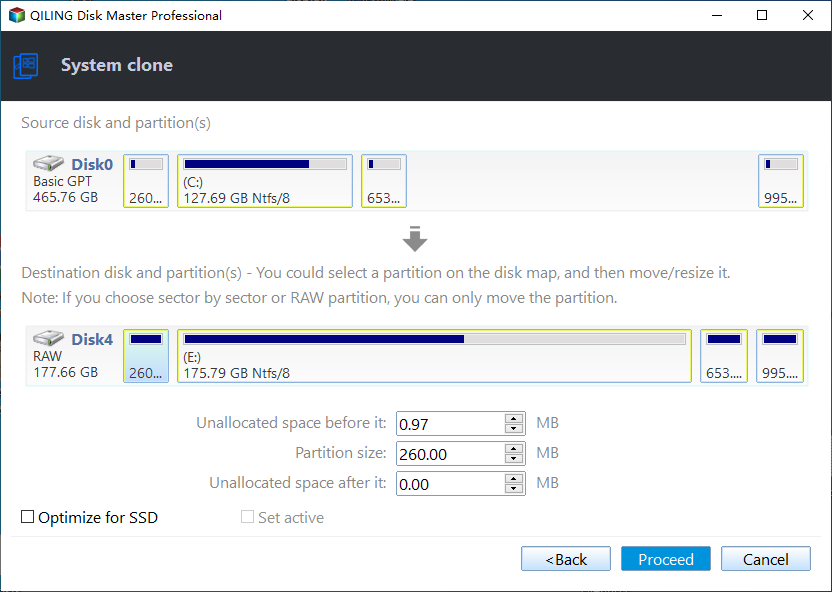
Step 2. Select the SSD by model and capacity, review the boot partitions and destination layout, then click Proceed and confirm the overwrite warning.
Step 3. After completion, boot from the SSD with the old HDD disconnected if practical, and check Windows, applications, files, and usable capacity before repurposing the HDD.
An HDD remains useful for large archives and infrequently accessed files. Keep independent backups regardless of drive type; SSD speed is not a substitute for data protection.
Related Articles
- SSD Speed for Gaming
Understand how storage affects loading, not frame rate. - Check Disk Health
Test drive condition before interpreting speed.
Products
Articles & Tutorials
- Data Recovery
- Data Backup
- File Recovery
- File Backup
- System Backup and Restore
- Disk and Partition Clone
- Technical articles
- Mobile articles
- Disk Master Help
- Windows Data Recovery Tutorials
- Windows Secure Delete Tutorials
- Windows Partition Management Tutorials
- Windows File Backup and Restore Tutorials
- Windows System Backup and Restore Tutorials
- Windows Disk Backup and Restore Tutorials
- Windows Clone Tutorials