How to List Drives in Command Prompt and PowerShell
Windows uses several identifiers for storage. Disk 0 refers to a physical disk, while C: is a volume letter. A single physical disk can have several volumes, and a volume can have no letter at all. Check both views before any repair or cloning operation.
List disks and volumes with DiskPart
Step 1. Open Start, type cmd, then choose Run as administrator. Administrative permission is needed for some disk details.
Step 2. Enter diskpart. Wait for the DISKPART> prompt.
Step 3. Enter list disk to see each physical disk's number, size, free space, and GPT marker. Note that the Free column shows unallocated space, not free space inside C:.
Step 4. Enter list volume to see volume letters, labels, file systems, sizes, and status.
Step 5. To inspect one disk, enter select disk N, replacing N with the number you verified by size, then enter detail disk. Selection alone does not change the disk; do not issue cleanup commands during identification.
Step 6. Type exit to leave DiskPart.
Find models and partitions with PowerShell
Open PowerShell as administrator. Run Get-Disk | Format-Table Number,FriendlyName,SerialNumber,PartitionStyle,Size,OperationalStatus. The model and serial number help distinguish two drives with the same capacity. Run Get-Partition | Format-Table DiskNumber,PartitionNumber,DriveLetter,Type,Size to map partitions to physical disks. Run Get-Volume for volume labels, file systems, and remaining free space.
On systems without the Storage module, Get-CimInstance Win32_DiskDrive can still show physical disk models and sizes. These commands report different layers of the storage stack, so differences in row counts are normal.
Read the results correctly
Check the same drive in Qiling Disk Master Pro
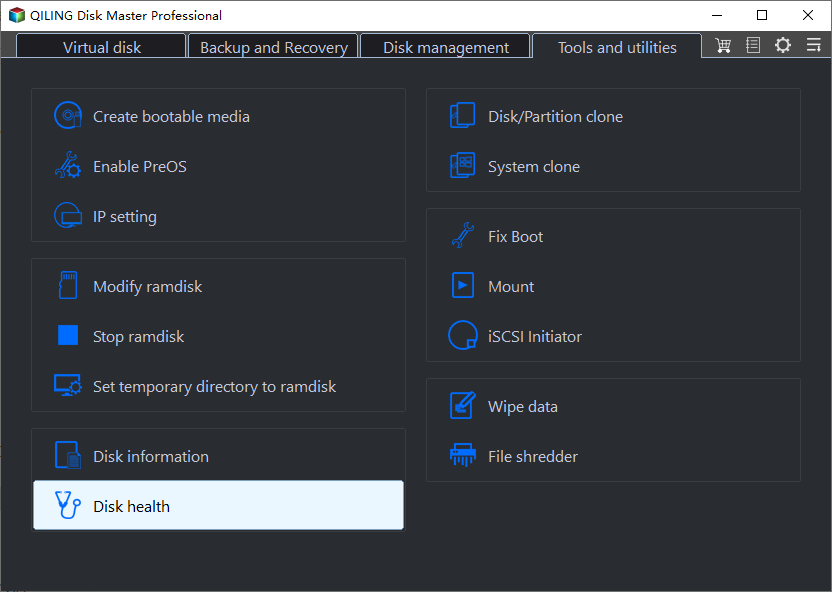
For a graphical cross-check, Qiling Disk Master Pro has Disk information and Disk health under Tools and utilities. Select the device by model and capacity, then compare its layout and available S.M.A.R.T. readings with the disk number shown in Windows. This can help distinguish two drives of similar size before a clone or partition change.
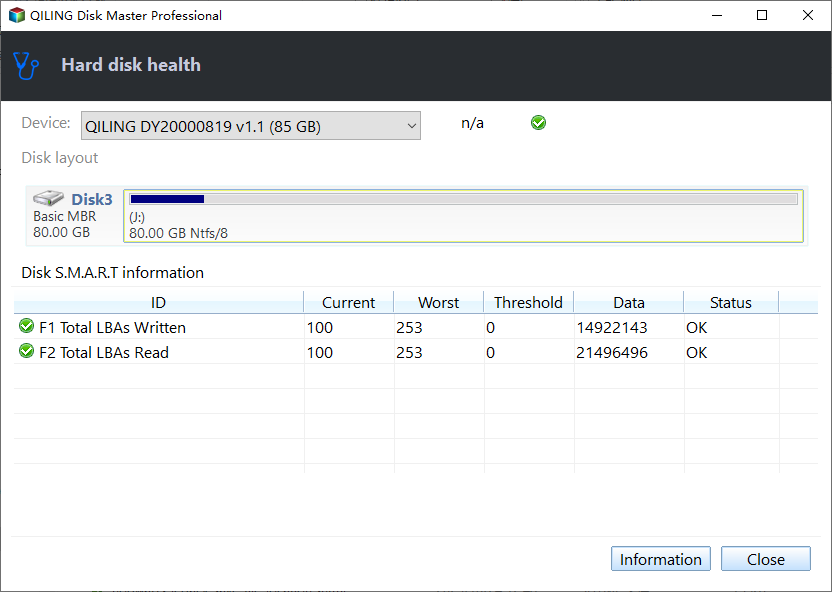
Health information depends on what the drive and controller expose. It does not replace DiskPart or PowerShell when you need an exact Windows disk and partition number, and a healthy indicator is not a substitute for a backup.
EFI and recovery partitions commonly have no drive letter; that does not make them unused. A removable device may appear as a physical disk but show No Media when its controller cannot access flash memory. Network drives may have letters but are not local physical disks. If a disk is missing entirely, check the cable, power, firmware detection, and Device Manager before changing partitions.
Record the model, serial number, disk number, and expected capacity before selecting a source or destination in a cloning tool. Disk numbers can change after reconnecting hardware, so verify them each time.
Related Articles
- Disk Management Will Not Open
Fix the management console before changing storage. - Check Disk Health
Assess a physical drive before repairs.
Products
Articles & Tutorials
- Data Recovery
- Data Backup
- File Recovery
- File Backup
- System Backup and Restore
- Disk and Partition Clone
- Technical articles
- Mobile articles
- Disk Master Help
- Windows Data Recovery Tutorials
- Windows Secure Delete Tutorials
- Windows Partition Management Tutorials
- Windows File Backup and Restore Tutorials
- Windows System Backup and Restore Tutorials
- Windows Disk Backup and Restore Tutorials
- Windows Clone Tutorials