Can You Cancel Partition Resizing While Data Is Moving?
A partition resize may spend a long time moving file-system data before the progress bar changes. Whether you can cancel safely depends on the stage: declining a proposed operation is different from interrupting an active write to the disk.
Know the Three Stages
First identify what is on screen. Preview means the new partition layout is only being proposed. In EaseUS Partition Master, a confirmed change may appear in Pending Operations but has not reached the disk until you apply it. Running means the tool is moving data or updating partition information, possibly after a restart. You can discard a proposal or a pending operation; you should not assume a running operation can be rolled back safely.
The buttons differ by product. EaseUS uses Undo for an unapplied pending operation and Apply to start it. Qiling Disk Master's resize dialog uses Cancel before Proceed. A Cancel button that remains visible on a progress screen does not, by itself, guarantee a safe rollback once data movement has begun.
If the Resize Is Still in Preview
Step 1. Look for a preview or pending-operations screen, rather than a progress bar or a message saying data is being moved. Check the disk number, target partition, proposed size, and unallocated space on both sides. If the selected disk or result is wrong, do not start the operation.
Step 2. In Qiling, click Cancel in the move/resize dialog before clicking Proceed. In EaseUS, remove the resize from Pending Operations with Undo before clicking Apply. If other pending operations remain, review them separately rather than applying the entire queue by accident.
Step 3. Return to the main disk map and verify that the original partition sizes are still shown and no progress task is running. Then make a verified backup and check power before setting up a new resize. For a system disk, prepare recovery media that can restore the image if needed.
If Data Movement Has Already Started
Step 1. If the screen shows progress, Moving or resizing, or Updating disk or partition information, treat the task as active. Keep the PC on reliable power. Do not click Cancel merely because progress looks slow, close the tool, force a restart, or disconnect an external drive.
Step 2. Note the displayed task name, current phase, and time. Watch whether the phase or disk activity changes; a percentage can pause while a large amount of data is moved. The Qiling example below shows an active data-volume resize at 99% with a warning not to stop. It is not a promise that another operation will finish at the same pace.
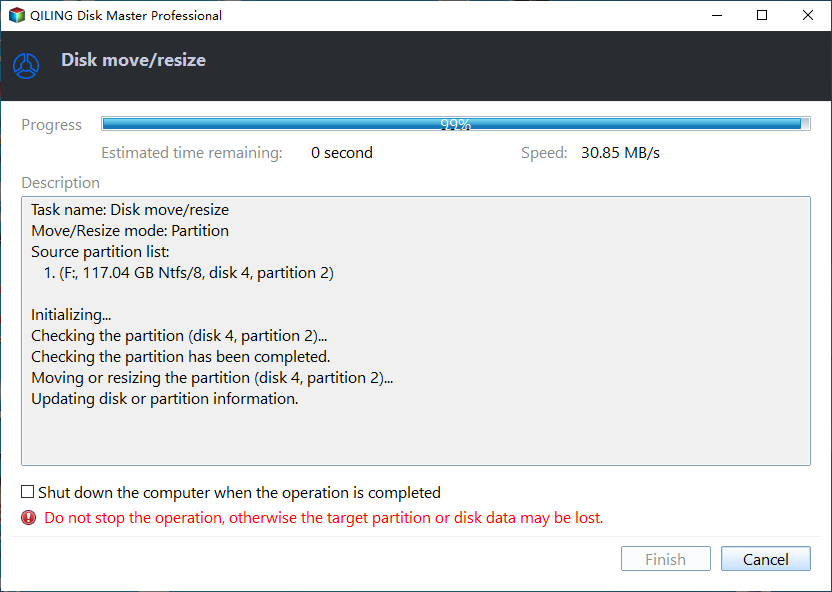
Step 3. If the operation runs in a pre-boot environment, leave it alone until it completes and Windows restarts. If the tool displays an error, record its exact text and follow the product's documented recovery instructions. If the system appears frozen, seek product support before forcing power off; there is no universal number of minutes after which interruption becomes safe.
After the Operation or an Unexpected Interruption
Step 1. If the tool reports success, restart when requested. Open Disk Management, confirm the partition size and drive letter, then open several important files. Make a fresh backup after confirming the volume works.
Step 2. If power was lost or the operation stopped unexpectedly, do not repeat the resize or format the affected partition. If Windows still starts, note the current disk layout and copy readable priority files to a different physical disk before attempting repair.
Step 3. If Windows will not start or the volume is inaccessible, boot trusted recovery media and check whether the original disk is detected. Recover important files to another disk or restore a verified image. If the drive has physical errors, avoid repeated scans and seek specialist help or replace the drive.
Conclusion
Undo or cancel only while a resize is still a proposal or an unapplied pending operation. Once data movement begins, keep power stable and let the tool finish; after an interruption, protect readable files before attempting another change.
Related Articles
- Does Shrinking C: Cause Issues?
Prepare a safer Windows partition resize. - Increase EFI Partition Size
Understand why system-partition movement needs a recovery plan.
Products
Articles & Tutorials
- Data Recovery
- Data Backup
- File Recovery
- File Backup
- System Backup and Restore
- Disk and Partition Clone
- Technical articles
- Mobile articles
- Disk Master Help
- Windows Data Recovery Tutorials
- Windows Secure Delete Tutorials
- Windows Partition Management Tutorials
- Windows File Backup and Restore Tutorials
- Windows System Backup and Restore Tutorials
- Windows Disk Backup and Restore Tutorials
- Windows Clone Tutorials