Increase EFI System Partition Size in Windows 10 Safely
The EFI System Partition (ESP) stores UEFI boot files. An undersized ESP can interfere with certain updates, but deleting or formatting it can make Windows unbootable. Resize only after confirming the error concerns the ESP rather than the separate Windows Recovery partition.
Identify the ESP and the Actual Space Problem
In Disk Management, locate the small FAT32 EFI System Partition on the current Windows system disk. Record disk number and partition order. Run msinfo32 to confirm BIOS Mode: UEFI; an MBR/legacy system has a different boot layout. Run reagentc /info separately if the problem mentions recovery space, because WinRE and ESP are not the same partition.
If the update error names a Windows RE partition, do not enlarge the ESP as a guess. Check the manufacturer's and Microsoft's requirements for the specific update. Remove only unneeded files through a documented procedure; never browse the ESP and delete unknown boot files manually.
Make a Verified Whole-Disk Backup
Step 1. Save the BitLocker recovery key and suspend protection only as your security policy allows. Connect a separate destination drive with enough capacity.
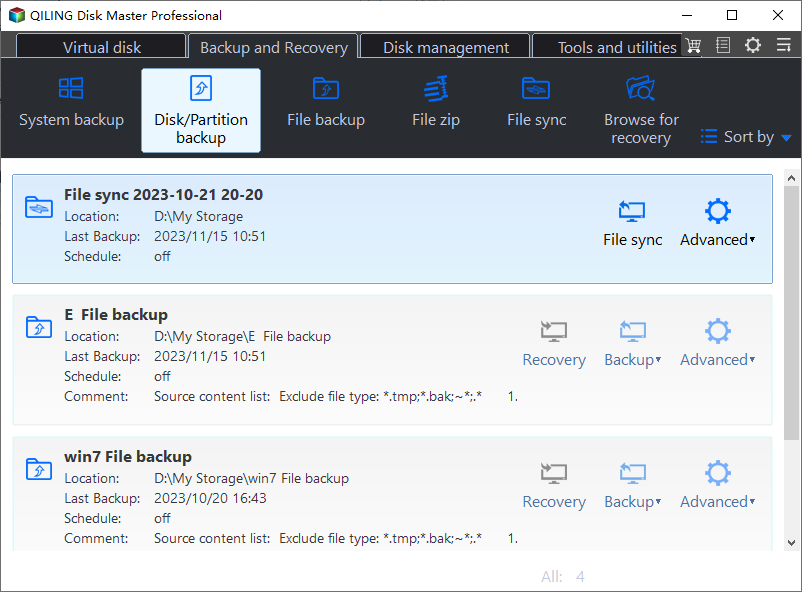
Step 2. In Qiling Disk Master open Backup and Recovery > Disk/Partition backup. Select the whole Windows disk so the image includes ESP, MSR, Windows, and recovery partitions, not just C:.
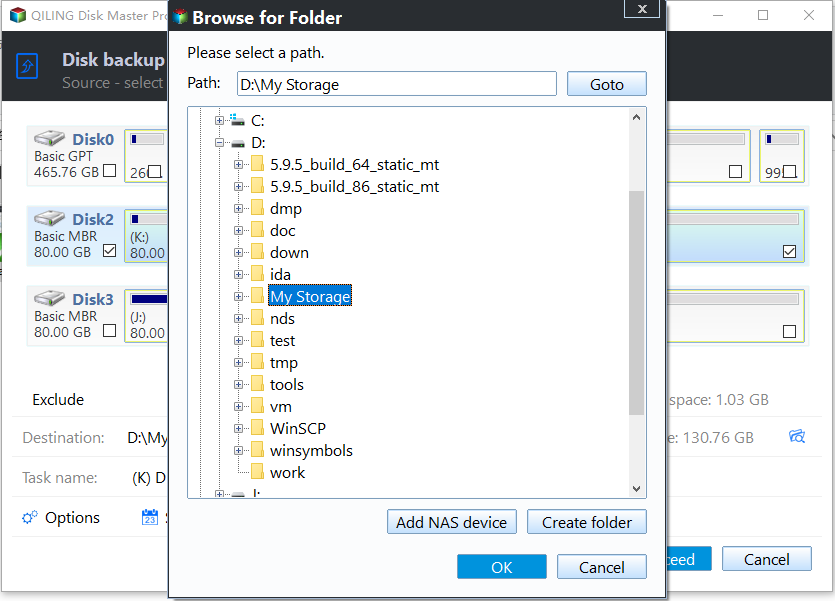
Step 3. Choose the external destination, click Proceed, wait for success, then confirm Qiling recovery media can see the image and the internal disk. Do not begin a partition move if restore media is not usable.
Resize Only a Supported Layout
On the disk map, the space to add must become directly adjacent to the ESP. If unallocated space is already adjacent and Qiling's Move/Resize action is enabled for that FAT32 ESP in a bootable environment, select the ESP, open Move/Resize, increase only its boundary into that space, and check the proposed size and partition order before clicking Proceed. Keep power stable, wait for completion, and do not interrupt the move.
If an MSR or Windows partition lies between the ESP and free space, merely shrinking C: at its far end will not help. Moving system partitions is a separate high-risk operation; the exact sequence depends on disk layout and tool support. Do not invent a generic drag sequence or delete the MSR. Prefer a tested image restore to a newly planned layout or qualified assistance when adjacent space cannot be created safely.
Verify Boot and Recovery
After the tool reports success, remove boot media and start Windows in UEFI mode. Restart twice, confirm the correct Windows Boot Manager entry, run msinfo32 to verify UEFI, check the ESP's new size in Disk Management, and confirm reagentc /info still reports the expected recovery state. Resume BitLocker protection and test the update. If Windows does not boot, restore the verified whole-disk image rather than formatting the ESP.
Conclusion
Confirm it is truly an ESP-size problem, back up the full disk, resize only when supported adjacent space exists, and validate UEFI boot before considering the job complete.
Related Articles
- Recovery Partition Blocks C: Extension
Distinguish WinRE layout from EFI space. - MBR to GPT Converter
Understand UEFI and system-partition requirements.
Products
Articles & Tutorials
- Data Recovery
- Data Backup
- File Recovery
- File Backup
- System Backup and Restore
- Disk and Partition Clone
- Technical articles
- Mobile articles
- Disk Master Help
- Windows Data Recovery Tutorials
- Windows Secure Delete Tutorials
- Windows Partition Management Tutorials
- Windows File Backup and Restore Tutorials
- Windows System Backup and Restore Tutorials
- Windows Disk Backup and Restore Tutorials
- Windows Clone Tutorials