Protective MBR: Why Every GPT Disk Still Has an MBR
A GPT disk stores its partition table in the GPT header, not in the master boot record. Yet the first sector of every GPT disk still looks like an MBR, and it holds a single entry labelled GPT protective partition. This small structure is the protective MBR, and it exists to stop old software from treating a modern disk as empty.
Understanding it prevents two common accidents: deleting the protective entry because it "looks wrong", and formatting a disk that only appears unpartitioned in a legacy tool.
What the Protective MBR Is
The protective MBR occupies the first 512-byte sector of the disk, the space a traditional MBR would use. It is not a real partition table and it does not describe your volumes. It is a declaration that reads, in effect, "this disk is managed by GPT, keep out".
UEFI firmware reads the GPT header at LBA 1 and ignores the protective MBR. Legacy BIOS tools read LBA 0 only, so they see one partition that spans the whole disk and refuse to create overlapping partitions. Without that guard, an old partitioning utility could write a new MBR over the GPT header and make every volume disappear.
What It Contains
The protective MBR contains a normal 64-byte partition entry with three notable values:
- Partition type 0xEE, the code reserved for "GPT protective". Windows and most tools recognise it immediately.
- Starting LBA 1, the sector where the GPT header begins.
- Size of 0xFFFFFFFF sectors when the disk is larger than 2 TB, or the real last sector when it is smaller. The oversized value tells legacy software that the disk is bigger than it can address, so it should not be touched.
The protective MBR also normally contains the same four-byte disk signature as an MBR disk, which is why signature tools still report a value for GPT drives.
Why It Shows Up as a 2 TB Partition
Older utilities, some Linux installers in BIOS mode, and a few recovery tools display the entry literally. On a 4 TB drive you may see a single "GPT protective partition" of about 2 TB followed by unallocated space. The 2 TB figure is the largest value a 32-bit LBA field can express, not the size of anything real.
Disk Management in Windows does not show this entry at all. It reads the GPT and lists your actual volumes, so a healthy GPT disk looks completely normal there.
The Mistake That Destroys Data
The dangerous sequence is easy to follow: a legacy tool shows the disk as unpartitioned or as a single unknown partition, the user assumes the partition table is damaged, and the tool offers to "initialize" or "write a new MBR". That write lands on LBA 0 and can overwrite the GPT header at LBA 1 or the start of the partition entry array.
Deleting the protective MBR entry alone does not instantly erase files, but it removes the guard. Windows may then report the disk as Not Initialized and offer to initialize it, and initializing writes a fresh partition table over the old one. The practical result is the same: the volumes are gone and recovery software is needed.
If a tool offers to convert, initialize or "repair" a disk that other tools see as healthy, stop and check the partition style first.
How to Check Your Disk Style
Three quick checks tell you whether a disk is MBR or GPT:
- Disk Management. Right-click the disk label on the left and open Properties > Volumes. The partition style is listed there.
- Diskpart. Run
diskpart, thenlist disk. A GPT disk has an asterisk in the Gpt column. - PowerShell. Run
Get-Disk. The PartitionStyle column reads either MBR or GPT.
None of these operations modify the disk, so they are safe to run before any repair.
When and How to Convert
You only need to remove the GPT structure when the target system cannot read it: a 32-bit Windows installation, a legacy BIOS that will not boot from GPT, or an old recovery environment. Converting a disk that already boots correctly gains nothing and adds risk.
Qiling Disk Master can convert a data disk or a system disk between MBR and GPT without deleting the volumes, but a full backup should come first, because the partition table is rewritten during the operation.
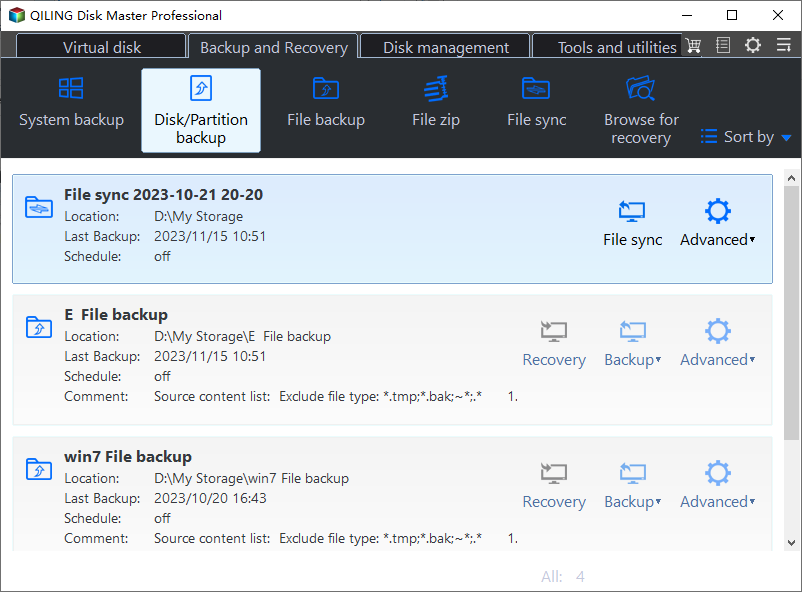
Step 1. Back up important files first, because the partition table is rewritten during the conversion.
Step 2. Launch Qiling Disk Master, right-click the GPT disk and choose Convert to MBR. The warning lists the limitations of the MBR style: four primary partitions and a 2 TB address limit.
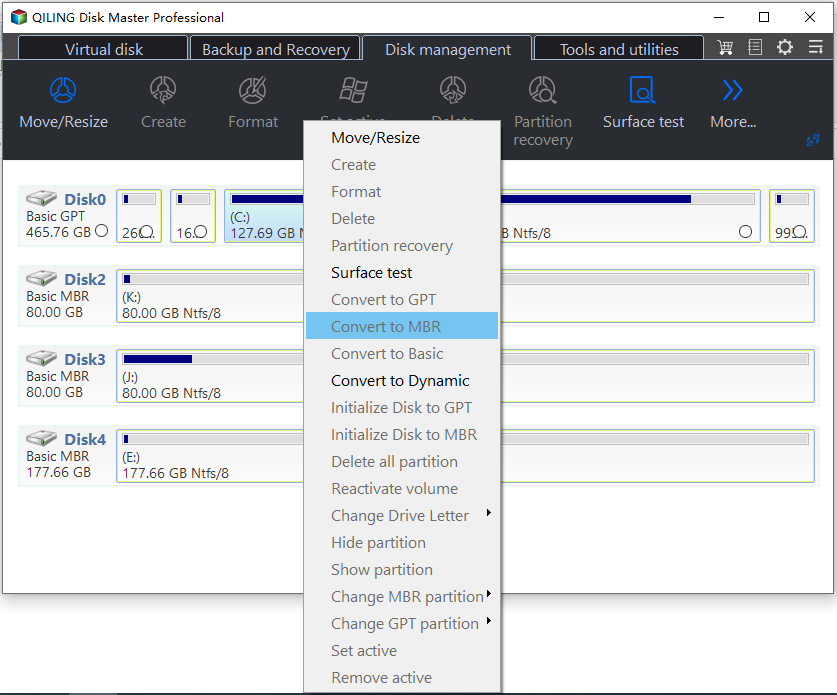
Click Proceed to run the conversion, then restart the computer if the system disk was changed.
If the disk is larger than 2 TB, keep it as GPT. MBR simply cannot address the space beyond that boundary, and the extra capacity will stay unused no matter which tool performs the conversion.
Can I delete the protective MBR partition?
You should not. It is the only thing preventing legacy tools from overwriting the GPT header. Delete it only as part of a deliberate conversion, and only after a backup.
Does the protective MBR take usable space?
No. It occupies one sector that belongs to the partitioning metadata, not to any volume. Your capacity is unaffected.
Why does an old tool report the disk as 2 TB?
Because the entry's size field is capped at 0xFFFFFFFF sectors. The number is a warning marker, not a measurement of the disk.
Related Articles
- Microsoft Reserved Partition Missing on Windows 11
What the MSR partition does and how to rebuild it when a GPT disk reports it as missing. - 3 Simple Ways to Assign a Drive Letter
Give a healthy volume a letter again after a partition-table repair or a disk move. - USB and SD Card Repair, Format and Write Protection Tools
A grouped index of repair, format and recovery guides for removable drives.
Products
Articles & Tutorials
- Data Recovery
- Data Backup
- File Recovery
- File Backup
- System Backup and Restore
- Disk and Partition Clone
- Technical articles
- Mobile articles
- Disk Master Help
- Windows Data Recovery Tutorials
- Windows Secure Delete Tutorials
- Windows Partition Management Tutorials
- Windows File Backup and Restore Tutorials
- Windows System Backup and Restore Tutorials
- Windows Disk Backup and Restore Tutorials
- Windows Clone Tutorials