Microsoft Reserved Partition Missing on Windows 11: Rebuild It
Quick Navigation:
- What the MSR Partition Does
- What Fails Without It
- Rebuild It at the Right Size
- Prepare the Space Safely
- Frequently Asked Questions
A Microsoft Reserved partition is the 16 MB block that Windows Setup creates on every GPT disk, between the EFI system partition and the Windows volume. It holds no files, no drive letter, and no file system, so it is easy to overlook and just as easy to delete by mistake. The machine usually keeps booting afterwards, which hides the damage until an operation that depends on the reservation fails weeks later.
What the MSR Partition Does
On a GPT disk the partition table can be changed without rewriting the sectors that hold data, and Windows uses that property to reserve a small area for components that need guaranteed space. The MSR carries a dedicated type identifier and no file system, and Windows never mounts it or assigns it a letter.
The reservation exists so that future components can claim space next to the system volume without moving the Windows partition. Microsoft documents 16 MB for disks under 16 TB and a larger reservation for bigger disks, and Setup places it directly after the EFI partition in the default layout.
Because it holds nothing readable, the partition looks empty in every disk tool and may be labeled Reserved or Primary depending on the program. Its identity comes from the type identifier in the partition table, not from its contents, which is why a file-level copy of the disk does not preserve it and a deleted one cannot be restored from a backup of the files alone.
What Fails Without It
BitLocker is the first casualty on many machines. Enabling encryption on the system drive can stop with an error about the disk layout, because the protector metadata described in the BitLocker partition layout expects the reserved region to exist. The same volume may encrypt without it on one build and refuse on the next, which makes the failure look random.
Converting the disk to dynamic storage fails as well, and so does creating a Storage Spaces pool from that disk. Windows reports that the operation is not supported or that the disk layout is invalid, without naming the missing reservation. Disk validation during an MBR to GPT conversion rejects the same layout for the same reason.
Feature updates and some recovery operations also check the expected layout. A disk with EFI, Windows, and recovery but no MSR can pass every boot test and still fail servicing, and the error usually points at a partition or layout problem rather than at the reservation itself.
Rebuild It at the Right Size and Position
A working MSR is 16 MB, has the reserved type identifier, and sits in the gap between the EFI partition and the Windows volume. Creating a 16 MB partition with a normal data identifier does not substitute for it, because Windows looks for the type, not the size.
Windows includes a built-in disk tool named diskpart that can stamp the reserved identifier on a partition. It is part of the operating system and is not a feature of Qiling Disk Master, and it is the step that must follow the layout work rather than replace it. The tool needs a contiguous 16 MB block in the correct position before it can create the reservation.
Getting that block is the risky part. Shrinking the Windows volume from its left edge, or moving it to the right, rewrites partition entries and relocates data; a power loss in the middle can leave the volume unmountable. Take a full disk image first, keep the machine on mains power, and never move a partition on a disk that already reports errors.
Prepare the Space Safely
Qiling Disk Master can shrink the Windows volume and shift it to the right without deleting data, which opens the exact 16 MB gap the reservation needs. Combine that with a full disk image taken beforehand, and the layout change becomes reversible.
Step 1. Read the Disk Map and Back Up the Disk
Open the disk map and confirm the order of the partitions. If EFI is followed directly by Windows, the gap has to be carved out of the front of the system volume; note the free space on the disk, then create a full disk backup before any change.

Step 2. Shrink the Windows Volume by 16 MB
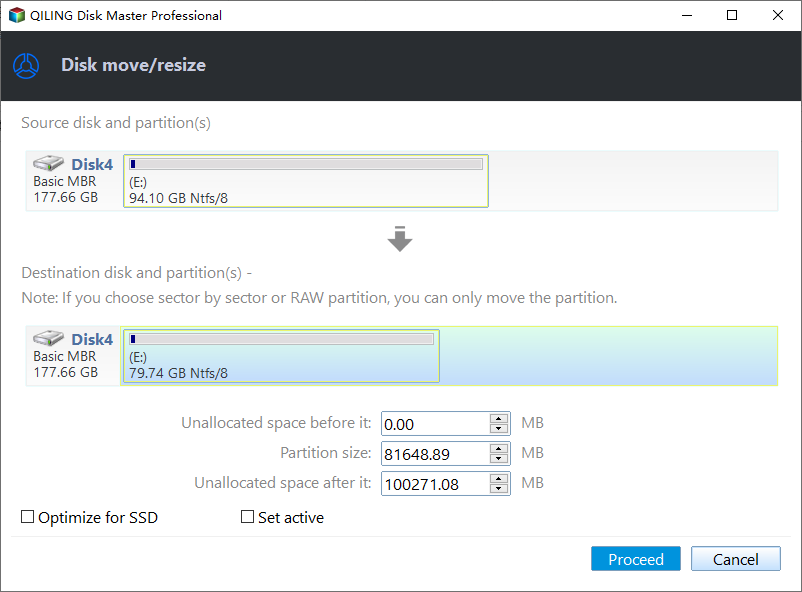
Right-click the Windows volume, choose Resize/Move, and reduce its size by 16 MB from the left side. The unallocated block must sit between the EFI partition and the volume, not at the end of the disk.
Step 3. Move the Volume Right to Place the Gap
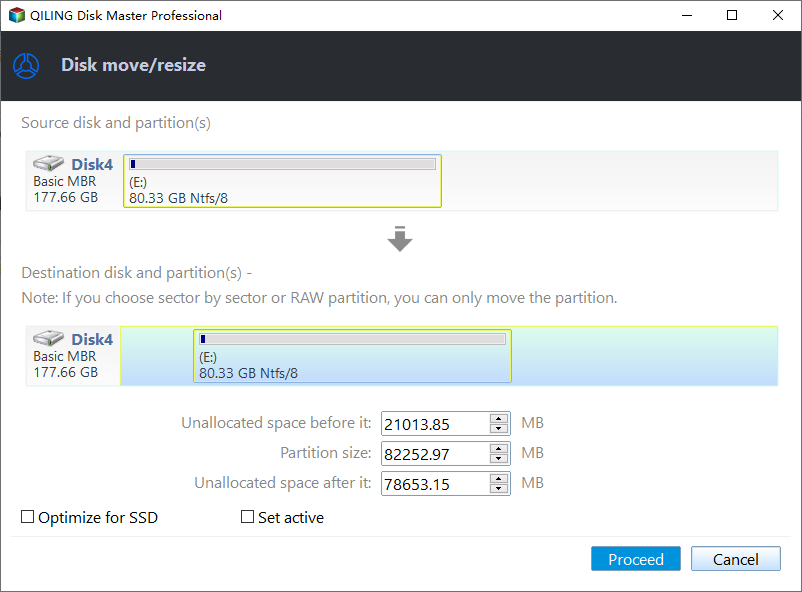
Drag the Windows volume to the right so the free block lands directly after the EFI partition. Keep the size unchanged while moving, and confirm the new starting offset in the task summary before you continue.
Step 4. Preview the Layout and Proceed
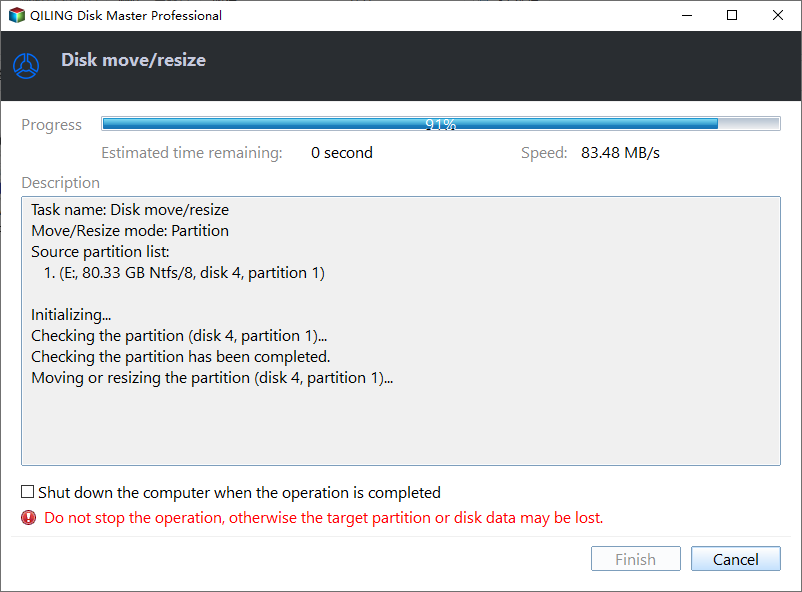
Use Preview to check that EFI, the 16 MB gap, and the Windows volume appear in that order, then click Proceed. The progress window shows each step of the move, and the machine may restart to finish the pending operation.
Once the gap exists, the reserved identifier has to be written into it before the disk behaves normally again. That last step belongs to Windows, and it must be completed before you enable BitLocker or convert the disk. A layout that keeps the gap unassigned is no better than the missing partition.
Frequently Asked Questions
Can I just delete the MSR partition?
Windows normally refuses, and forcing the deletion removes the reservation that encryption and disk conversion depend on. If a tool offers to delete it, decline; the partition costs 16 MB and protects operations you will need later.
Is 16 MB always the right size?
For disks under 16 TB, yes. Larger disks use a bigger reservation, and a disk that was prepared for Storage Spaces may already have one. Check the existing layout before you create a new one, and never create a second reservation on the same disk.
Will the PC still boot without the partition?
Usually yes, because the boot files live on the EFI partition and the loader only needs those. The failures appear later, when BitLocker, dynamic disks, Storage Spaces, or a conversion touches the layout, and by then the cause is much harder to find.
Related Articles
- MBR2GPT Cannot Find OS Partition? Your Fixes Are Here
- GPT Backup Header Corrupt: Repair the Partition Table
- How to Fix "Can't Convert to Dynamic Disk" Error
- BitLocker Partition: How to Partition a BitLocker Drive
- Can't Initialize Disk in Windows: Fix Unknown Disk
Products
Articles & Tutorials
- Data Recovery
- Data Backup
- File Recovery
- File Backup
- System Backup and Restore
- Disk and Partition Clone
- Technical articles
- Mobile articles
- Disk Master Help
- Windows Data Recovery Tutorials
- Windows Secure Delete Tutorials
- Windows Partition Management Tutorials
- Windows File Backup and Restore Tutorials
- Windows System Backup and Restore Tutorials
- Windows Disk Backup and Restore Tutorials
- Windows Clone Tutorials