How to Test M.2 SSD Speed on Windows
M.2 describes the form factor, not the speed. An M.2 SATA SSD and an M.2 NVMe SSD use different interfaces, and even NVMe results vary with the slot, PCIe generation, temperature, available space, and test size.
Identify the Drive and Test Conditions
Find the SSD model in Device Manager > Disk drives or the manufacturer's utility, then check its published interface and your PC's slot specification. A PCIe 4.0 SSD in a PCIe 3.0 slot will run within the slot's limits. A USB enclosure measures the enclosure and USB path as well as the SSD, so do not compare its result directly with an internal NVMe slot.
Before testing, close downloads and other disk-heavy tasks, connect laptop power, allow the SSD to cool, and leave adequate free space. Record drive temperature, test size, and whether Windows was idle. Large repeated write tests consume flash endurance, so one or two controlled runs are better than constant benchmarking.
Measure Speed with a Dedicated Benchmark
Step 1. Obtain a reputable benchmark from its official publisher and verify the installer. Select the physical SSD or intended volume, not a backup drive with the same letter on another PC.
Step 2. Choose a moderate test file size and default sequential and random workloads. Run the test once, wait for all subtests to finish, and record MB/s or IOPS with the exact benchmark settings.
Step 3. Repeat once after the drive cools. Compare like-for-like tests: sequential speeds reflect large transfers, while random read and latency affect small-file responsiveness. A manufacturer headline number usually refers to favorable sequential conditions, not every real-world task.
Step 4. If the result is low, check slot lanes, power mode, firmware, drive fullness, and thermal throttling. Re-test after one change at a time. Do not format a functioning drive merely because one synthetic score is below a marketing maximum.
Check Health Separately in Qiling
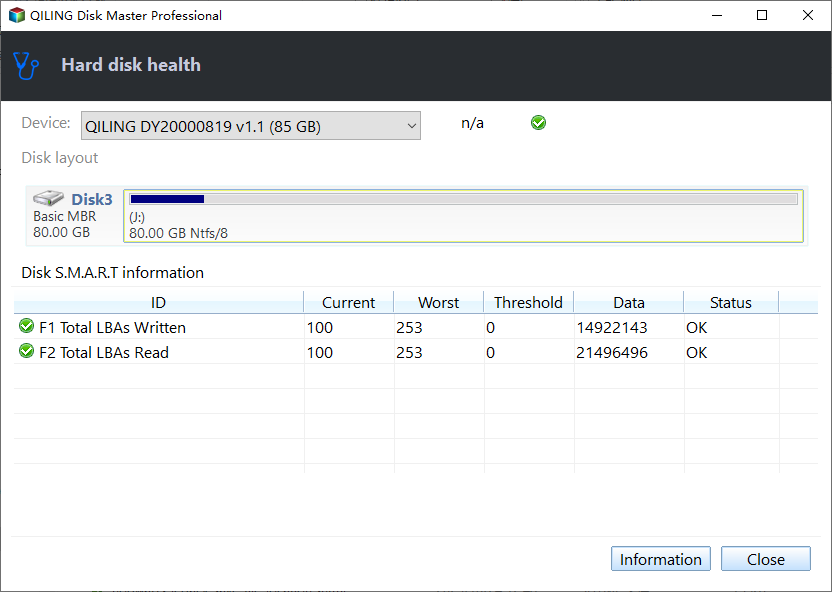
Qiling Disk Master's Disk health page reads available SMART information; it is a health check, not a speed benchmark. Use it to see whether errors or temperature might explain an unexpected result.
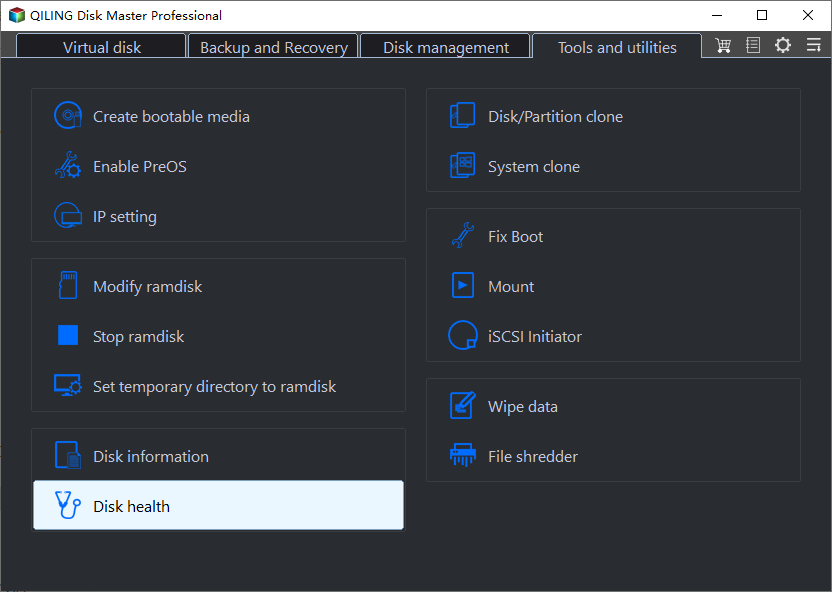
Step 1. Open Tools and utilities > Disk health and choose the M.2 SSD by model and capacity.
Step 2. Read the attributes and device status. Compare with the manufacturer's utility if the interface exposes limited SMART data. Back up immediately if the drive reports media errors or disappears during testing.
Interpret a Slow Result
A slow copy between two drives can be limited by the slower drive or USB port, not the M.2 SSD. Encryption, antivirus scanning, tiny files, and background updates also affect observed speed. If a benchmark is normal but games or Windows feel slow, investigate memory, CPU, network, and application behavior before replacing the SSD.
Conclusion
Identify the interface, run a repeatable benchmark under controlled conditions, and use SMART health as supporting evidence rather than confusing it with throughput.
Related Articles
- Benchmark SSD Performance
Compare sequential and random results. - Disk Speed Test in Windows 11
Understand benchmark methods and limits.
Products
Articles & Tutorials
- Data Recovery
- Data Backup
- File Recovery
- File Backup
- System Backup and Restore
- Disk and Partition Clone
- Technical articles
- Mobile articles
- Disk Master Help
- Windows Data Recovery Tutorials
- Windows Secure Delete Tutorials
- Windows Partition Management Tutorials
- Windows File Backup and Restore Tutorials
- Windows System Backup and Restore Tutorials
- Windows Disk Backup and Restore Tutorials
- Windows Clone Tutorials