Why Is My SSD Slow to Launch Games?
An SSD can be healthy and still take time to launch a game. A launcher may verify files, unpack an update, contact a service, or compile shaders before you see the menu. Diagnose which stage is slow before changing the drive.
Measure the delay
Step 1. Restart Windows and launch the same game twice. A first launch after an update can differ from later launches because caches are rebuilt.
Step 2. Open Task Manager, then watch Disk, CPU, Memory, and Network while launching. Note which resource stays busy during the delay.
Step 3. Check the drive letter where the game is actually installed; a launcher shortcut may point to a different library than expected.
Step 4. Time the launcher, splash screen, main menu, and game world separately. Network sign-in time is not SSD read time.
Check SSD condition and setup
Make sure the game drive has reasonable free space and is not repeatedly disconnecting. Review SMART or vendor health data, drive temperature, and firmware notices. If health warnings appear, back up saves and important files before running intensive benchmarks. A nearly full SSD, overheating NVMe drive, or low-end SSD whose write cache is exhausted may slow installs and updates.
Use Qiling Disk Master Pro for a health check
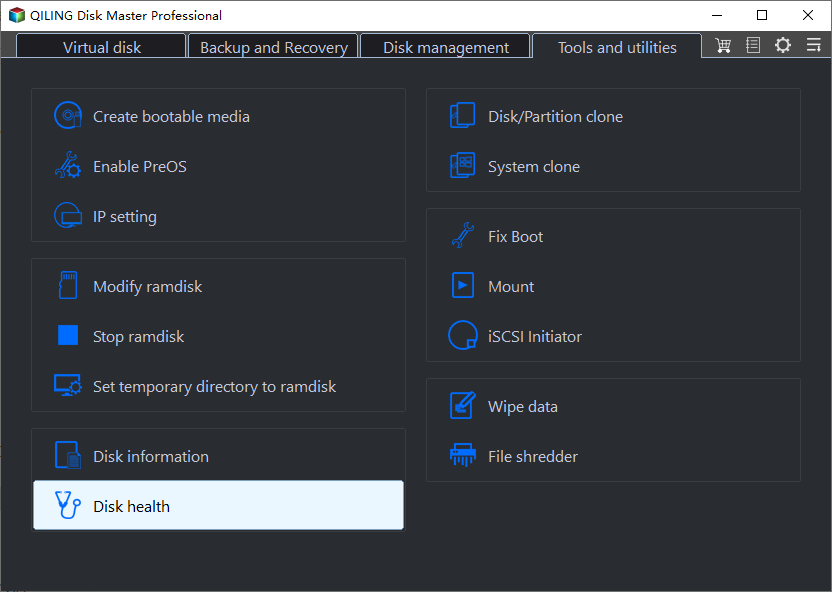
Open Tools and utilities > Disk health in Qiling Disk Master Pro and select the SSD hosting the game. Compare the model and capacity with Task Manager, then review the S.M.A.R.T. data the device exposes. Save your files and plan replacement if the drive reports warnings. This feature checks health indicators; it does not measure game load time, prove TRIM is working, or repair corrupted game files.
Confirm the drive uses the intended slot and interface. An NVMe SSD in a slower slot will not reach the box speed; a USB enclosure may further limit performance. That does not automatically explain every launch delay, so compare the game's actual workload.
Rule out software bottlenecks
Pause other downloads and backup jobs, install game and launcher updates, and verify game-file integrity using the launcher. Check Windows Update and graphics-driver status. If the game is modded, temporarily test without mods after backing up its configuration. Avoid random registry cleaners or disabling security software as a first response.
Apply one change at a time
Free space, repair corrupted files, or move the game through its launcher as indicated by your findings, then retime the same launch path. If a drive-health test fails, replace the SSD; cloning an unstable drive should be approached cautiously and followed by data verification. If disk use stays low while network waits dominate, investigate the launcher or service instead.
Related Articles
- Gaming SSD Speeds
Choose useful SSD performance metrics. - Check Disk Health
Verify condition before stressing the SSD.
Products
Articles & Tutorials
- Data Recovery
- Data Backup
- File Recovery
- File Backup
- System Backup and Restore
- Disk and Partition Clone
- Technical articles
- Mobile articles
- Disk Master Help
- Windows Data Recovery Tutorials
- Windows Secure Delete Tutorials
- Windows Partition Management Tutorials
- Windows File Backup and Restore Tutorials
- Windows System Backup and Restore Tutorials
- Windows Disk Backup and Restore Tutorials
- Windows Clone Tutorials