What Read and Write Speeds Do You Need for a Gaming SSD?
For most Windows games, moving from an HDD to any healthy SSD is the largest storage upgrade. Advertised read and write speeds help compare drives, but they do not directly predict load time or frame rate. Games also spend time decompressing assets, compiling shaders, and contacting servers.
Match the SSD to your game workload
A SATA SSD near the interface's practical ceiling is already responsive for many games. NVMe can improve large transfers and some asset-streaming workloads, but two NVMe models with very different peak sequential ratings may feel similar in ordinary game launches. If you regularly install or move very large games, sustained write speed and available free space also matter.
Choose enough capacity for Windows, updates, games, and a comfortable amount of free space. A nearly full SSD can lose performance, and the advertised capacity is not all available to Windows after formatting. Check endurance and warranty terms alongside speed ratings.
Check the PC before ordering
Step 1. Read the motherboard or laptop manual for an M.2 slot or SATA bay. M.2 describes the connector and form factor; it does not by itself guarantee NVMe support.
Step 2. Check the supported PCIe generation and lane count. A newer SSD normally operates at the speed supported by the slot, not necessarily its box rating.
Step 3. Verify length, thickness, and whether a heatsink fits the enclosure. Laptops may have strict physical-clearance limits.
Step 4. If the slot shares lanes with another port, consult the motherboard manual before moving drives.
Compare drives fairly
Look at independent tests for random access, sustained writes after the cache fills, and thermal behavior. A drive that benchmarks well for a few seconds may slow during a large install. Compare at the same capacity because lower-capacity versions can perform differently. A game update can also be CPU-limited or network-limited, so an SSD rating alone will not fix every delay.
Move games or Windows safely
Use the launcher’s move or verify function when moving only games. If replacing the Windows drive, make a backup and use a system clone that includes boot partitions. Verify the source and target models, review the destination layout, click Proceed, and test booting from the new SSD before erasing the old drive. Keep at least one separate copy of important saves, including those not synchronized to a cloud account.
Where Qiling Disk Master Pro fits
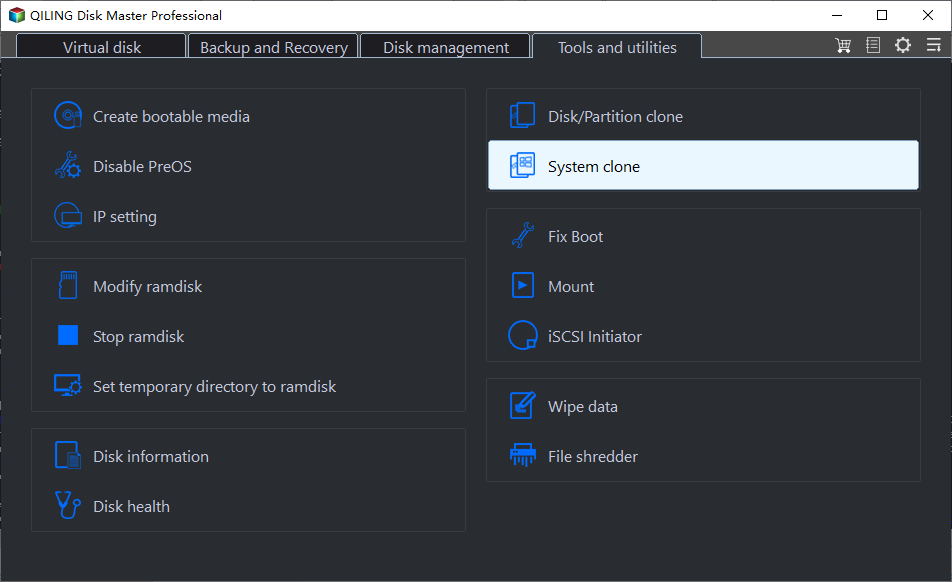
Qiling Disk Master Pro's System clone is relevant when the gaming SSD is replacing the Windows drive; its Disk/Partition clone option is for copying a selected disk or partition. In either case, identify the source and destination by model and capacity, inspect the preview, and keep the original untouched until the new disk boots and the games open. For a game library alone, the launcher's built-in move function is usually simpler than cloning a disk.
Related Articles
- SSD Speed for Gaming
Put storage speed in context for game performance. - HDD vs SSD Speed
Compare physical and solid-state storage.
Products
Articles & Tutorials
- Data Recovery
- Data Backup
- File Recovery
- File Backup
- System Backup and Restore
- Disk and Partition Clone
- Technical articles
- Mobile articles
- Disk Master Help
- Windows Data Recovery Tutorials
- Windows Secure Delete Tutorials
- Windows Partition Management Tutorials
- Windows File Backup and Restore Tutorials
- Windows System Backup and Restore Tutorials
- Windows Disk Backup and Restore Tutorials
- Windows Clone Tutorials