Why Is My NVMe SSD Not Running at Full Speed?
An advertised NVMe speed is usually a peak sequential result under defined test conditions. Real file copies involve a source drive, file sizes, cache behavior, and heat. Before treating a lower number as a fault, confirm that your PC can supply the SSD's rated PCIe generation and lane count.
Check slot and link compatibility
Step 1. Identify the exact SSD model and its rated interface from the manufacturer's specification.
Step 2. Read the motherboard or laptop manual for the installed M.2 slot's PCIe generation and lane count. A PCIe 4.0 drive in a PCIe 3.0 slot operates at the slot's limit.
Step 3. Check whether populating other M.2 or SATA ports changes lane allocation. Move the drive only after shutting down and following the hardware service instructions.
Step 4. Confirm that the drive is detected consistently and is not connected through a slower USB bridge for the test.
Make the speed test meaningful
Use a trusted benchmark with the same queue depth and test size as the figure being compared, but avoid repeated stress tests on a failing drive. A copy between two drives cannot exceed the slower endpoint. Many small files also transfer more slowly than one large contiguous file. If a benchmark uses a short test, it may fit entirely within a fast cache and overstate sustained write speed.
Check heat, space, and power
Review SSD temperature under load with a vendor tool. Thermal throttling can reduce speed after a test runs for a while. Ensure the intended heatsink fits and has proper contact; do not force a thick heatsink under a laptop cover. Leave enough free space for normal operation and review Windows power mode when testing a laptop on battery.
Update carefully
Install chipset and storage drivers from the PC or motherboard vendor when appropriate. Read firmware release notes and make a backup before firmware updates. Do not change BIOS storage mode simply to improve a benchmark; an unsupported switch can make Windows unbootable.
Check drive condition with Qiling Disk Master Pro
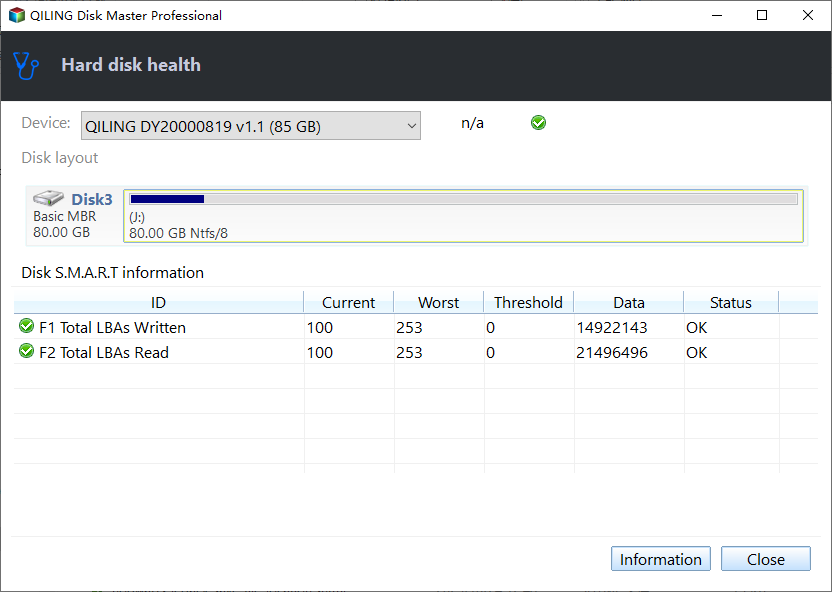
Before repeating a stressful speed test, open Tools and utilities > Disk health in Qiling Disk Master Pro. Select the NVMe SSD by model and capacity and inspect the available S.M.A.R.T. status. If it reports a warning, back up data first. The health view cannot tell you the PCIe link generation, lane count, or sustained benchmark speed; use the motherboard specifications and controlled tests for those questions.
Decide whether the gap matters
If the link speed matches the hardware and the drive is healthy, lower game-loading improvement than the box rating suggests can be normal. Focus on actual workload times and stability. If read speed abruptly collapses or errors appear, protect the data first and then investigate the drive or slot.
Related Articles
- Gaming SSD Speed
Put peak ratings in context. - Check Disk Health
Look for warnings before repeated tests.
Products
Articles & Tutorials
- Data Recovery
- Data Backup
- File Recovery
- File Backup
- System Backup and Restore
- Disk and Partition Clone
- Technical articles
- Mobile articles
- Disk Master Help
- Windows Data Recovery Tutorials
- Windows Secure Delete Tutorials
- Windows Partition Management Tutorials
- Windows File Backup and Restore Tutorials
- Windows System Backup and Restore Tutorials
- Windows Disk Backup and Restore Tutorials
- Windows Clone Tutorials