Write-Protected USB Format Tool: What to Do First
A USB drive can be read-only because of a physical lock, Windows policy, a device setting, or failing flash memory. A format tool cannot override every cause. If the files matter, copy readable data or recover it before changing read-only settings. Formatting erases the selected volume.
Check the USB device before using software
Look for a physical lock switch on the drive or adapter. Try another port and check the device's displayed capacity in Disk Management. Confirm the files are backed up to a different disk. If the drive reports zero capacity, disconnects repeatedly, or becomes read-only again after every reconnect, the flash controller may be failing. Replace the device rather than relying on it for storage.
Remove a software read-only flag with Qiling
Qiling Disk Master offers Remove disk readonly for a disk-level flag. A volume-level flag can be a separate setting. The following screenshot shows a removable example disk; select your actual USB device by capacity and model.
Step 1. Open Disk management and identify the USB disk, not the internal Windows disk.
Step 2. Right-click the USB disk, open Advanced, and choose Remove disk readonly. Read any prompt and confirm the selected disk.
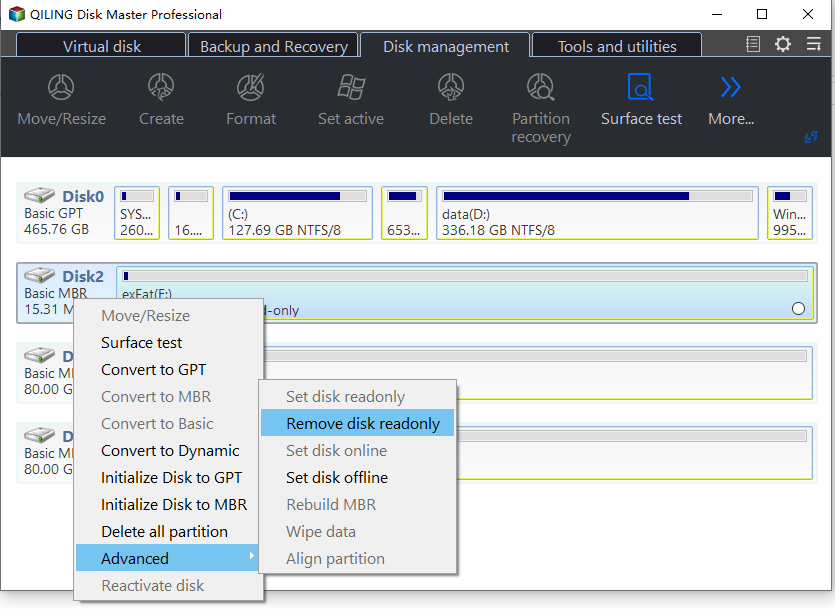
Step 3. Unplug and reconnect if the tool requests it, then test whether Windows can create a small file. If the device is still protected, stop before formatting; the flag may not be the cause.
Format the verified USB partition
Only proceed after a verified backup or when you no longer need the files. Check the USB disk number and partition size again because formatting the wrong partition permanently removes its contents.
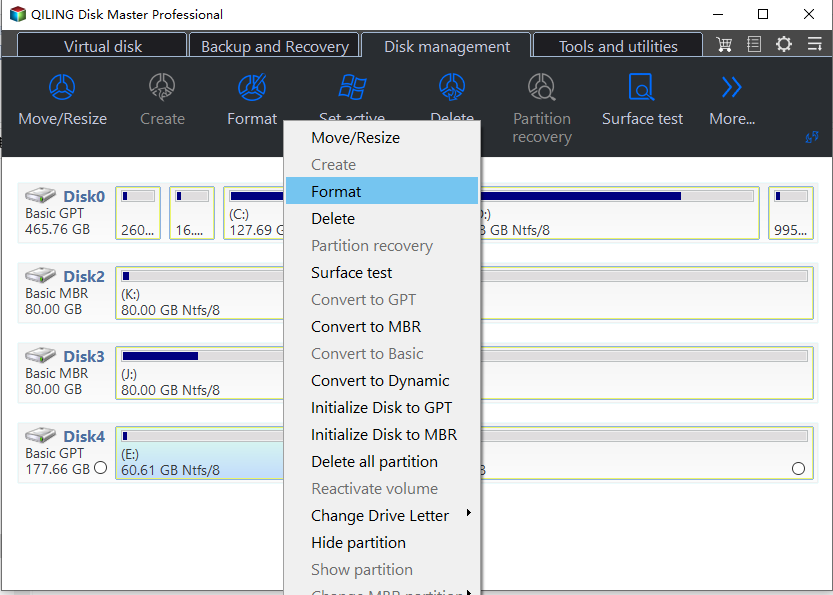
Step 1. Select the intended USB partition in Qiling Disk management and choose Format.
Step 2. Choose a suitable file system, such as exFAT for broad removable-drive use, and enter a label if desired. Review the capacity and disk number before confirming.
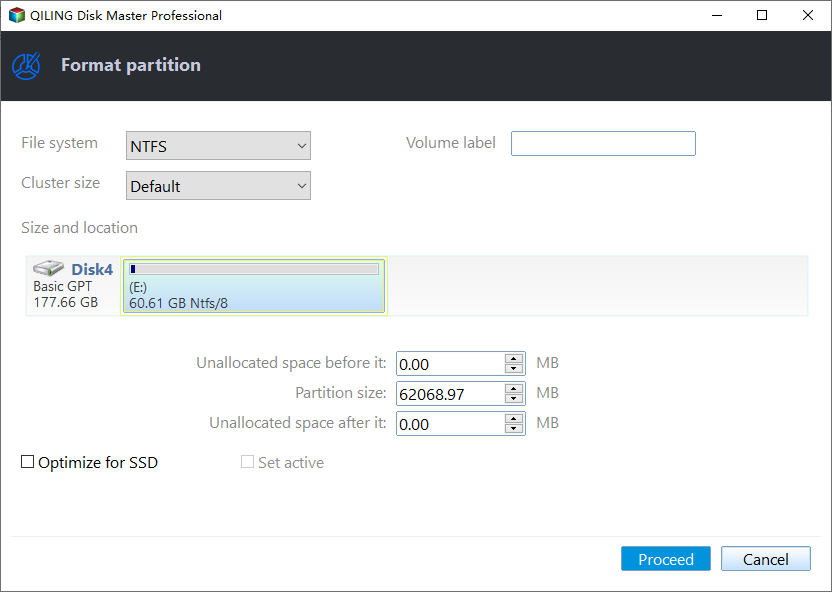
Step 3. Confirm the data-loss warning and wait for completion. Do not unplug the drive during the operation.
If the drive returns to read-only mode
Do not repeat formats indefinitely. A persistent or recurring read-only state can indicate worn flash memory or a controller fault. Save any remaining readable files and replace the device. For other format symptoms, see the Windows 11 USB format overview.
Related Articles
- Recover a Formatted USB Drive
Try recovery before reusing a mistakenly formatted stick.
Products
Articles & Tutorials
- Data Recovery
- Data Backup
- File Recovery
- File Backup
- System Backup and Restore
- Disk and Partition Clone
- Technical articles
- Mobile articles
- Disk Master Help
- Windows Data Recovery Tutorials
- Windows Secure Delete Tutorials
- Windows Partition Management Tutorials
- Windows File Backup and Restore Tutorials
- Windows System Backup and Restore Tutorials
- Windows Disk Backup and Restore Tutorials
- Windows Clone Tutorials