D Drive Shows Empty After Windows 11 26H2: What to Check
Quick Navigation:
- Three Reasons a Drive Looks Empty
- Prove the Data Is Still on Disk
- Stop Writing and Scan Read-Only
- Recover with Qiling Deep Data Recovery
- Frequently Asked Questions
A D drive that still reports the same capacity but shows no folders after the 26H2 upgrade is alarming, and it is rarely the end of the data. The upgrade rebuilds the mount manager and re-enumerates every storage device, so a volume can come back under another letter, without a letter, or behind a changed permission. What you do in the next hour decides how much can be recovered.
Three Reasons a Drive Looks Empty
The first cause is a letter that moved. D can be reassigned to a different partition during the upgrade, and the volume that held your files returns without a letter or under a later one, so the D you open belongs to something else.
The second cause is a hidden or offline volume. The partition is present with its file system intact, but Windows does not mount it, and Explorer shows an empty drive or none at all until the volume is brought back online.
The third cause is permissions. When the access control entries no longer match your account, folders can appear as empty or refuse to open, even though the files never moved.
None of these three cases deletes anything. That matters, because the recovery path is very different from the one for a partition that was actually removed during the upgrade.
Prove the Data Is Still on Disk
Open Disk Management and compare capacities. A volume with the original size, the NTFS label, and a used-space figure that matches your files is the volume that holds the data, whether or not it currently carries the letter D.
If that volume shows as Healthy and partly full, stop treating the incident as data loss and treat it as a mount problem instead. If it shows as RAW, or the space appears unallocated, the file system is no longer readable and a scan is the next step.
Disk Management is a Windows tool, not a feature of Qiling Deep Data Recovery. It is safe to look at the state of the volume, and unsafe to accept any prompt that offers to format the disk or initialize it.
Stop Writing and Scan Read-Only
Do not format D to make it usable again. A format writes a new file system over the old records and removes exactly the information a scan needs to rebuild the folder tree.
Do not copy new files to the affected volume and do not let a backup job write to it. Leave the disk connected but idle, because every write, including a repair pass, can land on the sectors that still describe your files.
If the volume mounts with its old letter and the folders return, copy the important ones to another disk at once and investigate afterwards. If it mounts and stays empty, remove the letter so nothing can write to it by accident.
Recover with Qiling Deep Data Recovery
Qiling Deep Data Recovery reads the partition below the file system, so it can list files from a volume that Windows shows as empty, RAW, or without a letter. Preview each file before saving, because a preview that renders is proof that the content survived the upgrade.
This is the same situation as a drive that shows empty after 26H2, with one addition: a data drive usually holds personal files rather than system files, so the order in which you save them matters more than the volume itself.
Step 1. Choose the Recovery Mode
Use Fast Scan when the volume mounts but appears empty, because the file records are probably intact. Use Format Scan when Disk Management reports RAW or shows only unallocated space.
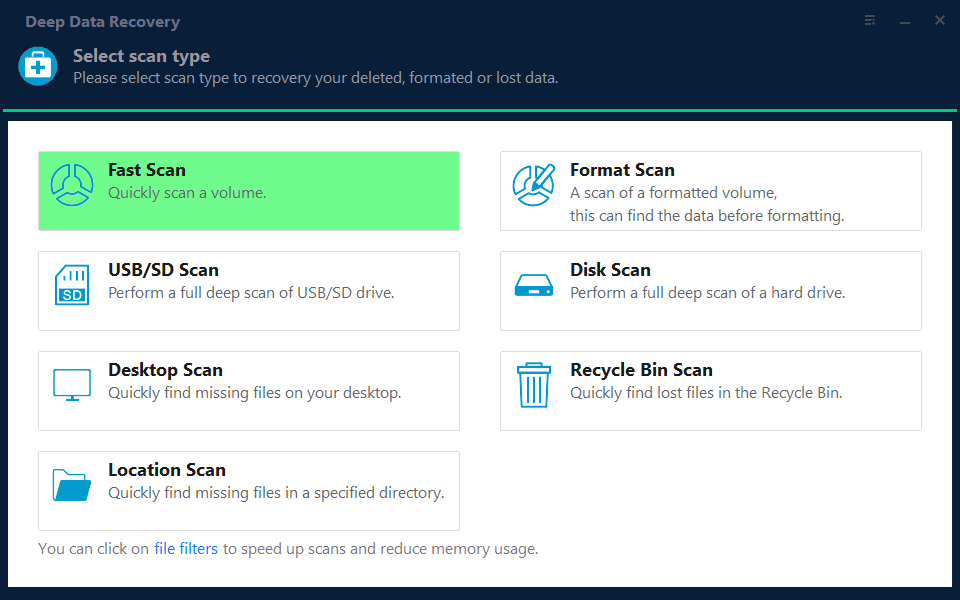
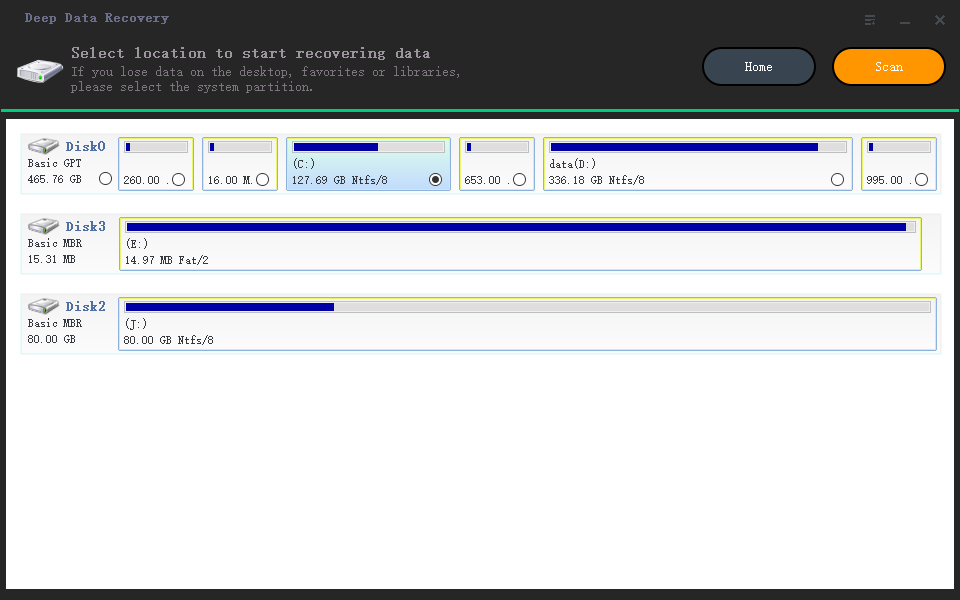
Step 2. Select the Affected Disk
Pick the disk by capacity and model rather than by letter, since the letter may now point at another device. Do not select the disk that will receive the recovered files.
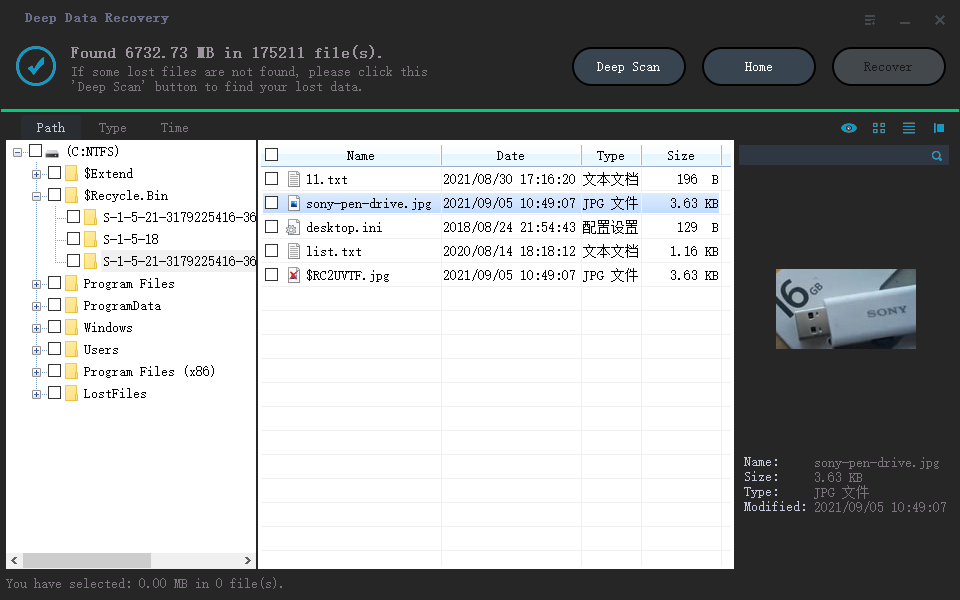
Step 3. Review the Scan Results
Sort by date and look for the folders you remember. Open a few previews from different file types before selecting anything, so the batch you save is known to be readable.
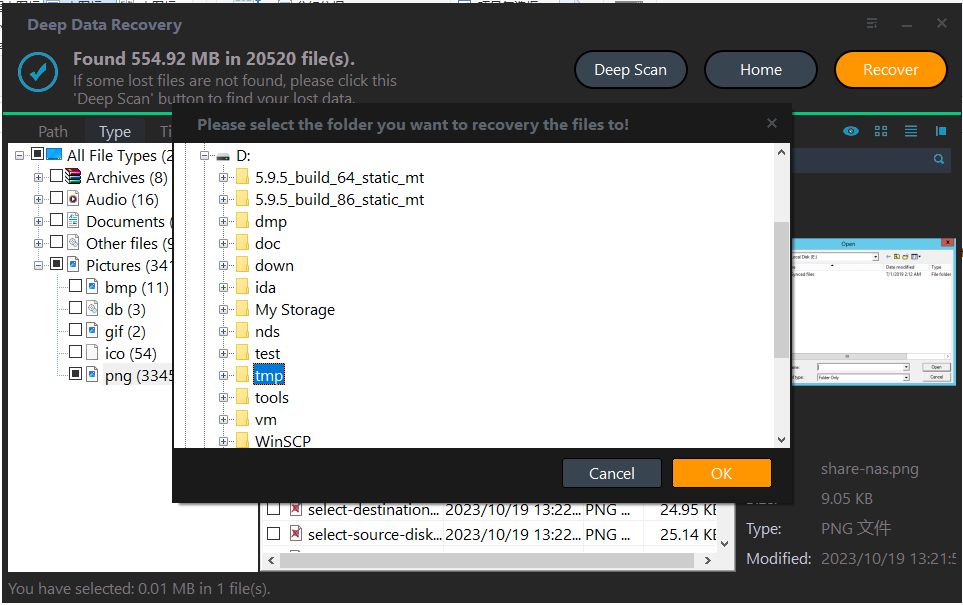
Step 4. Save to Another Disk
Write the results to a disk that is not part of the problem. After everything is saved elsewhere, decide whether to rebuild the volume or copy the files back into a clean one.
Frequently Asked Questions
The capacity is right but every folder is gone. Was the drive formatted?
Not necessarily. Capacity comes from the partition table, which can survive while the mount or the permission is wrong. A scan shows whether the file records are still present, and that answer decides the next step.
Will a system restore bring the D drive back?
No. System restore covers system files and settings, not user data on a separate volume. Relying on it wastes the hour in which the disk should have been left untouched.
Should I run a repair on the volume?
Not before the data is saved. Repairs write to the volume and can remove records that the scan would otherwise find. Save first, then repair only if you still want to keep the volume.
Related Articles
- Windows 11 26H2: Drive Shows Empty After Update
- Recover a RAW Partition Back to NTFS Without Data Loss
- How to Recover Files from a Formatted Hard Drive
- How to Undelete a Partition in Windows
- How to Recover a Partition on a USB Drive
Products
Articles & Tutorials
- Data Recovery
- Data Backup
- File Recovery
- File Backup
- System Backup and Restore
- Disk and Partition Clone
- Technical articles
- Mobile articles
- Disk Master Help
- Windows Data Recovery Tutorials
- Windows Secure Delete Tutorials
- Windows Partition Management Tutorials
- Windows File Backup and Restore Tutorials
- Windows System Backup and Restore Tutorials
- Windows Disk Backup and Restore Tutorials
- Windows Clone Tutorials