Windows 11 26H2: Drive Shows Empty After Update
Quick Navigation:
- What the Update Can Change
- Read Disk Management Before Touching Anything
- Restore the Letter or Take the Safer Path
- Scan the Volume With Qiling Deep Data Recovery
- Frequently Asked Questions
A data drive that reports almost all of its capacity as free after an update is one of the more alarming symptoms of a feature upgrade. In most cases nothing has been deleted: the volume was remounted under another letter, the original volume is still present but offline, or the letter now points at a different, nearly empty partition.
What the Update Can Change
A feature upgrade rewrites the storage stack, re-enumerates devices, and rebuilds the mount manager database. A volume that used to take a particular letter can lose it, and the letter can be handed to a different volume during the same boot.
The second pattern is an offline volume. The disk is detected, the partition table is intact, but the volume is not mounted, so Explorer shows nothing under that letter while Disk Management shows the volume without a drive letter.
The third pattern is the dangerous one: a partition was actually removed or replaced during the upgrade or by a cleanup pass. Even then, the data area is usually still on the disk and recoverable, as long as nothing new is written to it.
Read Disk Management Before Touching Anything
Right-click Start and open Disk Management. Compare the capacity of every volume with what you remember. A volume of the right size with no letter is your data, and the letter that shows an empty drive belongs to something else.
Decline any prompt to initialise the disk. Initialising writes a new partition table and removes the last pointer to the old file system.
If the volume is present but marked RAW, or if the disk is unallocated, stop treating it as a letter problem. That is the case for a scan rather than for reassigning a letter.
Restore the Letter or Take the Safer Path
Assign the correct letter again and open the volume. If the folders appear, the incident is closed and you can take a backup at once.
If the volume mounts but is empty, or returns an error when opened, remove the letter and leave the volume alone. Every write, including a check or a repair, reduces what a scan can find.
Do not format the volume to make it usable again. A format is the one action that turns a recoverable situation into an unrecoverable one.
Scan the Volume With Qiling Deep Data Recovery
Qiling Deep Data Recovery reads the partition at the level below the file system, so it can list files from a volume that Windows shows as RAW, unallocated, or empty.
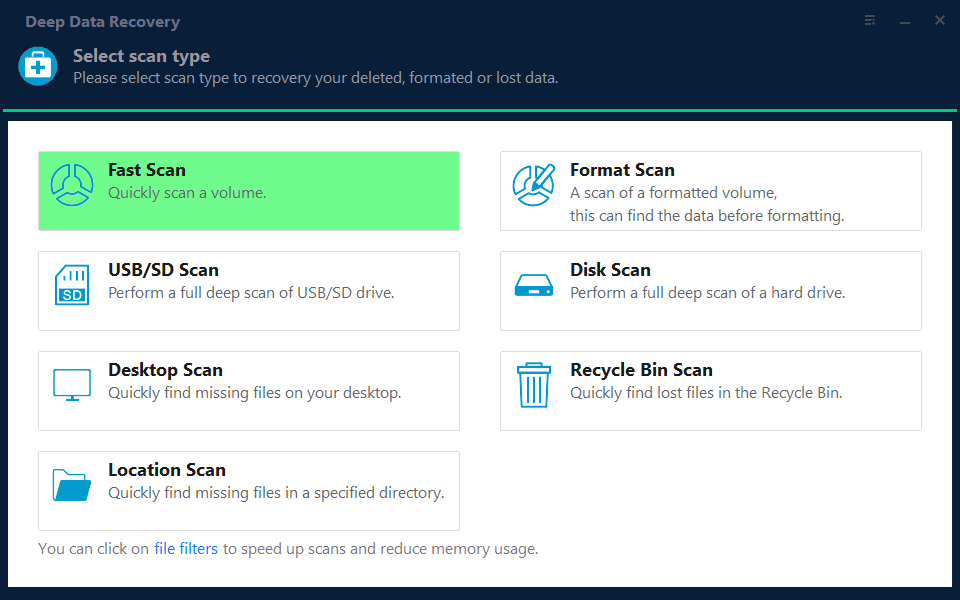
Step 1. Choose the Recovery Mode
Use Fast Scan when the volume still mounts but appears empty, and Format Scan when Disk Management reports the volume as RAW or shows only unallocated space.
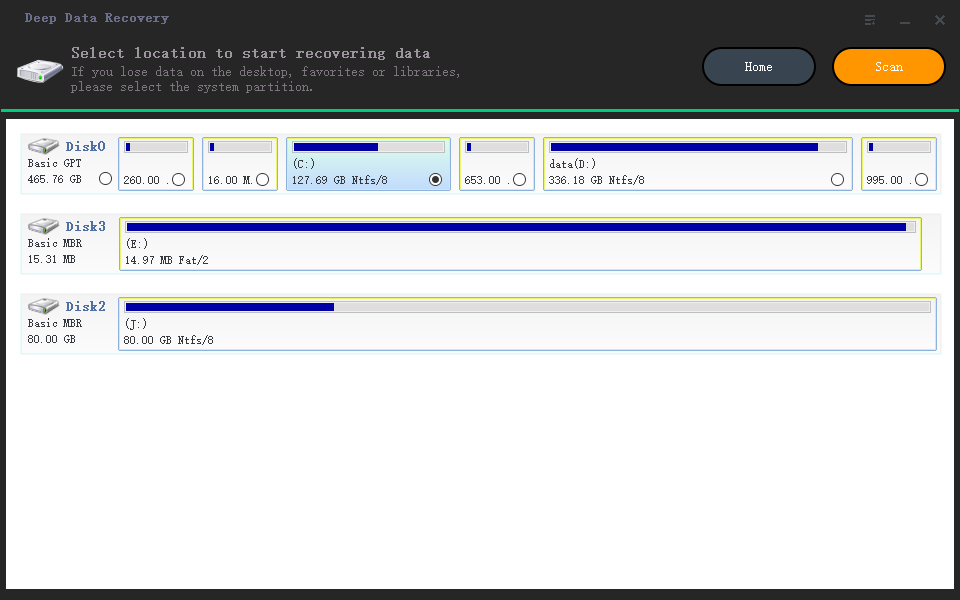
Step 2. Select the Disk
Pick the disk by capacity and position. Do not select the disk that will receive the recovered files, and confirm the model when two similar drives are fitted.
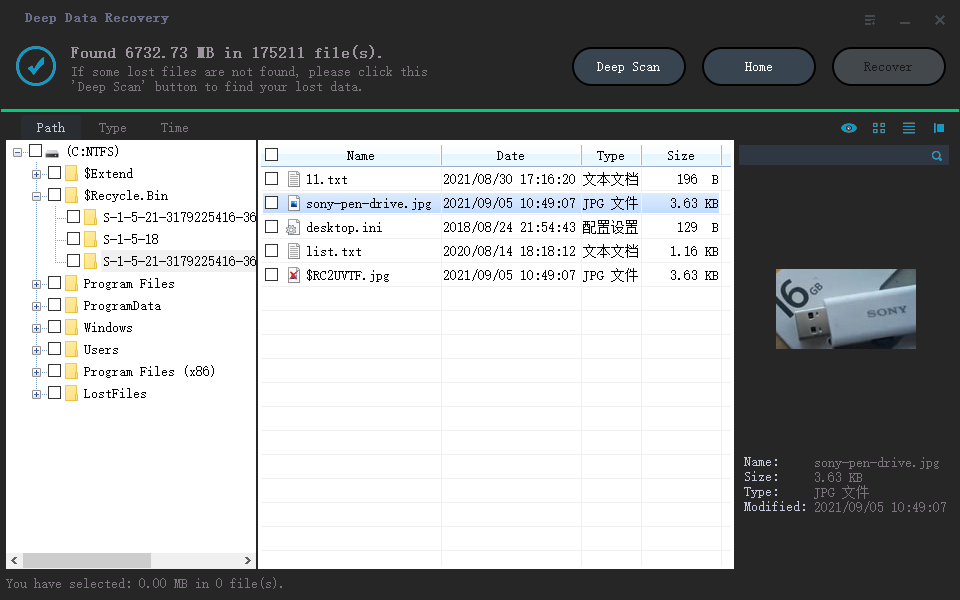
Step 3. Review the Scan Results
Switch to folder view and look for the original top-level folders. A folder tree that returns intact is the clearest sign that the file system survived the upgrade.
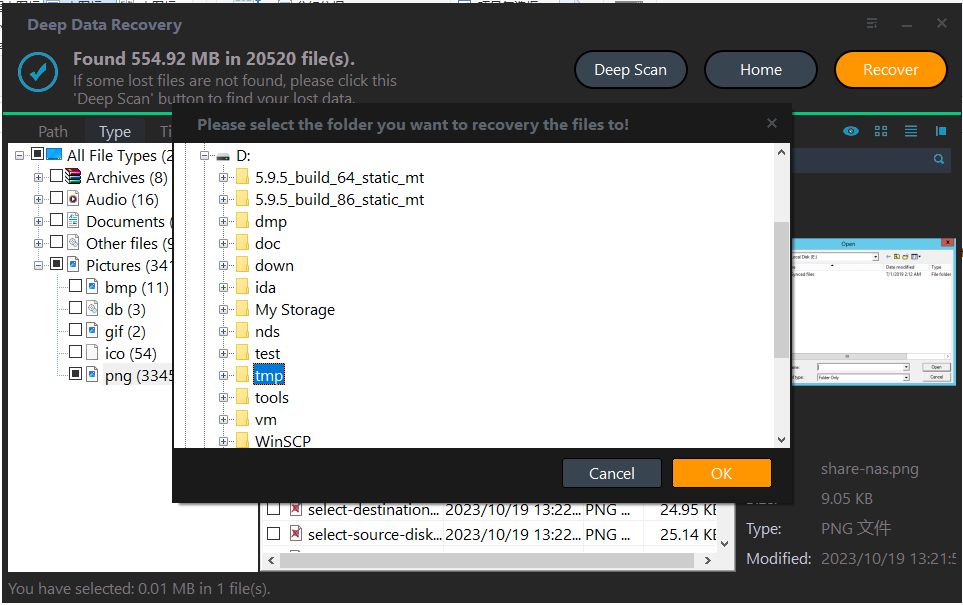
Step 4. Save to a Different Disk
Write the results to another disk, then decide whether to rebuild the volume or copy the data back after a clean format.
Frequently Asked Questions
Did the update delete my files?
Usually not. Most cases are a lost drive letter or an offline volume. Confirm in Disk Management before you assume deletion.
Why does the drive show 266 GB free of 267 GB?
That is a nearly empty volume. Either it is a different partition that inherited the letter, or the file system is no longer being read.
Should I initialise the disk when Windows asks?
No. Initialising destroys the existing partition table. Recover the data first and rebuild the layout afterwards.
Can a rollback bring the drive back?
A rollback restores the previous installation and its mounts, which can restore letters. It does not restore a deleted partition, so check the volume state first.
For a related case where a mounted image has no letter at all, see 26H2 ISO mounts without a drive letter.
Related Articles
- Windows 11 26H2 ISO Mount Leaves No Drive Letter
- Drive Letter Conflict After a Windows 11 Update
- Recover Files After a Failed 26H2 Upgrade
- Disk Offline Because of the SAN Policy
- Perform a RAW Drive Recovery
Products
Articles & Tutorials
- Data Recovery
- Data Backup
- File Recovery
- File Backup
- System Backup and Restore
- Disk and Partition Clone
- Technical articles
- Mobile articles
- Disk Master Help
- Windows Data Recovery Tutorials
- Windows Secure Delete Tutorials
- Windows Partition Management Tutorials
- Windows File Backup and Restore Tutorials
- Windows System Backup and Restore Tutorials
- Windows Disk Backup and Restore Tutorials
- Windows Clone Tutorials