Disk Offline Because of the SAN Policy
Quick Navigation:
- Why Windows Takes a Disk Offline
- Bring the Disk Online Without Initialising
- Stop the Policy From Taking Disks Offline
- Scan the Volume if Files Are Still Missing
- Frequently Asked Questions
A disk that shows as offline in Disk Management is not damaged. Windows applies a storage area network policy that decides whether a newly detected disk should be mounted automatically, and that policy is designed for servers that share disks between machines. On a desktop it can leave an external drive sitting offline with its data untouched.
Why Windows Takes a Disk Offline
The policy has three settings. One brings every new disk online, one brings only non shared disks online, and one leaves every new disk offline until an administrator mounts it. The middle setting is intended to protect a cluster from mounting a disk that another node already owns.
When the policy leaves a disk offline, the volume on it stays intact and simply has no path. Nothing is written, nothing is formatted, and the disk resumes normally once it is brought online.
A second cause looks similar: two disks with the same identifier, usually after a clone or a restored image, are kept offline to avoid a signature collision. That state is also reversible.
Bring the Disk Online Without Initialising
Open Disk Management and read the status of the disk, not of the volume. The disk is marked offline, and the volume beside it shows the correct file system and size, which is the proof that the data is still there.
Right-click the disk label on the left and choose Online. The volume should receive its letter at once. Do not accept any prompt that offers to initialise the disk; that option writes a new partition table.
If the disk comes online but stays read-only, the write protection is a separate attribute. It can be cleared from the disk management tool that ships with Windows, and that tool is a system utility rather than part of this software.
Stop the Policy From Taking Disks Offline
Check the current policy before changing it, and record the old value so it can be restored if the machine later joins a cluster.
Setting the policy so that all disks come online is a one-line command in the same built-in disk tool. It applies from the next disk detection onwards, not to disks that are already offline.
On a machine that really does share disks with another host, keep the restrictive policy and bring disks online manually. Convenience is not worth a corrupted shared volume.
Scan the Volume if Files Are Still Missing
Bringing a disk online does not repair a volume that was already damaged before it went offline. If the volume mounts but folders are missing, Qiling Deep Data Recovery can scan it as an ordinary disk.
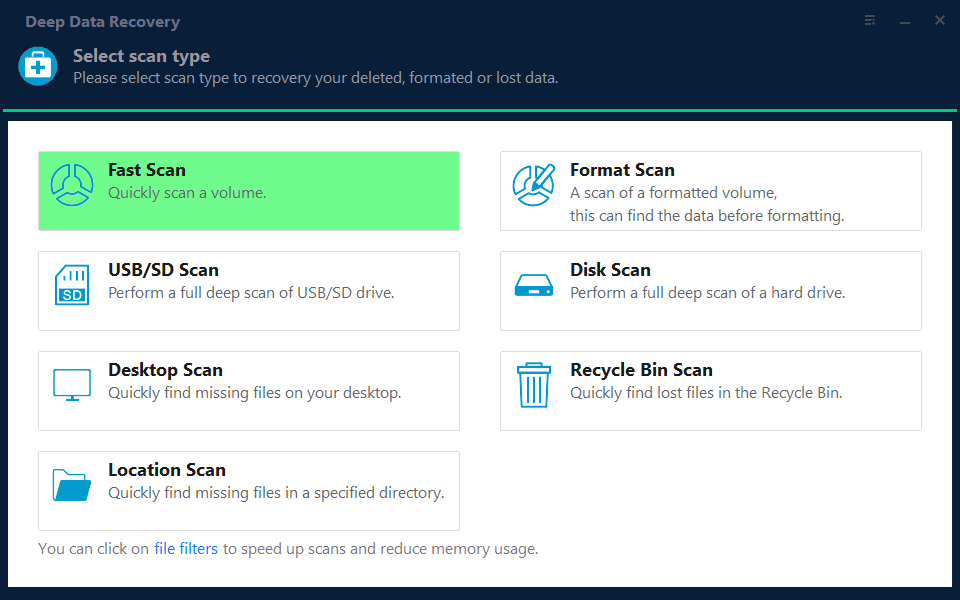
Step 1. Choose the Recovery Mode
Use Fast Scan for a mounted volume with missing files, and Format Scan when the volume shows as RAW.
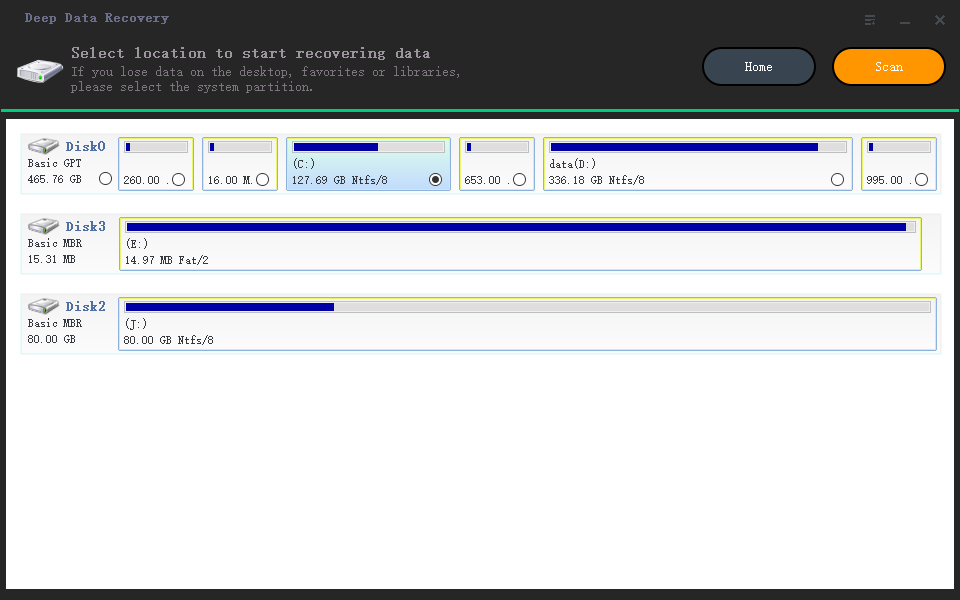
Step 2. Select the External Disk
Confirm that the disk is online and shows its correct capacity before you scan. A disk that is still offline cannot be read.
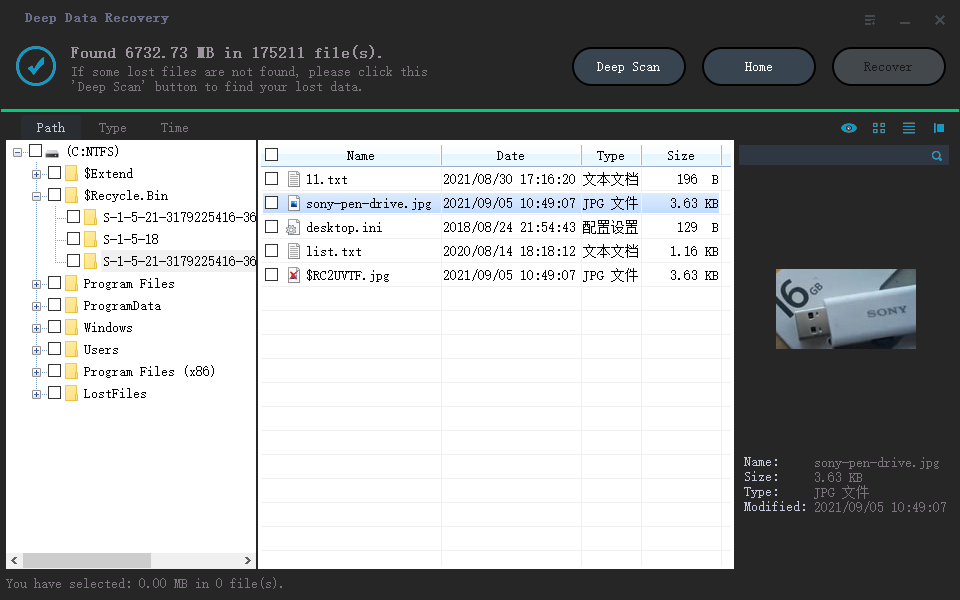
Step 3. Review the Results
Preview files before selecting them, and sort by date to find what changed around the time the disk went offline.
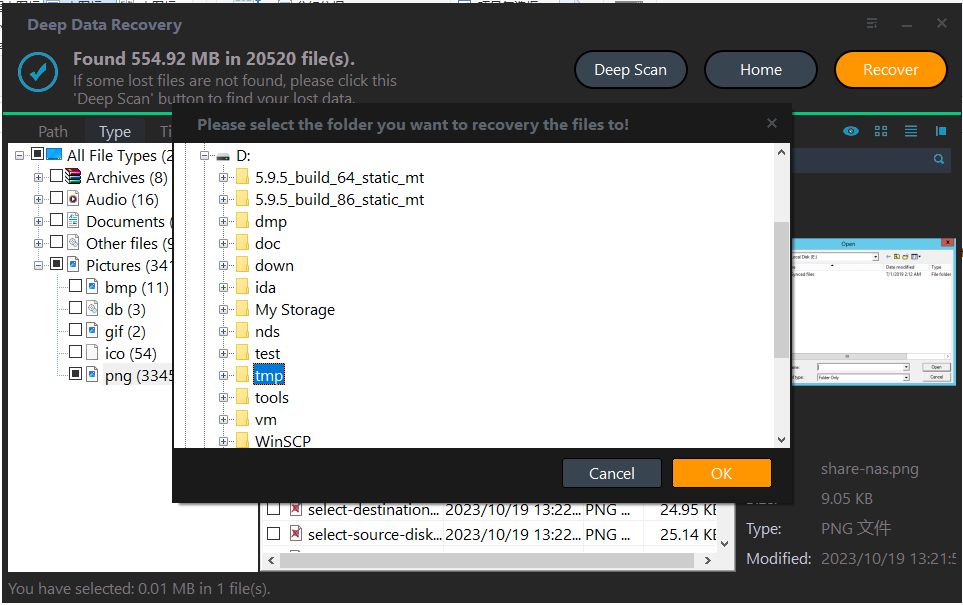
Step 4. Save to the Internal Disk
Write the results to the internal disk. Saving to the same external disk risks a second interruption on a connection that has already failed once.
Frequently Asked Questions
Does an offline disk lose its data?
No. Offline is a mount state, not a storage state. The volume and its files are untouched until something writes to the disk.
Why does Windows offer to initialise the disk?
Because it cannot read a valid partition table, which happens when the disk is offline or when the table is damaged. Decline the prompt and bring the disk online first.
Will the policy change affect other disks?
It applies to disks detected after the change. Existing disks keep their current state until they are redetected.
Can a signature collision be fixed?
Yes. Bring the duplicate online, then change the disk identifier or the volume letter so that the two are no longer confused.
For the related case of a volume without a letter rather than an offline disk, see a mounted image with no drive letter.
Related Articles
- All Options Grayed Out in Disk Management
- Cannot Initialize Disk
- Perform a RAW Drive Recovery
- External Hard Drive Disconnects During Copy
- Drive Letter Conflict After a Windows 11 Update
Products
Articles & Tutorials
- Data Recovery
- Data Backup
- File Recovery
- File Backup
- System Backup and Restore
- Disk and Partition Clone
- Technical articles
- Mobile articles
- Disk Master Help
- Windows Data Recovery Tutorials
- Windows Secure Delete Tutorials
- Windows Partition Management Tutorials
- Windows File Backup and Restore Tutorials
- Windows System Backup and Restore Tutorials
- Windows Disk Backup and Restore Tutorials
- Windows Clone Tutorials