Drive Letter Conflict After a Windows 11 Update
Quick Navigation:
- How the Conflict Shows Up
- Find the Two Volumes Fighting for One Letter
- Reassign and Keep It Stable
- Change Letters with Qiling Disk Master
- Frequently Asked Questions
After a feature update, one of your drives can appear to have changed its contents overnight. The disk is fine; two volumes are competing for the same letter, and Windows shows whichever one claimed it during boot. Updates rescan storage, rebuild the mount manager database, and sometimes reorder which volume is mounted first.
How the Conflict Shows Up
The usual symptom is a data disk that suddenly shows the contents of a USB stick, or a folder that opens with the wrong volume name. A second pattern is a drive that disappears entirely because the letter it wants is already mapped to a network share.
Windows does not allow two volumes to hold the same letter at the same moment. It resolves the clash silently by leaving one volume without a letter, which makes it invisible in Explorer while it remains healthy in Disk Management.
Updates are not the only trigger. Reconnecting a dock, adding an SD card reader, or restoring an image can produce the same result. What the update changes is the order in which those devices are enumerated.
Find the Two Volumes Fighting for One Letter
Open Disk Management and read the volume list from top to bottom. An entry with the expected letter but the wrong size is the winner, and an entry further down with no letter is the volume that lost.
Compare capacities and labels with what you know about the machine. A 32 GB volume where a 2 TB disk should be is the clearest sign, and it prevents you from reassigning the wrong device.
Check the network connections as well. A mapped share holds its letter even while disconnected, and it will win against a local disk at every boot until you unmap it.
Reassign and Keep It Stable
Give the local disk a letter that nothing else uses, ideally far from the letters assigned to removable devices. Right-click the volume, choose Change Drive Letter and Paths, and pick an unused letter.
For the device that keeps stealing the letter, assign a fixed letter at the lower end of the range, or leave it without a letter if it holds no data you open directly.
Restart once and confirm that both volumes keep their new letters. Assignments are stored in the mount manager database, and a change that does not survive a restart was not written.
Change Letters with Qiling Disk Master
Qiling Disk Master lists every disk and volume on one screen, with the letter, label, file system, and capacity of each volume shown in the same row. A clash is visible at a glance, and the new letter is applied as soon as you confirm it.
Step 1. Check the Letters on the Disk Map
Open the program and compare each volume with what Disk Management reports. The volume that shows the wrong contents, or the one with no letter at all, is the volume that lost the clash.

Step 2. Choose Change Drive Letter
Select the volume that lost the clash, open the More menu, and choose Change Drive Letter. The same command is available when you right-click the volume.
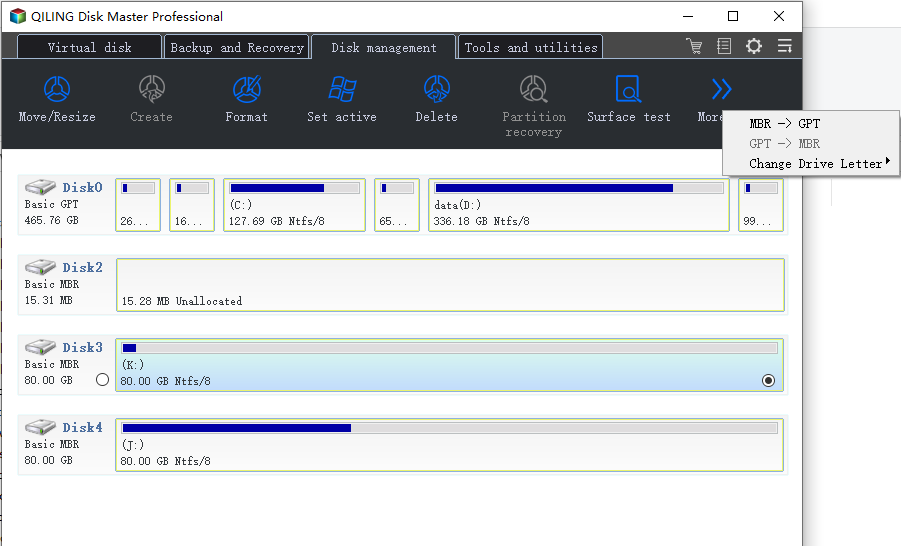
Step 3. Pick a New Letter and Confirm
Select a free letter from the list and click OK. The new letter is applied immediately, with no separate apply step to run. Keep it well away from the letters your USB drives and card readers take, so the same collision does not return at the next restart. Then reopen Explorer and confirm that the volume shows its own contents again.
Frequently Asked Questions
Did the update delete the files on my disk?
Almost certainly not. The disk is intact and only its letter changed. Check Disk Management before you run any recovery tool against it.
Can Windows assign the same letter to two volumes?
Not at the same time. It leaves one volume without a letter, which is why the drive seems to vanish rather than show an error.
Why does a mapped share win against a local disk?
A persistent mapping is restored early in the boot process, sometimes before the local disk is mounted. Unmapping the share removes the competition.
Do letters survive a reinstall?
Not always. A reinstall rebuilds the mount manager database, so plan to check letters after any major upgrade.
For the case where a volume stays without a letter after an image is mounted, see the 26H2 ISO mount problem.
Related Articles
- Assign a Drive Letter in Windows
- Windows 11 26H2 ISO Mount Leaves No Drive Letter
- BitLocker Drive Unlocked but No Drive Letter
- C Drive Not Showing in File Explorer
- VHD or VHDX Will Not Mount on Windows 11
Products
Articles & Tutorials
- Data Recovery
- Data Backup
- File Recovery
- File Backup
- System Backup and Restore
- Disk and Partition Clone
- Technical articles
- Mobile articles
- Disk Master Help
- Windows Data Recovery Tutorials
- Windows Secure Delete Tutorials
- Windows Partition Management Tutorials
- Windows File Backup and Restore Tutorials
- Windows System Backup and Restore Tutorials
- Windows Disk Backup and Restore Tutorials
- Windows Clone Tutorials