C Drive Not Showing in File Explorer: Fix and Recover Files
If the C drive is missing from File Explorer, Windows may hide the drive, remove the letter, or fail to read the partition. If the partition appears as RAW or unallocated, recover data before formatting.
File Explorer vs Disk Management
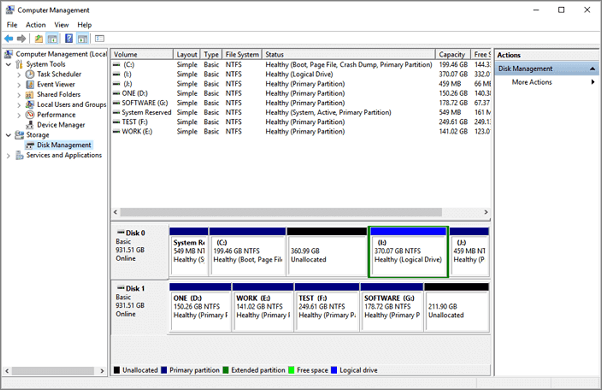
File Explorer only shows volumes that Windows can mount with a drive letter. Disk Management shows more detail, including hidden partitions, RAW volumes, unallocated space, EFI partitions, and recovery partitions. So a drive missing from File Explorer may still exist on the disk.
If the missing volume is the real Windows C drive and Windows is currently running, do not assign random letters to system partitions. Identify the partition by size, file system, and status first.
Check Disk Management
Open Disk Management and check whether the C drive or system partition is visible. If it is healthy but has no letter, assign the correct drive letter carefully.
Use Qiling Disk Master to Check the Partition
Qiling Disk Master can help check partition status, repair file system errors, and manage drive letters when Windows built-in tools are limited.
Step 1. Open Qiling Disk Master and choose the partition management tool.

Step 2. Select the affected partition and check its status, file system, and drive letter.
Step 3. Preview any pending change and click Proceed only after confirming the target.
Recover Files If the Partition Is Inaccessible
If the partition is RAW, unallocated, or access denied, scan it with Qiling Data Recovery before repair.

Conclusion
A missing C drive in File Explorer does not always mean the data is gone. Check Disk Management first, avoid formatting, and recover files before deeper partition repair.
Related Articles
- C Drive Is RAW
- C Drive Access Denied After Windows Update
- Fix Windows 11 File Explorer Not Working (2026 Guide)
Products
Articles & Tutorials
- Data Recovery
- Data Backup
- File Recovery
- File Backup
- System Backup and Restore
- Disk and Partition Clone
- Technical articles
- Mobile articles
- Disk Master Help
- Windows Data Recovery Tutorials
- Windows Secure Delete Tutorials
- Windows Partition Management Tutorials
- Windows File Backup and Restore Tutorials
- Windows System Backup and Restore Tutorials
- Windows Disk Backup and Restore Tutorials
- Windows Clone Tutorials