C Drive Access Denied After Windows Update: Fix and Recover Data
If Windows shows "Access is denied" when you open the C drive, a user folder, or a system folder after an update, do not rush to format or reset the PC. The problem may be a permission change, user profile issue, disk error, or BitLocker state.
This guide shows safe checks first, then explains how to recover important files if normal access cannot be restored.
Quick Checks Before Recovery
- Restart the computer and sign in with an administrator account.
- Check whether BitLocker asks for a recovery key.
- Open File Explorer and verify whether only one folder or the whole drive is blocked.
- Do not run format, clean, or reset commands before copying important data.
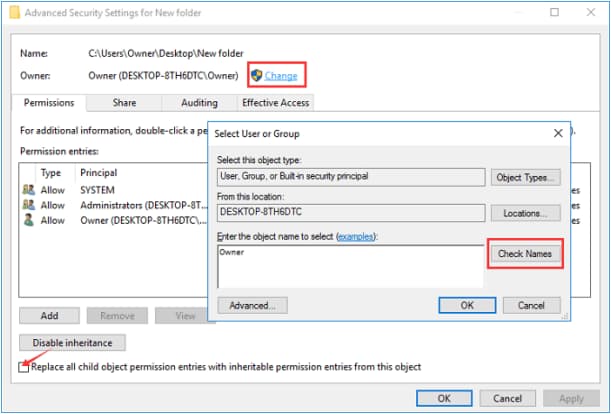
Method 1. Change Folder Ownership
Right-click the blocked folder, choose Properties, open Security, and check whether your account has permission. If needed, use Advanced to change the owner to your current administrator account.
Only change permissions on personal folders when possible. Changing ownership of protected system folders can cause Windows or apps to work incorrectly.
Method 2. Check the Disk for File System Errors
If the access error affects a whole partition, open Command Prompt as administrator and run a file system check. Use repair commands carefully and make sure important files are backed up first.
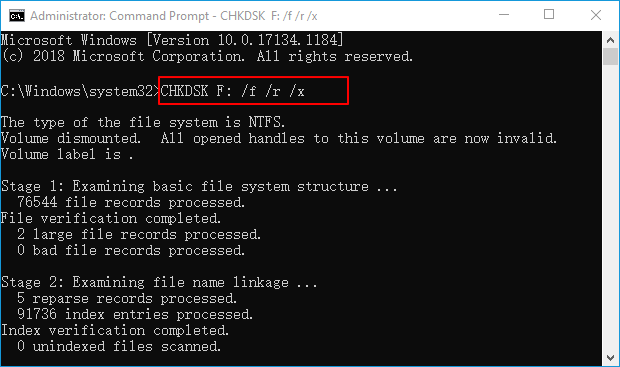
Method 3. Recover Files from the Inaccessible Drive
When permission repair fails or files are missing after the update, scan the affected drive with Qiling Data Recovery. Save recovered files to another disk to avoid overwriting data.
Step 1. Open Qiling Data Recovery and choose the recovery mode for lost files.

Step 2. Scan the drive and use the filter to find documents, photos, videos, archives, or project files.
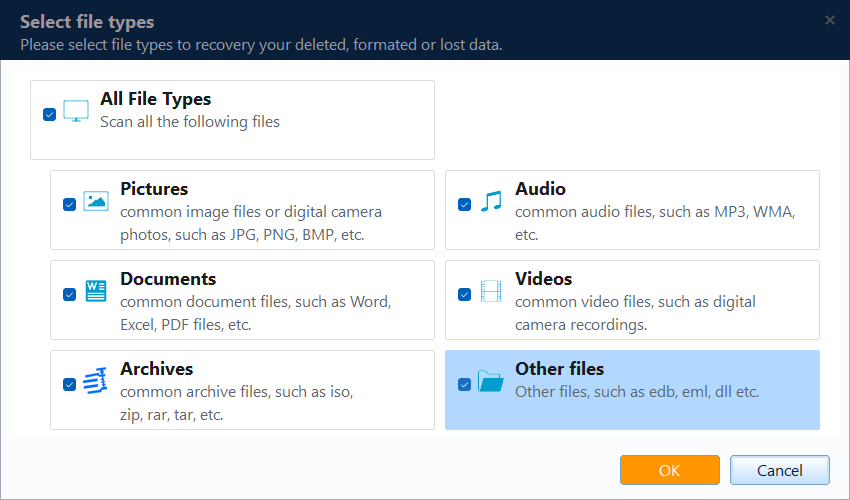
Step 3. Select the inaccessible C drive, user folder, or the partition where important files were stored.

Step 4. Preview files and click Recover. Choose another internal disk or external drive as the destination.

Conclusion
C drive access denied after a Windows update is usually related to account permissions, encryption, or disk errors. Fix permissions only where appropriate, and recover important files before deeper repair or reset steps.
Related Articles
Products
Articles & Tutorials
- Data Recovery
- Data Backup
- File Recovery
- File Backup
- System Backup and Restore
- Disk and Partition Clone
- Technical articles
- Mobile articles
- Disk Master Help
- Windows Data Recovery Tutorials
- Windows Secure Delete Tutorials
- Windows Partition Management Tutorials
- Windows File Backup and Restore Tutorials
- Windows System Backup and Restore Tutorials
- Windows Disk Backup and Restore Tutorials
- Windows Clone Tutorials