BitLocker Recovery Key After Windows Update: What to Do
A Windows update, firmware change, Secure Boot setting change, or hardware configuration change may cause Windows to ask for the BitLocker recovery key. This is a protection step, not a sign that your files are already lost.
The first rule is simple: do not format the drive. Find the recovery key, unlock the drive, and back up important files as soon as you can access them.
Where to Find the BitLocker Recovery Key
- Check your Microsoft account recovery key page if you used a personal account.
- Ask your work or school IT administrator if the device is managed.
- Look for a printed recovery key or a saved text file on another device.
- Check Azure AD or Active Directory if the PC belongs to an organization.
After Unlocking the Drive, Back Up Important Data
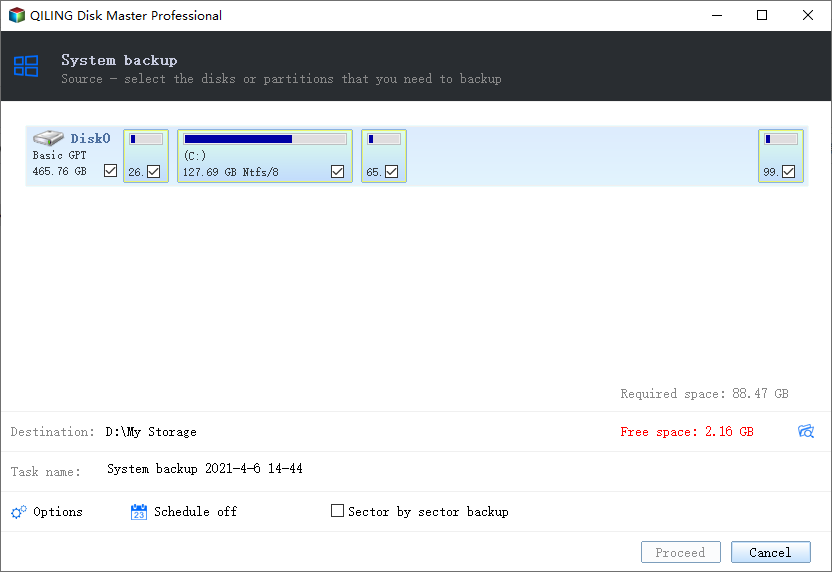
Once the drive is unlocked, copy important files to another disk or create a full backup. If Windows boots normally again, Qiling Backup can help create a system image before you continue updates or firmware changes.
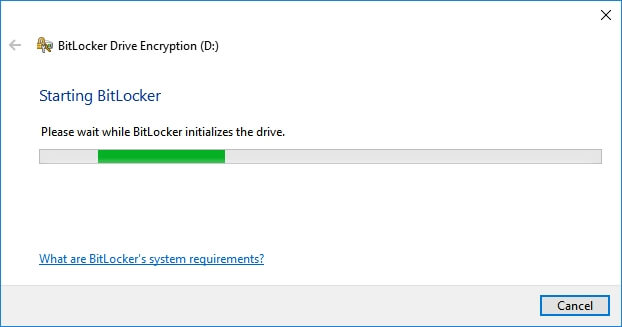
Step 1. Unlock the BitLocker drive with the correct recovery key or password. Do not format the drive when Windows asks for recovery information.
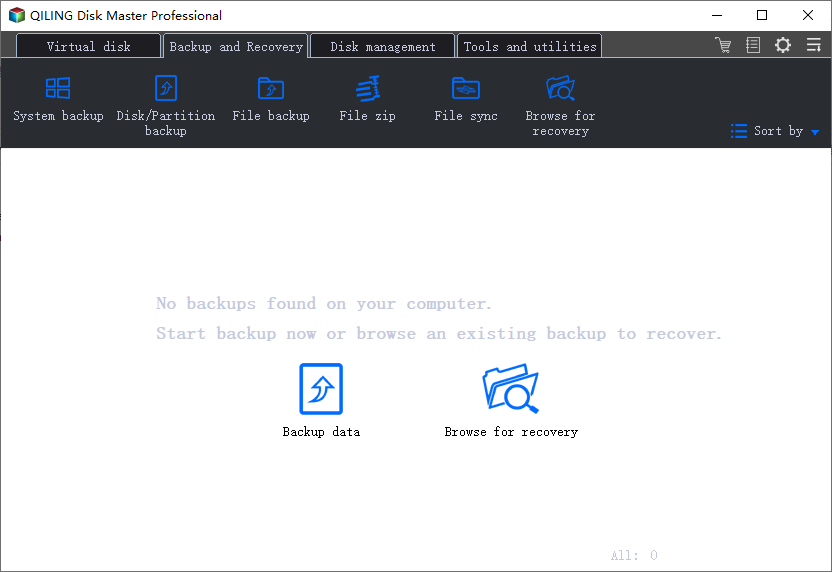
Step 2. Open Qiling Backup and choose File Backup if you only need documents, photos, work folders, or user profile data from the unlocked drive.
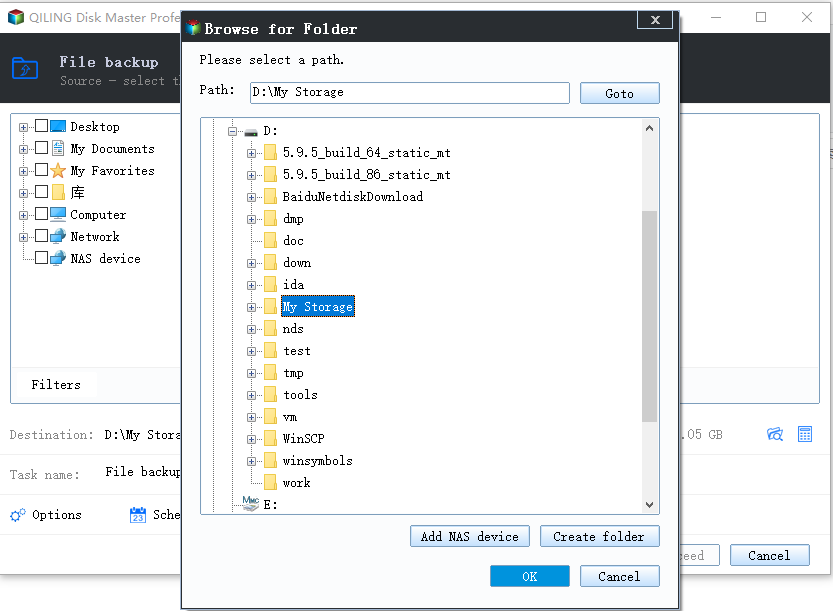
Step 3. Select the important folders on the unlocked BitLocker volume, then choose an external drive, network location, or another non-encrypted storage device as the backup destination.
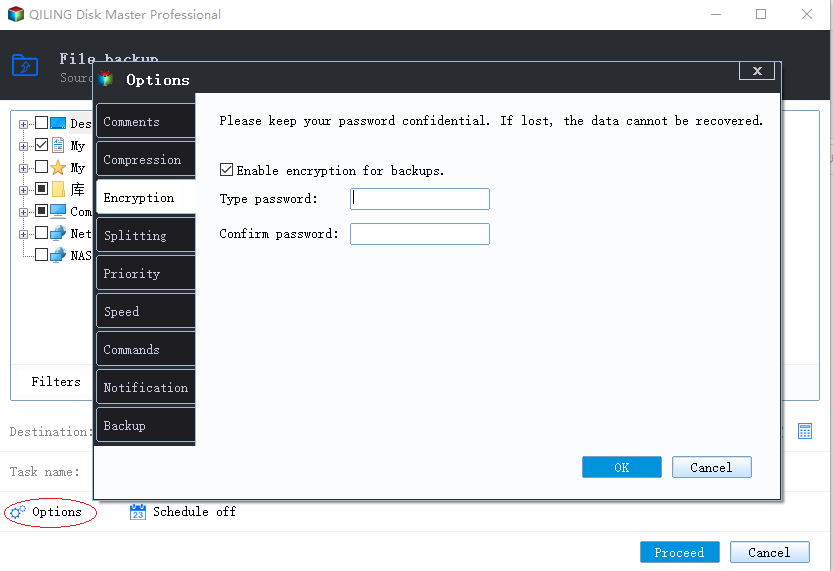
Step 4. Use Options to encrypt the backup image if it contains private files, then click Proceed to create the backup.
Step 5. If Windows starts normally again, create a System Backup as well. This gives you a restore point before you continue BIOS, TPM, Secure Boot, or Windows update changes.
Can You Recover Files from a BitLocker Drive?
Data recovery software cannot bypass BitLocker encryption. You must unlock the drive with the correct password or recovery key first. After the drive is unlocked, file recovery software may help if files were deleted, lost, or missing.
For a focused recovery workflow, read recover files from a BitLocker encrypted hard drive.
How to Avoid This Problem Next Time
- Save the BitLocker recovery key before major Windows updates.
- Back up the system before changing BIOS, TPM, or Secure Boot settings.
- Keep a copy of critical files outside the encrypted system drive.
Conclusion
If Windows asks for a BitLocker recovery key after an update, focus on unlocking the drive safely. After access is restored, back up the system and files before making more changes.
For a key-ID checklist and a backup workflow after unlocking, see how to find the matching BitLocker recovery key.
Related Articles
- What Is BitLocker Encryption
- Backup Before Windows 11 25H2 Update
- Recover Lost Files After Windows 11 25H2 Update
Products
Articles & Tutorials
- Data Recovery
- Data Backup
- File Recovery
- File Backup
- System Backup and Restore
- Disk and Partition Clone
- Technical articles
- Mobile articles
- Disk Master Help
- Windows Data Recovery Tutorials
- Windows Secure Delete Tutorials
- Windows Partition Management Tutorials
- Windows File Backup and Restore Tutorials
- Windows System Backup and Restore Tutorials
- Windows Disk Backup and Restore Tutorials
- Windows Clone Tutorials