Find a BitLocker Recovery Key After a Windows Update
A firmware, boot, or Windows update can change what BitLocker measures at startup and trigger recovery. This does not mean your files were deleted. Record the recovery key ID shown on the blue screen; use it to select the matching 48-digit key. Do not format the drive or reset the PC while the files matter.
Where to look for the recovery key
On another device, sign in to the Microsoft account used to set up this PC and check its BitLocker recovery keys. Match the displayed key ID; one account may store several keys. For a work or school device, contact your IT administrator because the key may be stored in your organization's management system. Also check a printed copy, a saved text file, or a USB drive where you deliberately stored the key. Do not enter a key merely because it belongs to the same computer name.
After you unlock Windows
Enter the matching 48-digit key. Once Windows starts, inspect the recent update and firmware changes, then check BitLocker status before changing boot settings again. Repeated recovery prompts warrant a check of TPM, firmware, and startup configuration. Keep a copy of the key somewhere accessible when this PC cannot boot.
Protect the unlocked files with Qiling Disk Master
Once you can read the files normally, create an independent backup. Qiling Disk Master backs up selected files; it does not discover, recreate, or bypass a missing BitLocker key.
Step 1. Unlock the source volume, attach a separate backup drive, and select Backup and Recovery > File backup.
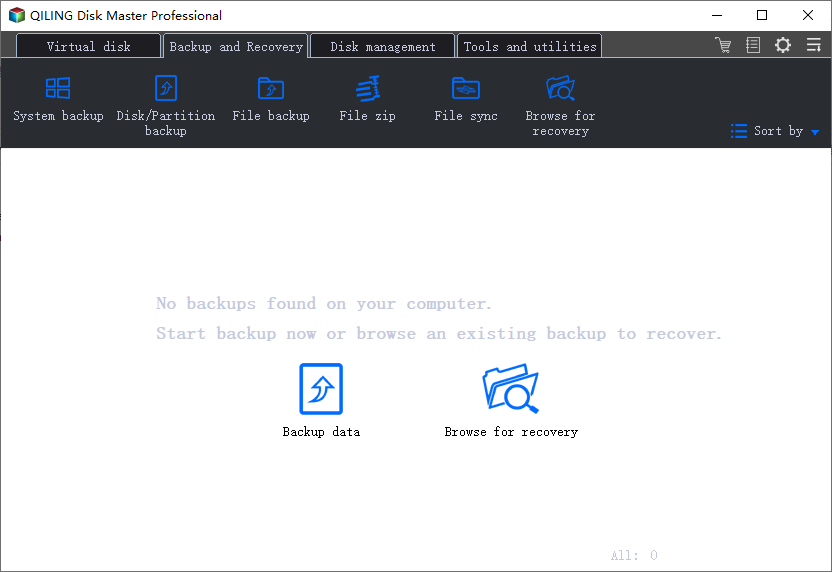
Step 2. Choose the folders to protect in the source tree and select the separate destination. Check that the source is readable and the destination has enough space.
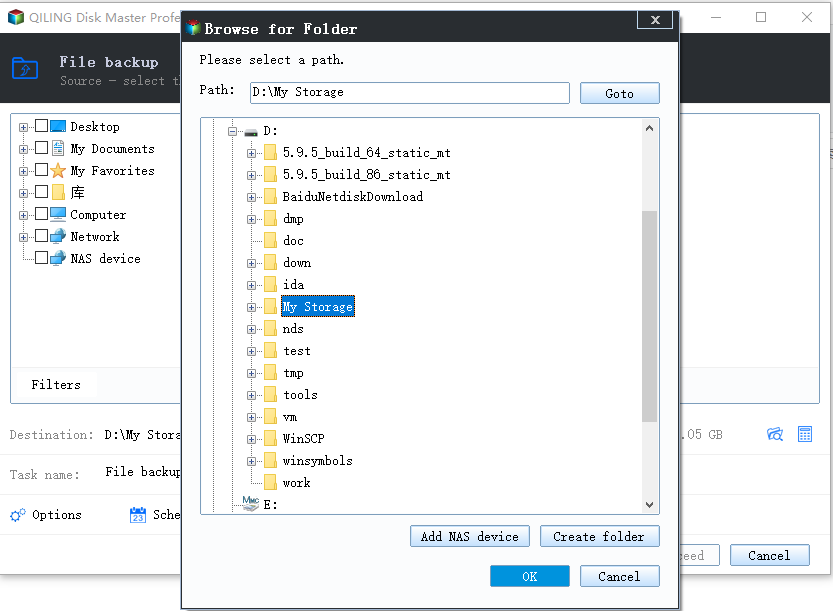
Step 3. Review the task, click Proceed, and wait for completion. Restore a test file to another folder and confirm it opens.
If no matching key can be found
Microsoft cannot recreate a lost recovery key, and file recovery tools cannot decrypt a locked BitLocker volume. Contact the administrator or device owner who configured encryption. A reset can make Windows usable again but may erase data; do not treat it as a file recovery method. See the broader BitLocker recovery prompt guide for additional precautions.
Related Articles
- Back Up Before Windows 11 26H2
Prepare an image and store the recovery key before updating.
Products
Articles & Tutorials
- Data Recovery
- Data Backup
- File Recovery
- File Backup
- System Backup and Restore
- Disk and Partition Clone
- Technical articles
- Mobile articles
- Disk Master Help
- Windows Data Recovery Tutorials
- Windows Secure Delete Tutorials
- Windows Partition Management Tutorials
- Windows File Backup and Restore Tutorials
- Windows System Backup and Restore Tutorials
- Windows Disk Backup and Restore Tutorials
- Windows Clone Tutorials