Recover Files After a Failed 26H2 Upgrade
Quick Navigation:
- What a Failed Upgrade Leaves Behind
- Look in the Right Places First
- Stop Before You Write Anything
- Scan the Disk With Qiling Deep Data Recovery
- Frequently Asked Questions
When a feature upgrade fails part way, Windows can leave two half-built installations on the disk. Some folders move to the new location, some stay in the previous one, and some are only reachable through the previous profile. The files are usually present but no longer where you expect them.
What a Failed Upgrade Leaves Behind
Setup copies the old installation into a Windows.old folder, installs the new build, then migrates accounts and settings. A failure after the copy but before the migration leaves both present, and the boot configuration decides which one starts.
If the upgrade rolls back automatically, the old installation is restored and the new files are removed. Files created during the attempted upgrade can disappear with it.
If it stops with the new installation half configured, the user profile may be a fresh one with empty user folders while the old profile sits in Windows.old.
Look in the Right Places First
Browse C:Windows.oldUsers and open your old account folder. Desktop, Documents, Pictures, and Downloads from before the upgrade are usually intact there.
Check whether a second profile folder exists with a computer-name suffix. That is the rebuilt account, and the data you are looking for may be in the older one.
Look for the upgrade staging folders as well. Setup keeps temporary copies of user data during migration, and a failed run can leave them behind.
Stop Before You Write Anything
Copy what you find in Windows.old to another disk as soon as you find it. Windows removes that folder automatically after a short retention period.
Do not run Disk Cleanup with system files, and do not use a cleanup tool. Both target the previous installation.
Do not start a second upgrade attempt until the data is safe. Each attempt rewrites the staging area and can overwrite the blocks that hold the old folders.
Scan the Disk With Qiling Deep Data Recovery
Qiling Deep Data Recovery scans the system disk for file records that the upgrade left behind, including folders that no longer appear in Explorer.
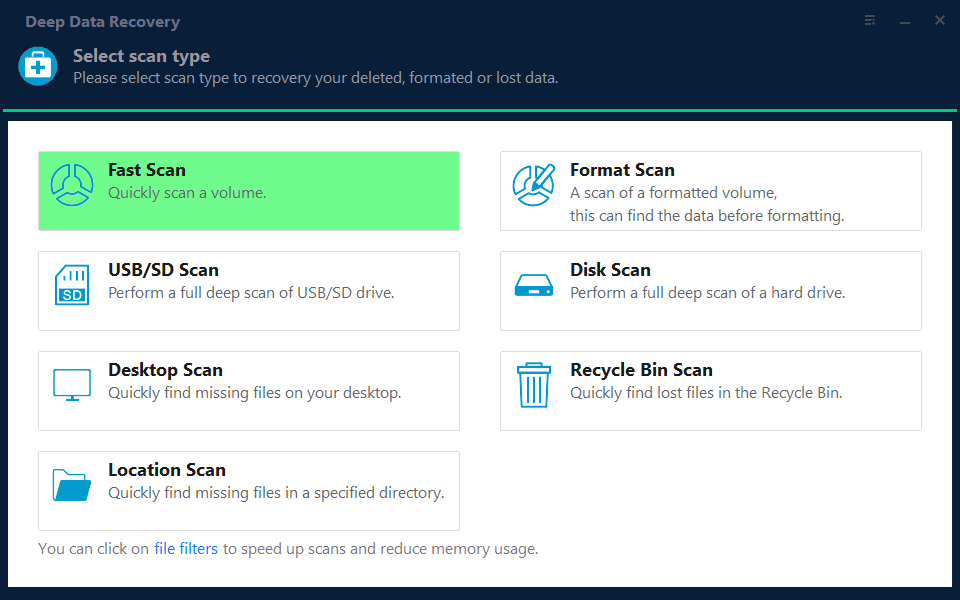
Step 1. Choose the Recovery Mode
Use Fast Scan for missing folders on a healthy volume. Choose Format Scan when the upgrade reformatted a partition.
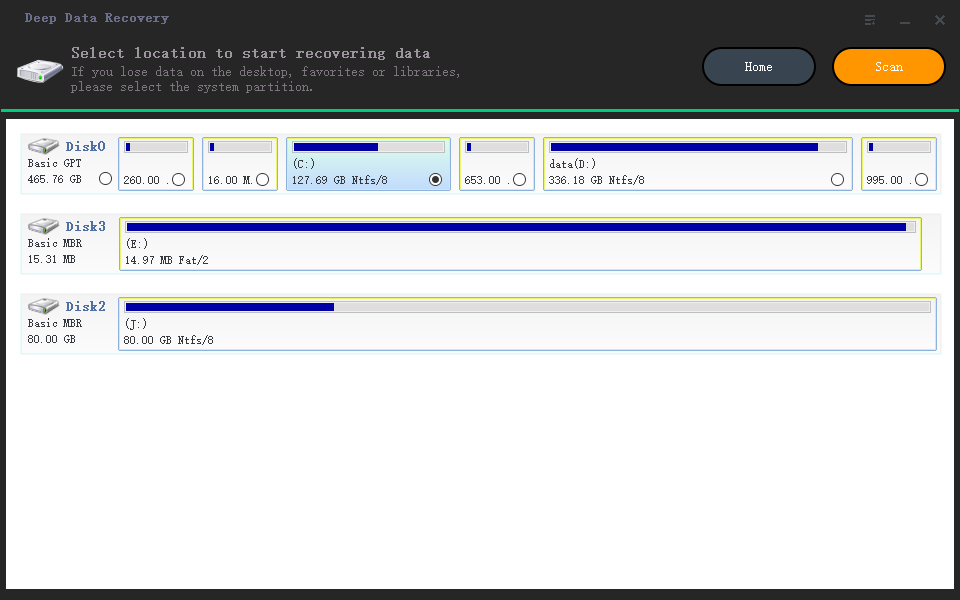
Step 2. Select the System Disk
Pick the disk that holds the Windows partition and confirm its capacity. Scan a second internal disk separately if your data lived there.
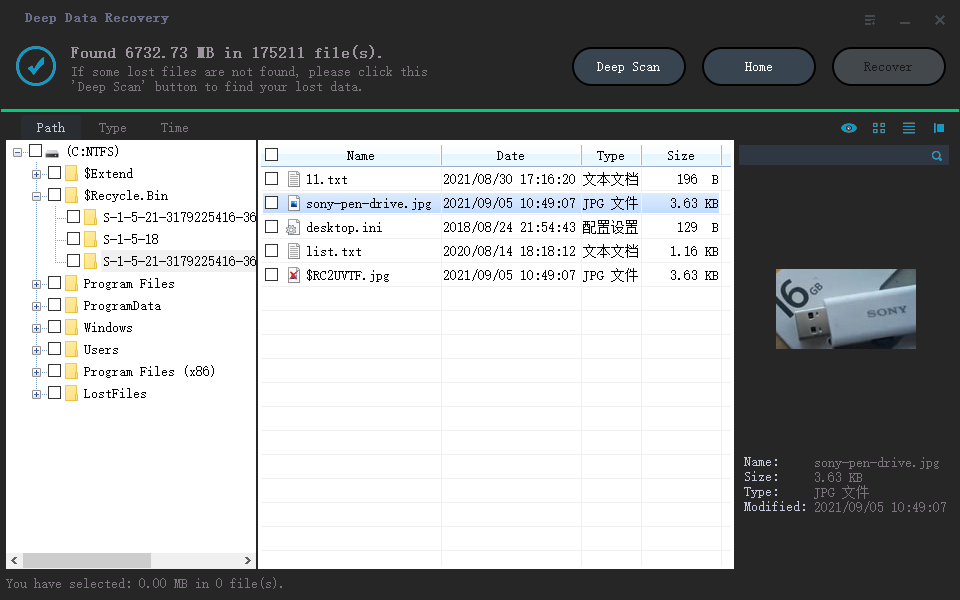
Step 3. Review the Results
Switch to folder view and look for the old account name. Filter by date around the upgrade and preview documents before selecting them.
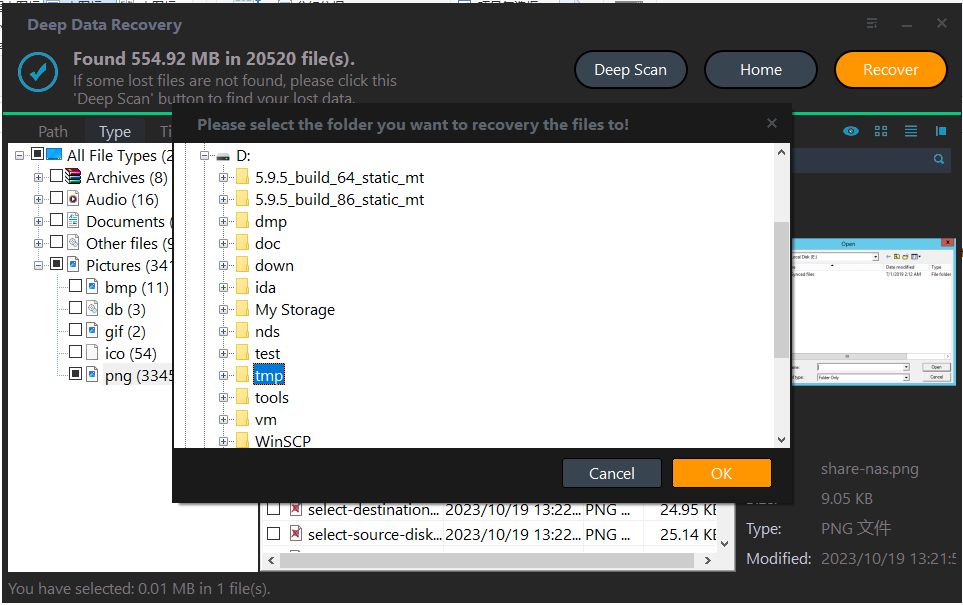
Step 4. Recover to Another Disk
Write the files to an external drive, keep them there, and rebuild the installation afterwards.
Frequently Asked Questions
Can I roll back after a failed upgrade?
Usually within the retention window, if Windows.old is intact. Copy new files out first, because the rollback removes them.
Why is my old account folder still there?
The migration did not finish. The folder is the original profile, not a backup, and it is removed when Windows cleans up.
Is a second upgrade attempt safe?
Not until the data is copied. A second attempt rewrites the staging area where the old files still live.
Does the scan work on a half-upgraded disk?
Yes. It reads the volume as it is now and finds file records outside the current directory tree.
For an upgrade that completed but lost folders, see files lost after a Windows 11 update.
Related Articles
- Recover Files Lost After a Windows 11 Update
- Recover Files After an Upgrade Rollback
- Roll Back the Windows 11 26H2 Update
- Drive Shows Empty After the 26H2 Update
- Reset This PC Keep My Files: Missing Files
Products
Articles & Tutorials
- Data Recovery
- Data Backup
- File Recovery
- File Backup
- System Backup and Restore
- Disk and Partition Clone
- Technical articles
- Mobile articles
- Disk Master Help
- Windows Data Recovery Tutorials
- Windows Secure Delete Tutorials
- Windows Partition Management Tutorials
- Windows File Backup and Restore Tutorials
- Windows System Backup and Restore Tutorials
- Windows Disk Backup and Restore Tutorials
- Windows Clone Tutorials