Recover Files Lost After the Windows 11 24H2 Update
Quick Navigation:
- What the 24H2 Update Changes
- Check Windows.old and Roll Back
- Check OneDrive and Redirected Folders
- Recover the Files with Qiling
- Frequently Asked Questions
An in-place upgrade to Windows 11 version 24H2 replaces the operating system and keeps the previous installation in a folder named Windows.old. Personal files are normally carried over, so when something is missing the cause is usually a moved folder, an online-only cloud file, or a cleanup tool.
What the 24H2 Update Changes
24H2 is a full OS swap rather than a small patch. Setup installs a new system image, migrates user accounts, and leaves the old installation under C:Windows.old so that you can roll back. Windows keeps that folder for about ten days by default, then removes it to recover disk space.
Two kinds of loss happen around that window. Files can genuinely disappear if setup fails partway and rolls part of the migration back, or if a cleanup pass treats the old installation and the temporary upgrade data as junk. Files can also appear to disappear when a library, a Desktop path, or a saved game folder is redirected to a different location than the one you expect.
Because setup writes several gigabytes to the system disk, the free space left behind matters. Low space during an upgrade is a common reason for a failed migration, and the subsequent repair attempts are what usually overwrite the missing data.
Check Windows.old and Roll Back
Open File Explorer, show hidden items, and browse C:Windows.oldUsersyour user name. If the folder is still there, your Desktop, Documents, Downloads, and Pictures from before the update are inside it. Copy them out to another disk immediately, because the folder can be removed at any time.
Before the ten-day window closes, consider Settings > System > Recovery > Go back. A rollback returns the previous installation and its user profile, which is the cleanest way to get everything back at once. It also undoes updates and settings applied since the upgrade, so copy any new work to an external disk first.
Do not run Disk Cleanup with Clean up system files, Storage Sense's temporary files option, or any third-party cleaner until you have checked Windows.old. Those tools target exactly the folder that holds the previous copy of your data.
Check OneDrive and Redirected Folders
OneDrive can make a file look deleted when it is only offline. Open the OneDrive folder: a cloud icon beside a file means the content lives online and downloads when opened, while a red cross means sync failed. Check the OneDrive recycle bin in the browser as well, since deletions made by a sync client land there for thirty days.
Known Folder Move adds another twist. If OneDrive took over Desktop, Documents, or Pictures, the real path is now under the OneDrive folder and the old local folders may be empty. Search the whole drive for a distinctive file name before you conclude that anything was lost.
Also check the account-level copies: the Microsoft account's cloud recycle bin, any phone backup of photos, and a second PC that synced the same folders. These are faster to restore than any scan, and they do not touch the drive.
Recover the Files with Qiling Deep Data Recovery
Qiling Deep Data Recovery scans the local disk for files that were removed during the upgrade or the cleanup that followed. It cannot retrieve content that Windows.old no longer holds if that space has been overwritten, and it cannot pull files back from a cloud account; use the OneDrive recycle bin for those.
Step 1. Choose the Recovery Mode
Use Fast Scan when files were deleted from a drive that still has its original file system, which is the usual case after an upgrade. Choose Recycle Bin Scan if the items went through the bin, Format Scan if a repair reformatted a volume, and USB/SD Scan for an external disk that held your backups.

Step 2. Select the System Disk
Select the disk that holds the Windows partition and confirm its capacity against Disk Management. If your user folders were moved to a second internal drive, scan that disk as well, one at a time, and never choose the destination disk by mistake.

Step 3. Review the Results
Switch to the folder view and look for your old user name, then filter by date around the upgrade. Preview documents and photos before selecting them; a correct preview confirms the file was not overwritten. When the folder tree is missing, run the deeper scan and search by extension.

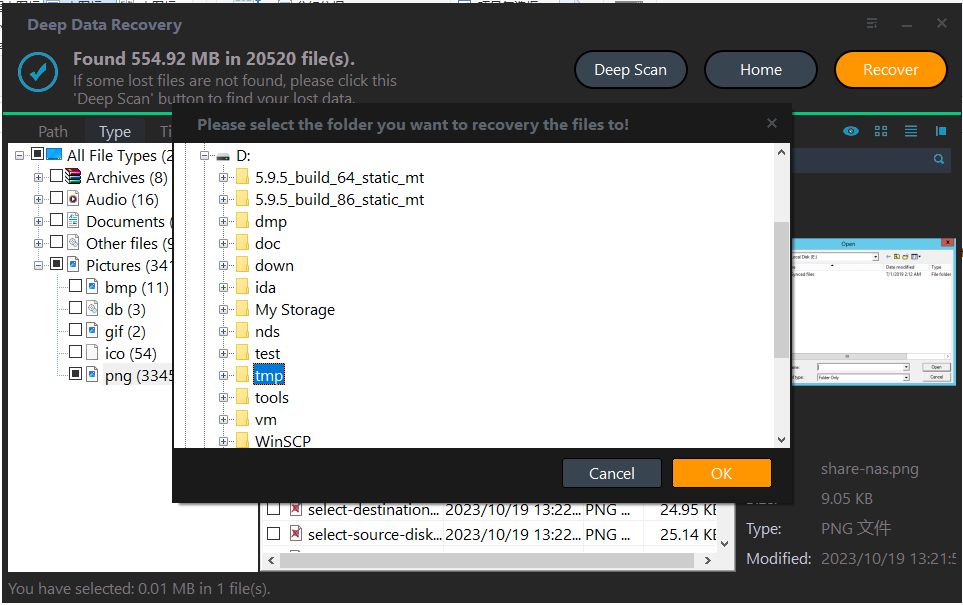
Step 4. Recover to Another Disk
Save the files to an external drive or a second internal disk, not to the system partition. Keep that copy until you have opened a sample of each type and confirmed that the folders you need are complete.
Frequently Asked Questions
Does the 24H2 update delete personal files?
It is not designed to. Setup migrates user folders, and the previous installation stays in Windows.old. Losses usually come from a failed migration, a cleanup tool, or a cloud folder that was moved rather than deleted.
How long does Windows.old stay on the disk?
About ten days after the upgrade, unless you remove it sooner or a cleanup tool does. Copy anything you need from it as soon as you find it.
Can I roll back after ten days?
No. Once Windows removes the previous installation, the built-in rollback option is gone, and recovery depends on a scan or on a backup you made earlier.
Why are my Desktop files gone but Documents intact?
That pattern points to Known Folder Move. OneDrive redirected Desktop to its own folder, so the files exist under the OneDrive path rather than the local one.
For the same problem on the previous release, see how to recover files deleted by Windows 10 updates.
Related Articles
- Recover Deleted Files After Windows 10 Updates
- Recover Deleted OneDrive Local Files on Windows 11
- Windows 11 25H2 Update: Disk Shows Unallocated
- Recover Data From a Laptop That Won't Boot
Products
Articles & Tutorials
- Data Recovery
- Data Backup
- File Recovery
- File Backup
- System Backup and Restore
- Disk and Partition Clone
- Technical articles
- Mobile articles
- Disk Master Help
- Windows Data Recovery Tutorials
- Windows Secure Delete Tutorials
- Windows Partition Management Tutorials
- Windows File Backup and Restore Tutorials
- Windows System Backup and Restore Tutorials
- Windows Disk Backup and Restore Tutorials
- Windows Clone Tutorials