Recover Data From a Laptop That Won't Boot
Quick Navigation:
- A Failed Boot Is Not a Failed Disk
- Read the Symptoms First
- Pull the Drive or Boot From Media
- Recover the Files with Qiling
- Frequently Asked Questions
A laptop that no longer reaches the desktop still holds its files. In most cases the storage is healthy and only the boot process failed, which means the data can be copied out before any repair is attempted.
A Failed Boot Is Not a Failed Disk
Windows depends on a chain of components: firmware, the boot manager, the system partition, and the drive itself. If any link breaks, the machine stops before the desktop appears, but the user files on the data partition are usually untouched. A corrupted boot record, a failed update, or a loose drive cable produces the same symptom as a dying disk.
That distinction matters because the two situations need opposite handling. A healthy drive can be read at leisure from another computer, while a failing drive demands that you stop powering it and copy from it only once. Jumping straight to a reset or a clean install destroys the very files you want.
Encryption is the other factor. If BitLocker was enabled with a TPM, moving the drive to another machine triggers a recovery key prompt; without that key the files stay locked. Find the key in your Microsoft account or in the printed recovery key before you remove anything.
Read the Symptoms Before You Open Anything
Listen and watch. No lights and no fan mean a power problem, so data recovery is not the first step. Lights and fans but no image points to memory, graphics, or the display. A logo, then a message such as No boot device, a boot loop, or a blue screen points to the drive or the boot files, and those are the best candidates for the process below.
If the drive is a hard disk and you hear repeated clicking or ticking, power the laptop down and do not restart it. Mechanical damage gets worse with every spin-up, and a lab is the correct route. If the drive is an SSD, a sudden disappearance is more often a connector, cable, or firmware issue than a worn-out chip.
Also write down the model, the drive type (SATA or NVMe), and the Windows version. If BitLocker was on, confirm that you have the key. For a machine that will not power on at all, start with how to extract files from a broken laptop instead.
Pull the Drive or Boot From Media
There are two ways to reach the files. The first is to remove the drive and connect it to a working PC through a USB enclosure, using SATA for a 2.5-inch disk and an NVMe enclosure for an M.2 stick. The second is to leave the drive in place and boot the laptop from a Windows PE USB stick, which also gives you access to the file system without starting the installed copy of Windows.
Removing the drive is cleaner when the laptop is easy to open and the data matters. Booting from media is better when the drive is hard to reach or soldered in place. Either way, work with the laptop powered off and the battery disconnected, and touch a grounded metal surface before handling the drive.
Once the drive is visible on the working PC, copy whatever still opens to a spare disk before scanning. If Windows reports the volume as RAW or asks you to format it, decline; formatting removes the records a scan needs. A message about a missing boot disk does not mean the partition is gone, only that the firmware could not use it.
Recover the Files with Qiling Deep Data Recovery
Qiling Deep Data Recovery reads a laptop drive attached to another PC or seen from a bootable environment, and can list files that Windows no longer shows. It cannot bypass BitLocker, and it cannot read a drive that the controller no longer detects.
Step 1. Choose the Recovery Mode
Use Fast Scan when the drive is healthy and the files were deleted or the profile was damaged. Choose USB/SD Scan when the drive sits in an enclosure that Windows reports as removable storage, and Format Scan if the volume was reformatted during an attempted repair. Recycle Bin Scan fits a simple deletion on a drive that still mounts.

Step 2. Select the Laptop Drive
Select the disk that matches the laptop drive's capacity and model string, and check the partition layout against what you saw in Disk Management. Do not select the disk used for the recovered output, and disconnect any unrelated external drives to keep the list short.

Step 3. Review the Files
Filter by type and date, then preview the documents and photos you need most. A file that previews correctly is intact enough to copy. If the profile folder is missing entirely, run the deeper scan, which searches for file signatures instead of directory entries.

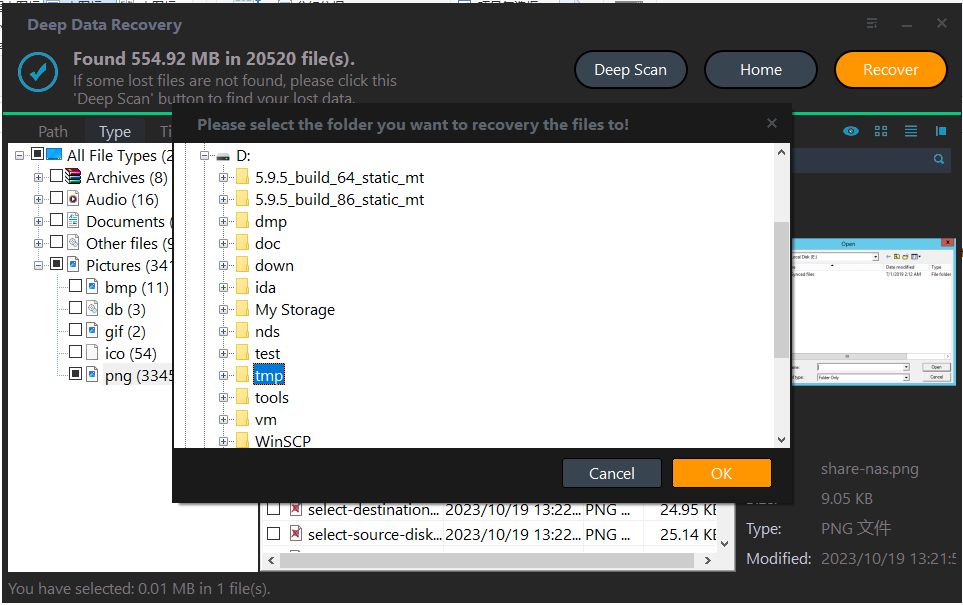
Step 4. Recover to Another Disk
Save the selection to the working PC's internal disk or to a second external drive. Never write back to the laptop drive, because a later repair attempt may reformat it. Verify a sample of each file type before you decide whether the laptop needs a new Windows installation.
Frequently Asked Questions
Can I recover files without removing the drive?
Yes. Boot the laptop from a Windows PE USB stick and run the scan from there, then save the output to an external drive. Removing the drive is only necessary when the machine cannot boot from media.
What if the drive is protected by BitLocker?
The volume must be unlocked before any tool can read it. Attach the drive to a PC that prompts for the recovery key, unlock it, and only then scan; if the key is lost, the data cannot be recovered with software.
Should I reset Windows to fix the boot problem?
Not before you copy the files out. A reset can remove installed programs and personal data, and a clean install removes everything on the system partition.
What if the drive is not detected at all?
Try another enclosure and another USB port first. If the drive still does not appear in Disk Management, stop and treat it as a hardware failure rather than running more scans.
If the laptop shows a specific firmware message, see no boot disk has been detected for the hardware side of the problem.
Related Articles
- How to Extract Files from a Broken Laptop
- No Boot Disk Has Been Detected
- Recover Deleted Outlook OST Files on Windows
- Recover Files Lost After the Windows 11 24H2 Update
Products
Articles & Tutorials
- Data Recovery
- Data Backup
- File Recovery
- File Backup
- System Backup and Restore
- Disk and Partition Clone
- Technical articles
- Mobile articles
- Disk Master Help
- Windows Data Recovery Tutorials
- Windows Secure Delete Tutorials
- Windows Partition Management Tutorials
- Windows File Backup and Restore Tutorials
- Windows System Backup and Restore Tutorials
- Windows Disk Backup and Restore Tutorials
- Windows Clone Tutorials