Recover Deleted Outlook OST Files on Windows
Quick Navigation:
- What an OST File Is
- Check the Mailbox and Existing Copies
- Protect the Original Drive
- Recover the File with Qiling
- Frequently Asked Questions
An .ost file is a local cache of an Exchange or Microsoft 365 mailbox, not the mailbox itself. Most deleted OST files can be rebuilt from the server, but unsent mail, offline edits, and local-only folders exist nowhere else.
What an OST File Is and What Can Be Recovered
Outlook creates an .ost file when a profile connects to Exchange, Microsoft 365, or Outlook.com. The file mirrors mailbox folders so they stay readable offline, while the authoritative copy stays on the server. When the cache is deleted, Outlook usually builds a new one at the next sign-in, so the mailbox itself is rarely gone.
The exceptions are what make recovery worth checking. Items in the Outbox that never reached the server, changes made offline and not yet uploaded, and folders that exist only in the local cache have no server copy. If the account uses POP or IMAP, mail is stored in a .pst file instead, so the situation follows a different path; see how to recover deleted Outlook PST files.
A damaged OST is not the same as a deleted one. If Outlook refuses to open the file, prompts for a repair, or reports that it is in use, run the built-in repair tool first. An undelete scan is not a repair tool, and a repaired cache keeps more of its structure than a raw carve does.
Check the Mailbox and Existing Copies Before You Scan
Sign in to Outlook on the web and compare folders. If the messages are present online, delete the stale profile entry, let Outlook create a fresh cache, and stop there; no recovery software is needed. Also check Deleted Items, the Recycle Bin, a .ost copy left behind by a migration or backup job, and Windows File History or a system image.
Record the exact location, usually C:\Users\your user name\AppData\Local\Microsoft\Outlook, which is hidden by default and must be shown in File Explorer. Close Outlook before you touch anything. Windows keeps an active lock on the OST while the profile is open, so a locked file cannot be copied or scanned reliably.
Protect the Original Drive
Identify the physical disk that held the missing .ost file and stop writing to it. Mailbox syncs, downloads, installs, and recovery output all create new data on that disk, and any of them can overwrite the clusters the deleted file still occupies.
Prepare a second physical drive with enough free space. OST files are often several gigabytes, so the destination must hold full-size candidates, not just a few extracted messages. If the drive reports hardware errors, disconnects repeatedly, or makes unusual noises, do not keep scanning it; each pass adds stress and a failing disk needs a different approach.
Recover the OST File with Qiling Deep Data Recovery
Qiling Deep Data Recovery scans Windows-visible local storage for deleted files, including a deleted .ost. It cannot rebuild the Exchange mailbox, decrypt a protected profile, or return data that has already been overwritten. When the mailbox is intact online, restore from the server copy first.
Step 1. Choose the Recovery Mode
Open the program. Use Fast Scan for a recent deletion on a local disk, Recycle Bin Scan if the file was emptied from the bin, USB/SD Scan for removable storage, or Format Scan when the volume was formatted. Choose by what happened to the file, not by its extension.

Step 2. Select the Original Location
Select the system disk or partition that contained the Outlook data folder. Confirm the drive letter and capacity, especially when external drives are attached, and never select the disk prepared for recovered files.

Step 3. Review Matching Candidates
Filter the results by the .ost extension and sort by date. Compare folder paths and file sizes, since a large file close to the original size is the strongest candidate. Keep more than one version if the preview cannot confirm the contents, and run a deeper scan when the first pass finds nothing on a healthy disk.

Step 4. Recover to a Different Disk
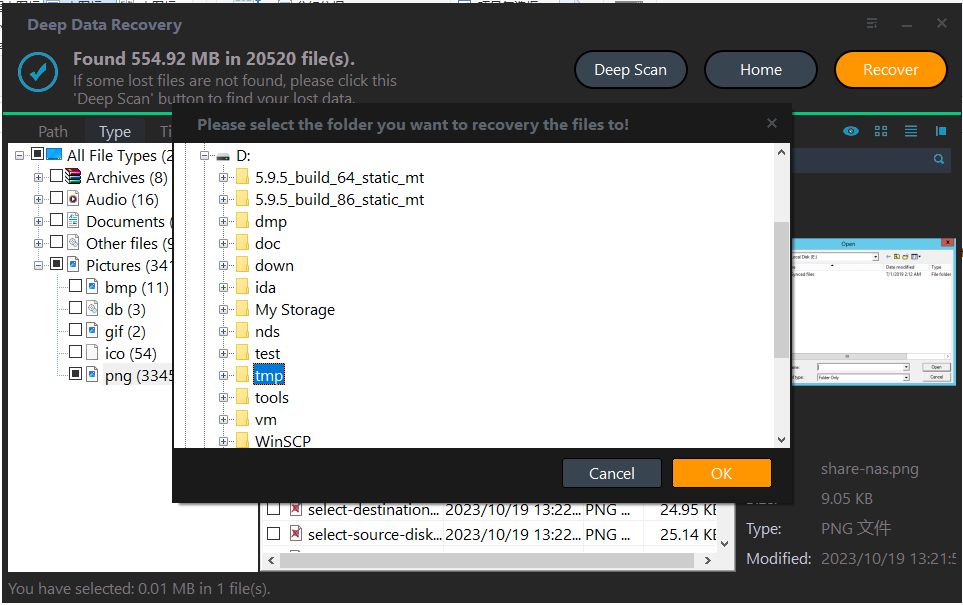
Select the candidates, click Recover, and save them to the prepared drive. Keep the recovered file untouched and test a copy first. Do not point Outlook straight at the recovered OST; a stale cache can leave the profile in a confused state, and a damaged file is better opened with a separate viewer.
Frequently Asked Questions
Can Outlook rebuild a deleted OST file by itself?
Yes, for Exchange, Microsoft 365, and Outlook.com accounts. Remove the broken profile entry and let Outlook create a new cache after the next sign-in.
Does deleting an OST file remove mail from the server?
No. Only local-only folders, unsent messages, and offline edits that never synchronized are at risk.
Why is the OST file so large?
It caches the mailbox for offline use. If space is the issue, reduce the amount of mail kept offline in the account settings instead of deleting the file by hand.
Is a renamed OST file safe to reuse?
No. Outlook expects the cache that belongs to its profile. Export what you can to a .pst file, then let the profile build a new cache.
For a general checklist that also covers system folders and other file types, read how to recover deleted files on Windows 11.
Related Articles
- Recover Deleted Outlook PST Files on Windows
- Recover Deleted Outlook MSG Files on Windows
- Recover Files Lost After the Windows 11 24H2 Update
- Recover Data From a Laptop That Won't Boot
Products
Articles & Tutorials
- Data Recovery
- Data Backup
- File Recovery
- File Backup
- System Backup and Restore
- Disk and Partition Clone
- Technical articles
- Mobile articles
- Disk Master Help
- Windows Data Recovery Tutorials
- Windows Secure Delete Tutorials
- Windows Partition Management Tutorials
- Windows File Backup and Restore Tutorials
- Windows System Backup and Restore Tutorials
- Windows Disk Backup and Restore Tutorials
- Windows Clone Tutorials