Reset This PC Keep My Files: Where the Files Went
Quick Navigation:
- What the Reset Actually Keeps
- Where the Files Usually Are
- What Not to Do Next
- Scan the Drive with Qiling Deep Data Recovery
- Frequently Asked Questions
The Keep my files option promises to preserve personal data, and for files inside the standard user folders it usually does. What it does not preserve is anything stored outside those folders: application data, saved game profiles, virtual machines, and any folder created at the root of the drive. The files are often still on the disk, in the old installation or under a rebuilt profile.
What the Reset Actually Keeps
A reset reinstalls Windows and keeps the contents of Desktop, Documents, Downloads, Pictures, Music, and Videos for the accounts on the machine. Installed programs, drivers, and most settings are removed, and the user profile is rebuilt.
Files outside those folders are treated as part of the old installation. That includes project folders on the root of C, portable applications, virtual machine images, and the data directories of programs that store their libraries outside the user profile.
The reset also creates a new profile folder. If the old account could not be migrated cleanly, Windows leaves the previous profile in place under a suffixed name, and the new account starts empty.
Where the Files Usually Are
Look first in the Windows.old folder on the system drive. A reset can keep the previous installation there for a limited period, and the old user folders sit inside it under Users.
Look for a second profile folder in Users. A name with a computer name suffix, or a duplicate of your account name, is the rebuilt copy, and the older folder usually holds what you are missing.
Check cloud sync as well. If OneDrive took over Desktop or Documents, those folders may be empty locally because the reset removed the sync root, while the files are intact online.
What Not to Do Next
Stop installing programs and stop downloading large files to the system drive. Every write can land on the space that still holds the files you want.
Do not run a cleanup tool or remove Windows.old until you have copied what you need from it. Those tools target exactly the folder that holds the previous copy of your data.
Do not format or reinstall a second time. A second reset writes a fresh image over a larger area and reduces the chance that a scan will find anything intact.
Scan the Drive with Qiling Deep Data Recovery
Qiling Deep Data Recovery scans the system disk for the file records that the reset left behind. It reads the partition as it is now, so it can find folders that no longer appear in Explorer, and it writes the results to another disk so the source stays untouched.
Step 1. Choose the Recovery Mode
Use Fast Scan first. Choose Format Scan only when the reset reformatted a data partition rather than the system volume.
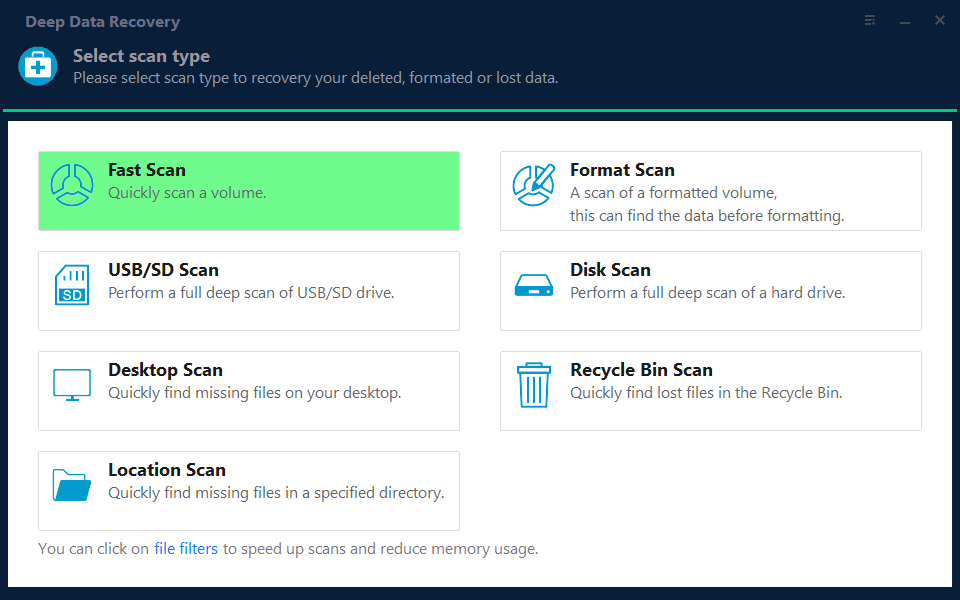
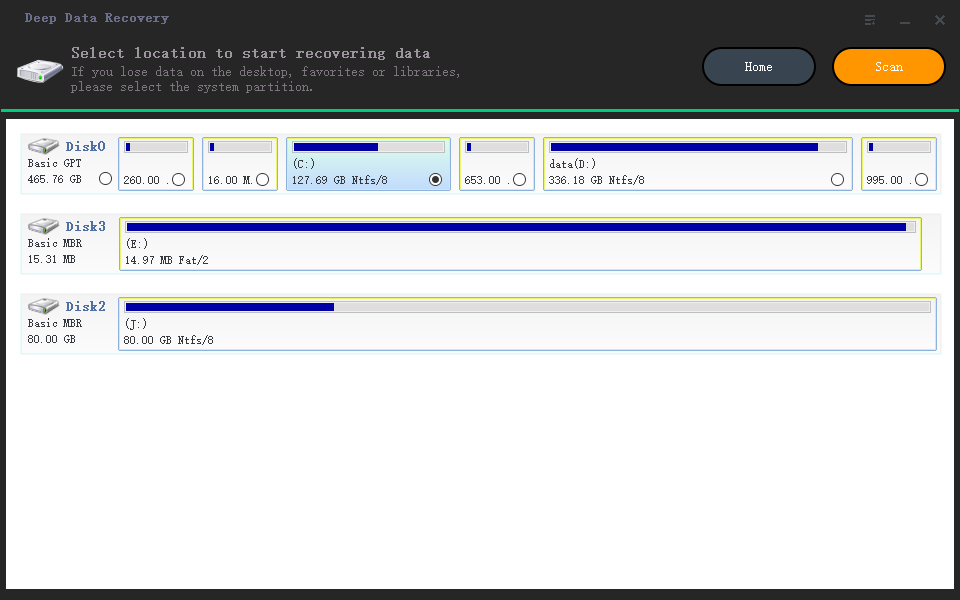
Step 2. Select the System Disk
Choose the disk that holds the Windows partition and confirm its capacity. If your files lived on a second internal disk, scan that disk in a separate pass.
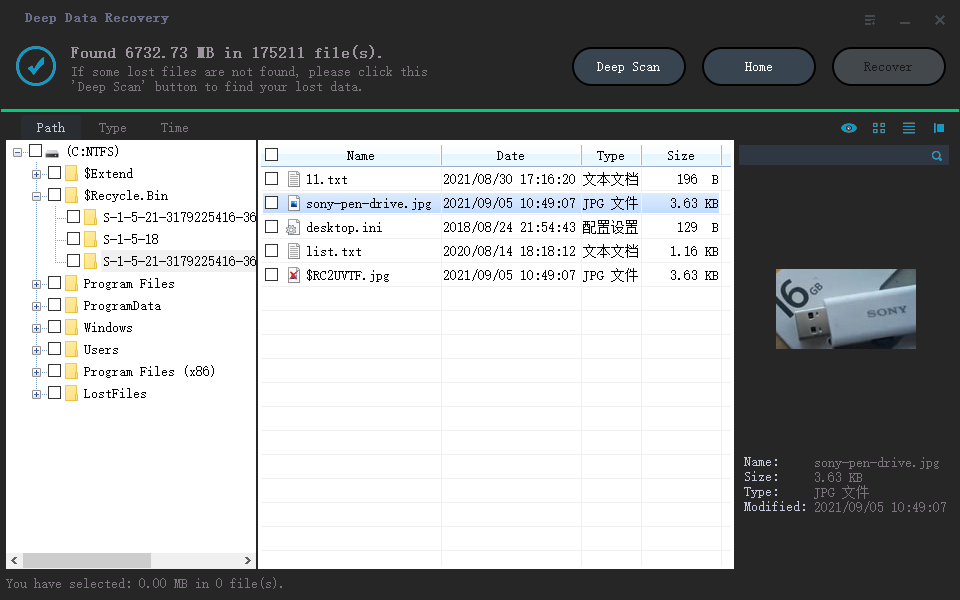
Step 3. Review the Results
Switch to folder view and look for your old account name. Sort by date around the reset, then preview documents and photos to confirm that the content is intact.
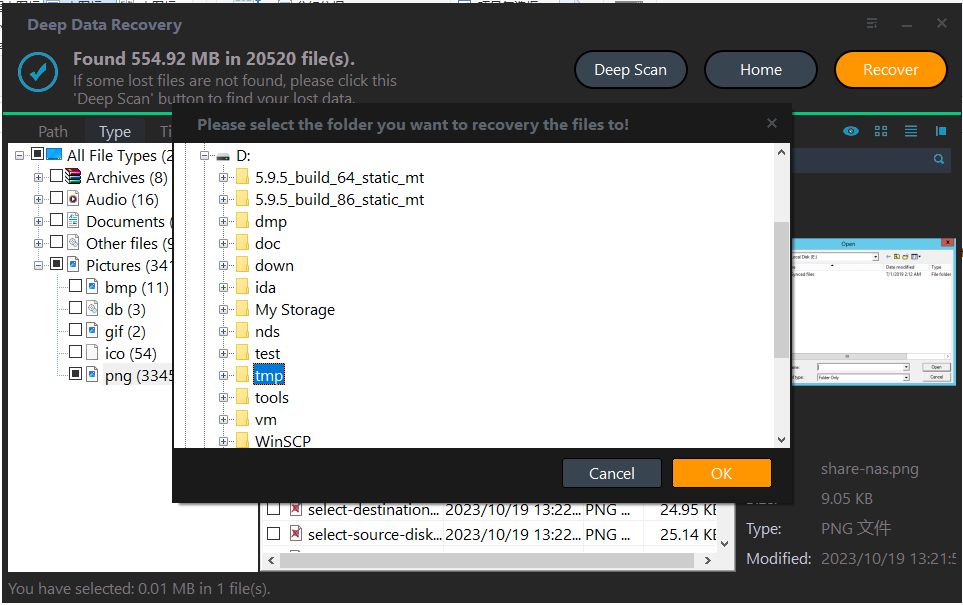
Step 4. Recover to Another Disk
Save the files to an external drive. Once they are copied and opened, the system disk can be reused for anything else.
Frequently Asked Questions
Does Keep my files remove installed programs?
Yes. Programs and their registry entries are removed, and each one has to be installed again. Files inside the user folders are kept.
How long does Windows.old last after a reset?
About ten days, or until a cleanup tool removes it. Copy anything you need from it as soon as you find it.
Can I recover files from a program that stored data outside my profile?
Yes, if the reset did not overwrite the area. Scan the disk and look under the original program folder path in the results.
Will a second reset help?
No. It writes a fresh image over more of the disk and reduces the chance of a successful scan. Work with the current state first.
For files lost during an in-place upgrade rather than a reset, see recovering files after the 24H2 update.
Related Articles
- Recover Files Lost After the Windows 11 24H2 Update
- Recover Deleted OneDrive Local Files on Windows 11
- Back Up a Computer to an External Hard Drive
- Recover Data From a Laptop That Will Not Boot
- Recover Files After a Reinstall With BitLocker
Products
Articles & Tutorials
- Data Recovery
- Data Backup
- File Recovery
- File Backup
- System Backup and Restore
- Disk and Partition Clone
- Technical articles
- Mobile articles
- Disk Master Help
- Windows Data Recovery Tutorials
- Windows Secure Delete Tutorials
- Windows Partition Management Tutorials
- Windows File Backup and Restore Tutorials
- Windows System Backup and Restore Tutorials
- Windows Disk Backup and Restore Tutorials
- Windows Clone Tutorials