Fix Files Disappeared from Desktop in Windows
Quick Navigation:
- Solution 1: Recover Files on the Desktop Disappeared
- Guide for How to Recover Files on Desktop Disappeared
- Step 1: Select File Format
- Step 2: Select Your System Drive
- Step 3: Recover Disappeared Files in Desktop
- Solution 2: Check Users Folder to Look for Files on Desktop Disappeared in Windows
- Solution 3: Show Hidden Files and Folders
- Solution 4: Search Hard Drive and Look for Files on Desktop Disappeared
- Solution 5: Look for Files on Desktop Disappeared by Switching User Account
Desktop files disappearing can be frustrating. If you're experiencing this issue in Windows, don't worry; we've can help. Here are five methods to help you recover your missing desktop files.
Is it hard for you to get back deleted files from your desktop? Here we give you five ways to recover files that disappeared from the desktop in Windows operating systems. The leading cause of file loss is accidental deletion. Other causes include system crashes, virus attacks, drive formats, and more.
Solution 1: Recover Files on the Desktop Disappeared
If you're experiencing the issue of desktop files disappearing in Windows 7, 8, or 10, don't worry; we've can help. Here are the steps to recover your missing desktop files using the Deep Data Recovery software.
Your Effective Disappeared Desktop File Recovery Software
- You can recover files lost due to pressing of the delete button, formatted drive, virus attacks, and OS crashes.
- It helps you extract records from drives displaying file system as RAW, deleted or hidden drives.
- You can also recover files from formatted drive or partition in Windows or macOS.
Guide for How to Recover Files on Desktop Disappeared
Have you lost files on your desktop in Windows 10, and now you're worried about losing your precious data? Don't panic; the Deep Data Recovery software can help you recover files on the desktop disappeared Windows 10 computer.
Step 1: Select File Format
Launch Deep Data Recovery software. The main layout shows different file formats that it can recover. As a default, all of them have tick marks checked. However, you can check only specific formats that you want to recover. After ticking the format/formats, click the "Fast Scan" button to recover deleted files in Windows 10 or other OS.

Note: You can choose different search modes based on where and why the data was lost.
Step 2: Select Your System Drive
The next screen shows you the partitions of the hard disk. It even displays any externally connected storage devices such as USB drives. Head to the path from where you want to get back the lost files. Click on the "Scan" button to allow Deep Data Recovery to start scanning.

Step 3: Recover Disappeared Files in Desktop
The scan time ranges from a few minutes to an hour. It depends on the size of the selected file format. The software will display the files in an orderly fashion. You can pick a folder using the folder tree to view the data that you can recover. You can also preview the contents before retrieving them. You can mark all the vital records and press the "Recover" button. Remember to choose a different location on your computer and create a new folder. You can view the files after the process is complete.

If you do not find the files missing from My Documents folder in the first place, Follow this guide to ! Try the powerful feature "Deep Scan" in the result window. It will scan your computer again deeply and systematically, helping you find more files.
Solution 2: Check Users Folder to Look for Files on Desktop Disappeared in Windows
If you've experienced a file disappearance on your desktop after an update, don't panic. In most cases, the update doesn't delete the files but moves them to a new folder. Here's how to recover your files:
- 1. Go to "This PC", Click on "Local Disk (C)"
- 2. Go to Users > User Name > Documents
You can also follow these steps:
- 1. Click "This PC"
- 2. Go to Local Disk (C) > Users > Public
Solution 3: Show Hidden Files and Folders
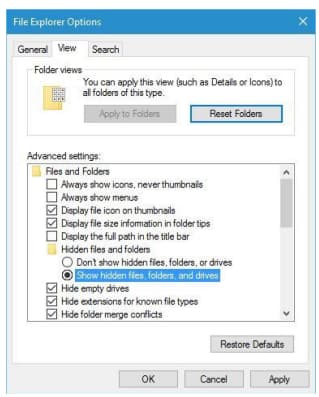
You can check hidden files and folders to verify if the files that disappeared from the desktop are there. There is a possibility that a few folders and files go hidden due to errors in the operating system. You can enable the option to view hidden files and folders by following the steps mentioned below. You can then search for the data or folder that you think is lost from the desktop.
- 1. Press Windows key and S at the same time and search for File Explorer. From the list that appears, choose the File Explorer Options feature.
- 2. After the File Explorer Options screen pops-up, head to the View tab. Now, go to the Advanced Settings column. Here, click "Show hidden files, folders, and drives" feature. Click the "Apply" button.
- 3. After this, you can head back to the desktop to search for the files or folders that you lost. You will find all the data in the folder with the same name.
Solution 4: Search Hard Drive and Look for Files on Desktop Disappeared
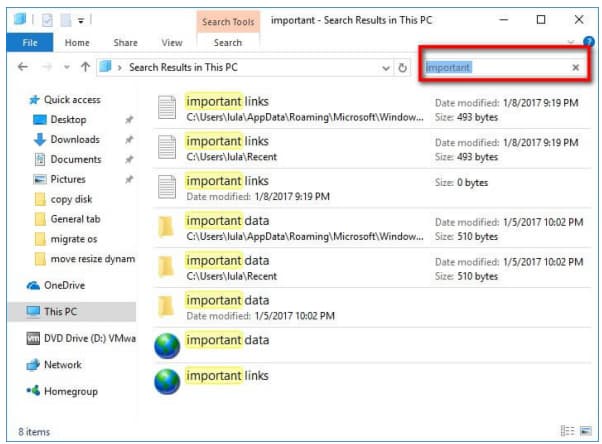
You might not have searched for the disappeared desktop files throughout your entire hard drive. In some instances, the hard drive letter changes. For example, if you have stored a folder containing essential files in the C drive, the operating system might have moved it to D:\Users\your_username folder. The folder could also be on a different partition.
To ensure that you're not missing the files or folder, you'll need to search the hard drive. Here's how to do it:
- 1. Open the File Explorer option on your computer. Select This PC from the left pane of the screen.
- 2. In the search box at the upper right corner, input the folder or file name that you are looking for.
- 3. Press Enter to allow the computer to search for the file/folder.
- 4. Once the search is complete, you can identify the path and head to the location to see if it is the file that you are searching for. Remember that the search takes time, as you are searching for your data on the entire hard drive.
Solution 5: Look for Files on Desktop Disappeared by Switching User Account
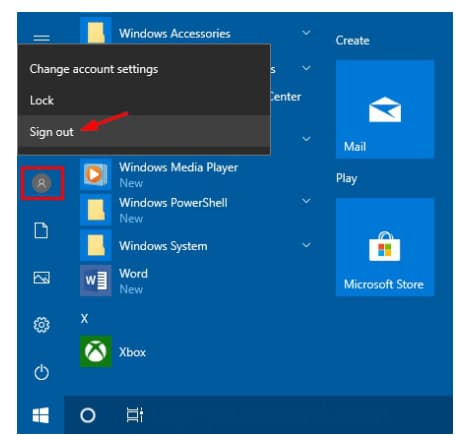
If your desktop files have disappeared on Windows 10, there's a possibility that they are still there, but not visible by default. This issue often occurs after upgrading the operating system, which creates a new user account. Your old account is still present, but it's not set as the default user. To access your files, you can try the following steps:
- 1. Click "Start", choose the user icon, and click the "Sign out" option.
- 2. In the sign-in screen, login with your old account credentials.
- 3. After switching, you will be able to see all the files and folders.
If Desktop files are missing specifically after signing in to Windows 11, finding missing Desktop files in Windows 11 helps distinguish a moved folder from deleted data.
If Windows signed in with a temporary profile, finding files in a temporary Windows 11 profile explains how to preserve new work and locate the original profile.
Related Articles
- How to Fix Desktop Icon/Folder/Files Disappeared in Windows 10
- 9 Ways for How to Fix Windows 10 Preparing Automatic Repair Loop
- [Solved] Files Missing from My Documents Folder in Windows
- Top 9 Data Recovery Services Near Me in Los Angeles, CA
this guide will guide you to find the top 9 best data recovery services near you in Los Angeles, CA. We will offer detailed information about each store. Keep reading to find out! - 10 Word Repair Fixes to Open and Repair Corrupt Word 2016/2019
If you're experiencing issues with a Word .doc or .docx file not opening or being unreadable, there are several potential causes and solutions to consider. The problem may be due to a corrupted file, and using a repair tool like Qiling Word repair tool can provide an instant solution. - How to Open ASD File and Recover Lost Word Document Easily
You can open ASD files in various ways, including using Word's Recover Unsaved Documents and Manage Documents features, as well as File Explorer. Additionally, you can recover lost ASD or Word files with Qiling data recovery software, which offers an easy-to-use solution for retrieving lost files.
Products
Articles & Tutorials
- Data Recovery
- Data Backup
- File Recovery
- File Backup
- System Backup and Restore
- Disk and Partition Clone
- Technical articles
- Mobile articles
- Disk Master Help
- Windows Data Recovery Tutorials
- Windows Secure Delete Tutorials
- Windows Partition Management Tutorials
- Windows File Backup and Restore Tutorials
- Windows System Backup and Restore Tutorials
- Windows Disk Backup and Restore Tutorials
- Windows Clone Tutorials