Recover Deleted IGES IGS Geometry Files on Windows
Quick Navigation:
- Understand the File and Its Dependencies
- Find a Backup and Protect the Source
- Recover Local Files with Qiling
- Check the Recovered Result
- Frequently Asked Questions
Accidental deletion can remove a design file while leaving a preview, shortcut, or older export behind. Before running a scan, identify the actual saved file and the physical disk that held it. This guide explains how to recover IGES IGS Geometry Files from Windows storage and check whether the recovered work is usable.
Understand the File and Its Dependencies
IGES is a geometry-exchange format. It may preserve curves and surfaces without retaining the native CAD feature history or every application-specific property.
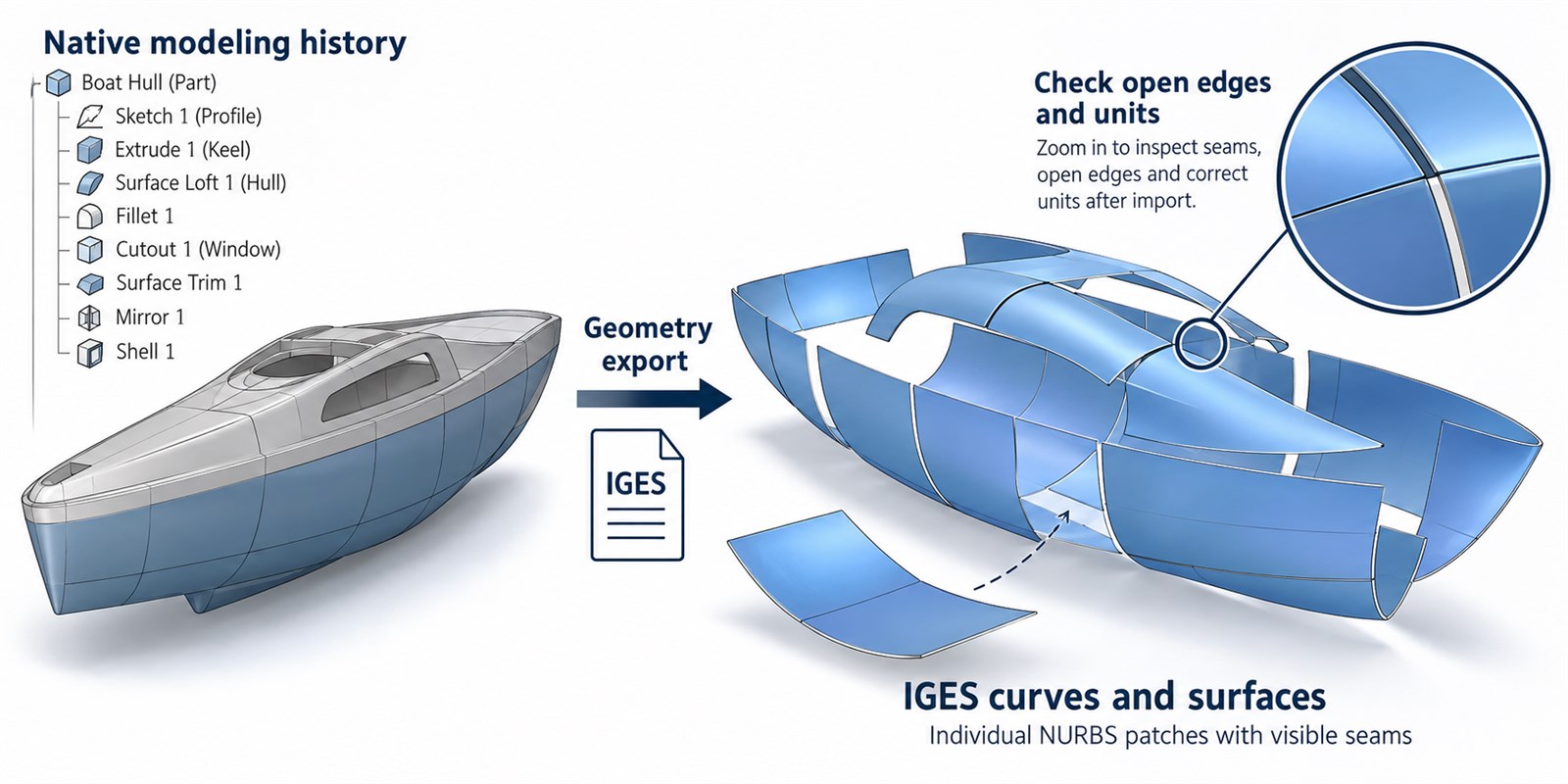
Knowledge illustration: an IGES export exchanges curves and surfaces rather than the complete native modeling history. AI-generated conceptual diagram, not a software screenshot.
Record the original folder, application version, expected file size, and last useful revision. Keep a list of referenced files or sequence members where relevant. A visible preview or familiar filename does not prove that editable geometry, metadata, or every frame is intact.
If the file still exists but will not open, preserve it and investigate corruption or compatibility separately. An undelete scan does not automatically repair damaged internal structures or recreate changes that were never saved.
Find a Backup and Protect the Source
Check the source CAD model, export destination, email attachments, supplier copies, Recycle Bin, and backups. If the native design survives, consider exporting again to a separate disk.
Check Windows and Application Copies
Open Recycle Bin and compare the original path and deletion date. Check application-managed versions, Windows backups, and the version history of synced folders. When possible, copy a candidate to another physical disk for inspection instead of replacing your only surviving version.
Prepare a Separate Recovery Destination
If no usable backup exists, stop saving, rendering, exporting, or installing software onto the source disk. New writes can overwrite deleted content. SSD TRIM can also make deleted blocks unavailable. Prepare another physical drive with enough space for multiple candidate versions and companion resources.
If the device disconnects repeatedly, makes unusual noises, or reports hardware errors, stop repeated scans and seek specialist assistance. Do not format the source to make it accessible. A local scan cannot recover files that existed only on a remote project server or cloud service.
Recover Local Files with Qiling Deep Data Recovery
Qiling Deep Data Recovery searches Windows-visible local disks and removable storage for lost files. Recovery depends on the remaining file records and data. Do not assume that every specialized design format has a dedicated preview or repair function.
Step 1. Select the Recovery Mode
Run the program from a disk other than the source. Select Fast Scan for recent local deletion, Recycle Bin Scan after emptying the bin, USB/SD Scan for removable storage, or Format Scan after an accidental format. Choose according to the loss event, not the file extension.

Step 2. Select the Source Volume and Click Scan
Identify the volume that contained the original project folder. Check its drive letter and capacity before selecting it, especially if several external disks are connected. Click Scan and allow the scan to complete. Do not select the destination drive merely because it is empty.

Step 3. Review Versions and Related Files
Review names, folders, extensions, sizes, and dates where available. Select several plausible versions rather than discarding alternatives immediately. Include referenced components, resource folders, or sequence files identified earlier. For files with numbered versions, retain the suffixes.

Step 4. Recover to Another Physical Disk
Select the candidates and click Recover. Choose a folder on the prepared destination disk, not another partition of the physical source disk. Wait for the output to finish saving, confirm the files exist, and keep an untouched copy before opening anything in a design application.

Check the Recovered Result
Import a copy with a compatible CAD tool. Check model units, extents, surface count, seams, and whether the geometry is open or closed. Compare with the native model or drawing.
If validation fails, compare other recovered versions and backups before editing. Missing references, unsupported versions, or export limitations can resemble corruption. After confirming a working result, back up the file and its dependencies together, with a clear application version and revision label.
Frequently Asked Questions
Does IGES restore the original feature tree?
Usually not. It is an exchange representation, not a native parametric backup.
Are open surfaces always evidence of recovery damage?
No. They can reflect the original export or import settings. Compare another trusted export.
Should I save a repaired or converted copy over the recovered original?
No. Keep the recovered original unchanged and work on duplicates. This preserves alternatives if a conversion, upgrade, or repair drops important information.
Related Articles
Products
Articles & Tutorials
- Data Recovery
- Data Backup
- File Recovery
- File Backup
- System Backup and Restore
- Disk and Partition Clone
- Technical articles
- Mobile articles
- Disk Master Help
- Windows Data Recovery Tutorials
- Windows Secure Delete Tutorials
- Windows Partition Management Tutorials
- Windows File Backup and Restore Tutorials
- Windows System Backup and Restore Tutorials
- Windows Disk Backup and Restore Tutorials
- Windows Clone Tutorials