Files Missing After an Update Changed the Drive Letter
Quick Navigation:
- Why the Letter Changed
- Find the Current Letter
- Restore the Old Letter
- When the Volume Is the Problem
- Frequently Asked Questions
An update that renumbers a volume looks exactly like data loss. The folders are still on the disk, but every shortcut, library, and backup job still points to the letter the volume used to have, so the files appear to be gone. Finding the new letter takes a minute and usually restores everything without a recovery tool.
Why the Letter Changed
Windows assigns letters at startup in the order it discovers devices. An update that installs a new storage driver, adds a virtual disk, or changes how a dock is detected can shift that order and push a data volume to a free letter further down the alphabet.
Removable devices make it worse. A card reader or a USB drive that is present during the first boot after the update can take a letter that a fixed volume used before.
Storage Spaces, encrypted volumes, and drives behind a USB bridge are also affected, because they are mounted later in the boot sequence and need a letter the system has not used yet.
Find the Current Letter
Open Disk Management and read the volume list instead of the drive icons in Explorer. Match the volume by its label, its capacity, and the position of the partition on the disk.
If the volume has a letter but no name, open it and check whether the folder structure matches the drive you are looking for. A volume that shows as unlettered, RAW, or unallocated is a different problem that is covered in the next sections.
Look at a broken shortcut as well. Its target path still contains the old letter, which confirms that the file was moved to another letter rather than deleted.
Restore the Old Letter
Right-click the volume in Disk Management and open its letter settings, then assign the letter the shortcuts expect. If another device currently holds that letter, change that device first or unplug it for the next restart.
Restart once after the change so that libraries, pinned folders, and background services re-read their paths. Program shortcuts that store an absolute path usually start working again without any further edit.
Check the Recycle Bin and the update history afterwards. If the update really did move files, they are in the bin; if the folders return at their old path, nothing was ever deleted.
When the Volume Is the Problem
If the letter is correct and the folders are still empty, the update may have damaged the partition or the file table behind it. Qiling Deep Data Recovery reads the volume directly and lists folders that no longer appear under any letter.
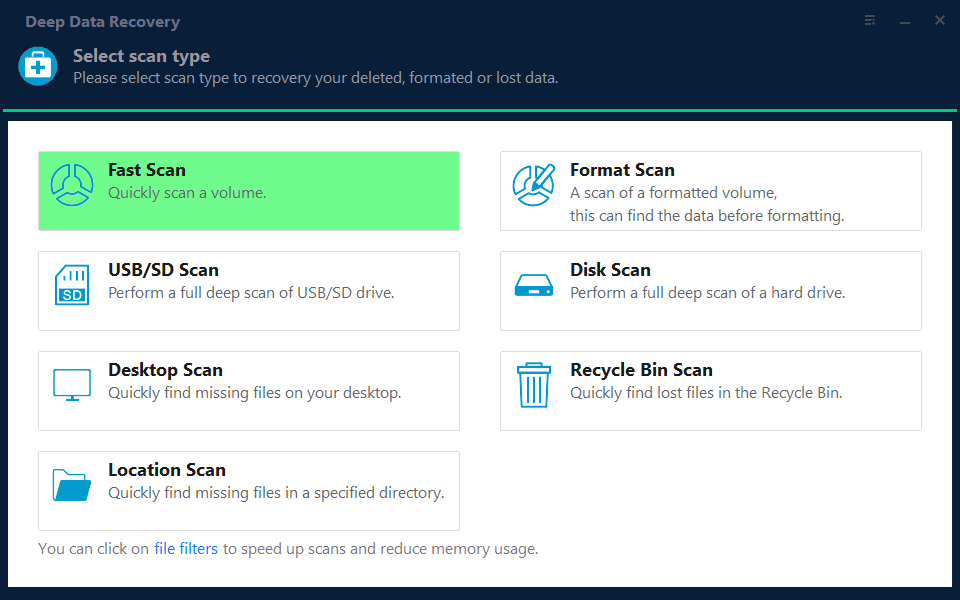
Step 1. Select the Recovery Mode
Fast Scan is enough when the volume still opens and only some folders are missing. Pick the deeper scan when the volume is reported as RAW or when the update resized the partition.
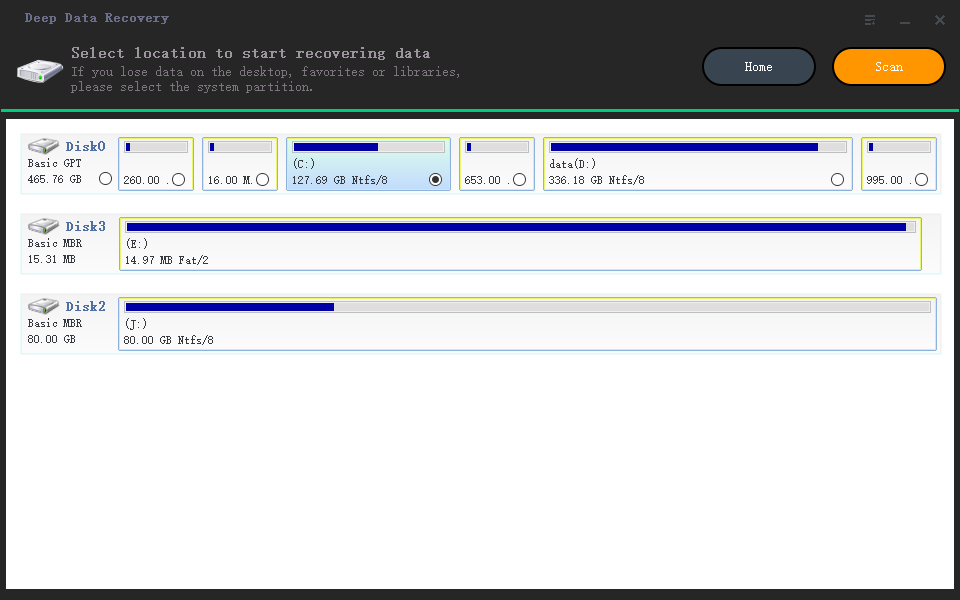
Step 2. Choose the Location
Select the physical disk that holds the affected volume, not the letter it used to have. Confirm the capacity so that a similarly sized USB drive is not picked by mistake.
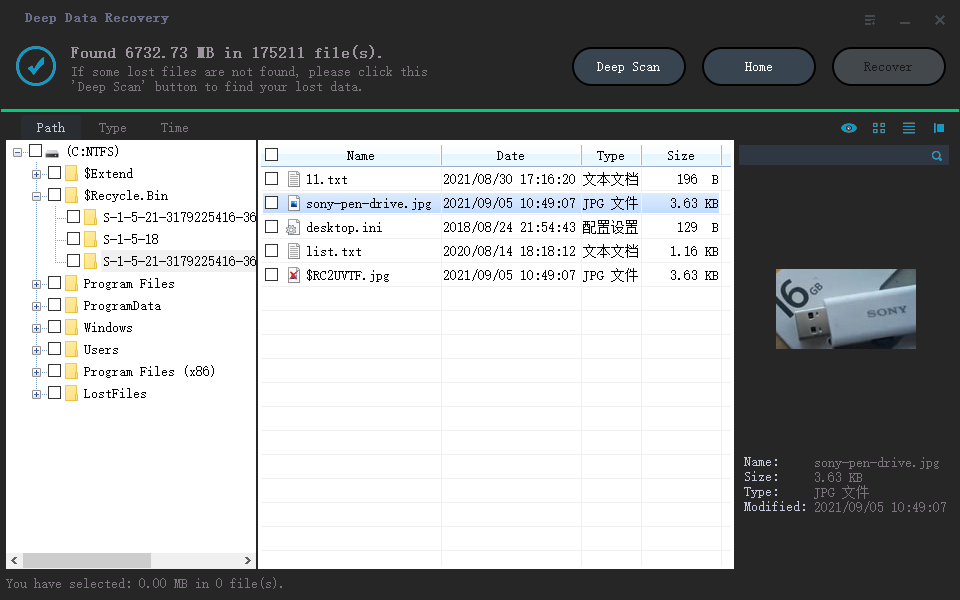
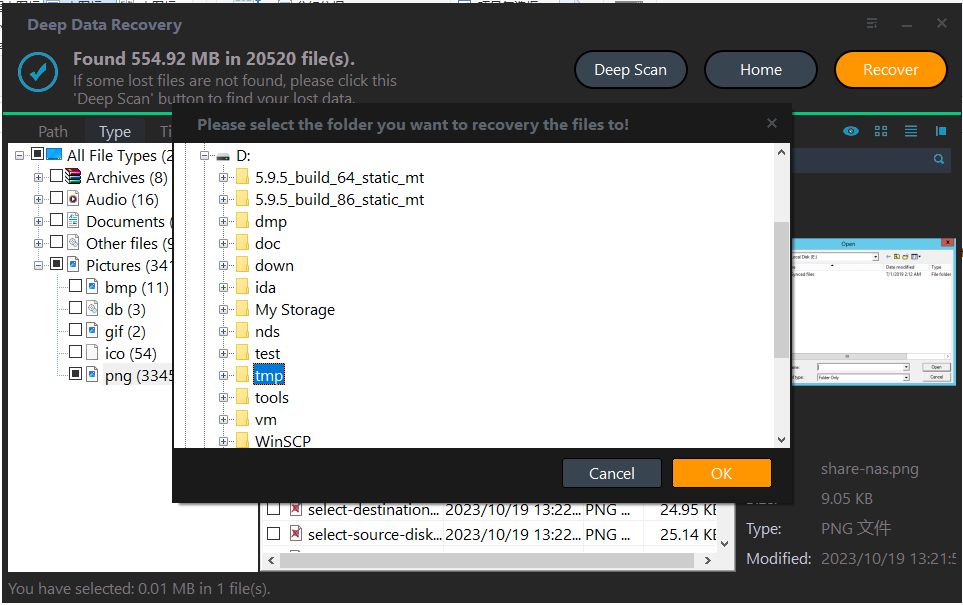
Step 3. Scan and Save to Another Drive
Browse the results by folder, preview a document from each important folder, and select only those. Save the files to a different disk and keep them there until the volume is confirmed to be healthy.
Frequently Asked Questions
Did the update delete my files or just move the letter?
In most reports it only moved the letter. Open Disk Management, match the volume by size and label, and the folders are usually there under a different letter.
Will assigning the old letter break the other drive?
Only if that drive keeps the letter. Change the other device first, then give the original letter back to the data volume and restart once.
Why is the volume still empty after the letter came back?
The partition itself may have been damaged during the update. Stop writing to the disk and scan it before running any repair or formatting step.
Related Articles
- Windows 11 25H2 Lost Partition Becomes Unallocated
- Recover a RAW Partition Without Losing Data
- Recover Files From a RAW External SSD
- Recover Deleted Files From a Storage Spaces Volume
- Recover Files After Storage Sense Cleans Downloads
Products
Articles & Tutorials
- Data Recovery
- Data Backup
- File Recovery
- File Backup
- System Backup and Restore
- Disk and Partition Clone
- Technical articles
- Mobile articles
- Disk Master Help
- Windows Data Recovery Tutorials
- Windows Secure Delete Tutorials
- Windows Partition Management Tutorials
- Windows File Backup and Restore Tutorials
- Windows System Backup and Restore Tutorials
- Windows Disk Backup and Restore Tutorials
- Windows Clone Tutorials