Recover Deleted Files From a Storage Spaces Volume
Quick Navigation:
- Why a Pool Volume Behaves Differently
- Stop Writes and Keep the Pool Intact
- Scan the Mounted Volume, Not the Members
- Recover the Files with Qiling Deep Data Recovery
- Frequently Asked Questions
A Storage Spaces volume looks like an ordinary drive in Explorer, but it is a virtual disk spread across several physical disks with thin provisioning and its own allocation layer. That changes the advice: you scan the volume, not the members, and you keep the pool online so that the mapping stays available.
Why a Pool Volume Behaves Differently
The pool combines physical disks into a shared address space, and each virtual volume is written as slabs across that space. Windows presents the volume as a normal disk, and deleted files behave as they would on any NTFS volume.
Two differences matter for recovery. Thin provisioning means the volume can report a size larger than the space currently assigned, so free space inside the volume is not the same as free space in the pool. And a volume can span members, so pulling a member disk to inspect it separately breaks the mapping.
For a mirrored or parity layout, a healthy volume still has redundancy. Use that redundancy by keeping the pool in place rather than by dismantling it.
Stop Writes and Keep the Pool Intact
Stop copying files to the volume and stop running anything that writes to it. A thin provisioned volume allocates new slabs as you write, and those allocations land on the same underlying disks that hold the deleted data.
Do not remove, retire, or reset a member disk while you work. Even a failed member should stay listed, because the pool uses it to rebuild or to serve reads on some layouts.
Record the pool name, the volume name, and the resiliency setting before you start. Those details tell you how much of the original data may still be reachable if the pool later loses a member.
Scan the Mounted Volume, Not the Members
Recovery software reads the volume through the pool layer. Scanning a member disk directly returns raw slabs with no file system, which is why the volume has to be mounted and healthy before a scan can find anything.
If the volume has no drive letter, assign one first. A scan needs a path, and the Settings page assigns a letter without touching the data.
If the pool reports a warning rather than healthy, copy what you can before you repair it. A repair triggers reallocation across the members and can overwrite the space where the deleted files still sit.
Recover the Files with Qiling Deep Data Recovery
Qiling Deep Data Recovery scans the mounted volume and writes the results to a disk outside the pool. Working at the file system level means it does not need to know the pool layout, only that the volume is online and readable.
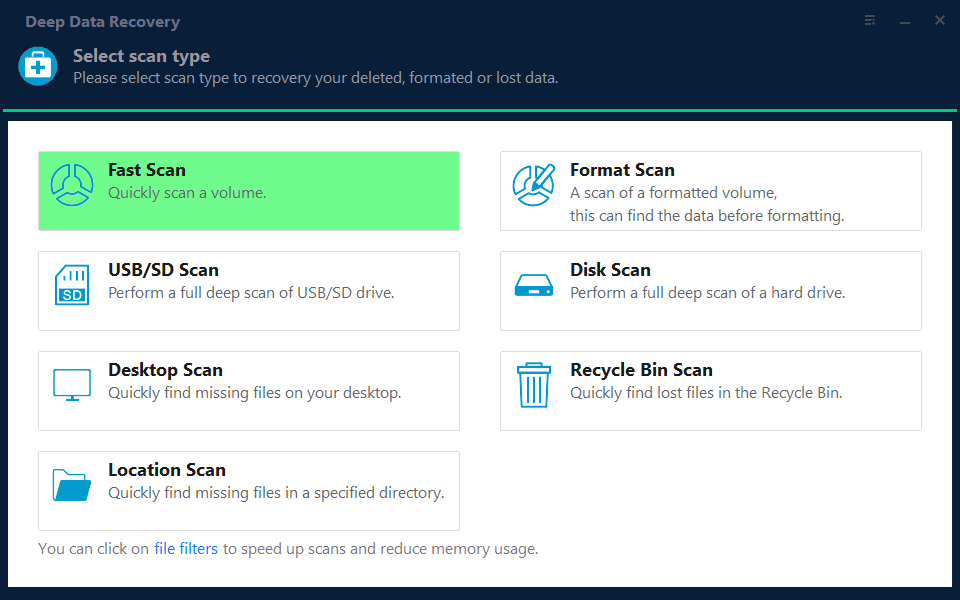
Step 1. Choose the Recovery Mode
Use Fast Scan for files deleted from a mounted volume. Choose Format Scan when the volume was reformatted or shows as RAW.
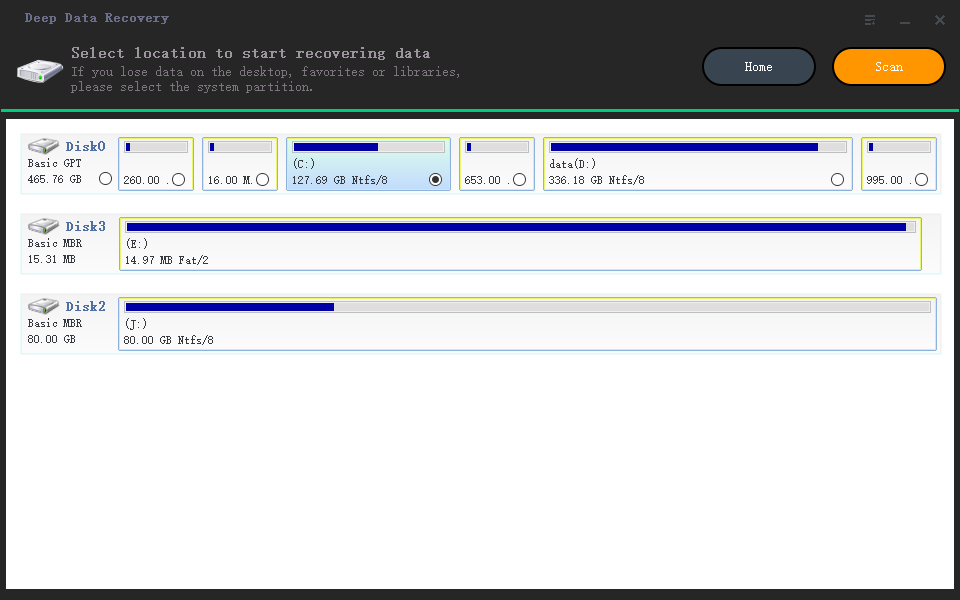
Step 2. Select the Volume
Select the disk entry that carries the volume letter and confirm the capacity against the volume properties. The member disks should not be selected individually.
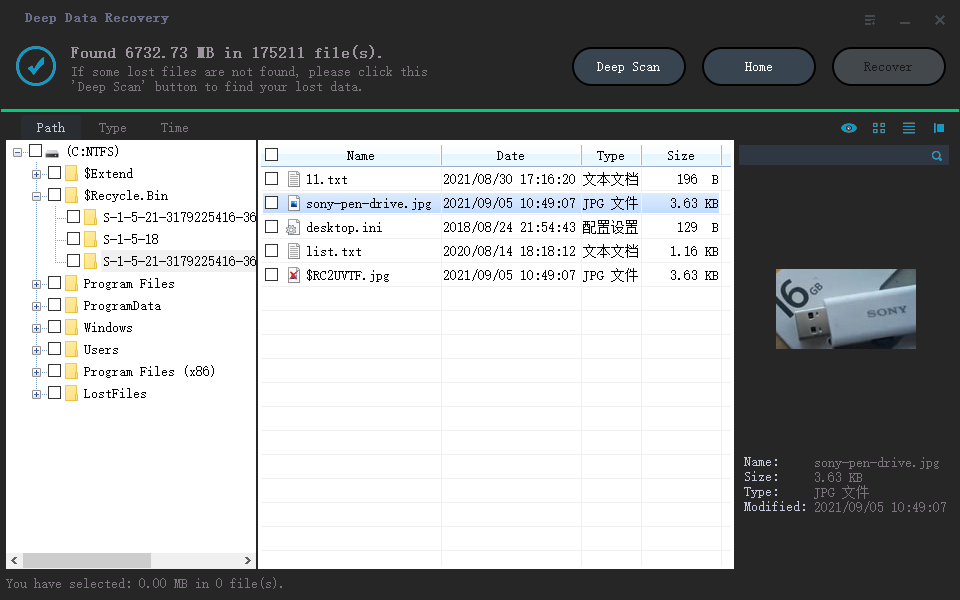
Step 3. Review the Results
Search by file name and preview documents before recovering them. A preview that renders shows the file content is still in place.
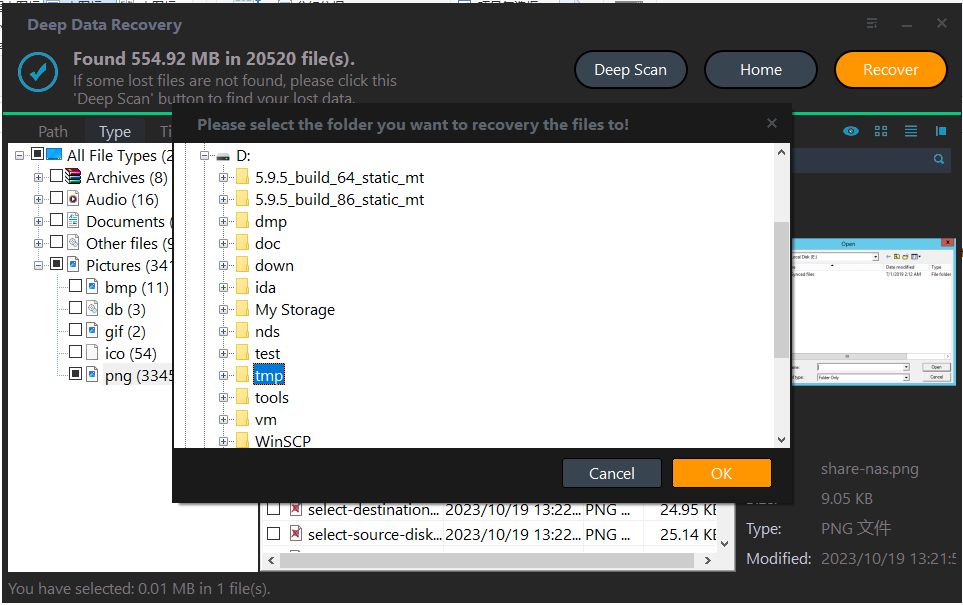
Step 4. Save Outside the Pool
Write the results to an internal disk or an external drive that is not a member of the pool. Saving back into the pool allocates new slabs over the area you are trying to recover.
Frequently Asked Questions
Can I recover files by scanning a member disk directly?
No. A member holds raw slabs, not a file system. The volume has to stay mounted so that the pool can present a readable disk.
Does thin provisioning reduce the chance of recovery?
It can. New writes allocate slabs, and those allocations may land on the area that still holds the deleted files.
What if the pool is unhealthy?
Copy what you can immediately. Repairing or adding a disk triggers reallocation, and reallocation is exactly what you want to avoid while recovering.
Do I need the same resiliency setting to recover?
Not for a mounted volume. You only need the layout details when a member disk is missing and the volume cannot be brought online.
For a pool that refuses to release a failed disk, see Storage Spaces disk missing and cannot be removed.
Related Articles
- Storage Spaces Disk Missing and Cannot Be Removed
- Recover Data From a Single RAID Member Disk
- Perform a RAW Drive Recovery
- Cannot Save Recovered Files Larger Than 4 GB
- How to Back Up a Hard Drive
Products
Articles & Tutorials
- Data Recovery
- Data Backup
- File Recovery
- File Backup
- System Backup and Restore
- Disk and Partition Clone
- Technical articles
- Mobile articles
- Disk Master Help
- Windows Data Recovery Tutorials
- Windows Secure Delete Tutorials
- Windows Partition Management Tutorials
- Windows File Backup and Restore Tutorials
- Windows System Backup and Restore Tutorials
- Windows Disk Backup and Restore Tutorials
- Windows Clone Tutorials