Storage Spaces Disk Missing and Cannot Be Removed
Quick Navigation:
- What Missing Means Inside a Pool
- Retire the Disk Instead of Removing It
- Rebuild and Verify Redundancy
- Back Up the Volume with Qiling Disk Master
- Frequently Asked Questions
Storage Spaces spreads one virtual volume across several physical disks. When a member disk stops answering, the pool does not release it, because removing it at once would break the volume that spans it. The disk stays listed as missing and refuses to be removed until you tell the pool to evacuate its data, which is a different command from the one most people try first.
What Missing Means Inside a Pool
Storage Spaces groups physical disks into a pool and carves virtual disks out of that pool. Each virtual disk is sliced into slabs that are spread across the members, and redundancy is achieved by keeping more than one copy of a slab.
When a member stops responding, the pool marks it as missing or as lost communication instead of dropping it. Removing the disk immediately would invalidate every slab that lives on it, so the pool refuses, and an unhealthy virtual disk keeps the disk listed even after you have unplugged it.
The state is a safety feature rather than a defect. The disk has to be retired, which orders the pool to copy its data to the other members before the disk is released.
Retire the Disk Instead of Removing It
Open the Storage Spaces settings page or the classic Control Panel applet and read the physical drives list. A failed disk shows a warning and a remove link, while a healthy one offers to be prepared for removal.
Retire first. The pool then copies the disk contents to the remaining members, which requires free capacity and, for a two-way mirror, enough healthy disks to end up with a redundant copy of every slab.
Only after the evacuation finishes does removal succeed. If the pool is nearly full, the operation stops partway and the disk remains in the list with a mixture of healthy and missing extents.
Rebuild and Verify Redundancy
Check the virtual disk health after the removal. A two-way mirror needs two good copies of every slab, and if the pool dropped to a single copy the volume reports a warning rather than healthy.
Add a replacement disk that is at least as large as the one you removed, then let the pool rebalance. A smaller disk cannot hold the largest slabs, so the pool leaves capacity unused or refuses the disk.
Verify by reading a sample of files from the virtual volume before you trust it again. A pool that reports healthy but returns errors on old data has already lost a slab, and a backup taken now would preserve the damage.
Back Up the Volume with Qiling Disk Master
Because one volume spans several disks, a pool problem is not a single-disk failure and cannot be solved by pulling one drive. Qiling Disk Master can back up the mounted virtual volume to a disk outside the pool, which is the fastest way to protect the data before you change the layout.
Step 1. Choose the Backup Type
Start the program and open Backup. A folder-level File Backup is enough for a data volume, while System Backup is the right choice when the virtual disk hosts Windows itself.
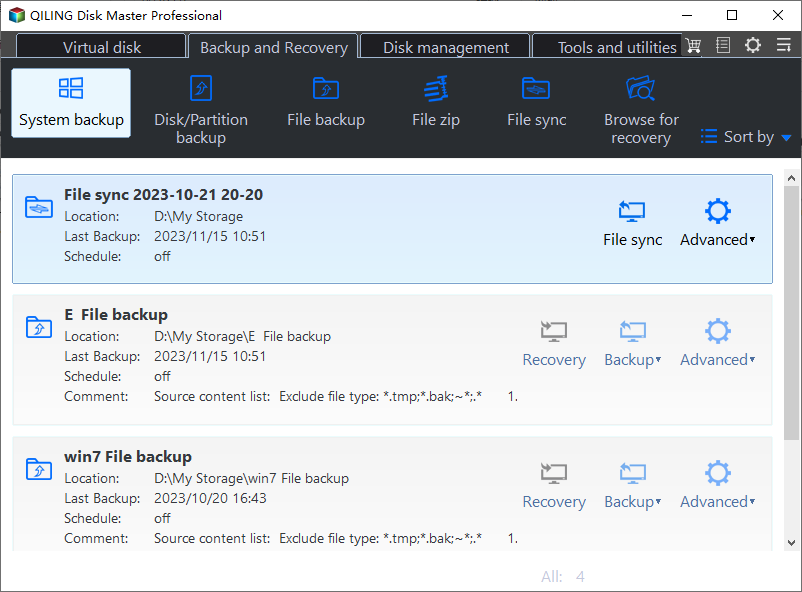
Step 2. Select the Storage Spaces Volume
Pick the volume by drive letter and compare its capacity with the size the pool reports. If the volume has no letter, assign one first, because the backup needs a usable path.
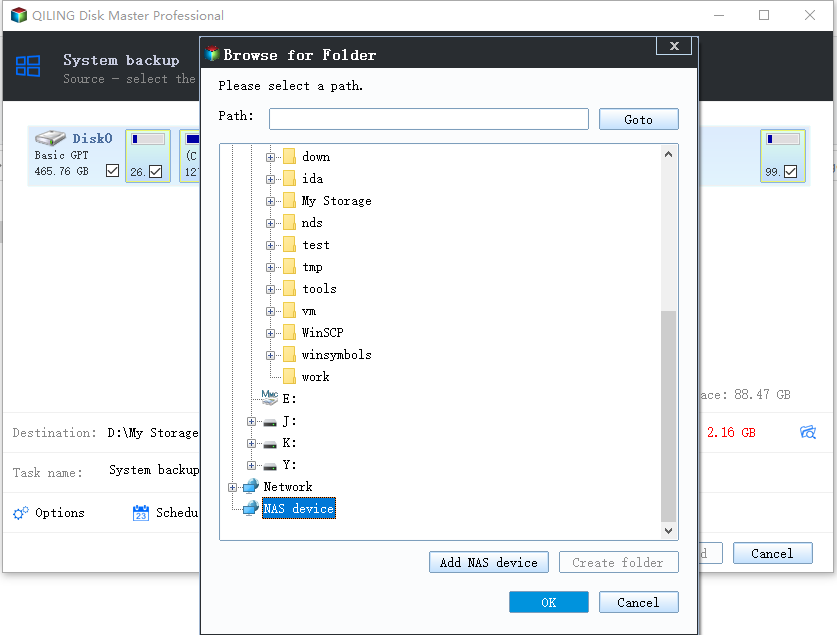
Step 3. Choose a Destination Outside the Pool
Use an external disk or a disk from another pool. Writing the image to a member of the same pool defeats the purpose, because the pool is exactly what is at risk.
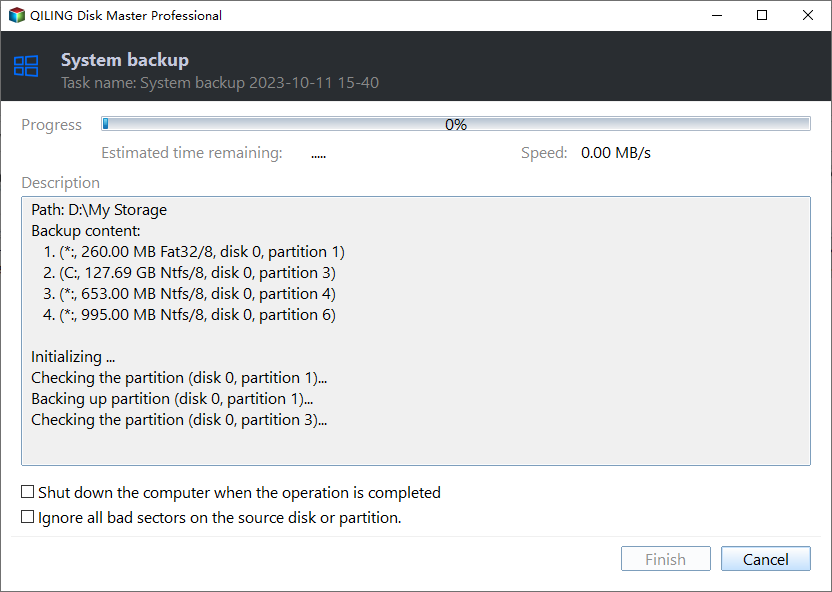
Step 4. Run the Backup and Verify It
Start the task and let it finish without pausing the machine. Then open the image and confirm that a few folders can be browsed; a backup that cannot be read is worse than none, because it creates false confidence.
Frequently Asked Questions
Why can I not remove a disk that is already unplugged?
Because the pool still holds data on it. Retire the disk, or wait until the pool marks its slabs as unrepairable, before removal becomes available.
Can I recover data from a missing pool disk?
Sometimes. Recovery software can read the member disk directly and rebuild the virtual layout from its metadata, but only if the disk is still detected by the machine.
Does Storage Spaces require identical disks?
No, but some layouts allocate slabs according to the smallest member, so mixing sizes wastes capacity rather than breaking the pool.
How do I know the pool is healthy again?
The virtual disk status reads healthy and the physical drives list shows no warnings. Read a few files as well before you delete any backup.
For recovering files from a pool volume that has already lost data, see recovering deleted files from a Storage Spaces volume.
Related Articles
- Recover Deleted Files From a Storage Spaces Volume
- How to Back Up a Hard Drive
- How to Check an NVMe SSD for Health
- Cannot Initialize Disk
- Acronis Universal Restore Explained
Products
Articles & Tutorials
- Data Recovery
- Data Backup
- File Recovery
- File Backup
- System Backup and Restore
- Disk and Partition Clone
- Technical articles
- Mobile articles
- Disk Master Help
- Windows Data Recovery Tutorials
- Windows Secure Delete Tutorials
- Windows Partition Management Tutorials
- Windows File Backup and Restore Tutorials
- Windows System Backup and Restore Tutorials
- Windows Disk Backup and Restore Tutorials
- Windows Clone Tutorials