Recover EFS Encrypted Files When the Certificate Is Lost
Quick Navigation:
- How the EFS Key Chain Works
- Stop Writing and Save the Profile
- Check the Certificate and Key
- Restore the Files, Then Decrypt Them
- Frequently Asked Questions
Encrypting File System does its job quietly until the day it refuses. The file names still show in green, the size is correct, and a double click returns Access is denied. Nothing is wrong with the disk. The private key that belongs to those files is gone, usually because Windows was reinstalled, the user profile was deleted, or the account was recreated under a new security identifier.
This guide explains the key chain that guards an EFS file, what to save before anything else, and how to restore the files themselves once the key question is settled.
How the EFS Key Chain Works
EFS encrypts each file with its own random file encryption key using a symmetric cipher. That key is not stored in the file as plain text: it is wrapped with the public key of the user's EFS certificate, and the result is written into an NTFS attribute called $EFS, which sits alongside the file as an alternate data stream. Opening the file reverses the process, but only if the matching private key is available to unwrap the file key.
The private key lives in the user profile, protected by the Data Protection API with material tied to the account password and its security identifier. The certificate and the key are also registered in the personal certificate store of that profile. Nothing of this is stored in the file, and nothing of it is stored on the disk outside the profile, which is why a reinstall, a profile deletion, or a new account with the same name cannot open the old files.
A recovery agent is the one exception. If a data recovery agent was configured by policy before the files were encrypted, that agent holds a second wrapped copy of every file key in the $EFS stream, and its certificate can decrypt the files without the user's key. On a stand-alone machine the agent is usually the local Administrator account, and it is disabled by default in modern Windows, so most home users have no safety net.
The content itself is untouched on the disk, but it is ciphertext. A scan can find the file, its name, and its $EFS stream, and it cannot turn the ciphertext into readable text, because that requires the private key. Recovery and decryption are two separate jobs, and both have to succeed before a document opens again.
Stop Writing and Save the Profile
Do not delete the old profile folder, the old Windows installation, or a Windows.old directory, even when the account no longer appears in the sign-in screen. The Data Protection API master keys are small files inside the profile, and a password recovery specialist can sometimes use them when the original password is known. Deleting the folder removes that last chance.
Do not reset the account password through another administrator account. A forced reset replaces the password without the old one, and the master keys that protect the EFS private key are derived from the old credentials. If the password is already forgotten, stop and treat the profile as evidence rather than as a broken login.
Search every reasonable place for an exported key before you spend time on anything else: a .pfx or .cer file on a USB stick, a backup image of the old system, a roaming profile on a server, another machine where the certificate was imported, or an enterprise backup of the user's certificate store. An exported .pfx with its password is enough to open every file that user encrypted.
Copy the encrypted files and the whole old profile to another disk before you experiment, and copy them in a way that keeps the encryption attribute. Dragging a file within the same NTFS volume moves it and preserves EFS, while copying it to a FAT or exFAT disk fails or decrypts nothing. When in doubt, take a sector-level image of the volume and work from the image.
Check the Certificate and Key
First confirm that the certificate still exists and whether it carries a private key. Open the personal store with certmgr.msc, or list it with certutil -user -store My, and look for a certificate with Encrypting File System in its intended purposes. A certificate shown without a key icon, or with the note that the private key is not available, cannot decrypt anything.
Note: certmgr, certutil, cipher, manage-bde, chkdsk, and PowerShell are all tools that ship with Microsoft Windows. They are not part of Qiling Disk Master, and the recovery steps later on this page do not use them. They are listed here so you can inspect the certificate store and the encryption state before you decide on a path. Qiling Disk Master is covered separately with its own graphical steps.
The cipher /c command lists encrypted files in a folder and names the users and recovery agents that can open each one, which is the fastest way to see whether a recovery agent exists for your files. The cipher /x command exports a certificate together with its private key to a .pfx file, and it works only while the key is still readable in the current profile, so run it before you touch anything else.
If the certificate is present and exportable, import the .pfx into the new profile and decrypt the files with cipher /d. If it is missing, check the recovery agent policy under Local Security Policy, Public Key Policies, Encrypting File System, and look for the agent certificate in the same store. With neither the user key nor an agent key, the files stay closed, and the only remaining task is to restore the data so it is ready if the key ever turns up.
Restore the Files, Then Decrypt Them
When the encrypted files were also deleted, formatted over, or lost with a failed drive, Qiling Disk Master can bring them back. Its disk-level scan engine reads file records below the file system, lists the files with their original paths, and keeps the $EFS stream with each restored file, so the encryption survives the recovery and the file opens as soon as the right certificate is imported. Nothing is written to the source disk until you press the recovery button.
Operation 1: Select the Volume and Run the Scan
The scan has to reach the file records and the $EFS stream together, which is why the source is the volume itself rather than a folder you copied by hand.
Step 1. Select the volume that held the encrypted files, or its image. Identify it by label and capacity, and prefer the image file when the drive is failing or when the volume is no longer mounted. Restoring to a volume that still has the profile in place keeps the certificate available for the next step.
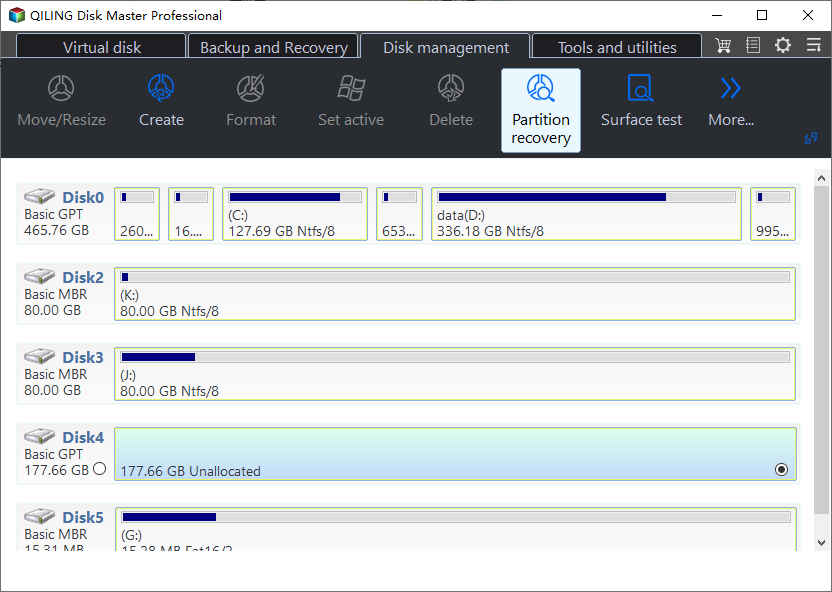
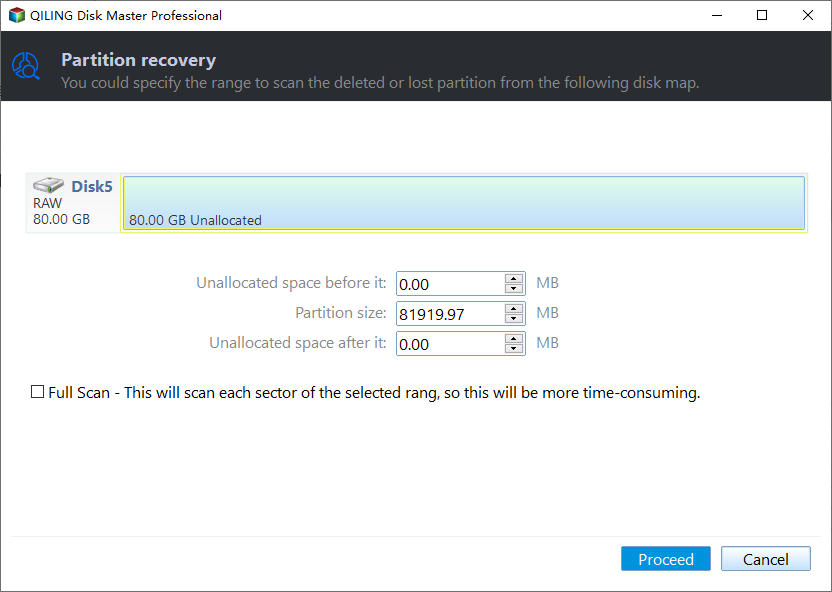
Step 2. Choose the scan mode and wait for the pass to finish. A quick scan reads the surviving records and often restores recently deleted encrypted files in full. Use the deep scan when the volume was formatted, when the profile was removed along with the files, or when the quick pass returns nothing; it walks the unallocated space where the old records still sit.
Operation 2: Recover With the Encryption Intact
An EFS file that comes back with its stream is still encrypted, which is the correct result: it is protected exactly as it was before the loss.
Step 3. Preview the files, tick the ones you need, and click Recover. Encrypted content cannot be previewed as text, so judge by name, path, size, and date rather than by a failed thumbnail. Save to a different physical disk with Recover, then import the original .pfx into the profile that will open the files and confirm that the green name turns into a normal document.
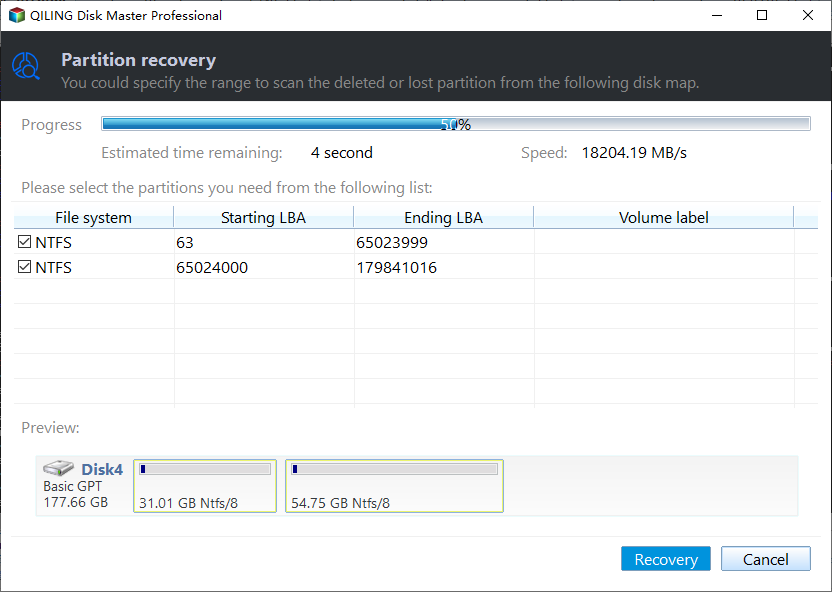
Keep the restored copy even if the key is still missing. A certificate found months later, or a recovery agent configured on the old domain, can open a file that is intact today and gone after the next cleanup.
Frequently Asked Questions
Can I open EFS files after a reinstall without the certificate?
No. The private key was stored in the old profile, and a new installation has no access to it. The file stays readable only through an exported backup of that key or through a recovery agent that was configured before the files were encrypted.
Does the built-in Administrator account always decrypt EFS files?
No. The account can decrypt only when it holds the recovery agent certificate for that machine or domain, and that agent is disabled by default on modern Windows. Being an administrator lets you change permissions, not unwrap a file key.
Will data recovery software break the encryption?
No, and it should not try. Recovery restores the file together with its $EFS stream, so the encryption remains in force. Only the matching private key or recovery agent can decrypt the content, and any tool that claims otherwise is describing a password attack, not a recovery.
Related Articles
- Decrypt a File Without the Key, Password, or Certificate
- EFS: What Is the Encrypting File System?
- Encrypted Container vs Windows EFS
- EFS Decryption Guide: How to Recover Encrypted Files
- Files Automatically Encrypted: How to Remove Encryption
Products
Articles & Tutorials
- Data Recovery
- Data Backup
- File Recovery
- File Backup
- System Backup and Restore
- Disk and Partition Clone
- Technical articles
- Mobile articles
- Disk Master Help
- Windows Data Recovery Tutorials
- Windows Secure Delete Tutorials
- Windows Partition Management Tutorials
- Windows File Backup and Restore Tutorials
- Windows System Backup and Restore Tutorials
- Windows Disk Backup and Restore Tutorials
- Windows Clone Tutorials