Recover Files After a KB5127936 Boot Failure
Quick Navigation:
- Stop Booting From the Failing Disk
- Attach the Disk to Another Computer
- Copy the User Data
- Repair or Reinstall
- Frequently Asked Questions
When an update leaves a computer unable to start, the disk is usually intact and only the boot chain is broken. The files stay where they were, so the fastest way back to them is to read the disk from another machine instead of trying one repair after another on the failing one.
Stop Booting From the Failing Disk
A boot failure belongs to the startup files, not to the data. The firmware loads a boot manager, the boot manager loads Windows, and when either step stops working the volume itself can still be read without any problem.
Every restart and every automatic repair attempt writes to that disk. On hardware that is already unstable, that writing is what turns a broken boot into lost folders.
Leave the machine switched off once the failure repeats. Unplug external drives, listen for unusual noise, and stop running recovery options from the boot menu before the data has been copied.
Attach the Disk to Another Computer
Take the drive out and connect it to a working desktop with a spare data cable, or place a laptop drive in a USB enclosure. A desktop port is the more stable option because the drive stays powered during the whole copy.
Open Disk Management and confirm that the volume appears with its original capacity. A RAW label or a partition without a letter does not mean the data is gone, only that Windows cannot read the file system entry in the usual way.
Ignore any prompt that offers to format the disk before it can be used. Close that dialog, keep the volume exactly as it is, and read it with a tool that does not depend on the drive letter.
Copy the User Data
Start with Desktop, Documents, Downloads, and Pictures, then add any project folder that sits on a second partition. Those folders change most often, so they are worth copying before anything else.
Copy the files instead of moving them. A move deletes the source as soon as the transfer ends, and an unstable disk can drop the connection halfway through.
If one folder refuses to open, or the copy stops on a single file, write down the path and continue with the rest. Those leftovers are exactly what a recovery scan should target afterwards.
Repair or Reinstall
Qiling Deep Data Recovery reads file records directly from the volume, so it can list folders that Explorer no longer shows on a disk taken from a computer that will not start. Use it on the working machine after the drive is connected.
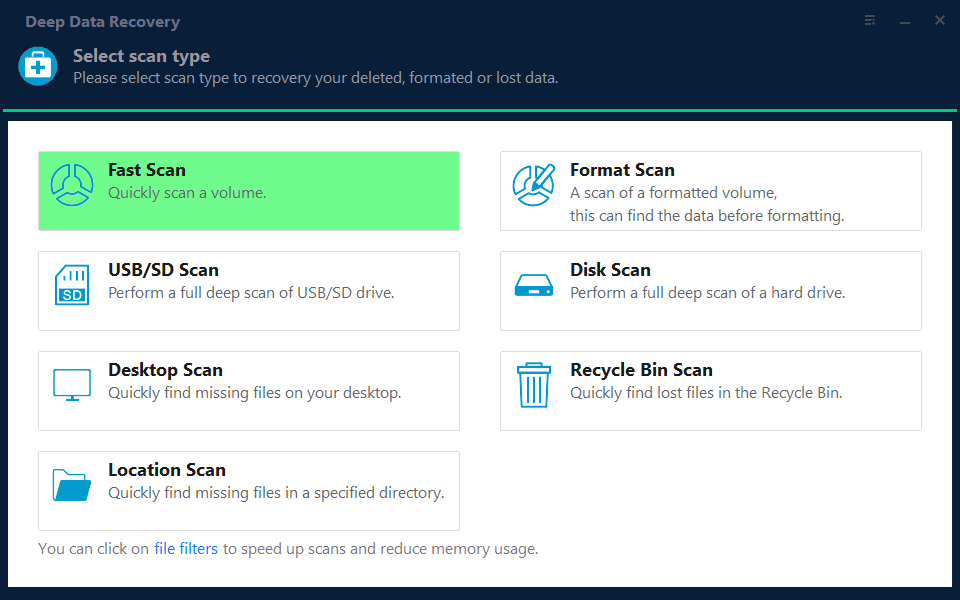
Step 1. Select the Recovery Mode
Fast Scan finds deleted and missing files on a volume that is still recognised. Choose the deeper scan when the partition is reported as RAW or when a repair attempt has already reformatted it.
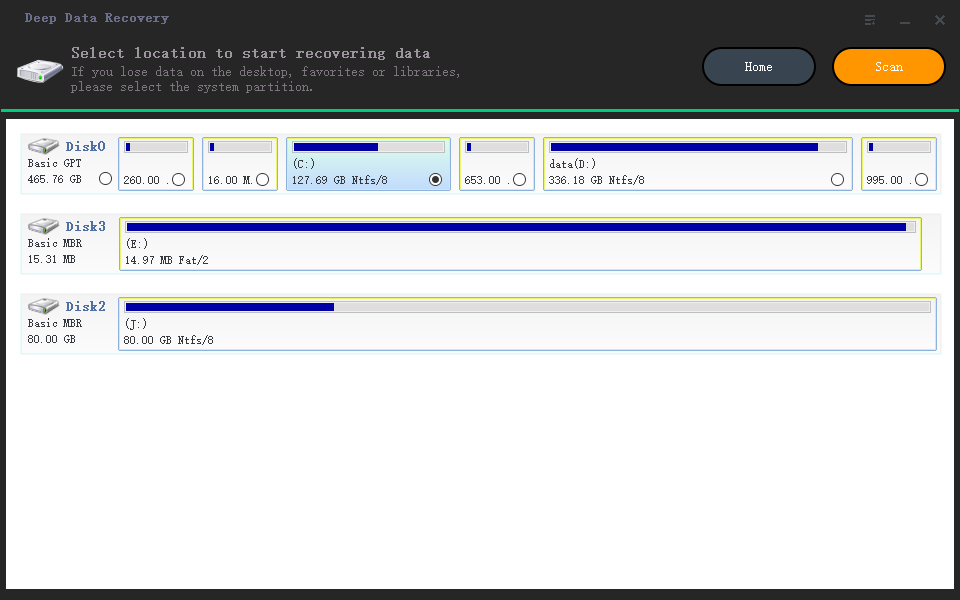
Step 2. Choose the Location
Select the attached disk rather than the system disk of the working computer. Compare the reported capacity with the label on the drive so that you are sure which one you picked.
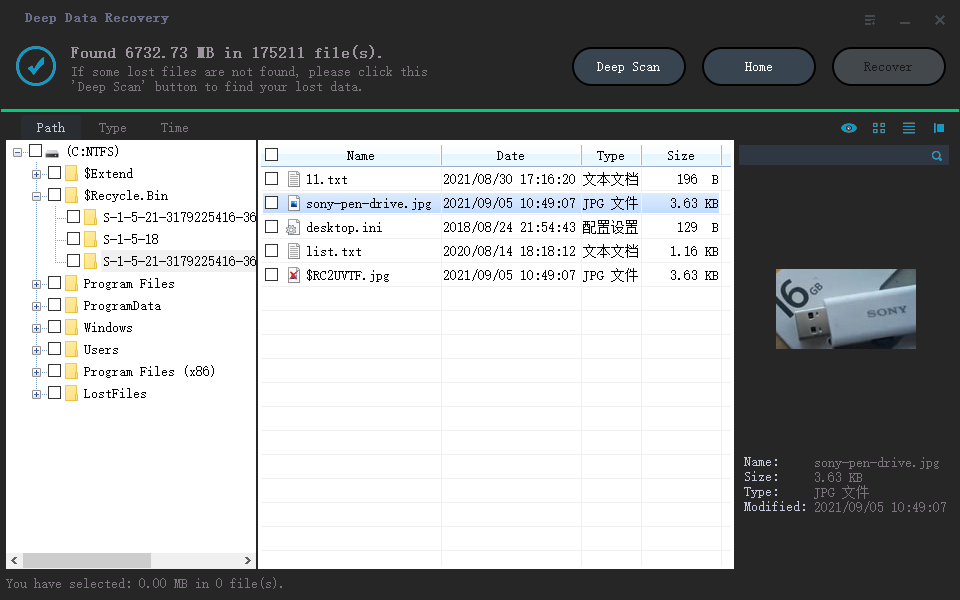
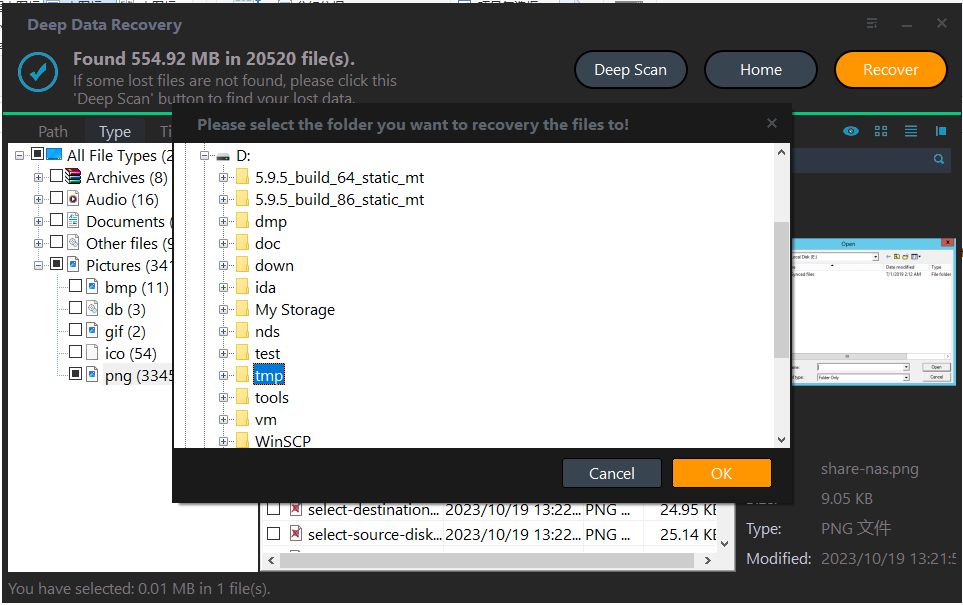
Step 3. Scan and Save to Another Drive
Filter the results by folder name and by the date of the update, then preview a few documents before ticking anything. Keep the recovered folders on a third disk, so neither the unstable drive nor the working system is written to.
Frequently Asked Questions
Do the files survive when the PC will not start at all?
Almost always, yes. A startup failure affects the boot files, while user data sits on the same partition untouched until a repair or a reinstall writes over it.
Can I repair the startup files before copying the data?
It is better not to. Repair options rewrite system areas and can also change the partition layout, so copy the folders first and repair the installation afterwards.
Should the recovered files go back to the same drive?
No. Save them to an external disk, confirm that they open, and only then decide whether the original drive will be reused, replaced, or reinstalled.
Related Articles
- Recover Files After CHKDSK on Windows 11
- Recover Files Before Running CHKDSK
- Windows 11 25H2 Lost Partition Becomes Unallocated
- Recover Files From a Drive With Bad Sectors
- Recover Files From a RAW External SSD
Products
Articles & Tutorials
- Data Recovery
- Data Backup
- File Recovery
- File Backup
- System Backup and Restore
- Disk and Partition Clone
- Technical articles
- Mobile articles
- Disk Master Help
- Windows Data Recovery Tutorials
- Windows Secure Delete Tutorials
- Windows Partition Management Tutorials
- Windows File Backup and Restore Tutorials
- Windows System Backup and Restore Tutorials
- Windows Disk Backup and Restore Tutorials
- Windows Clone Tutorials