Recover Files Before CHKDSK: A Safer Order for a Damaged Drive
Quick Navigation:
- Understand the Problem
- Check Before Another Recovery Attempt
- Recover With Qiling Deep Data Recovery
- Verify the Recovered Files
- Frequently Asked Questions
When important files are missing from an unstable or damaged volume, do not automatically start with CHKDSK repair. File-system repair and file recovery have different goals. Preserve readable data before making changes to the only source.
Understand the Problem
CHKDSK examines a file system, and repair options can change its structures. A recovery workflow instead searches for files that can be saved elsewhere. Making a volume usable again does not guarantee the missing documents will return.
The underlying device matters too. A disk with read errors or mechanical symptoms needs a different plan from a healthy disk with a minor logical inconsistency. Lengthy diagnostic and repair reads can stress failing hardware.
Check Before Another Recovery Attempt
Check 1. Decide whether the data is already safe
Check an independent backup and open the important files there. If the only copy is on the affected disk, avoid source-changing repairs until the recovery decision is made.
Check 2. Record the symptoms without repairing
Note whether Windows reports RAW, asks to format, or displays a specific error. Inspect Disk Management without accepting initialization or formatting. Cancel automatic repair prompts while assessing valuable missing data.
Check 3. Separate software recovery from hardware failure
A stable, correctly detected drive may be suitable for a cautious file-recovery scan. Clicking, repeated disconnects or severe read failures justify stopping and seeking professional imaging instead.
Check 4. Plan repair only after verified recovery
Recover needed content to independent storage and test it. With a separate verified backup secured, investigate the device and file-system problem. This article deliberately does not provide destructive repair or formatting commands for the sole copy.
Recover With Qiling Deep Data Recovery
Qiling Deep Data Recovery offers a visual mode chooser, a source-location screen, file results with supported previews and a separate recovery destination dialog. Use this workflow only when Windows can read the source reliably. It does not bypass encryption or guarantee recovery of overwritten data.
The screenshots are examples from the product interface. Their drive letters, file counts and sample selections are not instructions to choose the same disks on your computer. The download is not a promise of unlimited free recovery; check the current edition and license terms.
Step 1. Prepare the Source and a Separate Destination
Stop routine use of the affected device. Check independent backups first, then connect a healthy destination with adequate free space. Download and install Qiling on healthy storage, not the volume holding the missing files. If the system disk is affected, consider another suitable computer or specialist assistance to limit background writes.
Step 2. Choose the Scan Mode for the Original Loss
Choose a Qiling mode that reflects the data loss. Fast Scan can be a first pass for a readable volume; Disk Scan or USB/SD Scan may be relevant to broader hard-disk or removable-media loss. Do not format a RAW volume to prepare it.

Step 3. Select the Original Source and Start the Scan
Select the original readable device at its expected capacity and click Scan. If it is missing or unstable, stop; a repair command is not a required prerequisite to scanning.

Step 4. Inspect Results and Preview Suitable Candidates
Inspect the files that matter first. Preview supported formats, and consider a deeper pass only on stable storage when the first result is insufficient.

Step 5. Recover to Healthy Independent Storage
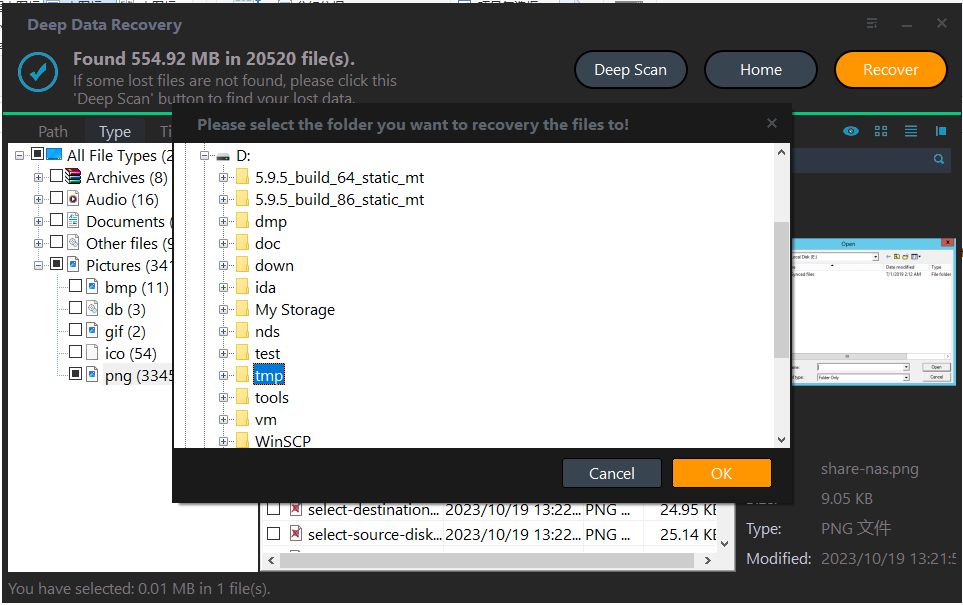
Click Recover and select a folder on a different physical disk. Confirm with OK and keep the source unchanged while you validate the recovered batch.
In the destination dialog, choose the intended folder and confirm with OK. Wait for the selected export to finish without disconnecting either device. If an error occurs, record it and keep any incomplete output separate rather than assuming the batch succeeded.
Verify the Recovered Files
Open recovered documents completely and test photos, archives or videos in their normal applications. A file count alone is not enough to justify repairing the only remaining source.
If the files are incomplete or irreplaceable content is still missing, keep the original untouched and seek further advice before repair. A backup of the broken state can be important for specialists.
Stop condition: Do not use CHKDSK repair, formatting or initialization as an experiment on the only copy. Stop DIY work on a physically failing drive.
Frequently Asked Questions
Is CHKDSK a deleted-file recovery program?
No. Its purpose is file-system checking and repair. It is not a substitute for exporting missing files to another disk.
Can I run repair after recovering some files?
First verify that all important data is secured and backed up. Recovering a few samples does not protect everything still on the source.
Must every logical error go to a recovery lab?
No. Stable storage may be suitable for software recovery. Physical symptoms and the value of the only copy should guide the decision.
Technical References
Related Articles
- Data Recovery Software Not Detecting a Hard Drive on Windows
Check Windows disk detection, capacity, encryption and connection problems before scanning a missing drive with Qiling Deep Data Recovery. - Can I Recover Files to the Same Drive? Use a Separate Disk
Saving recovered files to their source can overwrite missing data. Learn how to identify separate physical disks and choose a safe Qiling destination. - Recover Files Missing After CHKDSK on Windows 11
Products
Articles & Tutorials
- Data Recovery
- Data Backup
- File Recovery
- File Backup
- System Backup and Restore
- Disk and Partition Clone
- Technical articles
- Mobile articles
- Disk Master Help
- Windows Data Recovery Tutorials
- Windows Secure Delete Tutorials
- Windows Partition Management Tutorials
- Windows File Backup and Restore Tutorials
- Windows System Backup and Restore Tutorials
- Windows Disk Backup and Restore Tutorials
- Windows Clone Tutorials