Recover Files From a ReFS Volume
Quick Navigation:
- How ReFS Stores Data
- Check the Volume State
- Repair Before Scanning
- Scan and Recover
- Frequently Asked Questions
A ReFS volume that stops mounting usually has one damaged metadata table rather than a disk full of corrupted documents. The order of the next steps decides whether the files come back: confirm what the volume reports, repair only while the disk is healthy, and scan before anyone suggests a format.
How ReFS Stores Data
ReFS writes metadata with checksums and keeps optional copies of that metadata. When a check fails, the file system can rebuild the entry from the copy instead of trusting a damaged one.
The design protects integrity, not availability. If both the metadata and its copy are unreadable, or if the volume structures that describe the file table are damaged, the volume refuses to mount and every folder disappears from Explorer at once.
You meet ReFS on Storage Spaces, on backup targets, and on development machines that hold virtual disks. A volume that will not mount there is often a metadata problem, not a failing drive head.
Check the Volume State
Open Disk Management and look at the file system column. A volume that still reports ReFS is recognised by Windows, while a RAW label means the partition table entry or the boot sector no longer describes the file system.
In File Explorer, a broken ReFS volume may show a capacity but no folders, or it may ask you to format it before use. Write down the exact message and the volume size, because the wording tells you whether the problem sits in the metadata or in the partition itself.
Listen to the drive and watch the connection. If the volume disappears and returns while the cable is still in place, treat it as a hardware fault first and copy what you can before any repair.
Repair Before Scanning
Windows includes an integrity repair option for ReFS that can rebuild a damaged metadata table when the disk below it is healthy. Use it only while the volume is still recognised as ReFS and no copy of the data exists yet.
Repair can resolve the mount failure, and it can also make a marginal drive worse, because it writes to the same sectors that are already unreadable. If the drive clicks, drops out, or reports errors, skip the repair and go straight to a read-only scan.
Never reformat a ReFS volume just to make it usable again. Formatting writes new structures over the old ones and destroys the records that any recovery tool would need.
Scan and Recover
When the volume still will not mount, or when repair finishes but folders are missing, Qiling Deep Data Recovery reads the disk at the file-record level and lists what the current directory tree no longer shows.
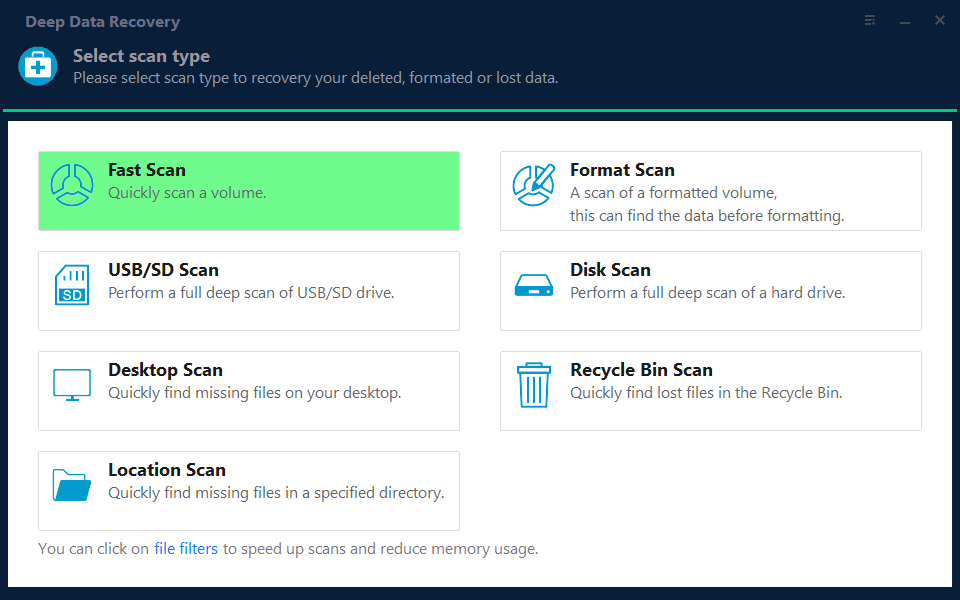
Step 1. Select the Recovery Mode
Use Fast Scan first on a ReFS volume that Windows still mounts. Choose the deeper scan when the volume is reported as RAW or when a repair has changed the file system.
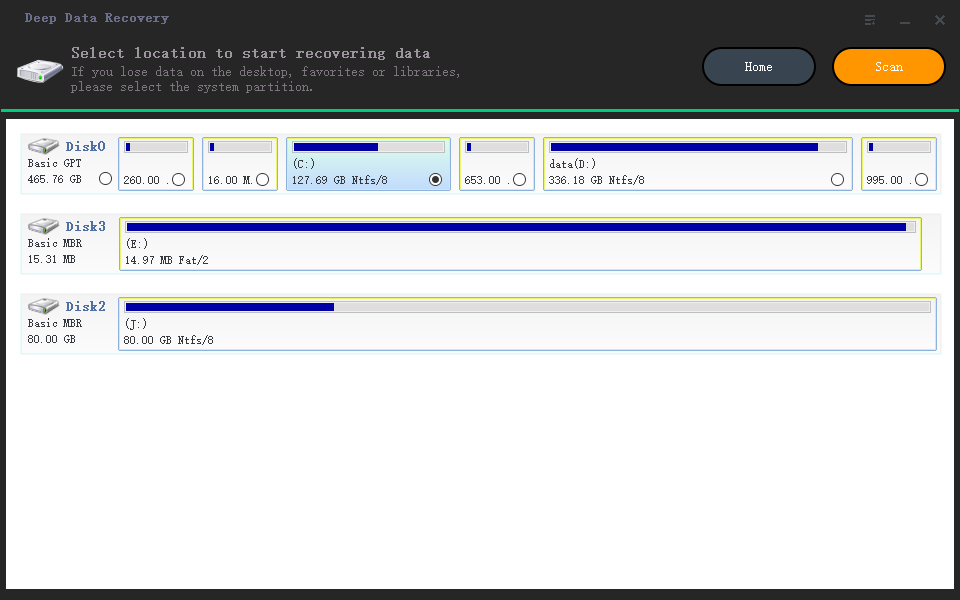
Step 2. Choose the Location
Pick the physical disk that holds the ReFS partition and check its capacity against the drive you know. A Storage Spaces member disk appears as one physical device, so select the member that carries the data.
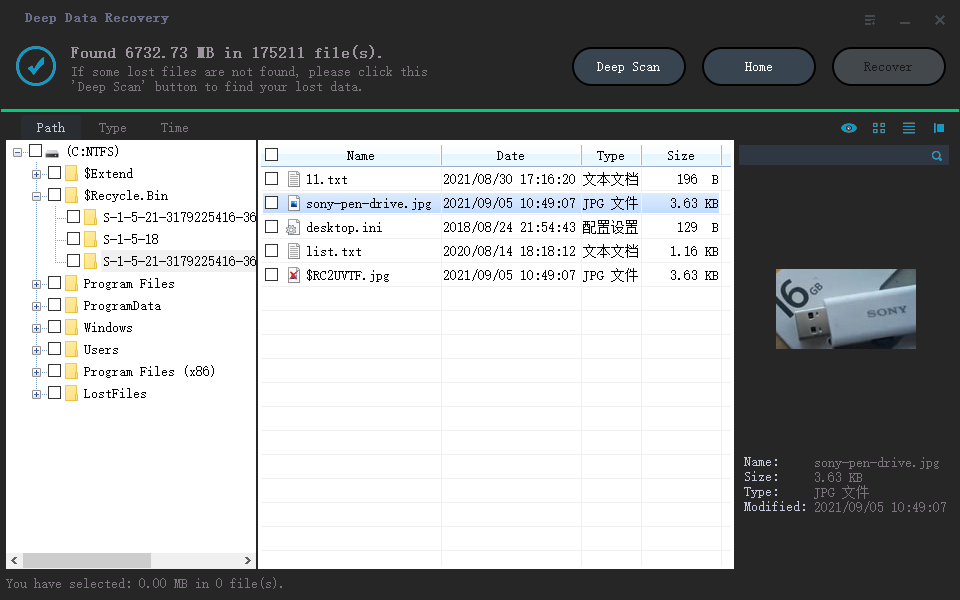
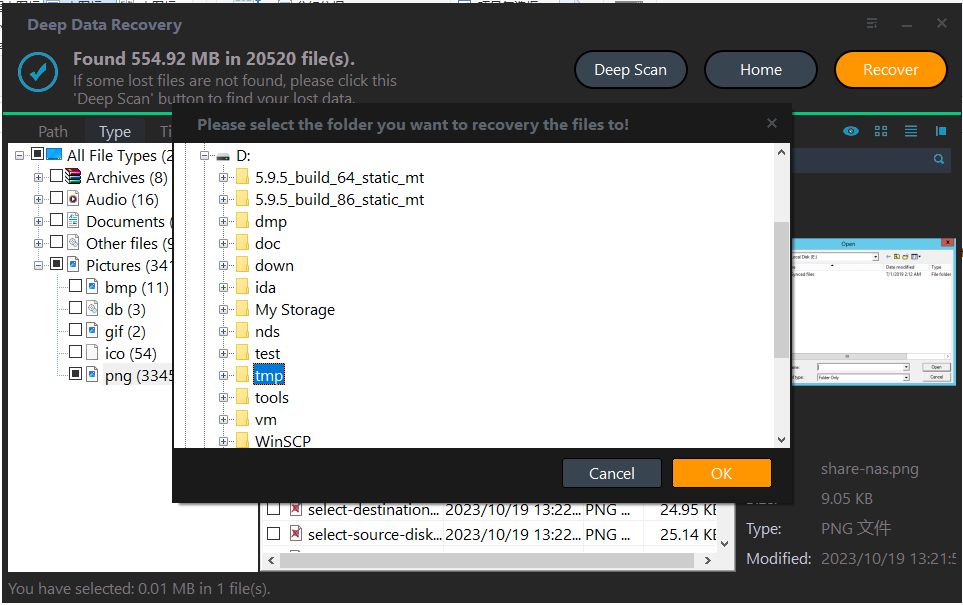
Step 3. Scan and Save to Another Drive
Sort the results by type and date, open a few files in the preview, and mark only what you need. Write the output to a disk that is not part of the affected volume, so the damaged metadata is left untouched.
Frequently Asked Questions
Can a ReFS volume be read on a normal Windows install?
Yes, when the edition supports ReFS. If the volume still will not mount there, the metadata is damaged and a scan is the next step.
Does integrity repair delete the missing files?
It removes entries it cannot verify. That is why the data should be copied, or at least scanned, before repair runs on a volume that matters.
Is it safe to convert the volume to NTFS?
No. Conversion in place is not offered for ReFS, and the usual workaround is a format, which removes the records a recovery scan depends on.
Related Articles
- Recover a RAW Partition Without Losing Data
- Windows 11 25H2 Lost Partition Becomes Unallocated
- Recover Files After CHKDSK on Windows 11
- Recover Files From a Drive With Bad Sectors
- Recover Deleted Files From a Storage Spaces Volume
Products
Articles & Tutorials
- Data Recovery
- Data Backup
- File Recovery
- File Backup
- System Backup and Restore
- Disk and Partition Clone
- Technical articles
- Mobile articles
- Disk Master Help
- Windows Data Recovery Tutorials
- Windows Secure Delete Tutorials
- Windows Partition Management Tutorials
- Windows File Backup and Restore Tutorials
- Windows System Backup and Restore Tutorials
- Windows Disk Backup and Restore Tutorials
- Windows Clone Tutorials