How to Recover Deleted PDF File on Mac and Windows PC
Quick Navigation:
- Method #1. How to Recover Deleted PDF Files from Recycle Bin
- Recover Deleted PDF File from Windows PC
- PDF Recovery from Mac Trash Can
- Method #2. Recover Deleted PDF File with PDF Recovery Tool
- Step by step to perform PDF recovery
- Step 1. Download and install Deep Data Recovery
- Step 2. Select file types to scan
- Step 3. Select drive to scan
- Step 4. Preview and recover deleted PDF files
If you've lost a PDF report or document, you can recover deleted PDF files using data recovery software such as Deep Data Recovery. These tools can scan your computer's hard drive and recover deleted files, including PDFs. You can also try checking the Recycle Bin or Trash to see if the file is still there. If you've already emptied the Recycle Bin, data recovery software is your best option for retrieving the lost PDF file.
If you've accidentally deleted a PDF file on your Mac or Windows PC, don't worry - there's still a chance to recover it. Since deleting a file doesn't immediately remove it, you can try to recover the PDF file if you haven't yet tried the permanent deletion. To do this, you can check out the most widely used methods for recovering deleted PDF files.
Method #1. How to Recover Deleted PDF Files from Recycle Bin
If you haven't tried the permanent deletion command, your deleted PDF files may be in the trash bin. If you want to recover deleted PDF files, you can try looking for them in the trash bin.
Recover Deleted PDF File from Windows PC
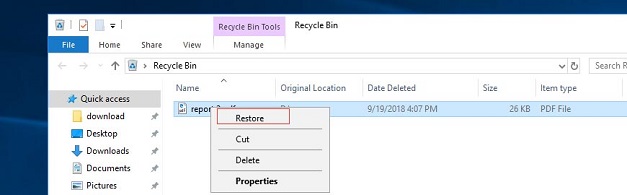
To recover a deleted PDF file on your Windows PC, right-click or double-click on the file in the recycle bin, select "Restore" to recover the file, and it will be saved back to its original location.
PDF Recovery from Mac Trash Can
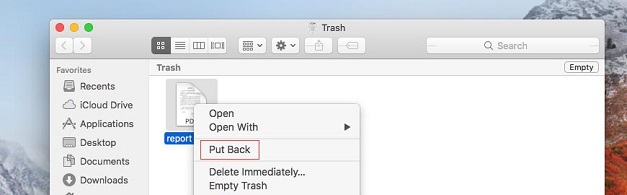
To recover a deleted PDF file on a Mac, click the trash can icon at the bottom right of the screen, locate the deleted PDF file, select it, and drag it out of the trash can to recover it. Alternatively, use Spotlight by typing the name of the deleted PDF file, and when it appears in the search results, command-click on it to restore it.
Method #2. Recover Deleted PDF File with PDF Recovery Tool
Emptying the recycle bin after deleting files makes PDF recovery a more challenging task. Fortunately, a powerful tool called Deep Data Recovery can help recover deleted PDF files on Windows or Mac. It can scan the entire computer or external devices to locate the deleted PDF files and display the recoverable files. Its effectiveness makes it a reliable choice for PDF recovery.
Your Safe & Effective PDF Recovery Tool
- The software fully supports recovering PDF files from various sources, including your computer, external hard drives, camera devices, and more. It's a useful tool to have when you accidentally lose or delete your PDF files.
- This software allows you to recover a wide variety of files and images, including documents, reports, presentations, PDF files, archives, and more.
- The software offers two scan modes: Quick Scan for time efficiency and Deep Scan for a more accurate PDF recovery. Users can switch between the two modes as needed, and the interface is user-friendly, making it suitable for individual users.
To recover your PDF files, click the provided download link to get the PDF Recovery Tool. This tool will help you retrieve your lost or corrupted PDF files.
To recover deleted PDF files, you can use Deep Data Recovery Software on either a Windows PC or Mac. This software can be used to retrieve lost PDF files with the steps provided in the following section.
Step by step to perform PDF recovery
Step 1. Download and install Deep Data Recovery
You can download the Windows or Mac version of the software, depending on the type of computer you're using. Both versions work well, so choose the one that matches your computer and download/install it.
Step 2. Select file types to scan
Run the PDF recovery tool, uncheck all files except "Documents", and click "Fast Scan" to recover deleted PDF files.

Note: You can choose different search modes based on where and why the data was lost.
Step 3. Select drive to scan
Select the drive where the deleted PDF file was and click "Scan" to let the software start the task.

Step 4. Preview and recover deleted PDF files
The scanning process categorizes found files and displays them on the left side. You can then select the found PDF files, preview them, select them, and click "Recover" to save them on your computer. This process is straightforward and easy to complete.

If you can't find the deleted PDF files using the Quick Scan, try the Deep Scan in the result window, which may take longer but will provide a better result.
If the PDF was deleted from a Windows 11 disk, check copies and scan the original location before accepting a partial document as complete.
Related Articles
- How to Recover UnSaved/Deleted AutoCAD Files on Mac/Windows PC
- How to Recover Unsaved/Overwritten/Deleted Files in InDesign
- Fixed: Dell Alerts Hard Drive Not Found
If you're experiencing issues with your Dell hard drive not being detected, you're not alone. This problem can occur on various computer brands, including Dell, HP, Asus, and Kingston, among others. To resolve this issue, follow these steps: this guide. - Fix - The File Too Large for the Destination File System
If the file is too large for the destination file system, you can refer to a post for guidance on how to resolve the issue without formatting the system. - How to Restore Desktop Background/Wallpaper in Windows 10/11
If your desktop wallpaper has disappeared or been lost on your Windows 10/8/7 laptop or computer. - A Complete Guide to Recover Deleted Files
If you're looking to recover deleted files on Windows 10, this guide can help. It provides a comprehensive solution for recovering deleted files not only on Windows 10 but also on Windows 11, Mac, iPhone, Android, SD cards, USB flash drives, and even Google Drive.
Products
Articles & Tutorials
- Data Recovery
- Data Backup
- File Recovery
- File Backup
- System Backup and Restore
- Disk and Partition Clone
- Technical articles
- Mobile articles
- Disk Master Help
- Windows Data Recovery Tutorials
- Windows Secure Delete Tutorials
- Windows Partition Management Tutorials
- Windows File Backup and Restore Tutorials
- Windows System Backup and Restore Tutorials
- Windows Disk Backup and Restore Tutorials
- Windows Clone Tutorials