How to Do Sandisk Corrupted SD Card Recovery & Fix Sandisk SD Card Corrupted
Quick Navigation:
- Part 1. SanDisk Corrupted Symptoms
- Part 2. SanDisk Corrupted SD Card Recovery Solution
- How to use SanDisk corrupted SD card recovery to recover lost data from corrupted SanDisk SD card?
- Step 1: Select the file types you want to recover.
- Step 2: Select the corrupted SanDisk SD card.
- Step 3: Preview and recover lost data from corrupted SanDisk SD card.
- Part 3. How to fix SanDisk SD Card Corrupted?
When your SanDisk memory card becomes corrupted, it can be difficult, especially when you have valuable data stored on it. Fortunately, there are methods to recover and fix corrupted SanDisk SD cards. Here's a step-by-step guide to help you recover your data and resolve the issue.
Part 1. SanDisk Corrupted Symptoms
Corrupted SanDisk SD cards can be frustrating, especially when you have valuable data stored on them. Here are some common symptoms and signs that indicate your SanDisk SD card has become corrupted:
- All the files on the SanDisk SD card become shortcuts.
- SanDisk SD card displays as RAW or system asks you to format the SanDisk SD card.
- The virus attacks the SanDisk SD card, causing folders or files to be inaccessible, add, deleted, etc.
- Error message "SanDisk SD card is not accessible" or "Read/Write error on SanDisk SD card", file or directory is damaged and cannot be read.
- You may find some of the files or all the files on your SanDisk SD card are missing without any apparent reason.
Mostly, you can't access the SanDisk SD card when it gets corrupted or the system continues to ask you to format the SanDisk SD card when you connect this card with your computer. The file system of the SanDisk SD card has been damaged. But, you still have the chance to recover your data whether you have formatted the SanDisk SD card or not. You can follow the instruction below to recover lost data from a corrupted SanDisk SD card.
Part 2. SanDisk Corrupted SD Card Recovery Solution
Before you fix the issue of SanDisk SD card corrupted, you need to get back the lost documents, pictures, audio, videos, archives and other files from corrupted SanDisk SD card with SanDisk corrupted SD card recovery. Deep Data Recovery is one of the most powerful corrupted SD card recovery software. It uses the latest scanning algorithm to help your safe and full recover data from corrupted SD card, hard drive/partition, external disk, digital camera, player etc on Window or Mac.
Your Safe & Effective Corrupted SD Card Recovery Software
- Recover lost or deleted documents, photos, audio, music, emails from any storage device effectively and completely.
- Support preview files to make sure better recovery effects
- Fully compatible data recovery from SanDisk SD card in Windows 10/7/8/XP/Vista and Mac OS X 10.6 and later.
You can also click this download link to get Corrupted SD Card Recovery software
How to use SanDisk corrupted SD card recovery to recover lost data from corrupted SanDisk SD card?
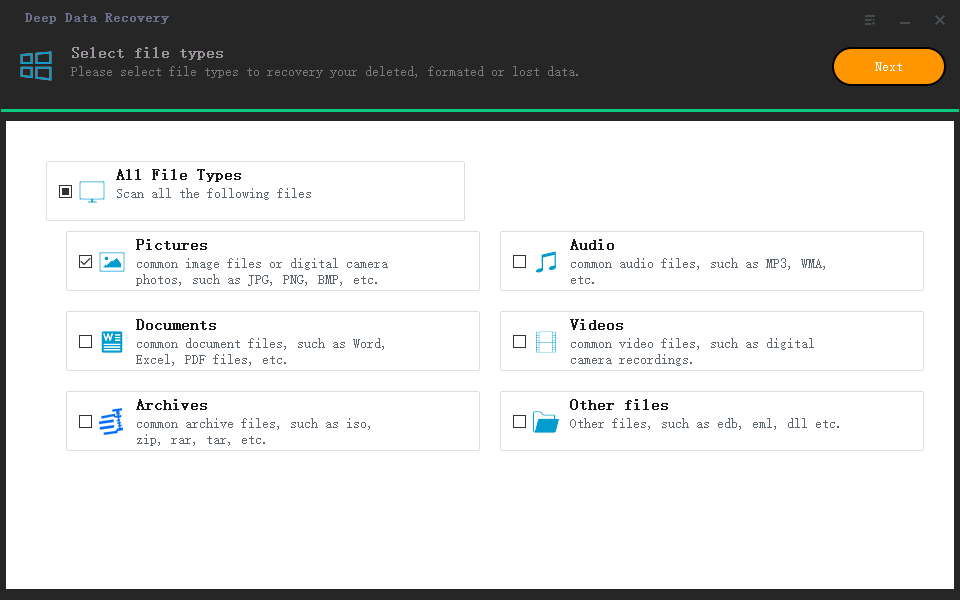
Step 1: Select the file types you want to recover.
Run Deep Data Recovery software on your computer and connect the corrupted SanDisk SD card with the computer. First step: select the file types you want to recover and click on "Next" button.
Step 2: Select the corrupted SanDisk SD card.
Select the SanDisk SD card and click on "Scan" button to scan the corrupted SanDisk SD card to find lost data.

Step 3: Preview and recover lost data from corrupted SanDisk SD card.
Once the scan is complete, you can preview the results and click "Recover" to restore the selected lost data from the corrupted SanDisk SD card.

If you can't find all files after quick scan, just click on "Deep Scan" button to deeply scan the SanDisk SD card to find more lost files.
Part 3. How to fix SanDisk SD Card Corrupted?
There are many methods that can help you fix a corrupted SanDisk SD card. After you recover the needed lost data with Deep Data Recovery from the corrupted SanDisk SD card, you can follow these methods to fix the corrupted SanDisk SD card.
- 1. A corrupted SanDisk SD card can be a frustrating experience, especially when it contains important data. Fortunately, there are several methods that can help you fix a corrupted SanDisk SD card.
- 2. Use Sandisk in-built solution
- 3. Fix the logical error with bug fix tool or send your SanDisk SD card to a local repair store.
- 4. Try chkdsk command, connect the SanDisk SD card to your computer. Click the start menu and type "chkdsk" followed by drive letter, colon and /f at the command prompt
Related Articles
- How to Recover Silicon Power USB Flash Drive
- How to Fix the Problem of Cannot Format SanDisk SD Card
- Sandisk USB Recovery - Recover Sandisk Cruzer USB/Blade/Pen Drive
- How to Recover Shift Deleted Excel Files from Windows PC
- How to Factory Reset Mac Mini M1[with Video Tutorial]
Mac Mini M1 is a remarkable device for productivity and professional environment. However, sometimes it runs into storage issues and other factors that might slow it down. In this article, we'll help you understand the proper way of factory resetting your Mac Mini M1 2022. - How to Factory Reset Samsung Phone[Galaxy S8/9/10/20/21/22]
Factory reset Samsung Galaxy phone will erase all data permanently. You need to perform a factory setting before selling it or giving it to others. This article will provide a step-by-step guide on factory reset the Samsung Galaxy phone, including the model S8, S9, S10, S20, S21, and the latest S22 version. Besides, we will also tell you how to backup data and restore them to your new Samsung. - How to Recover Permanently Deleted Files in Linux Redhat/Ubuntu/Mint
In Linux, deleted files are stored in the system's cache until they are overwritten by new data. To recover permanently deleted files in Linux, you can use Qiling Linux data recovery software, which is compatible with various Linux distributions such as Redhat, Ubuntu, Manjaro, Mint, and Debian. This software can efficiently restore deleted files, even if they have been permanently deleted.
Products
Articles & Tutorials
- Data Recovery
- Data Backup
- File Recovery
- File Backup
- System Backup and Restore
- Disk and Partition Clone
- Technical articles
- Mobile articles
- Disk Master Help
- Windows Data Recovery Tutorials
- Windows Secure Delete Tutorials
- Windows Partition Management Tutorials
- Windows File Backup and Restore Tutorials
- Windows System Backup and Restore Tutorials
- Windows Disk Backup and Restore Tutorials
- Windows Clone Tutorials