BitLocker Recovery Key Missing from Microsoft Account
Quick Navigation:
- Where Windows Stores the Key
- Check Every Account and Device
- Recover Files After the Drive Unlocks
- When No Key Exists
- Frequently Asked Questions
The drive asks for a recovery key and the Microsoft account page shows nothing under BitLocker keys. The key is usually stored somewhere else: a work or school account, an Active Directory domain, a printed sheet, or a file saved during setup. Finding it is the only way to unlock the drive without losing the data.
Where Windows Stores the Key
On a personal PC, BitLocker escrows the key to the Microsoft account that was signed in when encryption was turned on. Open the device's recovery key page in a browser and check every account that has ever been used on that machine, including a second personal account.
On a PC joined to an organization, the key is normally escrowed to the work or school account or to Active Directory. A directory administrator can read it, and the IT desk is usually the fastest route to it. The same applies to a device managed by a company even if you signed in with a personal account.
The key can also exist as a file, a printout, or a handwritten note from the day encryption was enabled. Check a USB stick used during setup, the folder where Windows saves recovery key text files, and the paperwork that came with the laptop.
The manage-bde command is a Windows built-in tool, not a feature of Qiling software. It can display or back up a key that the drive already accepts, but it cannot create one for a volume whose key was never escrowed.
Check Every Account and Device
Open the Microsoft account device list and look for the exact computer name shown in the BitLocker prompt. A renamed PC can appear under its old name, and a key saved for a different device will not match.
Ask whether the drive was ever moved between computers. A drive encrypted on one PC carries the key of that PC's account, and connecting it to another machine triggers the recovery prompt even though the key still exists elsewhere.
Finally, check your phone's saved photos and email. The key is a long numeric string that people often photograph or email to themselves during setup, and searching for the first six digits is quicker than scrolling through settings.
Recover Files After the Drive Unlocks
Once the drive is unlocked, copy the important files before you change any encryption setting. If files were lost around the encryption change, a scan with Qiling Deep Data Recovery can return what the volume still holds, but it can only read an unlocked volume.
Step 1. Choose the Recovery Mode
Use Fast Scan for a volume that unlocks and mounts normally, Recycle Bin Scan if the files went through the bin, and Format Scan if the volume was reformatted during a repair.
Note: You can choose different search modes based on where and why the data was lost.

Step 2. Select the Drive
Choose the unlocked volume from the drive list and confirm its capacity in Explorer. A locked volume appears with no readable capacity and cannot be scanned until it is unlocked.

Step 3. Review the Results
Filter by file type and preview documents and photos before you select them. Recovered files keep the folder names they had, so the original structure is a quick way to confirm you found the right data.

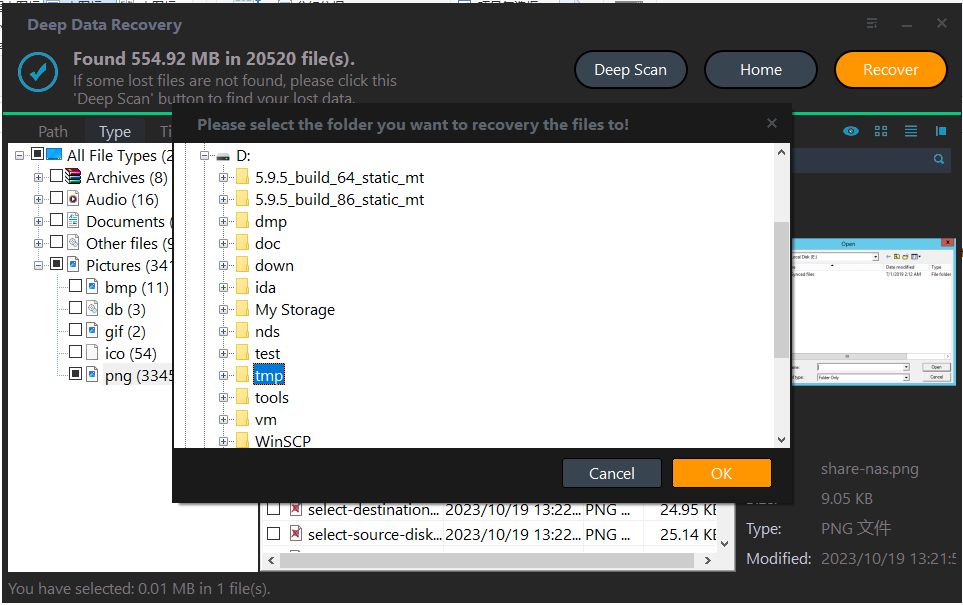
Step 4. Recover to Another Disk
Save the files to an external drive, not to the encrypted volume. Keep that copy until you have opened a sample of each type, because a second scan on a volume that keeps changing is harder.
When No Key Exists
Without a correct key there is no supported way to decrypt the volume. Recovery software cannot break BitLocker encryption, and any tool that claims to does not exist. The realistic choices are finding the key, restoring the files from a backup, or wiping the drive and starting again.
Do not reinstall Windows over the encrypted drive hoping to keep the files. Setup writes to the volume and removes what was there. If the data matters, keep the drive intact until every account, backup, and administrator has been checked.
Frequently Asked Questions
Why is my key not in my Microsoft account?
The device may have been encrypted while signed in to a work or school account, or the key may have been saved as a file or printed during setup.
Can I bypass BitLocker without the key?
No. The encryption is designed so that the key is required. Only a backup, the key itself, or a wipe gets you past the prompt.
Does resetting the PC remove the prompt?
It removes Windows, not the encryption, on some configurations. The reliable fix is to decrypt with the key or to wipe the drive completely.
Can recovery software read an encrypted drive?
Only after the volume is unlocked. Scanning a locked volume returns nothing useful, because the file system is unreadable ciphertext.
Related Articles
- BitLocker Recovery Key Prompt After a Windows Update
- BitLocker Drive Shows as RAW After a Windows 11 Update
- Disable Windows 11 Automatic BitLocker Encryption
- Recover Files from a NAS That Is Not Recognized
Products
Articles & Tutorials
- Data Recovery
- Data Backup
- File Recovery
- File Backup
- System Backup and Restore
- Disk and Partition Clone
- Technical articles
- Mobile articles
- Disk Master Help
- Windows Data Recovery Tutorials
- Windows Secure Delete Tutorials
- Windows Partition Management Tutorials
- Windows File Backup and Restore Tutorials
- Windows System Backup and Restore Tutorials
- Windows Disk Backup and Restore Tutorials
- Windows Clone Tutorials