How to Format USB Drive without Losing Data
Will formatting flash drive erase data, how to format USB without losing data
To format a USB drive without losing data, you need to recover data from the USB drive before formatting it. This involves using data recovery software to scan the drive and recover any important files or data that are stored on it.
Step 1. Run a Qiling data recovery program to recover data from a USB flash drive.
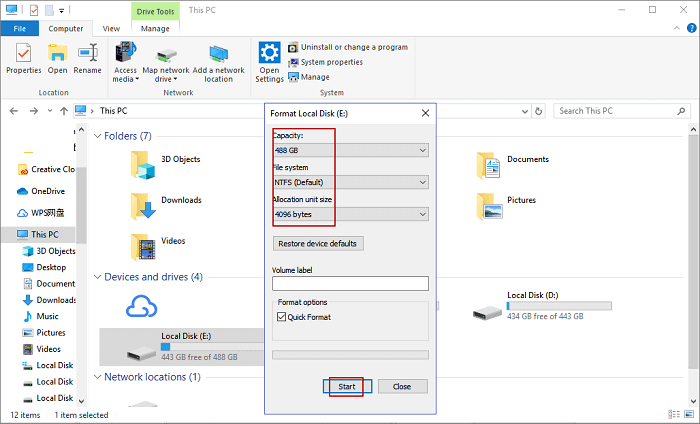
Step 2.Right-click on your USB flash drive under My Computer/This PC, select Format.
Step 3.To change the file system format, select the desired format from the drop-down menu under "File System".
Step 4. Uncheck Quick Format if needed.
Step 5. Then, click Start and click OK to bypass the deletion warning.
More details...
A USB flash drive is commonly used to store personal files like pictures, videos, documents, etc. However, it can get corrupted and become inaccessible due to various reasons, prompting the need to format it. In some cases, formatting is necessary to repair a corrupted USB drive, USB flash drive, SD card, or external hard drive. This article will discuss how to format a flash drive without losing any data.
If I Format a USB, Will It Erase Data
Formatting a USB drive will indeed erase all data stored on it, including files, folders, and any other digital content. This is because formatting rewrites the entire storage device, creating a new file system and essentially "wiping" the slate clean. So, to answer your question, yes, formatting a USB drive will erase the data. However, it's worth noting that some data recovery software may be able to recover data from a formatted USB drive, but this is not always guaranteed and depends on various factors.
Stage 1. Low-level formatting: performing basic medium preparation - reset the device to the factory settings.
In Stage 2, the process of partitioning occurs, where storage devices become visible to the operating system. This is achieved by dividing a disk into regions, which allows for the creation of data structures to be written on the disk, making it accessible to the operating system.
Stage 3. High-level formatting: Creating a new file system on the storage device, making it recognizable and reusable again. This process involves initializing the device, creating a partition table, and formatting the partition with a file system.
Both Low-level formatting and Partitioning processes will erase all data, and High-level formatting also deletes data from hard drives, USB drives, or memory cards, making it crucial to find a safe way to format a USB flash drive without losing data.
Is It Possible to Format USB Flash Drive Without Losing Data
When you encounter issues with your USB flash drive, such as it not being formatted, accessible, or readable, the best solution is to format the drive. However, formatting the drive will erase all data on it, which can be a problem if you have important files stored on the drive. Fortunately, there is a way to format a USB flash drive without losing your data.
If you've created a backup of your USB files, you can safely format the device without worrying about losing any data. However, if you didn't have a backup, you can still format the USB drive, but you'll need to use a professional data recovery tool to retrieve your files before doing so. This way, you can recover your data and then format the device.
To recover data from a USB flash drive before formatting it, use Deep Data Recovery software to quickly recover all your files, even if the drive is not recognized or is in a raw state. Download and install the software, then follow the step-by-step instructions to format the USB drive without losing any data.
How to Format USB Drive Without Losing Data
To format a USB flash drive without losing data, restore any data you want to keep from the drive first, then format the drive after the data has been recovered. This way, you can format the drive and still keep your important files.
1. Recover Data from Corrupted or RAW USB Flash Drive Before Formatting
Apply Deep Data Recovery can restore files from a USB flash drive in just three steps.
Step 1. Connect your USB drive to your computer and launch Deep Data Recovery. Select the file types you want to recover and click "Format Scan" to begin the process.

Note: You can choose different search modes based on where and why the data was lost.
Step 2. Select the formatted SD card, USB flash drive, or USB flash drive from which you want to restore lost files, and then click "Scan".

Step 3. After the scan is complete, the results will be displayed on the screen, and you can use the "Filter" or "File Type" feature to find the specific files you're looking for.

Step 4. To recover files from a formatted external drive, select the files you want to recover and click "Recover". A new window will then appear, prompting you to choose a new location to store the recovered files. Once you've selected the new location, click "OK" to confirm the recovery process.
To restore the file, save the restored data to a secure location on your PC or another external storage device, and then use the Windows disk management tool to format the USB flash drive without risking data loss.
2. Format USB Without Losing Data
If you need to perform a low-level formatting of a USB drive, this can only be done by professional tools and will erase all existing data and potentially damage the drive. However, high-level formatting, also known as standard formatting, can be done safely. This can be achieved through various methods using Windows File Explorer, Disk Management, Command Prompt, or partition management software.
To format a USB flash drive using Windows Explorer, follow these steps: Open Windows Explorer, right-click on the USB drive, and select "Format" from the context menu. In the Format dialog box, select the file system (such as FAT32 or NTFS), choose the allocation unit size, and optionally check the box to quick format the drive.
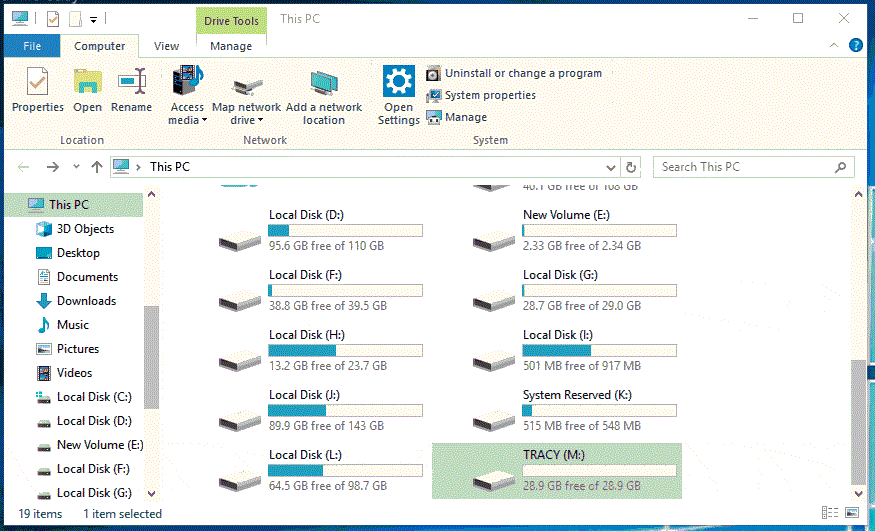
Step 1. To access the contents of the USB drive, first connect it to a PC using a USB cable. Once connected, open the "This PC" or "My Computer" window on the PC, which can usually be found on the desktop or accessed through the Start menu.
Step 2. Find and right-click on the USB flash drive, select "Format".
Step 3. The system drive is set to be converted to NTFS or FAT32, and a prompt is displayed to confirm the operation. Clicking "Start" and then "OK" will proceed with the conversion.
How to Fix RAW USB Drive Without Formatting
If you want to format a USB drive without losing data, you can consider seeking 1-on-1 remote manual assistance from Qiling technical experts. They can repair your RAW SD card, USB flash drive, USB flash drive, or external hard drive without formatting, ensuring the repaired partition is the same as the original drive and no data is lost. This can be a solution for complex data loss problems.
Consult with Qiling Data Recovery Experts for one-on-one manual recovery service. After a free diagnosis, we offer various services, including a manual recovery service that can be tailored to your specific needs.
- Repair a corrupted RAID structure, unbootable Windows OS, or a corrupted virtual disk file (.vmdk, .vhd, .vhdx, etc.).
- Recover/repair lost partition and re-partitioned drive.
- Unformat hard drive and repair raw drive(Bitlocker encrypted drive)
- Fix disks that become GPT protected partitions
Bonus Tips to Protect USB Data from Formatting
Knowing useful ticks of protecting USB flash drive, SD card, and external/internal hard drive data from being formatted is also necessary. Here we've listed some useful tips to help you protect data on the USB or other storage devices.
1. Create a Backup of Useful USB Data
Backing up important files on a USB drive is always a good idea. You can choose to manually copy files or use professional file backup software like Qiling Backup, which offers automatic scheduling and can back up all files on the USB drive. Additionally, you can also back up files to a cloud drive for extra security, in case the local backup becomes corrupted or destroyed.
Step 1. When you first use Qiling Backup, click on "File backup" on the "Backup and recovery" page.

Step 2. To back up files, folders, or directories, follow the paths to locate the items you want to back up, and then select them all.

Step 3.To complete the backup process, you need to select a backup location where the backup will be saved and retained. This is an important step to ensure that your data is safely stored and can be easily recovered in case of any issues.

Step 4.Qiling Backup allows users to save backups to various devices, including local hard drives, external USB drives, SD cards, network drives, NAS drives, and Qiling cloud drives. We recommend saving backups to cloud drives for greater accessibility, flexibility, and safety.
Step 5. If you want the file backup task to run automatically and intelligently, go to the "Options" setting. There, you can choose to encrypt confidential files, compress the backup image to save space, or schedule the next backup to run at a specific time.

Customize an advanced and automatic backup task here:

Step 6. Click "Proceed" to start the file backup process, and your completed backup files will be visible on the left in a card-style format.
2. Check and Fix USB Errors Regularly
Checking and repairing existing file system errors on a USB drive can prevent it from becoming inaccessible or RAW. This can be done using the Command Prompt (CMD) or by using the Error Checking feature in the Properties of the USB drive.
Step 1. Connect the USB to your PC and open File Explorer.
Step 2. Right-click the USB or storage device that you want to scan, click on "Properties".
Step 3. Go to the Tools tab and click on the "Check" button under the top "Error checking" section.
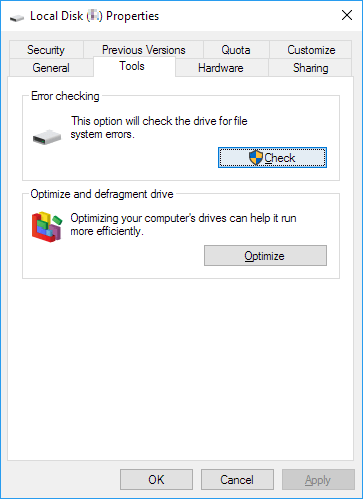
Step 4. After scanning the drive, if errors are found, the drive will be repaired. Once the scanning finishes, you can click on the "Show Details" link to view the Chkdsk log in Event Viewer, where you'll see the detailed errors that were fixed.
Conclusion
Formatting a flash drive without losing data is a top priority, especially since it's a common practice that can lead to data loss. However, there are ways to format a USB flash drive without losing any data, by following proper steps and using the right tools. By taking the necessary precautions, you can ensure that your data remains safe and secure.
You get two solutions to format USB without losing data:
1. To recover data from a USB drive, use Deep Data Recovery to retrieve the lost data. Once the data is recovered, you can then safely format the USB drive without worrying about losing any of the recovered files.
2. Use Qiling's manual data recovery service to repair a RAW or corrupted USB drive without formatting, preserving the files on the SD card intact.
Related Articles
- How Long Does It Take | 1 TB Data Recovery
- How to Recover Data from Micro SD Card
- Deleted NAS Recovery: How to Recover Deleted Data from NAS Quickly
- Download Qiling Data Recovery Crack 2.6 with Serial Keygen
- Solved - Files in Downloads Folder Disappeared [2026]
If your files in the downloads folder have mysteriously disappeared, there's a solution. - Fix Slow USB Transfer Speed in Windows 7/10/11
If you're experiencing slow USB transfer speeds on Windows 7, 8, 10, or 11, you're not alone. Fortunately, there are ways to speed up USB transfer speeds. This article will guide you through the process of resolving slow USB transfer issues on your Windows operating system.
Products
Articles & Tutorials
- Data Recovery
- Data Backup
- File Recovery
- File Backup
- System Backup and Restore
- Disk and Partition Clone
- Technical articles
- Mobile articles
- Disk Master Help
- Windows Data Recovery Tutorials
- Windows Secure Delete Tutorials
- Windows Partition Management Tutorials
- Windows File Backup and Restore Tutorials
- Windows System Backup and Restore Tutorials
- Windows Disk Backup and Restore Tutorials
- Windows Clone Tutorials