Download Microsoft Word Document Recovery Software to Recover Word Files
Microsoft Word documents can be lost due to accidental deletion, format or partition loss, or an error that forces Word to quit. However, there are reliable solutions to recover lost Word documents, including recovering from accidental deletion, Microsoft Word crashes, or document disappearance.
Part 1. Three Methods to Recover Deleted Word Files
If you've accidentally deleted your Word documents and want to retrieve them quickly, it's easier than you think. Knowing how to recover deleted Word documents can make you seem like a pro in your office, but it's not complicated. There are three effective ways to restore lost Word files, and by following them, you can bring back your deleted documents in no time.
Method 1. Restore Word Documents from Recycle Bin
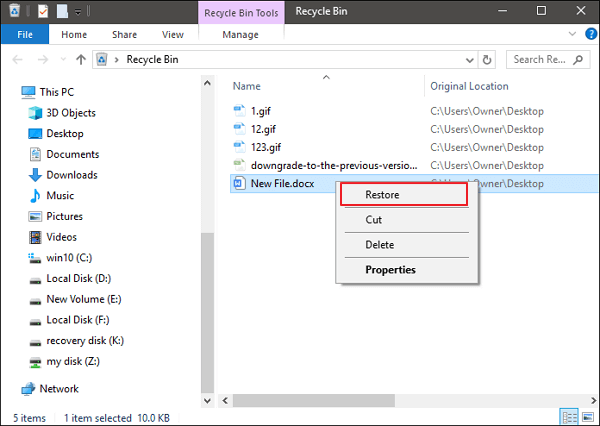
When you delete a Word file from your hard drive, you can first check the Recycle Bin to restore it. The Recycle Bin is a folder in Windows that stores deleted files, allowing you to restore them to their original location when needed.
Step 1. To check if a deleted word file is still in the Recycle Bin, go to the "Recycle Bin" folder, which is usually found on the desktop or in the Start menu, and look for the file. If it's still there, you can restore it by right-clicking on the file and selecting "Restore". If it's not in the Recycle Bin, it may have been permanently deleted and you'll need to try to recover it from a backup or use a data recovery tool.
Step 2. To restore the Word file, select the file in the backup location and click "Restore" to move it back to its original location.
Method 2. Undo Word Deletion Using "Ctrl+Z"
If you just deleted a Word file and haven't performed any other actions yet, you can quickly undo the deletion.
Step 1. Right-click your mouse after your deletion.
Step 2. Select "Undo Delete". Your deleted Word document will get back soon.
To undelete a Word document, you can press "Ctrl+Z" to undo the deletion. This will restore the document to its original location on your computer's hard drive.
Method 3. Use Word File Recovery Software to Recover It
If you've accidentally deleted a lot of important Word documents and emptied the Recycle Bin, don't panic! Qiling's disk data recovery software can recover all deleted Word documents, making it a lifesaver for many users. This advanced Microsoft Word document recovery tool can also handle office file recovery, format recovery, and other data recovery scenarios caused by partition loss or damage, software crashes, virus infections, unexpected shutdowns, or other unknown reasons in Windows.
| Word Recovery Tool Features | Details |
|---|---|
| Supported Word Versions | Almost all Word versions (2016, 2013, 2010,2007,2003,2000,97...) |
| Supported Windows Versions | Windows XP - Windows 10 and Windows Server 2000 - 2016 |
| Supported File System | FAT (12/16/32), exFAT, NTFS, NTFS5, ext2/3, HFS+, ReFS |
| Supported File Types | Almost all common files types (250+) |
Qiling Word recovery software simplifies the process of recovering lost Word documents. By following a few simple steps, users can quickly retrieve their lost Word files.
Steps to recover Word file with Word recovery software:
Step 1. Select file types and click "Fast Scan" to start
Launch Deep Data Recovery, select the desired file types, and click "Fast Scan" to initiate the recovery process.

Note: You can choose different search modes based on where and why the data was lost.
Step 2. Choose the Word file location
Select the drive or a specific folder and click the "Scan" button.

Step 3. Locate your Word files
The software will immediately scan the selected drive for lost data. After scanning, select the "Documents" option in the left panel, choose "Word" from the category bar, and then click "Preview" to view the recovered files.

Step 4. Recover Word files
After previewing the lost Word files, select the desired Word files and click "Recover". Then, select a folder to store the Word files.
Part 2. How to Restore Unsaved Word Documents (2 Methods)
Recovering deleted Word files is relatively straightforward, but retrieving unsaved Word files can be a bit more challenging. Fortunately, there are two methods that can help: the AutoRecover option, which can recover unsaved files, and the Recent Documents feature, which may also be able to retrieve the desired document.
Method 1. Restore Unsaved Word from AutoRecover
We rely heavily on autosaves because documents can be lost when we don't manually save our work. If AutoSave is turned on, Word will automatically save edited files every 5 or set minutes, making it easy to recover unsaved Word documents.
Step 1. To find the AutoRecover folder, locate it on your PC by opening Word, going to "File > Options > Save", and finding the AutoRecover file location.
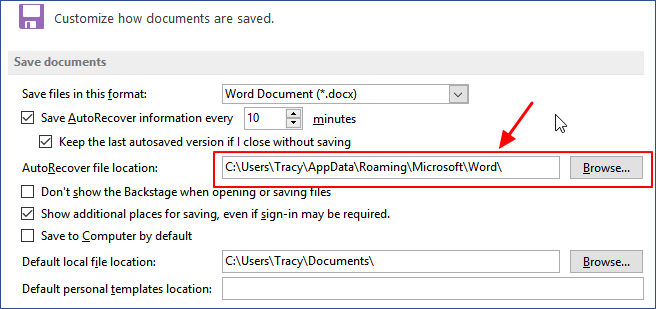
Step 2. The process of recovering a lost Word document involves copying the file location path in File Explorer and opening the AutoRecover folder. Within this folder, you can find and copy the unsaved Word document, which is typically saved with a .asd extension. This allows you to access the document and potentially recover any unsaved work.
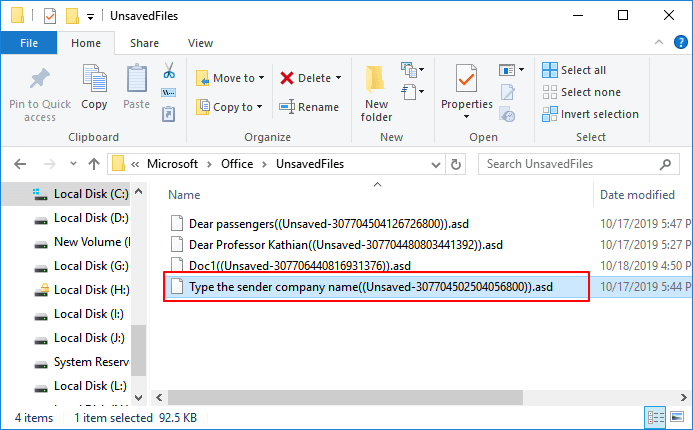
Step 3. To recover an unsaved Word document, open Word, go to File > Open > Recover Unsaved Documents, paste the .asd file into the file name column, click Open, and then save the file to a new location.
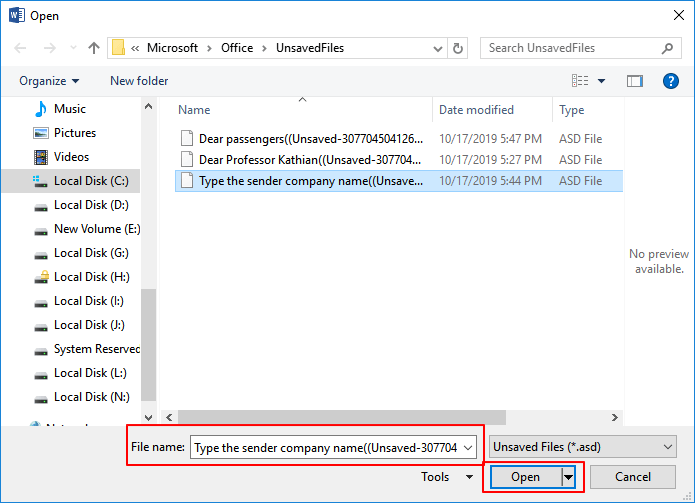
If Word warns that "Word experienced an error..." after trying to open an unsaved document, simply repeat the steps and click "Open and Repair" at the open Unsaved Document window.
Method 2. Restore Unsaved Word from Recent Documents
If your computer suddenly shuts down while you're working on a Word document and you forget to save it, don't worry! You can recover the unsaved file by following these steps.
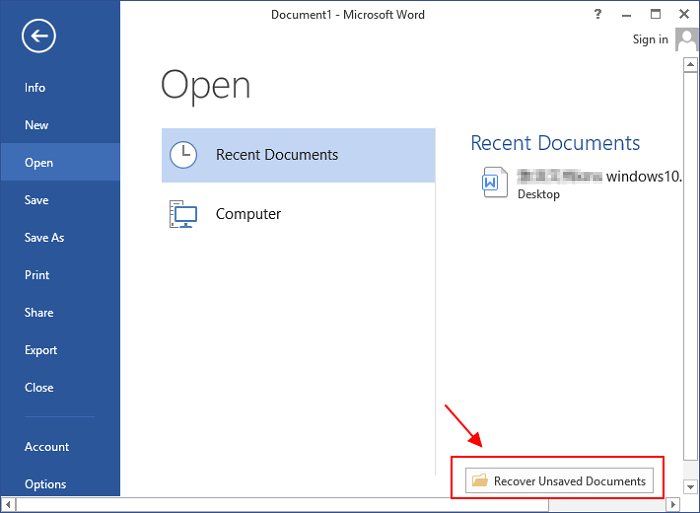
Step 1. To recover unsaved Word documents, open Word and go to "File > Open > Recent Documents > Recover Unsaved Documents".
If you don't see the "Recover Unsaved Document" option, go to "Files > Info > Manage Versions > Recover Unsaved Documents".
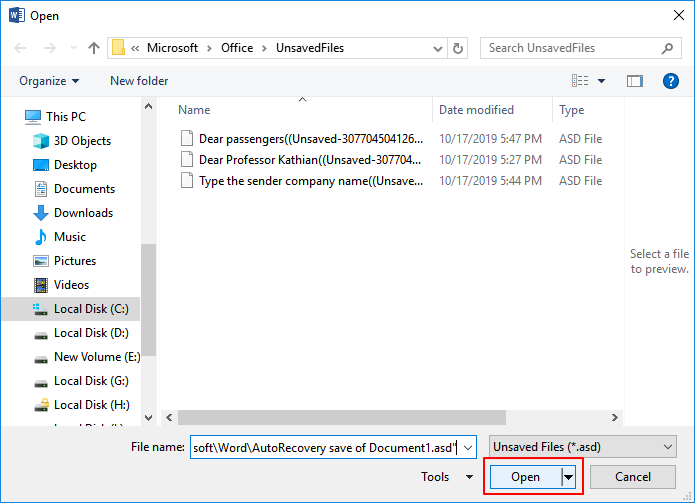
Step 2. To view the content of an unsaved document in Word, select the document from the list and click the "Open" button, which will open the document's content in a new window.
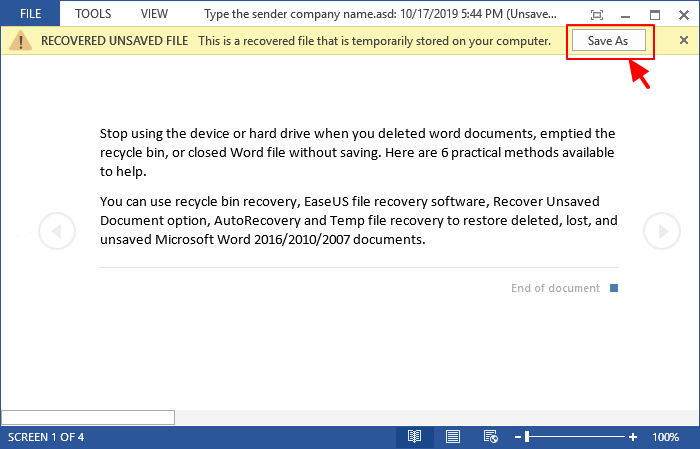
Step 3. Click the "Save As" button in the top banner.
Also read: Recover unsaved word document on Mac.
Part 3. How to Repair Corrupted Word File
If your Word file gets corrupted or the program itself goes wrong, you can try recovering the document from a backup or using a third-party recovery tool to salvage the data.
1. Find Reliable Word Repair Tool
You can search the internet and look for a reliable Word repair tool instead of a Word data recovery tool. Here are 5 recommendations from Windows Report. You can try them and find a suitable one.
- Stellar Phoenix Word Repair
- Repair My Word
- Recovery for Word
- DocRepair
- Kernel for Word
2. Reinstall the Application to Fix Word Corruption Issue
If your Word application becomes corrupted, you can resolve the issue by reinstalling Microsoft Office on your computer. After the reinstallation, you can attempt to recover lost files using data recovery software, such as Qiling, if files were lost during the process.
Conclusion
To avoid issues with lost or corrupted files, it's essential to have a backup copy of your Word document. You can create a copy and upload it to a cloud service like Dropbox or Google Drive, which will allow you to access and edit the file from anywhere with a stable internet connection. This way, you'll have a secure and accessible backup of your work.
Frequently Asked Question - Word Recovery Problems
If you still have questions, read these answers and questions below to get additional help.
How do I recover Microsoft Word?
To recover Word file with Word recovery software:
Step 1. Install Qiling data recovery software. Choose the Word file location.
Step 2. Scan all lost data by clicking Scan.
Step 3. Select Word files and recover.
How do I repair a corrupted Word document 2016?
To repair a corrupted Word document 2016:
Step 1. Click File on the top menu.
Step 2. Select Open on the vertical menu.
Step 3. To repair a corrupted document, click the "Browse" button and select the document you want to repair. Then, tap the little arrow on the "Open" button and select "Open and Repair" from the drop-down menu.
The Word document is now launching the auto-repair function.
Does Microsoft Word backup files?
Word 2013 does not automatically save backup copies of your documents by default, but you can easily enable this feature by clicking on AutoRecover.
How do I recover files from a corrupted hard drive?
Steps to Recover Data from a Corrupted or Crashed Hard Drive:
Step 1. Download and Install Qiling data recovery software.
Step 2. Select the crashed hard disk and click Scan
Step 3. Preview the files you found. Click Recover to recover your lost data.
Related Articles
- How to Delete Files, Folders, and Directories in Linux Using Command
- Use Disk Doctor Freeware to Recover Lost Data
- Ext4 File Recovery: How to Recover Deleted Files from Ext4 Linux
- How to Recover Permanently Deleted Excel File in Windows 10, Mac, iPhone, and Android
- Microsoft File Recovery Software – How to Use and 10 Best Alternatives
This article provides a comprehensive guide to using Microsoft File Recovery and alternative software for data recovery, walking you through the entire process to recover lost files. - Best Prosoft Data Rescue Alternative Free Download
Prosoft Data Rescue is a powerful tool for recovering lost or deleted data on a computer, but users may be looking for alternative software options.
Products
Articles & Tutorials
- Data Recovery
- Data Backup
- File Recovery
- File Backup
- System Backup and Restore
- Disk and Partition Clone
- Technical articles
- Mobile articles
- Disk Master Help
- Windows Data Recovery Tutorials
- Windows Secure Delete Tutorials
- Windows Partition Management Tutorials
- Windows File Backup and Restore Tutorials
- Windows System Backup and Restore Tutorials
- Windows Disk Backup and Restore Tutorials
- Windows Clone Tutorials