How to Repair Corrupted PNG/JPEG Files
How to Repair Corrupted PNG/JPEG Files
Image corruption can cause altered colors, gray areas, or a completely undisplayable image. When trying to open the affected file with an image editor, you may be prompted that the program cannot open it. This can occur when PNG or JPEG files become corrupted due to various situations, such as.
- An error occurs during the writing or reading of the data.
- You don't allow the system to complete the tasks on your images
- Your computer has an inconsistent power supply
- Data stored on a storage medium degrades
If your image files are corrupted, don't worry - they can be repaired. You can try using image repair software or online tools specifically designed for PNG, JPEG, and other formats to restore them to their original state. These tools can help recover lost data and repair damaged files, giving you a second chance at recovering your valuable images.
- #1. Repair Corrupted Image with Photo Repair Tool
- #2. Repair Corrupted PNG/JPEG Files Online
- #3. Open the PNG/JPEG File with Another Photo Editor
- #4. Convert the Image to Another Format
Method 1. Repair Corrupted Images with Qiling Photo Repair
Introducing Deep Data Recovery, a free data recovery software that's the fastest way to retrieve corrupted photos. This png/jpeg fix tool allows you to quickly repair and recover your damaged images.
To repair corrupted image files:
Step 1. Launch Deep Data Recovery. Select file types. Click "Fast Scan" to start.

Note: You can choose different search modes based on where and why the data was lost.
Step 2.To recover corrupted files, launch Deep Data Recovery, select a disk location where the files are saved, and click "Scan" to start finding the broken files. The Qiling file repair tool can fix damaged documents, videos, and pictures in different formats.

Step 3.After scanning, you can quickly identify corrupt data by file type. To repair damaged documents, select the "Documents" option and filter by specific categories, such as Word, Excel, or PDF. For image and video files, the software supports a wide range of common types, including JPEG, PNG, BMP, MOV, MP4, GIF, and more.

Step 4.Qiling file repair software automatically fixes broken files, allowing you to preview the repaired files before recovery. To recover the files, simply click "Recover" and save them to a different location to avoid data overwriting.
If your video encounters problems such as freezing or being unable to play, you can get tips about video repair, which goes beyond being just a picture repair software.
Method 2. Repair Corrupted PNG/JPEG Files Online
If downloading a PNG fixer isn't your first choice, you can repair images in other formats using online image repair tools. Two online websites for repairing images online are available, allowing you to fix PNG, JPEG, or other images without needing to download any software.
Option 1. Repair Corrupted Images Using OfficeRecovery
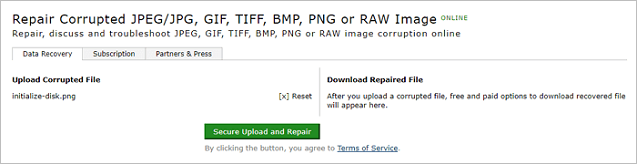
The tool is a paid service that can repair corrupted image files of various formats, including PNG, JPEG, TIFF, BMP, and RAW, and can be used online.
Step 1. Go to visit https://online.officerecovery.com/pixrecovery/ on your computer.
Step 2. Click "Choose File" and then select the corrupted photos.
Step 3. Click "Secure Upload and Repair" to start restoring your photos.
Step 3. When the process is complete, click "Get the repaired file" and then purchase the tool to access the full results.
Option 2. Repair Corrupted GIF Files Online Using EZGIF
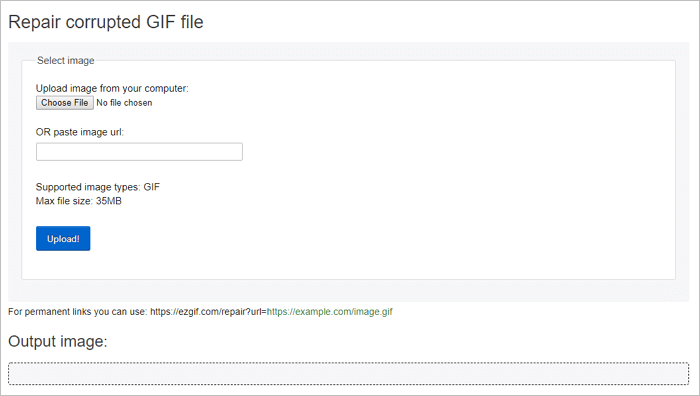
If the corrupted images are GIF files, you can repair them from ezgif.com.
Step 1. Go to visit https://ezgif.com/repair on your computer.
Step 2. Click "Choose File" and select your corrupted GIFs. Then click "Upload"
Step 3. In the new page, choose a repair method and click "Submit".
Step 4. When the repair process is over, click "Save" to download the repaired GIFs to your computer.
If you have a corrupted image, you can try recovering it online for free. If the first two methods don't work, you can also try using other ways to repair the corrupted PNG file. These methods may not be as effective as the previous ones, but they're worth a shot.
Method 3. Open the PNG/JPEG File with Another Photo Editor
If you're having trouble opening an image file, it might not be because the file is corrupted, but rather because of an incompatibility between the file format and the photo editor you're using. In this case, try opening your PNG or JPEG files with alternative software to see if that resolves the issue, making it a quick and hassle-free solution to try first.
Method 4. Convert the Image to Another Format
You can also convert corrupted PNG or JPEG images to other formats to repair them. There are online image converters you can use, such as searching for a specific one to apply to your corrupted files. It's recommended to make a copy of the original files first and then convert the copies to try and repair them.
How to Recover Lost Photos
Image file loss is another common issue that can occur when images are deleted accidentally from devices such as computers, cameras, Android phones, USB flash drives, memory cards, and others, or when a device that contains photos is formatted, resulting in the loss of precious memories.
- Deletion of important files or data can be a frustrating experience, especially when it occurs due to careless mistakes on a computer, storage device, SD card, USB drive, or camera memory card. This type of deletion can result in the permanent loss of valuable information, causing inconvenience and potential financial or personal harm.
- This command, Shift + Delete, is commonly used in computers to permanently delete files or data, effectively removing them from the system without sending them to the Recycle Bin or Trash.
- When you delete files and empty the Recycle Bin, it permanently deletes the items, making them unrecoverable.
- Formatting a storage device, such as a hard drive, solid state drive, or USB drive, can result in the loss of all data stored on it. This is because formatting rewrites the entire storage device, erasing all existing files, folders, and file systems.
- A mysterious virus attack can lead to severe data loss issues on devices, PCs, or even tablets, posing a significant threat to digital security.
- A system crash or file system errors can cause data loss on your computer or storage device, leading to unexpected system crashes. This can result in the loss of important files, programs, and settings, causing inconvenience and potential financial loss.
Just like corrupted images can be repaired, there are also ways to recover lost pictures from your computer or external storage device.
Method 1. Restore Image files with Free Data Recovery Software
You can recover photos in various formats, including PNG, JPEG, and GIF, from your computer hard drives or external storage devices using the free data recovery software - Deep Data Recovery. It can handle deleted file recovery, formatted data recovery, RAW file recovery, and recovery from virus attacks, making it a reliable tool for tough data recovery situations.
To recover lost photos, you can do as following:
Step 1. Launch Qiling data recovery software, select the desired file types, and click "Fast Scan" to proceed with the recovery process.
Note: You can choose different search modes based on where and why the data was lost.
Step 2. Launch Qiling data recovery software, select a hard drive containing broken photo files, and click "Scan".
Step 3. To find corrupted photos, select the "Pictures" option, which allows you to view files in various formats, including JPEG, JPG, PNG, and BMP. Alternatively, you can click on "Search files or folders" in the top right corner to conduct a broader search for files.
Step 4. Double-click on a damaged picture to repair and preview the file, then click "Recover" to save the images to a different location.
Method 2. Undelete Recycle Bin Files
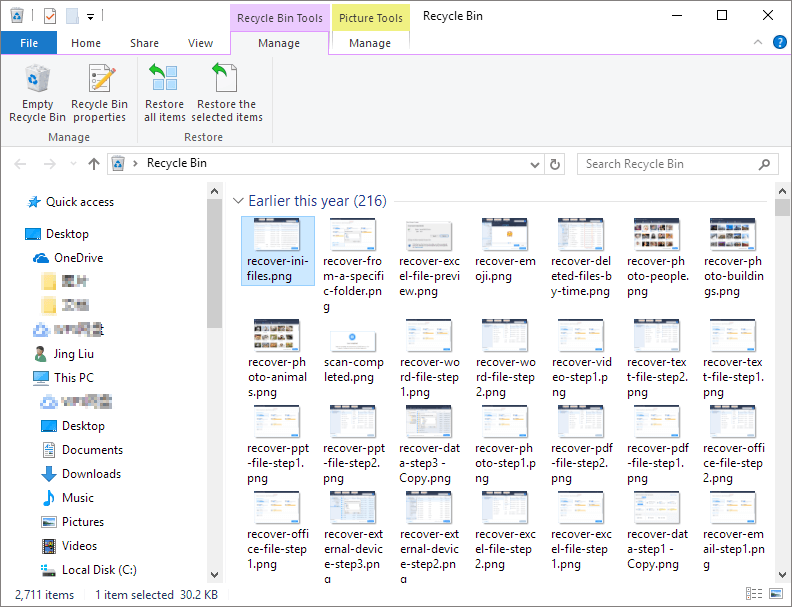
Users who accidentally deleted important image files from their computer's hard drive but haven't emptied the recycle bin can use this method to undelete the recycle bin and recover their image files.
Step 1. Open "Recycle Bin" by double-clicking on its icon on the Desktop.
Step 2. Locate and then select whichever file(s) or folder(s) you need to restore.
Step 3. Right-click or double-click on the selection and choose "Restore".
Step 4. The Recycle Bin will then restore the deleted files to their original locations.
The Bottom Line
If your photos are corrupted or lost, having backed up your images can save you time, but if not, you can use online photo repair tools or photo recovery software to restore your images in various formats.
Related Articles
- How to Recover Deleted/Lost Vimeo Videos
- [Solved] 2018-11 Update For Windows 10 Version 1803 For X64-Based Systems (Kb4023057) – Error 0x80070643
- SSD vs HDD, HDD vs SSD Speed and Gaming, Which Is Best for You
- Convert RAW to NTFS Without Losing Data
- How to Recover Data from Microsoft Surface Pro 3/4/5
To recover data from a Microsoft Surface Pro, use Deep Data Recovery to scan the hard drive, find deleted files, and select them to restore, making the process simple and easy. - How to Recover Data from WD My Book Essential/Live
If you've lost or deleted files from your WD My Book. There are ways to recover them. You can use data recovery software like EaseUS, Recuva, or Disk Drill to scan your drive and retrieve your lost files.
Products
Articles & Tutorials
- Data Recovery
- Data Backup
- File Recovery
- File Backup
- System Backup and Restore
- Disk and Partition Clone
- Technical articles
- Mobile articles
- Disk Master Help
- Windows Data Recovery Tutorials
- Windows Secure Delete Tutorials
- Windows Partition Management Tutorials
- Windows File Backup and Restore Tutorials
- Windows System Backup and Restore Tutorials
- Windows Disk Backup and Restore Tutorials
- Windows Clone Tutorials