Minecraft Free Download and Minecraft Data Recovery Windows 10/11
Minecraft Introduction
Minecraft is a 3D video game series where players can build anything they want, often compared to an "online Lego." The game involves placing digital bricks and creating structures in various environments and landscapes, and includes activities such as collecting materials, crafting, building, and fighting.
Minecraft is a popular video game that can be enjoyed on various devices, including laptops, smartphones, iPads, and consoles, and costs around €20.00, regardless of the platform used.
Minecraft has been certified as safe for ages 7 and up to 13+, and players under 13 cannot access certain features like updating settings, buying products, or chatting in forums.
How to Free Download Minecraft for Windows 10/11
Minecraft is a free game. To download the game, follow the same steps whether you're on a phone or laptop - the process is the same. First, find the game's download link, then click on it to initiate the download. Once the download is complete, open the downloaded file and follow the on-screen instructions to install the game. That's it!
Step 1. To download Minecraft, go to minecraft.net and click on the "Download for Windows 10/11" button.

Step 2. The installation package will be downloaded and then run to complete the installation process.
Step 3. Accept the terms and conditions and click on "Install".
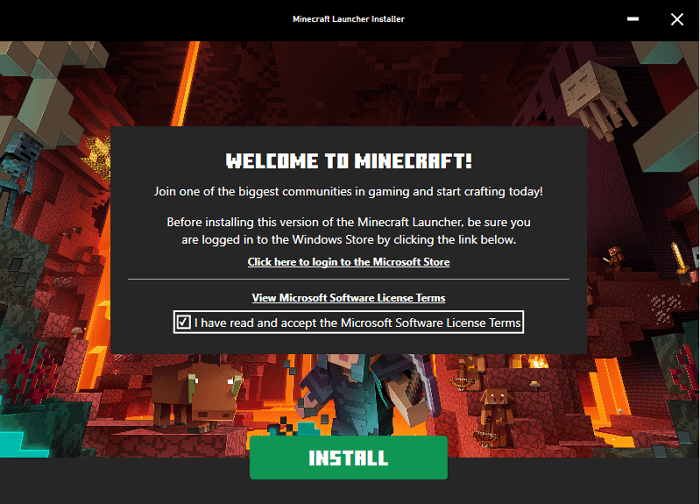
The downloading process will begin and finish on its own, allowing you to run and play the game. To ensure a smooth experience, please stay connected to the internet. If your computer disconnects from the internet during the installation process, it may lead to the installation failing.
How to Fix Minecraft Keeps Crashing in 6 Ways
Many Minecraft users experience game malfunctions and crashes, which can be caused by a variety of factors, including outdated game versions, corrupted game files, incompatible hardware, and issues with the game's save data.
Take a look at a few of them:
- Because of the modifications
- Many game issues or failures and loss of game files
- Due to a lack of old video or graphics card components
- Windows configurations for an out-of-date Java platform
Here is how you can solve them:
Fix 1. Restart Your Computer
Sometimes, a simple solution can fix a problem without needing complex steps. A computer restart can clear the RAM and cache, allowing game files to execute from scratch and potentially resolve issues that caused the game to crash previously. This can help the game run smoothly without needing to troubleshoot or follow intricate steps.
Fix 2. Update Minecraft
Updating Minecraft can help resolve issues, as outdated game files can also be problematic. To update the game, simply head to the Microsoft Store and check for any available updates. This can help identify if Minecraft is out of date and allow you to update it.
Fix 3. Update Your Graphics Card Driver
To update the graphics card driver, you can follow these steps:
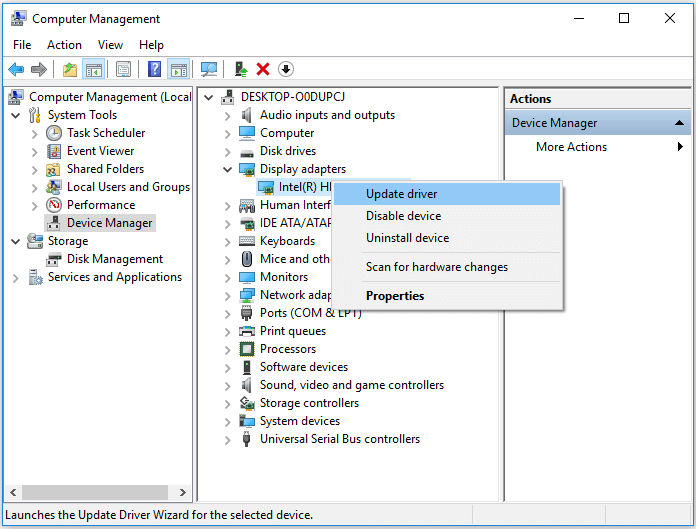
Step 1. In the Windows search bar, type "device manager" and press Enter. This will open the Device Manager window, where you can view and manage the hardware devices installed on your computer.
Step 2. To access the graphics card driver settings, go to Device Manager, click on "Display adapters", and then double-click on your graphics card driver.
Step 3. Right-click the graphics driver and click on "Update driver" to automatically search and update your drivers.
Fix 4. Run System File Checker
To repair system files, you'll need to use the built-in System File Checker (SFC) tool in Windows or the equivalent command in Linux. This process can be time-consuming and requires technical knowledge. You'll need to execute multiple commands and wait for the process to complete, which can take several minutes or even hours, depending on the severity of the issue.
Step 1. Hit the Win+R button, type CMD, and press Enter.
Step 2. Enter sfc /scannow in the command prompt and press Enter; the process might take 3-5 minutes to complete.
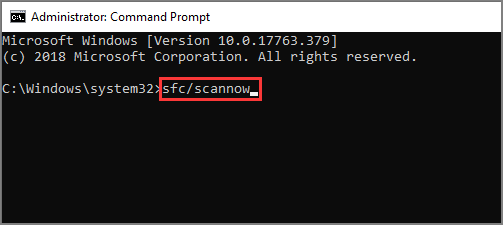
The system file checker will automatically run and repair any damaged system files. This process may take a few minutes to complete.
Fix 5. Check Correct Settings in Minecraft
Activating VBOs in Minecraft might also cause crashes, so look out for the procedures below to disable VBOs, which can help a lot of other players. To disable VBOs, you need to follow these steps.
Step 1. Launch the "Settings" in your Minecraft game.
Step 2. Navigate to the "Video Settings".
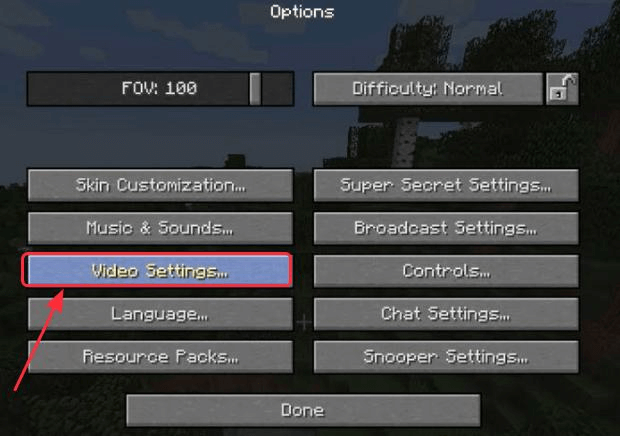
Step 3. On the next screen, click on the option "Use VBOs" to turn it off.
Step 4. To prevent game crashes, turn off your game, and then restart it. This should resolve the issue.
Fix 6. Re-Install Minecraft
Lastly, you can reinstall the game to solve the problem of frequent Minecraft crashes. However, keep in mind that uninstalling the game might cause the loss of user data, so save a copy of your game data before uninstalling.
Re-installing the game can resolve issues by replacing corrupted or damaged game files, allowing the game to run smoothly without crashes.
How to Recover Minecraft Lost Progress or Files on PC
If you forgot to keep a backup of your Minecraft data and had to uninstall it or lose your data for other reasons, you can use Deep Data Recovery Free to recover your lost game data and files.
This free data recovery software is highly easy-to-use and recovers all your lost data with the same configuration and quality. It allows you to perform various types of recoveries, including Recycle Bin recovery, formatted hard drive recovery, lost partition recovery, and RAW recovery. Additionally, if you need assistance, the Qiling technical support team is available 24/7 to help you with any issues you may have using the device.
Step 1. Select file types and click "Fast Scan" to start
Launch Deep Data Recovery software, select file types, and click "Fast Scan" to initiate the recovery process.

Note: You can choose different search modes based on where and why the data was lost.
Step 2. Select a drive and start scanning
Launch Deep Data Recovery, hover over the partition where you lost data, and click "Scan" to begin the recovery process.

Step 3. Check and preview scanned files
To find the desired files, use the file format filter to narrow down the scan results, and then preview their content by clicking the "Preview" button or double-clicking the file.

Step 4. Recover lost data to a secure location
To recover lost data, select the file, check the box next to it, and click "Recover". Store the recovered data in a secure location, avoiding the original disk where the data was lost.
The Bottom Line
Minecraft is a super fun game to play, but frequent crashes can be a real bummer. To avoid this and ensure a smooth gaming experience, follow the steps mentioned above to troubleshoot and resolve any issues that may be causing the crashes. This way, you can enjoy playing Minecraft without any interruptions.
If your computer is crashing, try different solutions in a sequence to find one that works for you. If you lose data during the process, you can use data recovery software like Qiling to retrieve it.
Related Articles
- How Do I Disable OneDrive in Windows 10? Your Complete Guide
- Solved: Hard Drive Not Showing Files Though They Still Exist
- 'Chkdsk cannot open volume for direct access in Windows 10/8/7/XP/Vista' Fixes
- Open/Boot Command Prompt at Boot in Windows 10 (4 Ways)
- How Much Does It Cost to Recover Data from a Hard Drive
Data recovery services and software can vary in cost, but generally, it's a one-time fee for a successful recovery, ranging from $50 to $1,500 or more, depending on the type of device, the extent of the damage, and the complexity of the recovery. - How to Access User Folder on Old Hard Drive Windows 10/11
Learn how to access the user folder on an old hard drive in Windows 10, take ownership, change permissions, and recover files from an old user profile.
Products
Articles & Tutorials
- Data Recovery
- Data Backup
- File Recovery
- File Backup
- System Backup and Restore
- Disk and Partition Clone
- Technical articles
- Mobile articles
- Disk Master Help
- Windows Data Recovery Tutorials
- Windows Secure Delete Tutorials
- Windows Partition Management Tutorials
- Windows File Backup and Restore Tutorials
- Windows System Backup and Restore Tutorials
- Windows Disk Backup and Restore Tutorials
- Windows Clone Tutorials