Recover Deleted Files from an exFAT External Drive on Windows
exFAT is common on external drives shared between Windows and other devices. If you deleted files from one, unplug it when you are not checking it and avoid saving new files to it. Recovery is less likely after the old storage space has been reused.
Confirm the drive and deletion
Step 1. Reconnect the drive only when ready to inspect it. In File Explorer, check its drive letter, capacity, and remaining folders. Use Properties to confirm the file system is exFAT; do not accept a prompt to format it.
Step 2. Search the drive for the missing names or extensions and check any other computer where the files might have been copied. External-drive deletions may not be in the PC's Recycle Bin, so an empty Recycle Bin is not conclusive.
Recover with Qiling Deep Data Recovery
Step 1. Install the software on the internal Windows disk, not the exFAT drive. Open USB/SD Scan for a removable external disk.
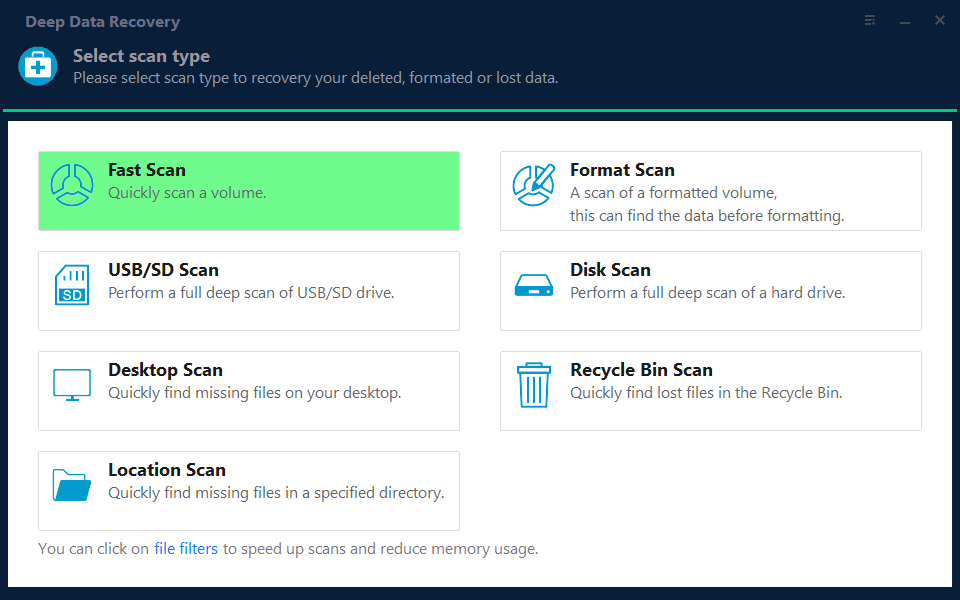
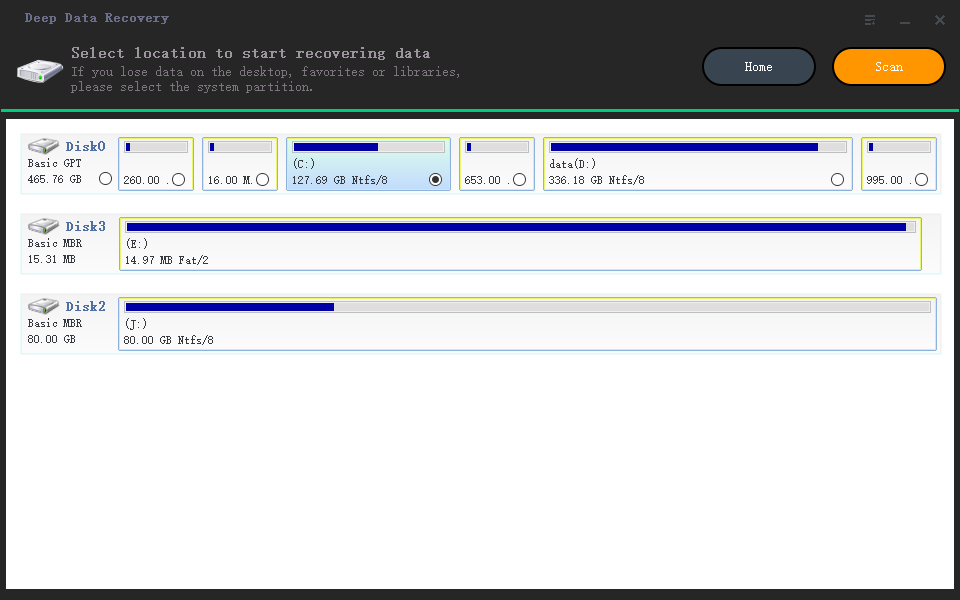
Step 2. Select the exFAT volume by its drive letter and capacity. Click Scan and leave the drive connected while it runs.
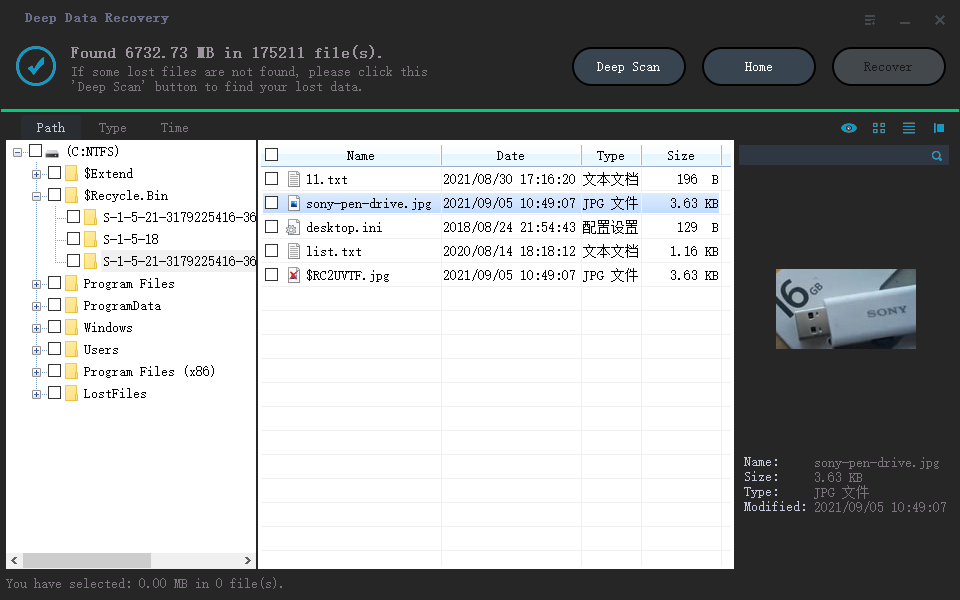
Step 3. Filter or browse the results and preview the required files. Try Deep Scan if the first pass does not show them, but do not assume every listed file is intact.
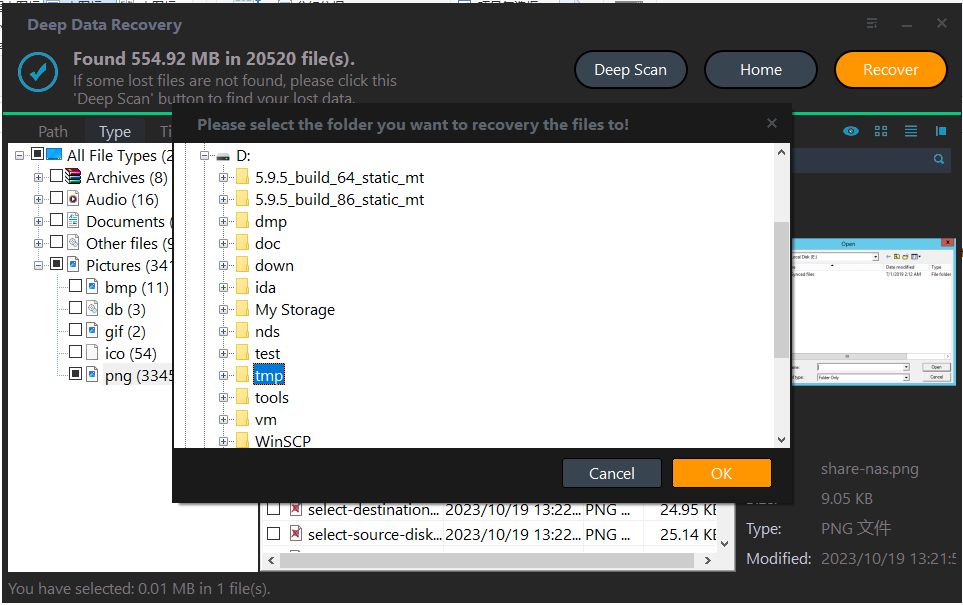
Step 4. Click Recover and save to a different physical drive with sufficient free space. Open a sample of the recovered files before you use the exFAT drive again.
If Windows cannot detect the physical drive at all, software scanning cannot proceed; check the cable, port, and enclosure first. If the drive disconnects repeatedly or makes unusual noises, prioritize a professional assessment over repeated scans.
If the missing files were on a removable exFAT USB stick, use the exFAT USB recovery checklist and avoid formatting it first.
Deleted files and file-system corruption are different cases. If the exFAT external drive itself is damaged or unreadable, see recovering files from a corrupt exFAT external drive before attempting repairs.
Related Articles
- Deleted USB Files and Recycle Bin
Understand why removable-drive deletions may not appear there. - Choose a Data Recovery Tool
Compare recovery options before scanning an external disk.
Products
Articles & Tutorials
- Data Recovery
- Data Backup
- File Recovery
- File Backup
- System Backup and Restore
- Disk and Partition Clone
- Technical articles
- Mobile articles
- Disk Master Help
- Windows Data Recovery Tutorials
- Windows Secure Delete Tutorials
- Windows Partition Management Tutorials
- Windows File Backup and Restore Tutorials
- Windows System Backup and Restore Tutorials
- Windows Disk Backup and Restore Tutorials
- Windows Clone Tutorials