Best Free Data Recovery Software to Recover Deleted Files (2026)
Accidentally deleting important files is a common nightmare. Whether you emptied the Recycle Bin, used Shift+Delete, formatted the wrong drive, or lost files to a virus or system crash, the right free data recovery software can often get your files back. In 2026, there are many free tools that can help you recover deleted files from hard drives, SSDs, USB flash drives, and memory cards.
This guide reviews the top 7 free data recovery tools available today. We compare their features, recovery rates, ease of use, and supported devices to help you choose the best one for your situation.
PAGE CONTENT
- Can Deleted Files Be Recovered?
- What to Look for in Free Data Recovery Software
- Top 7 Free Data Recovery Software in 2026
- How to Recover Deleted Files with Qiling Data Recovery
- Free Data Recovery Software Comparison Table
- FAQs About Free Data Recovery
Can Deleted Files Be Recovered?
Yes, in many cases. When you delete a file, Windows does not immediately erase the data from the disk. Instead, it marks the space occupied by the file as "available" and removes the file's directory entry. The actual data remains on the disk until it is overwritten by new data.
This means you can often recover deleted files as long as you act quickly and avoid writing new data to the same drive. The longer you wait, the higher the chance the data will be overwritten and lost forever.
- Important
- After discovering file loss, stop using the affected drive immediately. Do not install new software, save files, or browse the internet on that drive, as these actions can overwrite the deleted data.
What to Look for in Free Data Recovery Software
When choosing free data recovery software, consider these factors:
- Recovery Rate: The tool should support common file types (documents, photos, videos, audio, archives) and recover them with high success rates.
- Supported Devices: Look for support for HDD, SSD, USB flash drives, SD cards, and external hard drives.
- File System Support: NTFS, FAT32, exFAT, and ReFS are the most common Windows file systems.
- Scan Modes: Quick scan for recently deleted files, deep scan for formatted or corrupted drives.
- Preview Before Recovery: The ability to preview files before restoring ensures you recover the right files.
- Ease of Use: A clear, wizard-based interface helps beginners recover files without technical knowledge.
- Free Recovery Limit: Some free tools limit the amount of data you can recover per session (e.g., 2GB). Check the limit before committing.
Top 7 Free Data Recovery Software in 2026
1. Qiling Data Recovery — Best Overall Free Data Recovery Software
Qiling Data Recovery is our top pick for free data recovery software. It offers a high recovery rate, supports all common storage devices, and features a simple three-step wizard that anyone can use. Whether you deleted files by accident, formatted a drive, or lost data to a system crash, Qiling Data Recovery can help.
- Recovers 1000+ file types (photos, videos, documents, audio, etc.)
- Supports HDD, SSD, USB flash drives, SD cards, and external drives
- Quick scan + deep scan for maximum recovery
- Preview files before recovery
- Recovers from formatted, corrupted, or RAW partitions
- Filter by file type, size, and date to find files quickly
Qiling Data Recovery is the best free data recovery software for most users because it combines a high recovery rate with a beginner-friendly interface.
2. Recuva — Best Known Free Recovery Tool
Recuva by Piriform is one of the most well-known free data recovery tools. It has a simple interface and can recover files from hard drives, USB drives, and memory cards. The free version supports basic file recovery, while the paid version adds virtual hard drive support and automatic updates. If Recuva cannot find the files you need, compare more options in this Recuva alternative guide.
- Free for personal use
- Simple wizard interface
- Supports quick and deep scans
- Preview available for images
- Recovery quality has declined in recent years
3. Windows File Recovery — Built-in Microsoft Tool
Windows File Recovery is a free command-line tool from Microsoft, available on the Microsoft Store for Windows 10 2004+ and Windows 11. It supports recovery from local storage devices and offers different modes for different file systems. However, it has no graphical interface, making it challenging for non-technical users.
- Free from Microsoft
- Command-line only (no GUI)
- Supports NTFS, FAT, exFAT, and ReFS
- Requires Windows 10 2004+ or Windows 11
- Steep learning curve
4. PhotoRec — Best Free Open-Source Recovery
PhotoRec is a free, open-source data recovery tool that works on Windows, macOS, and Linux. Despite its name, it recovers all types of files, not just photos. It is powerful but uses a text-based interface, which can be intimidating for beginners.
- Free and open source
- Cross-platform (Windows, Mac, Linux)
- Recovers many file types
- Text-based interface (hard for beginners)
- No file preview
5. Disk Drill — Best for Beginners
Disk Drill offers a clean, modern interface and is easy to use. The free version for Windows allows you to scan and preview files, but recovery limits apply. It supports all common storage devices and offers a good recovery rate.
- Very easy to use
- Modern, intuitive interface
- Free version limits recovery amount
- Supports HDD, SSD, USB, SD cards
- Good recovery rate
6. EaseUS Data Recovery Wizard — Popular Freemium Option
EaseUS Data Recovery Wizard Free is a popular freemium tool. The free version allows up to 2GB of recovery. It supports common file types and storage devices, with a simple interface and decent recovery rate. For lower-cost or more flexible choices, see this EaseUS Data Recovery alternative guide.
- Free up to 2GB
- Easy-to-use interface
- Supports various devices and file types
- Quick and deep scan modes
- Recovery limit in free version
7. MiniTool Power Data Recovery — Another Freemium Choice
MiniTool Power Data Recovery Free offers up to 1GB of free recovery. It supports data recovery from various scenarios, including deletion, formatting, and partition loss. The interface is straightforward and suitable for beginners.
For a closer Windows comparison, read MiniTool Power Data Recovery vs Qiling before choosing a recovery workflow.
- Free up to 1GB
- Supports multiple recovery scenarios
- Easy-to-use interface
- Good for light recovery needs
- Limit on free recovery
How to Recover Deleted Files with Qiling Data Recovery
Stop using the affected drive as soon as you notice that files are missing. Install Qiling Deep Data Recovery on another partition when possible, and prepare a separate drive for the recovered files. Writing new data to the source drive may overwrite deleted content.
Step 1. Open Qiling Deep Data Recovery and select the scan type that matches the loss scenario. Use Fast Scan for recently deleted files, Recycle Bin Scan after emptying the Recycle Bin, Format Scan after formatting, USB/SD Scan for removable media, or Disk Scan for a full hard-drive search.

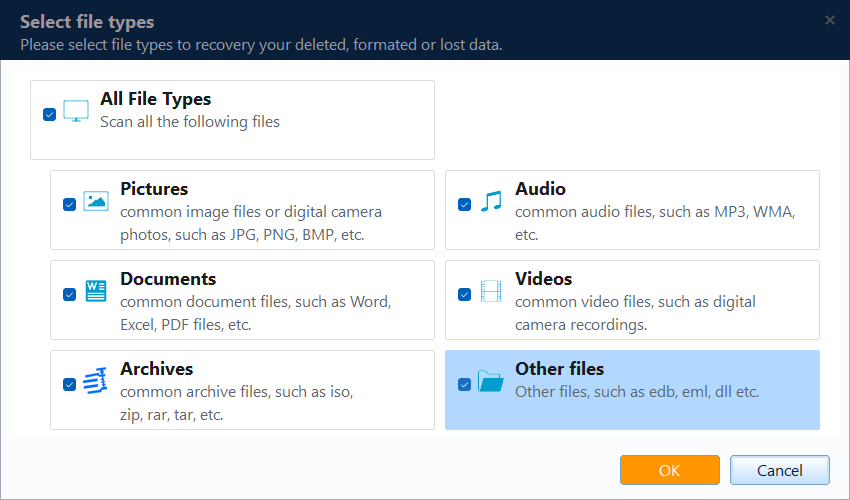
Step 2. Click file filters and select the categories you need, such as Pictures, Documents, Videos, Audio, or Archives. Keep All File Types selected if you are unsure which formats were lost, then click OK.
Step 3. Select the original disk or partition where the files were stored. Identify it by drive letter, capacity, partition layout, and device type, then click Scan. Do not select the drive intended for saving recovered files.

Step 4. Allow the scan to continue. Files may appear before the scan is complete, but waiting for it to finish usually provides more complete results. Avoid opening or saving files on the affected drive during the scan.
Step 5. Browse the results by Path or Type. Use the search box and file details such as name, extension, size, and modified date to narrow the results. Preview supported files to confirm that they are the correct versions.

Step 6. If the first scan does not find the required files, click Deep Scan. This scan takes longer but searches the selected storage area more thoroughly. Review the Path and Type results again after it completes.
Step 7. Select the files you want to restore and click Recover. Choose a folder on a different physical drive, click OK, and wait for recovery to finish. Open several restored files afterward to verify that they are complete and accessible.

Free Data Recovery Software Comparison Table
| Software | Free Limit | GUI | Preview | Deep Scan | SSD Support | Best For |
|---|---|---|---|---|---|---|
| Qiling Data Recovery | Free trial | Yes | Yes | Yes | Yes | All users |
| Recuva | Unlimited (free) | Yes | Limited | Yes | Limited | Basic recovery |
| Windows File Recovery | Unlimited (free) | No | No | Yes | Yes | Command-line users |
| PhotoRec | Unlimited (free) | No | No | Yes | Yes | Advanced users |
| Disk Drill | Limited | Yes | Yes | Yes | Yes | Beginners |
| EaseUS Data Recovery | Up to 2GB | Yes | Yes | Yes | Yes | Small recovery jobs |
| MiniTool Power Data Recovery | Up to 1GB | Yes | Yes | Yes | Yes | Light recovery needs |
FAQs About Free Data Recovery
What is the best free data recovery software?
Qiling Data Recovery is the best free data recovery software for most users in 2026. It offers a high recovery rate, supports all common storage devices, and features a simple wizard interface with file preview.
Is free data recovery software safe?
Yes, reputable tools like Qiling Data Recovery, Recuva, and PhotoRec are safe. Always download from the official website to avoid malware-infected installers.
Can I recover permanently deleted files?
Yes, as long as the data has not been overwritten. Files deleted with Shift+Delete or from an emptied Recycle Bin can often be recovered with data recovery software. Act quickly to maximize the chance of recovery.
Can data recovery software recover files from an SSD?
It depends. Unlike HDDs, many SSDs use TRIM, which quickly erases deleted data blocks. If TRIM is enabled, recovery may not be possible. Disable TRIM or stop using the SSD immediately to improve recovery chances.
How long does data recovery take?
A quick scan takes a few minutes. A deep scan on a large drive can take several hours. Recovery time also depends on the number and size of files being restored.
Conclusion
Losing important files is stressful, but the right free data recovery software can often recover deleted files from your HDD, SSD, USB drive, or SD card. For the best balance of recovery rate, features, and ease of use, Qiling Data Recovery is our top recommendation. Remember to act quickly and avoid writing new data to the affected drive to maximize your recovery chances.
Download Qiling Data Recovery today and get your deleted files back.
To compare free recovery editions with scan-only trials and paid options, see our eight-tool data recovery software comparison. It explains licensing boundaries and includes an illustrated Deep Data Recovery workflow.
Related Articles
- How to Recover Deleted Files from Laptop/PC on Windows 10/8/7
- Recover Deleted Files After Emptying Recycle Bin
- How to Recover Deleted Files from SSD
- How to Recover Deleted Files Without Software
- How to Recover Deleted Files from USB Flash Drive
Accidentally deleted files from a USB flash drive? Learn how to recover deleted files from USB drives using data recovery software in simple steps. - How to Recover Permanently Deleted Files in Windows 10
Learn how to recover permanently deleted files in Windows 10 after Shift+Delete or emptying the Recycle Bin, with and without data recovery software.
Products
Articles & Tutorials
- Data Recovery
- Data Backup
- File Recovery
- File Backup
- System Backup and Restore
- Disk and Partition Clone
- Technical articles
- Mobile articles
- Disk Master Help
- Windows Data Recovery Tutorials
- Windows Secure Delete Tutorials
- Windows Partition Management Tutorials
- Windows File Backup and Restore Tutorials
- Windows System Backup and Restore Tutorials
- Windows Disk Backup and Restore Tutorials
- Windows Clone Tutorials