Top 8 Best Data Recovery Software for Early 2026
The best data recovery software depends on what happened to your files, whether the drive is healthy, and how much control you need. A guided Windows scan can be appropriate for an accidental deletion; a damaged RAID or an unstable device requires a different approach. This guide compares eight options and explains when to try software, what to check before paying, and how to avoid overwriting the data you want back.
Editorial disclosure: Qiling publishes this website and develops Deep Data Recovery. Its position in this list is an editorial recommendation for a guided Windows workflow, not an independently measured recovery-rate award. We have not run a common benchmark across these eight tools and do not claim that any product is the fastest or recovers the most data.
Edition note: The Early 2026 title is retained for this guide, but the publication and product-information review date is October 31, 2026. The links below point to current vendor information, not an archived record of prices or features at the start of the year.
Quick Navigation:
- Quick Comparison of All Eight Tools
- How We Chose the Shortlist
- 1. Qiling Deep Data Recovery
- 2. Disk Drill
- 3. R-Studio
- 4. EaseUS Data Recovery Wizard
- 5. Stellar Data Recovery
- 6. DMDE
- 7. Recuva
- 8. DiskInternals Uneraser
- How to Recover Files with Deep Data Recovery
- Which Tool Should You Choose?
- Frequently Asked Questions
Quick Comparison of All Eight Tools
This comparison focuses on Windows workflows. Some vendors also offer other operating-system versions; the same product name does not guarantee identical features or license terms on every platform.
| Software | Consider it for | Before committing |
|---|---|---|
| Qiling Deep Data Recovery | Scenario-based Windows recovery from local and removable storage | Confirm recoverable candidates and the current license; a free download is not a promise of unlimited free export |
| Disk Drill | Preview-led review and disk-image workflows | Check the free recovery allowance and required edition |
| R-Studio | Technical file-system or RAID reconstruction work | Confirm edition capabilities and technical requirements |
| EaseUS Data Recovery Wizard | A location-first file recovery workflow | Check the free quota, license term, and included features |
| Stellar Data Recovery | A recovery plan selected by imaging or boot-related needs | Match the exact edition to the needed function |
| DMDE | Detailed file-system analysis and recovery | Understand free-edition restrictions and avoid unnecessary disk writes |
| Recuva | Trying a free Windows undelete utility | Confirm compatibility and suitability for the source layout |
| DiskInternals Uneraser | Inspecting scan results before buying an export license | Trial preview does not mean free saving of recovered files |
How We Chose the Shortlist
We considered the recovery workflow, documented storage and file-system scope, preview or result-inspection options, licensing boundaries, and the technical skill needed to use each tool. Product descriptions come from vendor documentation and the site's existing interface examples, not from a new laboratory comparison.
We deliberately omit numerical success scores and scan-speed rankings. An honest speed comparison needs the same source image, hardware, file set, loss scenario, and validation criteria. A vendor's advertised file-type count is not a guarantee that your file will be intact.
Protect the source first: stop writing to the affected disk, check backups and version history, and prepare another physical disk for recovered output. Do not format the source to make a scan easier. Repeated disconnections, unusual noises, or hardware read errors are reasons to stop repeated DIY scans and consider professional assistance.
1. Qiling Deep Data Recovery: Scenario-Based Windows Recovery
Qiling Deep Data Recovery is our recommendation to consider for a guided Windows recovery attempt on a readable local disk, USB drive, or memory card. Its mode screen distinguishes common loss scenarios, including local deletion, emptied Recycle Bin, formatting, and removable storage. Choose the mode that matches the event rather than assuming one scan is right for every case.
Strengths: clearly labeled recovery modes, a drive-selection stage, and a workflow for reviewing candidates before saving them elsewhere.
What to check: confirm that the software finds usable candidates and review the current license terms. We do not claim dedicated RAID reconstruction or universal repair of damaged files. Recovery depends on the surviving data; SSD TRIM and overwriting can prevent a successful result.
Our take: start here if you want to follow the Windows workflow illustrated below. For a complex array, disk editing, or a device with physical faults, choose an appropriate specialist workflow instead.
Free Download refers to the installer. Check the current edition and license for saving recovered files; no unlimited free-recovery allowance is promised here.
2. Disk Drill: Preview-led recovery and disk-image workflows
Disk Drill is a candidate for Windows users who want to scan a drive and review found files through previews. CleverFiles also documents byte-level backup and recovery from disk images. Those features can be useful when you want to preserve a readable source before working on its contents.
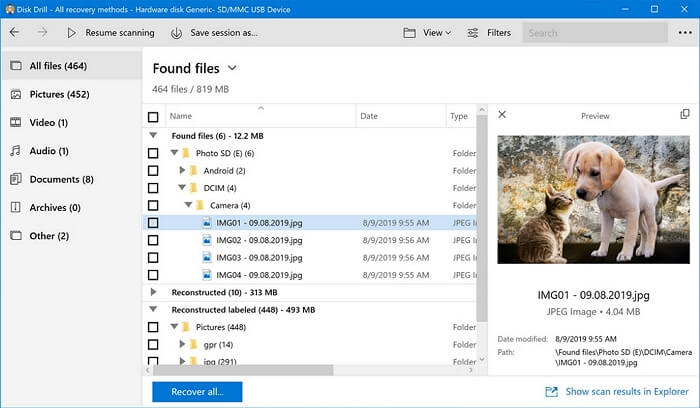
Existing interface example; appearance and available features vary by version and edition.
Strengths: Preview-oriented result review; documented imaging tools.
What to check: Free recovery is limited, and Windows and Mac offerings are not interchangeable. Check the current edition, supported system, and export allowance before relying on the download.
Our take: Consider it when result inspection and image-based work are important. A recovery-chance indicator is an estimate, not proof that an entire file will work. See the Disk Drill official product information for current requirements and licensing.
3. R-Studio: Technical recovery and RAID reconstruction
R-Studio targets users who need deeper control over disks, file systems, and reconstruction tasks. Its official documentation describes a broad set of file systems, raw file-signature scanning, and virtual RAID reconstruction. Windows, macOS, and Linux products are available; choose the appropriate host version.
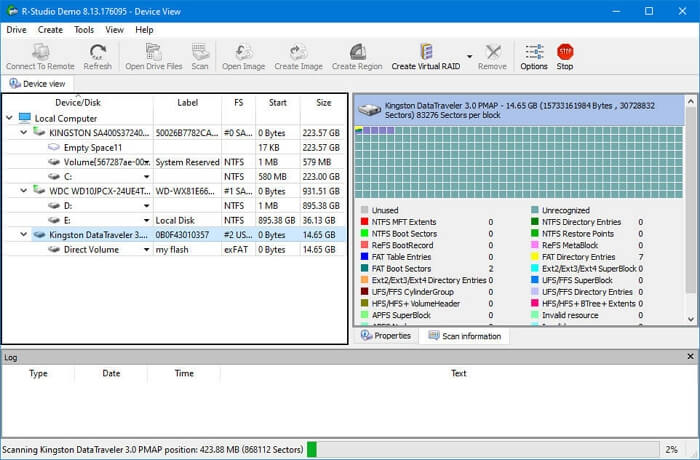
Existing interface example; appearance and available features vary by version and edition.
Strengths: Detailed recovery controls and documented RAID reconstruction capabilities.
What to check: The number of options creates a steeper learning curve than a simple undelete wizard. Features and licensing differ by edition; technical operations require an understanding of the source layout.
Our take: Shortlist it for a specialist or administrator facing a complex logical recovery. Do not experiment with RAID parameters on the only surviving originals. See the R-Studio official product information for current requirements and licensing.
4. EaseUS Data Recovery Wizard: A location-first recovery workflow
EaseUS Data Recovery Wizard is an alternative for users who prefer to begin by choosing the location where their files were lost. The Windows product covers common local and removable storage, with result previews and a distinction between free and paid recovery editions.

Existing interface example; appearance and available features vary by version and edition.
Strengths: Location-oriented workflow and preview-based review of found files.
What to check: A free edition has a recovery-volume allowance. Additional capabilities may depend on a paid edition or another product; do not assume every feature listed across the vendor's website is included in one download.
Our take: Consider it for common deletion and formatting scenarios on a readable device. Check the export limit and license term against the amount of data you actually need. See the EaseUS Data Recovery Wizard official product information for current requirements and licensing.
5. Stellar Data Recovery: Users comparing recovery editions and imaging options
Stellar offers several Windows recovery editions. Its product comparison separates general file recovery from capabilities such as disk imaging and non-bootable-system recovery, while RAID-oriented functions belong to specified higher editions. The edition comparison is therefore more useful than choosing on the product name alone.
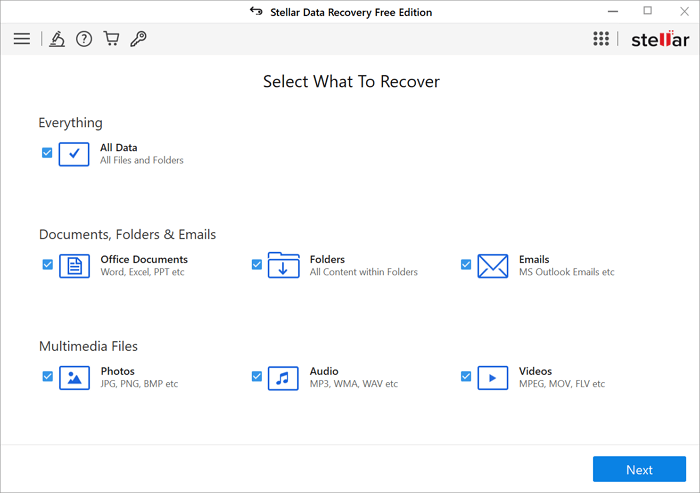
Existing interface example; appearance and available features vary by version and edition.
Strengths: Published edition comparison; additional recovery tools in specified plans.
What to check: The screenshot below illustrates a Free Edition interface, not a guarantee of features in every paid plan. Check which edition includes the particular imaging, boot, repair, or RAID capability you need.
Our take: Consider it when its documented edition matches your recovery scenario. Recovering a deleted file and repairing a corrupted file are separate tasks. See the Stellar Data Recovery official product information for current requirements and licensing.
6. DMDE: File-system investigation and controlled recovery
DMDE combines file recovery with tools for examining disk structures. The vendor describes partition searching, file-system analysis, and a disk editor. It is portable after extraction and supports several host operating systems, making it a candidate for users who understand volumes and file-system structures.
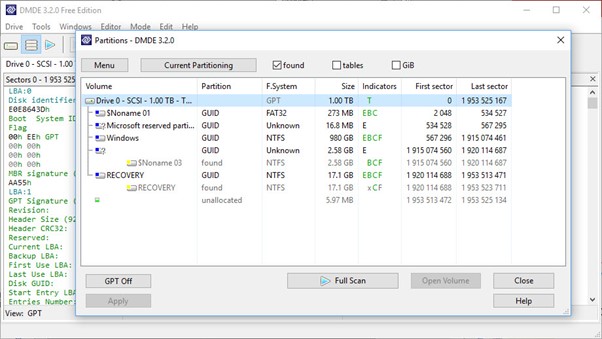
Existing interface example; appearance and available features vary by version and edition.
Strengths: Detailed disk inspection, portable execution, and documented free recovery options.
What to check: The free edition applies restrictions to how files and folders can be recovered. Disk editing is not a routine recovery step: write operations can make an existing problem worse.
Our take: Consider it for technically confident users who need to investigate the source rather than follow only a simple wizard. Keep ordinary file recovery separate from disk editing. See the DMDE official product information for current requirements and licensing.
7. Recuva: A free starting point for Windows undelete
Recuva is a Windows utility with a Free version and a paid Professional offering. Its official product page describes deleted-file recovery from common storage and a deep scan option. It is a reasonable candidate to evaluate for a straightforward local deletion when a backup or Recycle Bin restore is unavailable.
Strengths: A free recovery edition and a relatively focused Windows undelete use case.
What to check: Do not treat it as an automatic answer to every damaged file system or complex storage layout. Check current Windows compatibility and whether your source device is readable.
Our take: Consider the Free version for a simple deletion first. Do not use its secure-delete function on data you are trying to recover. See the Recuva official product information for current requirements and licensing.
8. DiskInternals Uneraser: Scanning and preview before licensed export
DiskInternals Uneraser offers a Windows file-recovery workflow with quick and deeper search options. Its official guide describes previewing found content before export. This can help you inspect candidates before deciding whether the product suits your particular loss.
Strengths: Documented scan-and-preview trial workflow.
What to check: The vendor states that the trial scans and previews but requires a license to save recovered files. Uneraser is not the same product as DiskInternals Partition Recovery or RAID Recovery.
Our take: Consider it if you want to inspect results before purchasing. Confirm that the license unlocks the product and features you actually evaluated. See the DiskInternals Uneraser official product information for current requirements and licensing.
How to Recover Files with Deep Data Recovery
This example uses existing Qiling screenshots. Names, drive letters, counts, and button states are historical examples, not evidence of a recovery performed for this article. A scan cannot search content that existed only in a remote cloud account.
Step 1. Choose the Mode That Matches the Loss
Run the program from a disk other than the affected source. Choose Fast Scan for recent local deletion, Recycle Bin Scan after emptying the bin, Format Scan after an accidental format, or USB/SD Scan for removable storage. Do not install the program onto the drive you are trying to recover.

Step 2. Select the Original Volume and Click Scan
Match the source by its volume, drive letter, and capacity. Select the volume that originally contained the missing files, not the empty output disk. Click Scan and let it finish before deciding that a file is absent.

Step 3. Review and Select Candidate Files
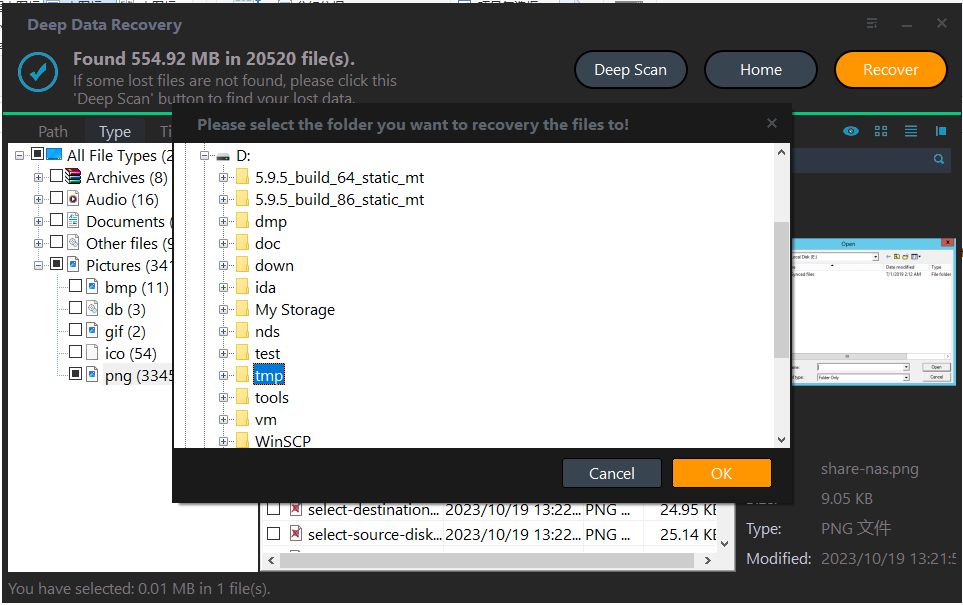
Browse by path, type, or time and compare names, sizes, dates, and previews where available. Include linked media or companion files when recovering a project. Select the required candidates, then click Recover. In this example no files are checked, so the button is disabled; do not mistake highlighting a row for selecting its checkbox.

Step 4. Choose Another Physical Disk and Click OK
In the destination window, select a folder on another physical disk and click OK. Another partition on the same source disk is not a safe substitute. Wait for saving to finish, keep an untouched copy, and test a duplicate in its original application. Opening a file does not prove all pages, records, frames, or project assets survived.
If you prefer a demonstrated sequence, watch the Deep Data Recovery English video tutorial. It is a screenshot walkthrough, not a live recovery test.
Which Tool Should You Choose?
For a readable Windows drive and a guided starting point: compare Qiling Deep Data Recovery, Disk Drill, EaseUS, and the appropriate Stellar edition by whether they find your actual files and by their saving terms. Do not purchase only because a filename appears.
For technical investigation: R-Studio and DMDE offer documented capabilities that merit closer examination. Having an advanced disk editor or RAID module does not make it safe to experiment on the only copy of valuable data.
For a free Windows undelete attempt: evaluate Recuva Free. For a trial-before-export workflow, compare Uneraser's preview results with the license cost. Limited free editions and scan-only trials are not the same thing.
For an unhealthy physical device: stop comparing download buttons and protect the source. A professional recovery service may be the appropriate next step; no software ranking overrides hardware risk.
Frequently Asked Questions
Which data recovery program has the highest recovery rate?
There is no defensible universal winner in this guide. Results depend on the device, file system, loss event, overwriting, encryption state, and how recovered content is validated. We have not measured a common success rate across these eight products.
Does Free Download mean that all recovered files can be saved for free?
No. It may mean a free installer, a limited recovery allowance, or a scan-and-preview trial. Check the exact product edition before relying on it. A product's free download and paid export options should not be confused.
Can software recover files after an SSD format or deletion?
Sometimes recoverable content remains, but TRIM, overwrite, and later writes can remove that possibility. Stop using the affected SSD and do not assume a scan can reverse cleared or overwritten data.
Will data recovery software repair a corrupted document or video?
Not necessarily. Undelete and damaged-file repair are different tasks. A recovered file may still be incomplete, and a vendor's separate repair feature may require another edition or product.
Can I use these Windows programs to scan a cloud-only file?
A local disk scan cannot search blocks stored only on a remote service. Start with that service's recycle bin, revision history, or administrator backup. A previously downloaded local copy is a different recovery source.
Why does this Early 2026 article show an October review date?
The requested edition title is retained, while the actual publication and information-check date is disclosed. Current vendor pages can change; this guide does not present today's license terms as verified historical terms from early 2026.
Reference and Editorial Context
The requested reading reference was 7 Data Recovery's recovery-app roundup. This article is independently written for Qiling and adds its own selection framework and illustrated Qiling workflow. The reference publisher's test results, ratings, screenshots, and endorsements are not reproduced or claimed as Qiling's findings. Official product links appear beside the relevant descriptions.
Related Articles
- Recover Files with a Recuva Alternative
- Compare an EaseUS Data Recovery Alternative
- Recover Deleted Files on Windows 11
Products
Articles & Tutorials
- Data Recovery
- Data Backup
- File Recovery
- File Backup
- System Backup and Restore
- Disk and Partition Clone
- Technical articles
- Mobile articles
- Disk Master Help
- Windows Data Recovery Tutorials
- Windows Secure Delete Tutorials
- Windows Partition Management Tutorials
- Windows File Backup and Restore Tutorials
- Windows System Backup and Restore Tutorials
- Windows Disk Backup and Restore Tutorials
- Windows Clone Tutorials