5 Best Recuva Alternatives (2026 Free & Paid)
Recuva is one of the most popular free data recovery tools, but it has limitations: the recovery success rate on formatted drives is lower than paid tools, the interface is dated, and it cannot recover files from RAW partitions or severely corrupted drives. If Recuva failed to recover your files, you need a Recuva alternative with more powerful scanning technology.
This guide compares the 5 best Recuva alternatives to help you recover deleted files, photos, and documents that Recuva couldn't.
PAGE CONTENT
- Why Look for a Recuva Alternative?
- Quick Comparison: Recuva vs Alternatives
- 1. Qiling Data Recovery (Best Overall Alternative)
- 2. Disk Drill (Best for Mac & Windows)
- 3. EaseUS Data Recovery (Most Feature-Rich)
- 4. R-Studio (Best for Professionals)
- 5. PhotoRec (Best Free Open-Source Tool)
- How to Recover Files with Qiling Data Recovery
- FAQs About Recuva Alternatives
Why Look for a Recuva Alternative?
Common reasons users seek alternatives to Recuva:
- Low recovery success on formatted drives: Recuva's deep scan often cannot recover files from formatted or RAW partitions.
- Dated interface: Recuva's UI hasn't been updated in years and lacks modern features.
- No file preview for some types: You can't preview certain file types before recovery.
- No Mac support: Recuva is Windows-only.
- No RAID recovery: Cannot recover files from RAID arrays.
- Cannot recover from severely damaged drives: If the file system is heavily corrupted, Recuva often fails.
- No customer support for free users: Only Pro users get email support.
Quick Comparison: Recuva vs Alternatives
| Tool | Free Limit | Paid Price | Deep Scan | Best For |
|---|---|---|---|---|
| Recuva | Unlimited (free) | $24.95 (Pro) | Basic | Basic file recovery |
| Qiling Data Recovery | 2 GB | $49.95 (1-time) | Advanced | Best overall value |
| Disk Drill | 500 MB | $89/year | Advanced | Mac & Windows |
| EaseUS Data Recovery | 2 GB | $69.95/year | Advanced | Most features |
| R-Studio | Files < 64KB | $49.99+ | Professional | Professionals |
| PhotoRec | Unlimited (free) | Free | Advanced | Open-source users |
1. Qiling Data Recovery (Best Overall Alternative)
Qiling Data Recovery is our top pick as a Recuva alternative. It offers advanced deep scan technology that can recover files from formatted, RAW, and corrupted partitions where Recuva fails.
Key Features
- Advanced deep scan: Recovers files from formatted, RAW, and corrupted partitions
- File preview: Preview photos, videos, and documents before recovery
- Filter by type: Filter results by file type, date, and size
- Supports all devices: HDDs, SSDs, USB drives, SD cards, cameras, RAID arrays
- All file systems: NTFS, FAT32, exFAT, ReFS, HFS+, APFS, ext2/3/4
- One-time purchase: $49.95 for a lifetime license
Why Qiling Beats Recuva
- Higher recovery success rate on formatted and RAW drives
- Modern interface with file preview
- Supports macOS (Recuva is Windows-only)
- Recovers from RAID arrays
- Better customer support
2. Disk Drill (Best for Mac & Windows)
Disk Drill by Cleverfiles is a modern data recovery tool with excellent macOS and Windows support. If you need a Recuva alternative that works on Mac, Disk Drill is a top choice.
Key Features
- Supports Windows and macOS
- Recovers 200+ file formats
- Deep scan for formatted and damaged drives
- Recovery Vault prevents future data loss
- Modern, user-friendly interface
Pros
- Excellent Mac support
- Clean, modern interface
- Recovery Vault feature
Cons
- Expensive ($89/year)
- Free version limited to 500MB
- Subscription model
3. EaseUS Data Recovery (Most Feature-Rich)
EaseUS Data Recovery Wizard is one of the most feature-rich data recovery tools. It's a good Recuva alternative if you need advanced features and don't mind paying a subscription.
Key Features
- Recovers 1000+ file types
- Deep scan for formatted and RAW drives
- Supports Windows and macOS
- Preview before recovery
- Bootable media for recovering from unbootable PCs
Pros
- Very feature-rich
- Good recovery success rate
- Supports Mac and Windows
Cons
- Expensive ($69.95/year subscription)
- Free version limited to 2GB
- Slow deep scan on large drives
4. R-Studio (Best for Professionals)
R-Studio is a professional-grade data recovery tool designed for IT professionals and data recovery services. It's more powerful than Recuva but also more complex.
Key Features
- Advanced RAID recovery (RAID 0, 1, 5, 6, 10)
- Network recovery (recover files over a network)
- Disk imaging for damaged drives
- All major file systems supported
- Forensic features
Pros
- Most powerful recovery tool
- RAID and network recovery
- Cross-platform (Windows, Mac, Linux)
Cons
- Complex interface—not for beginners
- Expensive ($49.99 for personal, $899 for technician)
- Free demo only recovers files < 64KB
5. PhotoRec (Best Free Open-Source Tool)
PhotoRec is a free, open-source data recovery tool. Unlike Recuva, PhotoRec can recover files from severely damaged drives and RAW partitions.
Key Features
- Completely free and open-source
- Recovers 480+ file formats
- Works on formatted and RAW drives
- Cross-platform (Windows, Mac, Linux)
- Companion to TestDisk (partition recovery)
Pros
- Free with unlimited recovery
- Works on severely damaged drives
- Cross-platform
Cons
- Command-line interface
- Cannot recover file names (files saved as numbered names)
- Slow scan on large drives
- No preview feature
How to Recover Files with Qiling Data Recovery
If you choose Qiling Data Recovery as your Recuva alternative, stop using the affected drive first. New downloads, browser cache, or copied files may overwrite deleted data. Install the recovery tool on another partition when possible, and prepare a separate drive for saving recovered files.
Step 1. Open Qiling Deep Data Recovery and choose the scan type that matches your data loss case. Use Fast Scan for recently deleted files, Recycle Bin Scan after emptying the Recycle Bin, Format Scan after formatting a partition, USB/SD Scan for removable media, or Disk Scan for a full drive search.

Step 2. Click file filters and select the file types you need, such as Pictures, Documents, Videos, Audio, Archives, or All File Types. Filtering the scan makes the result list easier to review.
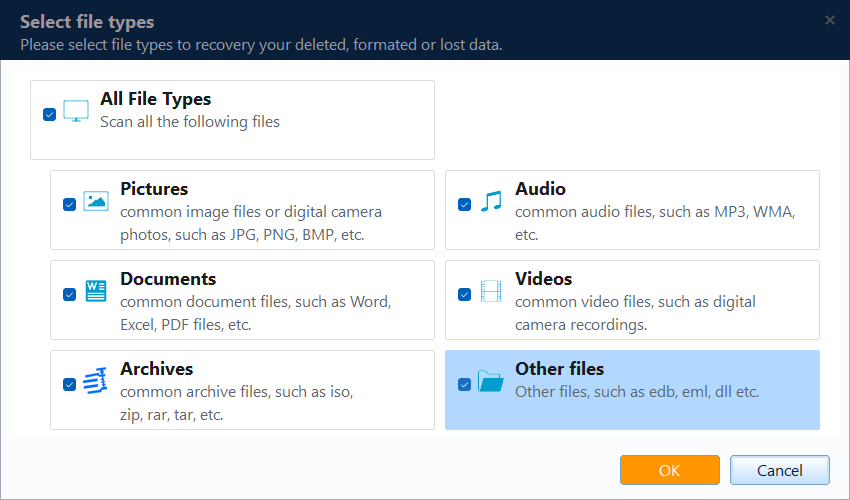
Step 3. Select the original drive, partition, USB drive, or SD card where the files were lost. Confirm it by drive letter, capacity, and device type, then click Scan. Do not choose the drive that will store recovered files.

Step 4. Let the scan continue. Files may appear before the scan finishes, but waiting for the full scan usually finds more recoverable data. Avoid saving or editing files on the affected drive during this time.
Step 5. Browse results by Path or Type. Use the search box, file extension, size, and modified date to narrow the list. Preview supported files to make sure they are the correct and usable versions.

Step 6. If the needed files are not listed, click Deep Scan. It takes longer, but it searches the selected storage area more thoroughly and is useful for formatted, RAW, or badly damaged drives.
Step 7. Select the files you want to restore and click Recover. Save them to a different physical drive, click OK, and open several recovered files afterward to confirm they are complete.

FAQs About Recuva Alternatives
What is the best free alternative to Recuva?
PhotoRec is the best free alternative if you don't mind a command-line interface. It can recover files from severely damaged drives where Recuva fails. For a user-friendly free option, Windows File Recovery (built into Windows 10/11) is also free but command-line based.
Why does Recuva fail to recover my files?
Recuva may fail if the files have been overwritten, the drive is heavily corrupted, or the partition is RAW. Recuva's basic deep scan cannot handle these cases. Advanced tools like Qiling Data Recovery or R-Studio use more powerful scanning algorithms.
Is Qiling Data Recovery better than Recuva?
Yes, Qiling has a higher recovery success rate on formatted and RAW drives, supports macOS, and can recover from RAID arrays. Recuva is free with unlimited recovery, while Qiling's free version is limited to 2GB. For serious data loss, Qiling is the better choice.
Can I recover files from a formatted drive?
Yes. Advanced data recovery tools like Qiling, EaseUS, and Disk Drill can recover files from formatted drives using deep scan technology. Recuva can also recover from formatted drives but with a lower success rate.
Is there a free Recuva alternative for Mac?
Recuva is Windows-only. For Mac, try PhotoRec (free, open-source) or Disk Drill (free up to 500MB). Qiling Data Recovery also supports macOS.
Conclusion
If Recuva failed to recover your files, Qiling Data Recovery is the best overall alternative with advanced deep scan technology, file preview, and macOS support. For a free option, PhotoRec can handle severely damaged drives. Mac users should consider Disk Drill, while professionals may prefer R-Studio.
Remember: stop using the drive immediately after data loss to prevent overwriting, and never save recovered files to the same drive you're recovering from.
For more data recovery options, see our Best Free Data Recovery Software guide.
Related Articles
- Best Free Data Recovery Software of 2026: Top 7 Picks
- 5 Best EaseUS Data Recovery Alternatives (2026)
- How to Recover Deleted Photos on Windows PC (2026)
- How to Recover Formatted Hard Drive Data
Accidentally formatted your hard drive? Learn how to recover data from a formatted HDD or SSD using data recovery software with deep scan technology.
Products
Articles & Tutorials
- Data Recovery
- Data Backup
- File Recovery
- File Backup
- System Backup and Restore
- Disk and Partition Clone
- Technical articles
- Mobile articles
- Disk Master Help
- Windows Data Recovery Tutorials
- Windows Secure Delete Tutorials
- Windows Partition Management Tutorials
- Windows File Backup and Restore Tutorials
- Windows System Backup and Restore Tutorials
- Windows Disk Backup and Restore Tutorials
- Windows Clone Tutorials