How to Recover Deleted Photos on Windows PC (2026 Guide)
Photos capture precious memories—family gatherings, travel adventures, important documents. Accidentally deleting them from your Windows PC can be devastating. The good news is that in most cases, you can recover deleted photos if you act quickly and use the right method.
This guide covers 4 effective methods to restore deleted photos on Windows 10 and Windows 11, from checking the Recycle Bin to using data recovery software for permanently deleted pictures.
PAGE CONTENT
- Can Deleted Photos Be Recovered?
- Method 1: Restore from Recycle Bin
- Method 2: Recover from File History or Backup
- Method 3: Recover Permanently Deleted Photos with Qiling Data Recovery
- Method 4: Restore from Previous Versions
- Tips to Increase Photo Recovery Success Rate
- FAQs About Recovering Deleted Photos
Can Deleted Photos Be Recovered?
Yes, in most cases. When you delete a photo on Windows, the file is not immediately erased from the disk. Instead, Windows marks the storage space as "available" and removes the file's directory entry. The actual photo data remains on the disk until it is overwritten by new data.
This means you can recover deleted photos as long as the data has not been overwritten. The key is to act fast and avoid writing new files to the same drive.
- Important
- Stop using the drive immediately after discovering photo loss. Do not save new files, install software, or browse the internet on that drive, as these actions can overwrite the deleted photos permanently.
Method 1: Restore from Recycle Bin
If you deleted photos by selecting them and pressing Delete (or right-clicking > Delete), they are likely still in the Recycle Bin. This is the easiest recovery method.
Step 1. Double-click the Recycle Bin icon on your desktop to open it.
Step 2. Browse or search for the deleted photos. You can sort by "Date deleted" to find recently deleted items.
Step 3. Select the photos you want to restore. To select multiple photos, hold Ctrl and click each one.
Step 4. Right-click the selected photos and choose "Restore". The photos will be returned to their original location.
If you do not see your photos in the Recycle Bin, they may have been permanently deleted (e.g., using Shift+Delete or if the Recycle Bin was emptied). Move to the next methods.
Method 2: Recover from File History or Backup
If you have enabled File History or created a backup, you can restore deleted photos from there.
Restore from File History
Step 1. Open the folder where the deleted photos were stored.
Step 2. Click the "History" button in the File Explorer ribbon (or go to Home tab > History).
Step 3. Browse the backup versions using the left/right arrows to find the version that contains your deleted photos.
Step 4. Select the photos and click the green "Restore" button. The photos will be restored to their original location.
Restore from Windows Backup
Step 1. Go to Settings > Update & Security > Backup.
Step 2. Click "More options" > "Restore files from a current backup".
Step 3. Browse the backup and select the photos you want to restore.
Step 4. Click "Restore" to recover the photos.
Method 3: Recover Permanently Deleted Photos with Qiling Data Recovery
If the photos are not in the Recycle Bin and you have no backup, use a data recovery tool. Qiling Deep Data Recovery can search for photos deleted with Shift+Delete, removed after the Recycle Bin was emptied, or lost from a formatted drive.
Stop using the affected drive before scanning it. If possible, install the recovery software on another partition or computer, and prepare a separate drive for the recovered photos.
Step 1. Open Qiling Deep Data Recovery and choose the scan type that matches how the photos were lost. Use Fast Scan for recently deleted photos on a normal partition, Recycle Bin Scan after emptying the Recycle Bin, Format Scan after formatting, or USB/SD Scan for a camera card or removable drive.

Step 2. Click file filters, clear file groups you do not need, and keep Pictures selected. Limiting the scan to image formats can reduce scanning time and make the results easier to review.
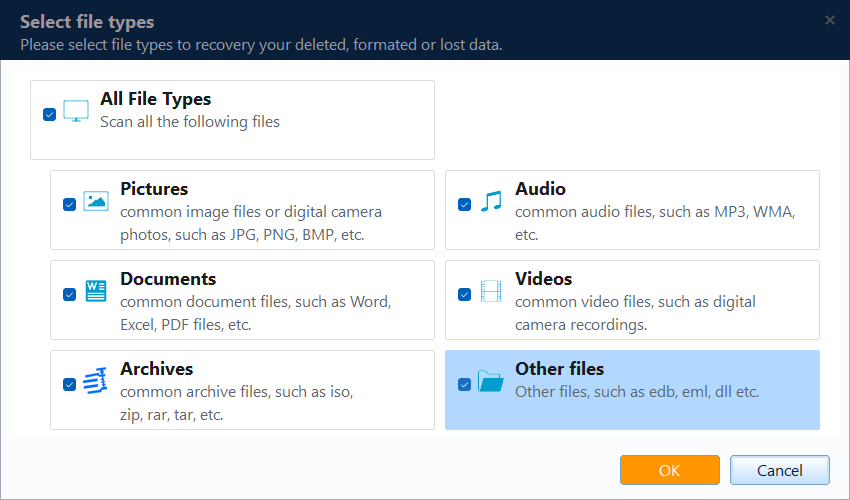
Step 3. Select the original drive or partition where the photos were stored, not the drive where you plan to save recovered files. Confirm the disk by its capacity and drive letter, then click Scan.

Step 4. Allow the scan to run. You can review files as they appear, but completing the scan usually produces a more complete result. Do not save new files to the affected drive while scanning.
Step 5. Open Type > Pictures to narrow the results by image format. Use the folder tree, file-name search, date, and size information to locate the missing photos. Select a photo to preview it and confirm that it opens correctly.

Step 6. If the required photos do not appear after the first scan, click Deep Scan. A deep scan takes longer but searches the selected storage area more thoroughly. Review the Pictures results again when it finishes.
Step 7. Select the photos you want, click Recover, and choose a folder on a different physical drive. Click OK to save the files, then open several recovered photos to confirm that they are complete and viewable.

Method 4: Restore from Previous Versions
Windows can automatically create previous versions of files as part of System Restore or File History. You can try restoring deleted photos from previous versions.
Step 1. Open the folder that contained the deleted photos.
Step 2. Right-click the folder and select "Properties".
Step 3. Go to the "Previous Versions" tab.
Step 4. Select a previous version of the folder that contains your deleted photos.
Step 5. Click "Restore" to recover the folder to that previous state.
If no previous versions are listed, this method will not work, and you should use Method 3 (data recovery software).
Tips to Increase Photo Recovery Success Rate
- Act immediately: The longer you wait, the higher the chance the deleted photos will be overwritten.
- Do not use the affected drive: Avoid saving files, installing software, or browsing the internet on the drive where the photos were deleted.
- Install recovery software on a different drive: If the photos were on your C: drive, install the recovery tool on a different drive or use a portable version.
- Recover to a different drive: Always save recovered photos to a different drive to avoid overwriting other deleted files.
- Use deep scan: If quick scan does not find your photos, run a deep scan, which searches sector by sector for recoverable data.
- Preview before recovery: Always preview photos to confirm they are intact and are the correct files.
FAQs About Recovering Deleted Photos
Can I recover permanently deleted photos from my Windows PC?
Yes. Photos deleted with Shift+Delete or after emptying the Recycle Bin can often be recovered with data recovery software like Qiling Data Recovery, as long as the data has not been overwritten.
How can I recover deleted photos for free?
You can recover deleted photos for free from the Recycle Bin, File History, or Windows Backup. If those fail, Qiling Data Recovery offers a free trial that lets you scan and preview recoverable photos before deciding to purchase.
Can I recover photos from a formatted drive?
Yes. Data recovery software can often recover photos from a formatted drive, as formatting does not completely erase the data—it only removes the file system references. Use the deep scan mode for best results.
Can I recover RAW photos from my camera's SD card?
Yes. Qiling Data Recovery supports RAW image formats from most camera brands (Canon CR2/CR3, Nikon NEF, Sony ARW, etc.). Connect the SD card to your PC with a card reader and scan it.
How long after deletion can I recover photos?
There is no fixed time limit. Photos can be recovered as long as the storage space they occupied has not been overwritten by new data. Recovery is more likely if you act quickly and stop using the drive.
Conclusion
Deleting photos by accident does not mean they are gone forever. Start by checking the Recycle Bin and your backups. If those fail, Qiling Data Recovery can scan your drive and recover deleted photos that were permanently deleted, even from a formatted drive. Remember to act fast and avoid using the affected drive to maximize your chances of successful recovery.
Download Qiling Data Recovery today and get your deleted photos back.
Related Articles
- How to Recover Deleted Files from Laptop/PC on Windows 10/8/7
- Best Free Data Recovery Software to Recover Deleted Files (2026)
- Recover Deleted Files After Emptying Recycle Bin
- How to Recover Deleted Photos from SD Card
- Recover Deleted Photos/Pictures from SD Card on Windows
Deleted photos from your SD card? Learn how to recover deleted photos and pictures from an SD card using data recovery software in simple steps. - How to Recover Deleted Photos from Computer
Accidentally deleted photos from your computer? Learn how to recover deleted photos from your Windows PC or laptop using data recovery software.
Products
Articles & Tutorials
- Data Recovery
- Data Backup
- File Recovery
- File Backup
- System Backup and Restore
- Disk and Partition Clone
- Technical articles
- Mobile articles
- Disk Master Help
- Windows Data Recovery Tutorials
- Windows Secure Delete Tutorials
- Windows Partition Management Tutorials
- Windows File Backup and Restore Tutorials
- Windows System Backup and Restore Tutorials
- Windows Disk Backup and Restore Tutorials
- Windows Clone Tutorials