How to Recover Deleted Photos from SD Card on Android Phone
SD Card Photos Get Lost, Why?
Losing photos from an SD card is a common issue for many Android phone and camera users. This often occurs due to small operations, and can be caused by a variety of factors.
- Delete photos by mistake
- SD card gets corrupted or damaged
- Format the SD card
- Virus infection, power failure, and others
If you've lost your photos, stop using the SD card right away to prevent further data loss. Don't take any more pictures on the card and remove it from your camera or Android smartphone. Then, use professional Android photo recovery tools to recover deleted photos from the SD card on your Android phone.
How to Recover Deleted Photos from SD Card on Android Phone
You can restore deleted photos from your Android Samsung or other phone using a computer in two ways.
1. Recover Deleted Photos from SD Card Using Memory Card Recovery Software with Computer
When you need to recover lost or deleted SD card photos, you can use the top-notch data recovery software - Deep Data Recovery to get back deleted pictures on Android phones. This software is not only for deleted and formatted recovery, but also useful for more data loss issues like virus attack, human error, power failure, system crash, OS re-installation/upgrade, and more. It can help you recover photos whenever you lose them or delete vital data from the SD card on your camera or android phone. Its main features include.
Qiling Memory Card Recovery Software
- Recover deleted videos, photos, files, documents, emails, and other data with ease and effectiveness.
- Use a data recovery software to scan the storage device, recover deleted files, and restore lost data from various types of storage devices, including SD cards, memory cards, hard drives, solid-state drives, compact flash cards, USB drives, and digital camera memory.
- Data recovery services can help recover lost data due to sudden deletion, hard drive formatting, corruption, virus attacks, system crashes, and other unforeseen events, allowing users to retrieve valuable information and minimize data loss.
3 steps to recover deleted photos from SD card in Android Phone on Windows 10/8/7
To retrieve deleted images from an SD card on an Android phone using a Windows computer, follow the video and text guidance provided. Alternatively, if you're a Mac user, check out the tutorial on how to recover deleted files from an SD card on Mac.
Step 1. Select file types
Launch Deep Data Recovery software. Select file types and click "USB/SD Scan" to initiate the recovery process.

Note: You can choose different search modes based on where and why the data was lost.
Step 2. Choose the location and start scanning
To recover deleted pictures, hover over the SD card, camera, or hard drive partition where the pictures were deleted, and click "Scan" to start the recovery process.

Step 3. Select the pictures you want to recover
After the scanning process is complete, navigate to the "Pictures" section in the left panel. To locate lost photos, click on "Lost" at the top of the list. From there, you can search for photos by device, type, or date, making it easier to find the images you're looking for.

Step 4. Recover lost photos
After the preview, click "Recover" and choose another location to save the desired pictures.
Recovering deleted photos from memory cards is a straightforward process with this data recovery program. In addition to helping you recover data, it also enables you to repair JPEG/JPG files that have been corrupted by formatting or deletion, a feature that no other competing products can offer.
Recover Deleted Photos from SD Card with Andriod Data Recovery Software
When experiencing data loss on an Android phone, whether it's running on internal memory or an SD card, a useful program called Qiling MobiSaver for Android can be used to help restore deleted pictures.
Note:To recover images from your Android device, make sure it's rooted as the software can only access rooted devices. If your phone isn't rooted, you can learn how to root it or use the alternative method of taking out your SD card and using Deep Data Recovery to restore your images.
Step 1.Install and run Qiling MobiSaver for Android, then connect your Android phone to the computer with a USB cable. Click the "Start" button to let the software recognize and connect your device.
Step 2.After connecting your Android phone to the software, it will quickly scan the device to find all existing and lost data, allowing you to easily locate the desired photos by choosing the correct file types.
Step 3.After previewing all found photos, select the ones you want to restore. Click the "Recover" button to recover the selected data to your computer. Once recovered, keep a copy of the photos as a backup on the computer and then transfer them to your Android phone to continue using them again.
How to Recover Deleted Photos from SD Card Without Computer
Smartphones play a vital role in our daily lives, serving as a hub for communication, gaming, social networking, and photo-taking. As a result, they store a significant amount of private and valuable data, including contacts, pictures, music, notes, and other personal files.
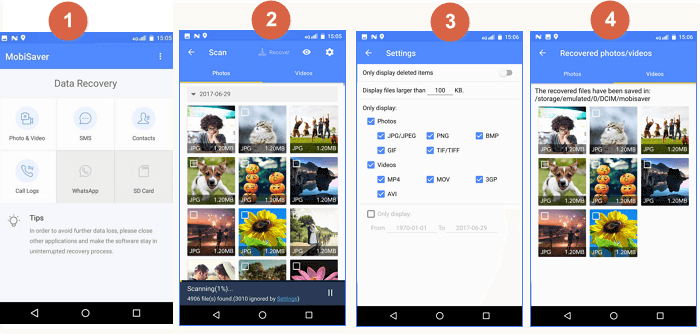
If you lose pictures from an Android phone and don't want to use a PC, you can restore deleted photos from the SD card without a computer by installing and using the Qiling Android data recovery app. This application can restore deleted photos, videos, contacts, call logs, SMS, and WhatsApp messages on your Android devices.
Note: To recover deleted pictures on an Android SD card using Qiling Android data recovery app, you don't need to root your phone, but if you want to recover other data like contacts and messages, you'll need to root your phone first.
Step 1.To recover deleted photos and videos on your phone, launch the app, select "SD card", and tap "START SCAN" to initiate the scanning process. Once the scan is complete, the app will display the deleted media files on the screen.
Step 2. To access settings, tap on the settings icon. This will allow you to customize preferences, such as selecting specific file sizes or formats to be scanned and displayed.
Step 3. The process involves scanning for displayed files, selecting them, and tapping on "Recover". After that, tapping on the eye icon will reveal all the recovered photos and videos, which are kept in that location.
You can use Deep Data Recovery to recover deleted photos from an SD card for free with its free version, making it worth trying.
How to Recover Deleted Photos from SD Card on Android Phone for Free
If you want to recover deleted pictures from an SD card on your Android phone for free, you have two options.
- To recover deleted files, download and use Deep Data Recovery Free, which allows for the free recovery of up to 2GB of images.
- Download and use Qiling MobiSaver for Android Free to recover lost files, messages, contacts, photos, music, and videos on your device.
To Sum Up
For Android photo recovery, you can use Deep Data Recovery and Qiling MobiSaver for Android to recover deleted pictures from an SD card, whether it's from a camera or an Android mobile phone.
If you want to recover images from an SD card without a computer, you can use the mobile version of Qiling MobiSaver For Android. If you still have issues, you can contact the support team for further assistance.
Why deleted photos can be restored?
When you delete files from an SD card, they don't get completely removed. The space they occupied is freed up, but the files themselves remain on the card until new data is written to it.
After deleting photos from an SD card, it's recommended to stop using the card and use SD card photo recovery software to scan and recover the lost photos. This is because SD cards can be easily removed and connected to a computer, making recovery more straightforward.
How to recover deleted photos from SD card without software?
If you've lost photos from your SD card and are wondering how to recover them without using software, the answer is unfortunately no - you can't do it unless you had made a backup beforehand. If you have no copy and need the lost photos to come back, you should follow the tutorials on this page to troubleshoot and attempt to recover them. The sooner you make the data recovery, the better the chances of recovery will be.
Related Articles
- How to Recover Files from Corrupted External Hard Drive
- [2026] USB Recovery Software to Recover Files from USB Flash Drive
- Fix Corrupt Master File Table. CHKDSK Aborted Error in Windows 10/8/7
- [Solved] - Window 10 Quick Access Files/Folders Missing
- 4 Ways to Fix Windows Update Stuck at 0%
When users want to install the latest Windows update, they might find that the downloading stuck at 0%. This issue can occur due to various reasons, including corrupted system files, outdated Windows Update components, or conflicting third-party software. - Fixed: Recent Documents Not Showing in Word 2013 2016 on Windows 10/8/7
If Microsoft Office Word 2016 or 2013 no longer shows the Recent Documents list below the Open option, you can't open an edited Word document via the Recent option. However, you can restore the disappeared list of recent documents and recover the lost Word file with the help of Deep Data Recovery.
Products
Articles & Tutorials
- Data Recovery
- Data Backup
- File Recovery
- File Backup
- System Backup and Restore
- Disk and Partition Clone
- Technical articles
- Mobile articles
- Disk Master Help
- Windows Data Recovery Tutorials
- Windows Secure Delete Tutorials
- Windows Partition Management Tutorials
- Windows File Backup and Restore Tutorials
- Windows System Backup and Restore Tutorials
- Windows Disk Backup and Restore Tutorials
- Windows Clone Tutorials