How to Recover Files from Corrupted External Hard Drive
To recover data from a formatted or damaged disk, perform the following steps:
- 1. Start Deep Data Recovery and locate the damaged disk.
- 2. Scan the damaged disk.
- 3. View the search results.
- 4. Preview the files by double-clicking them.
- 5. Mark the files and folders you want to recover.
- 6. Click "Recover" and choose another location to save the recovered data.
External hard drives are widely used due to their convenience for storing and transferring files. However, they also come with the risk of data loss, which can occur due to accidental file deletion, formatting, or the external hard drive itself becoming corrupted.
Part 1. Reliable External Hard Drive Recovery Software
Corrupted external hard drives are not an uncommon issue, and anyone can face this problem. In such cases, recovering data with professional software is the best choice. There are many external drive recovery programs that claim to recover data from an external hard drive, making it a viable option.
Deep Data Recovery is a reliable external hard drive recovery software that can also recover data from internal hard disks, SD cards, and USB flash drives. With over 10 million users worldwide, it is one of the most professional data recovery programs available, offering safe and effective results. Its features make it stand out as a top choice for those seeking to recover lost data.
- Recover deleted, formatted, or inaccessible data in various data loss situations, including accidental deletion, formatting, virus attacks, or physical damage to storage devices.
- Recover lost data with ease, including photos, audio, music, and emails, from any storage device, ensuring a safe and complete recovery process.
- You can recover data from various storage devices, including the recycle bin, hard drive, memory card, flash drive, digital camera, and camcorder.
Qiling data recovery software stands out as the best due to its exceptional performance in scanning speed and ability to find more files. In a comparative test involving 5 widely-used data recovery tools, Qiling demonstrated its superiority by scanning a 127GB partition (out of 141GB) at an impressive speed, outperforming the competition and locating more deleted/lost files. This makes Qiling the go-to choice for data recovery tasks, as its speed and efficiency are crucial factors in this process.
| Product Name | Recover My Files | Deep Data Recovery | Deep Data Recovery | Stellar Data Recovery | Deep Data Recovery |
|---|---|---|---|---|---|
| Scanning Time | 1h | > 1h | > 1h | 37min | 27min |
| Files Found | 321,297 files | 111,213 files | 2,254 files | 414,170 files | 784,741 files |
| File Size | 13.80GB | no size is shown | 1.92GB | 19.84GB | 38.53GB |
Part 2. How to Recover Data from Corrupted Hard Drive
If your external hard drive is corrupted or damaged, the first step is to extract files before they're completely lost. This can be done by ensuring the drive is recognized as "Online" in Disk Management, allowing you to access and save any remaining data.

If your external hard drive has stopped working, you can try using the best hard disk recovery software to restore all lost data from the drive. This software can help you recover all your files, including videos, that were stored on the external hard drive.
If you're experiencing issues with a corrupted external hard drive, you can try to recover lost files by following these steps. First, stop using the drive immediately to prevent further data loss.
Step 1. Connect your external hard drive to your computer using a correct USB cable and run Deep Data Recovery. Select the file types you want to recover and click "Fast Scan" to start the process.

Note: You can choose different search modes based on where and why the data was lost.
Step 2.In the next window, you will see your external disk listed under External drives. This software supports a wide range of external disk brands, including WD, Seagate, Toshiba, LaCie, SanDisk, Samsung, and others.
Select the external hard drive and then click the "Proceed" button.

Step 3. As soon as the scan process begins, the software will identify and display lost and deleted data in the scan results, organizing the recovered data in a clear and easily navigable format. You can quickly locate specific files or folders by file type or use the search box to find exact file names.

Step 4. After scanning with Deep Data Recovery's algorithms, you can preview the found files and select the ones you want to recover. To avoid overwriting the original data, it's recommended to save the recovered files to a different drive than the original Seagate drive. Simply click "Recover" to start the process.
Part 3. How to Repair the Corrupted External Hard Drive
A corrupted external hard drive is a common problem that many people face. When you're unable to access your external hard drive, try the following solutions to troubleshoot and potentially fix the issue.
- Check the power supply and connection errors. It's likely that your device has a separate power source, so checking the power supply will be important.
- Try another USB cable. Maybe there's something wrong with the old one.
- If your external hard drive has viruses on it, use antivirus software to scan your drive. This will help identify and remove any malicious software that may be affecting your drive.
- Run SFC (Open "Command Prompt" and enter sfc /scannow) to fix damaged or missing Windows system files that may cause drive corruption.
Run CHKDSK to Fix the File System Errors (Recommended)
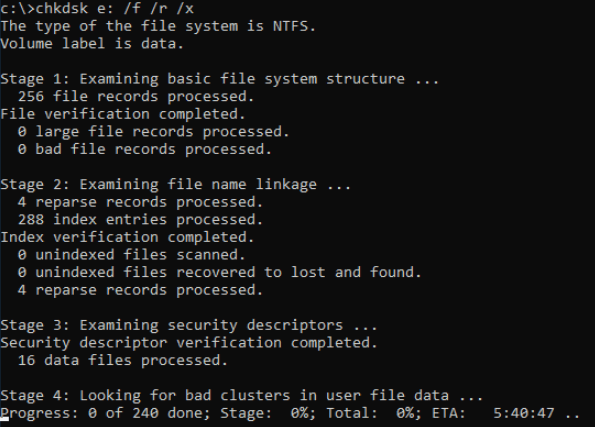
If the three simple ways to fix the issue with your external device are unsuccessful, I recommend running the CHKDSK command to scan and correct file system errors on the device. CHKDSK is a utility that checks the file system and metadata of a volume for logical and physical errors, potentially resolving the issue.
Step 1. In the Search Window, type cmd. Right-click on the Command Prompt search result and select "Run as administrator".
Step 2. Type the command: chkdsk E: /f /r /x
Here you should replace E with your drive letter.
If the command line isn't your preference, you can use the Qiling CleanGenius tool, which offers a one-click solution to fix file system errors on your hard drive. This alternative tool provides a user-friendly approach to resolving the issue.
Step 1. Download Qiling CleanGenius on your computer for free.
Step 2. To proceed, run the software and navigate to the left panel, where you'll click on "Optimization" followed by selecting "File Showing" to continue.
Step 3.To resolve a file system error on a drive, go to "Choose drive" and select the drive with the error, then check the "Check and fix file system error" option and click "Execute".
Step 4. Once the Qiling CleanGenius has completed the repairing process, click on the link provided to view the results of the repair.
Part 4. How to Prevent the External Hard Drive from Corruption/Failure
Here are some tips to prevent external hard drive failure and corruption:
- Be very cautious with the drive. When powered on, keep it in a safe place. Store the external hard drive away from direct sunlight.
- To safely remove an external hard drive, always use the "Remove Device" option. Never unplug it while files are being accessed, as this can corrupt its data.
- Keep your external hard drive away from magnets to prevent data loss.
- When removing a USB cable from a device, pull the cable gently from the connector, rather than yanking it out, to avoid damaging the connector.
- To ensure your files are safe, create a copy of your external hard drive files and upload them to a cloud service like Dropbox or Google Drive. Alternatively, copy them to another drive or set up an automatic backup schedule to save them regularly. Having a backup in advance will always help prevent data loss.
Conclusion
If your external hard drive is damaged or corrupted, don't panic! Even if your computer can't detect it, there's still hope. Deep Data Recovery software can help you recover your files. Whether you've experienced a deletion, formatting, or other data loss scenario, Qiling is here to assist you in getting your data back.
First distinguish a readable but corrupted volume from a drive with physical failure; the safe external-drive recovery workflow explains that decision before scanning.
Related Articles
- How to Hide Recycle Bin in Windows 10/11
- MP4 Repair| Repair Corrupted MP4/MOV File on Windows and Mac
- [Fixed] Laptop Screen Black but Still Running
- The Best SSD Data Recovery Software for SSD Data/File Recovery
- Shift Delete Recovery – Get Back Shift Deleted Files
Shift-deleting files may seem like a permanent solution, but it's not always the case. With the right tools and techniques, you can recover shift-deleted files. - How to Get Files from Damaged SD Card
You know that you can do damaged SD card recovery to recover data from damage SD card on Mac or Windows PC? Here is the step-by-step guide for how to get files from damaged sd card.
Products
Articles & Tutorials
- Data Recovery
- Data Backup
- File Recovery
- File Backup
- System Backup and Restore
- Disk and Partition Clone
- Technical articles
- Mobile articles
- Disk Master Help
- Windows Data Recovery Tutorials
- Windows Secure Delete Tutorials
- Windows Partition Management Tutorials
- Windows File Backup and Restore Tutorials
- Windows System Backup and Restore Tutorials
- Windows Disk Backup and Restore Tutorials
- Windows Clone Tutorials