How to Recover Unsaved/Deleted Notepad (TXT) Files on Any Device
6 Ways to Recover Unsaved/Deleted Notepad (TXT) Files

Losing a TXT file is a universally relatable experience, affecting people from high schoolers to business executives. It's a common occurrence where work is on the verge of completion, only to be lost due to a simple mistake, such as a misplaced comma or a missed deadline. This frustration is a shared experience that transcends age and profession, making it a familiar and relatable phenomenon.
Fortunately, there are reliable ways to recover Notepad files quickly. Whether your work was accidentally deleted, lost in a Notepad crash, or simply disappeared, here's a simple guide on how to recover unsaved/deleted Notepad documents on any device, including Windows, Mac, and mobile devices.
| Workable Solutions | Step-by-step Troubleshooting |
|---|---|
| How to Recover Unsaved Notepad on Windows 10 |
To recover unsaved Notepad files, go to C:\Users\USERNAME\AppData\Roaming\Notepad and look for the files with the .tmp extension. You can rename them to .txt and open them in Notepad to recover your work. Alternatively, you can also use the "Open Saved File" option in Notepad to recover the file. If you're unable to find the file, try searching for it using the Windows search feature. |
| How to Restore Deleted Notepad with free file recovery software |
To recover Notepad files deleted or lost permanently, you can use free file recovery software...Full steps |
| How to Recover Unsaved/Deleted TextEdit on Mac |
1. Recover Unsaved TextEdit Files on Mac...Full steps 2. Recover Lost TextEdit Files on Mac...Full steps |
| How to Recover Unsaved/Deleted Notes on a Phone |
1. Restore Deleted Notes on Andriod...Full steps 2. Retrieve Deleted Notes on iOS Devices...Full steps |
User Case: Accidentally Closed Notepad Without Saving
Unfortunately, Notepad doesn't have an autosave feature, so you won't be able to recover the unsaved document. However, you can try checking the "Recent Documents" list in Notepad to see if it's still there. To do this, open Notepad, click on "File" in the top menu, and then click on "Recent Documents". If the unsaved document is still in the list, you might be able to recover it. If not, unfortunately, it's gone for good. You can also try checking your computer's "Recycle Bin" to see if the file was accidentally deleted. If you're looking for a way to prevent this from happening in the future, you can consider using a more advanced text editor like Microsoft Word or Google Docs, which do have autosave features.
Losing unsaved files, such as text documents, is a common issue due to accidental closure, power outages, system crashes, or other unforeseen events. If you've accidentally closed Notepad without saving your text and are struggling to recover the unsaved file, there is a solution available that can help you restore the deleted Notepad file with minimal effort.
How to Recover Unsaved Notepad Files on Windows 10
Notepad doesn't have an auto-When you close an unsaved Notepad document, it may be lost forever, but you can still recover it from temporary files, which save the document's contents on your computer. This provides a chance to retrieve the unsaved file.
- Tip
- Temp files will be emptied every time you restart or shut down your computer. So, to avoid permanently losing the unsaved text files you wish to recover, don't shut down and restart your PC! Don't do anything else before you take these steps below.
Step 1.To access the Roaming folder on your Windows, click the Search button, type "%AppData%", and press "Enter" to open the folder.

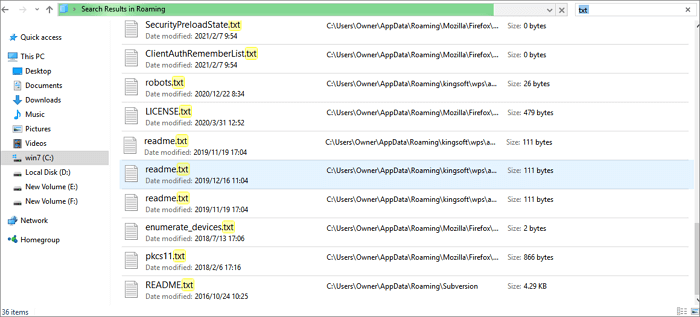
Step 2. You can try to recover an unsaved Notepad file by searching for the file type .txt in the search bar, and then looking for the Notepad files to see if you can recover the unsaved Notepad.
Bonus Tips: How to Recover Unsaved Notepad++ Files
Notepad is a basic text editor that saves files in the .txt format, while Notepad++ is a more powerful version that also offers a backup function to recover unsaved files in case of accidental closing or application crashes.
How to turn on the automatic backup feature in Notepad++:
Go to "Settings" then click on "Preferences", then "Backup" and check the box next to "Enable session snapshot and periodic backup".
Steps for Notepad++ file recovery:
Step 1. Navigate to Notepad++ unsaved files location: C:\Users\USERNAME\AppData\Roaming\Notepad++\backup.
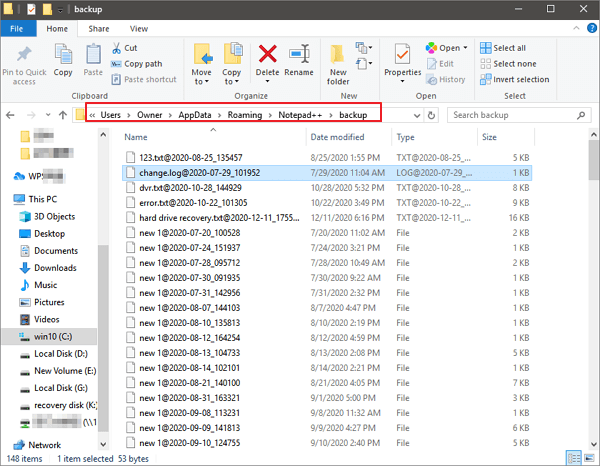
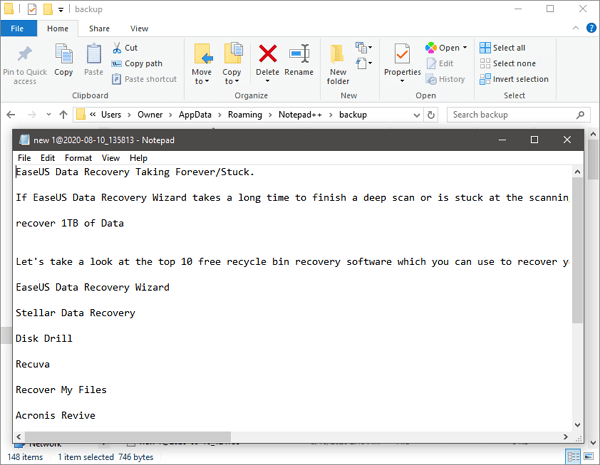
Step 2.Find and preview the files you need, searching for all "*.txt" files if necessary. Then, restore the unsaved Notepad++ files to a different location.
If you've lost an unsaved Word document on Windows 10/11, You can try recovering it using the built-in feature called "Recent Files" or by checking the "Temp" folder, where Word stores temporary files.
How to Recover Deleted Notepad Files with Free File Recovery Software
You can't recover saved Notepad files using temporary files, but you can restore lost or deleted text files with the help of free data recovery software like Deep Data Recovery, which can also help with recovering emptied recycle bin, formatted files, virus attack recovery, OS crash recovery, and Office file recovery.
Qiling Notepad Recovery Software
- Recover lost or deleted documents, files, photos, audio, music, or emails with ease, using data recovery software or services that utilize advanced algorithms to scan storage devices, identify and restore deleted data, and ensure the integrity of recovered files, all while maintaining user privacy and security.
- You can recover files from a formatted hard drive, emptied recycle bin, memory card, flash drive, digital camera, and camcorders using data recovery software. This software can scan the device and retrieve deleted or lost files, even if they've been formatted or emptied.
- Data recovery solutions can help restore lost data due to sudden deletion, formatting, hard drive corruption, virus attacks, or system crashes, providing a safety net for users in various situations.
To recover deleted or lost Notepad files, download and use file recovery software, following the step-by-step guide below.
Step 1.Launch Deep Data Recovery on your PC, select the desired file types, and click "Fast Scan" to initiate the recovery process.

Note: You can choose different search modes based on where and why the data was lost.
Step 2. Choose the drive where you lost files and start scanning. This software allows you to recover lost data from various devices, including hard drives, solid-state drives, USB drives, SD cards, pen drives, and cameras.

Step 3. You can browse the full scan results and choose the file type you need by clicking on the file type filter. Qiling data recovery software supports 1000+ file types, including photos, videos, documents, emails, audio files, and many more.

Step 4. To recover deleted files, select the files you want to preview, then click "Recover" and choose a storage location to save the recovered data.
How to Recover Unsaved/Deleted TextEdit on Mac
As a Mac user, you may rely on TextEdit instead of Notepad, but even the best tools can't prevent accidental file loss. Pressing delete, closing the wrong window, or a sudden machine shutdown can result in your TXT file disappearing, leaving you with a chilling moment of realization. However, with dependable solutions, you can recover your Mac TXT files and breathe a sigh of relief.
Method 1. How to Recover Unsaved TextEdit Files on Mac
The original TextEdit on Mac doesn't have a recovery feature, but you can still recover unsaved text files from temp files if you use iCloud or Time Machine.
Step 1. Open your browser and go to www.icloud.com.
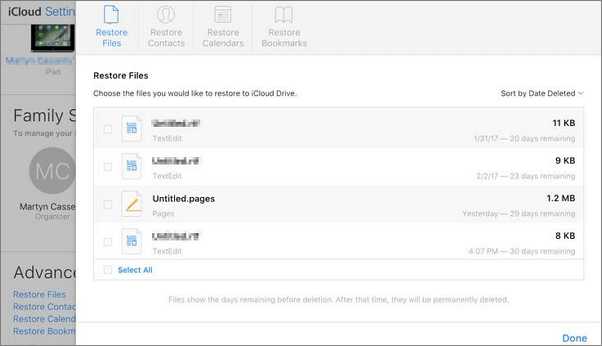
Step 2. To restore files, enter your Apple ID and go to "Settings > Advanced" where you'll find the option to Restore Files.
Step 3. Click the checkbox next to its title then click "Done".
Method 2. How to Recover Lost TextEdit Files on Mac
In this chapter, we explain how to recover a TextEdit file that can no longer be found in Recycle Bin using Qiling Mac data recovery software.
Qiling data recovery software has a Mac version, allowing users to recover most lost and deleted Mac files.
- This software recovers deleted or lost files from Mac, including photos, videos, Word files, and other file types. It can recover files from various storage devices, including Mac hard drives, external hard drives, and memory cards.
- Supports data recovery from Mac with T2 chip
- This software is fully compatible with all Mac devices and external storage media, making it a versatile and user-friendly option for managing and organizing digital files.
Follow the steps below to recover lost TextEdit files.
Step 1.Launch Deep Data Recovery on your PC. Select the file types you want to recover and click "Fast Scan" to begin the recovery process.
Note: You can choose different search modes based on where and why the data was lost.
Step 2. Click on the device location where you deleted the files, then click the "Scan" button to search for deleted TXT files.
Step 3. Deep Data Recovery for Mac will list the files it finds on the left pane.
Step 4. To recover deleted files on a Mac, navigate to the "Trash" folder, right-click on the desired file, and select "Put Back" to restore it to its original location. Alternatively, you can use the "Time Machine" feature to restore deleted files if backups were made.
How to Recover Unsaved/Deleted Notes on a Phone
Unsaved notes cannot be restored on Android or iPhone, but deleted memos and notes can be recovered once they are deleted from the device. This is because deleted files are not permanently removed, but remain on the device, invisible to the user. To recover deleted notes, follow the steps.
Method 1. How to Recover Deleted Notes on Andriod
If you've deleted important memos from your Android device without backing them up, there's still hope. You can use Android data recovery software, specifically Qiling MobiSaver for Android, to recover deleted notes without any prior backup. This powerful tool can help you restore your deleted memos.
Follow the steps below to recover deleted Andriod Notes.
Step 1. Connect your Android phone to your computer, and when it shows up, click "Next" to proceed.
Step 2. The software quickly scans the device to find existing and lost data, allowing you to easily locate photos, videos, documents, and other file types by selecting the correct file types.
Step 3. Select the desired notes in the scanning result, preview them with a full view, then click "Recover" to save the recovered files to a chosen location.
Method 2. How to Recover Deleted Notes on iOS Devices
You can recover lost iPhone Notes with Qiling MobiSaver Free, an iOS data recovery software that makes it easy to find and retrieve lost data from your iPhone with simple steps.
Step 1. Choose Recovery Mode
Connect your iPhone to your PC and launch Qiling MobiSaver. Choose the recovery mode, specifically "Recover from iOS Device", from the left panel and click "Start" to initiate the process.
Step 2. Scan for Lost Notes/Notes Attachments
Qiling MobiSaver will automatically scan your iPhone/iPad/iPod to find existing and lost notes for you.
Step 3. Preview and Restore Notes and Attachments
To recover notes and attachments, tick "Notes" and "Notes Attachments" on the left, select specific notes and attachments you want to recover, and then choose to recover them to your PC or device.
Conclusion
Recovering unsaved Notepad files is a simple process, as they can be found in the temporary folder on any device. For deleted Notepad file recovery, Deep Data Recovery is a useful tool that can also repair corrupted files, such as JPEG/JPG files, videos, and documents.
How to Recover Unsaved Notepad FAQs
Here are some frequently asked questions about how to recover an unsaved Notepad. If you also have any of these problems, you can find the methods here.
1. Where does notepad store unsaved files?
Once you enabled the AutoSave function, unsaved Notepad files are saved in the path: C:\Users\USERNAME\AppData\Roaming.
2. Can I recover a Notepad file that I didn't save?
If you want to recover a notepad file that was unsaved after a restart, you can find and recover the file in the C:\Users\USERNAME\AppData\Roaming directory.
3. How do I AutoSave in Notepad?
Notepad doesn't have auto-To auto-save your Notepad file, run a utility that saves working text files automatically. This tool will run in the system tray and monitor your Notepad file for changes, saving it automatically.
4. How do I recover a text file?
If you've lost a Notepad file, whether it's due to an unsaved file after a restart or a deleted file, there are ways to recover it. For unsaved files, you can try searching for the file in C:\Users\USERNAME\AppData\Roaming, where it may still be stored. For deleted files, you can use file recovery software like Qiling to help retrieve the lost file.
5. How do you reopen an unsaved tab in Notepad ++?
Step 1. To view your configuration, go to the "Settings" menu, then select "Preferences", followed by the "Backup" tab.
Step 2. If "Enable session snapshot and periodic backup" is checked, a "Backup path" will be configured.
Step 3. The default "Backup path" is \backup.
Related Articles
- 5 Free Excel Password Remover Online to Unprotect Excel Workbook
- How to Fix You Don't Currently Have Permission to Access This Folder Issue
- How to Recover Deleted Worksheet in Excel
- Super Easy! How to Recover Deleted Files from NAS (Synology/QNAP)
- Download the Best Alternative to Stellar Phoenix Photo Recovery for Windows/Mac
Stellar phoenix photo recovery software is professional and robust. Here are the best alternatives to Stellar photo recovery for Windows and Mac. - 4 Ways for How to Stop Windows 10 Update 2021
While updates are generally beneficial, they can sometimes cause problems. If you're experiencing issues with Windows 10 updates, you may want to consider stopping them permanently. This article provides guidance on how to do so.
Products
Articles & Tutorials
- Data Recovery
- Data Backup
- File Recovery
- File Backup
- System Backup and Restore
- Disk and Partition Clone
- Technical articles
- Mobile articles
- Disk Master Help
- Windows Data Recovery Tutorials
- Windows Secure Delete Tutorials
- Windows Partition Management Tutorials
- Windows File Backup and Restore Tutorials
- Windows System Backup and Restore Tutorials
- Windows Disk Backup and Restore Tutorials
- Windows Clone Tutorials