Lost Unsaved PowerPoint Document - How to Recover?
Microsoft Office is a widely used software for work and study, and losing important files can be devastating. If you've lost unsaved PowerPoint 2016 files on your Mac, don't worry, there are ways to recover them. We'll explore three methods to retrieve your unsaved files in this article.

- Method 1. Recover Unsaved Files from AutoSave
- Method 2. Recover Mac Unsaved Data from Temp Folder
- Method 3. Recover Unsaved PowerPoint with Qiling Data Recovery
Notice: The methods mentioned in this article only apply to documents that have been saved on your computer beforehand. If you create a new PowerPoint file without saving it, the unsaved content cannot be recovered.
Method 1. Recover Unsaved PowerPoint 2016 Files from AutoSave
Microsoft's AutoSave feature in PowerPoint automatically saves temporary copies of your work at regular intervals, allowing you to recover unsaved files in case of a sudden power outage or other disruptions. To retrieve a lost PowerPoint 2016 document on Mac, you can search for the temporary copy first, which may have been saved automatically.
Step 1. On Mac's desktop, go to Go > Go to Folder.
Step 2. Enter the path of the AutoSave folder.
Step 3. See if you can find your unsaved PowerPoint document.
Step 4. To recover your lost PowerPoint file, copy it to your desktop and rename it. Once done, you can open it with PowerPoint 2016.
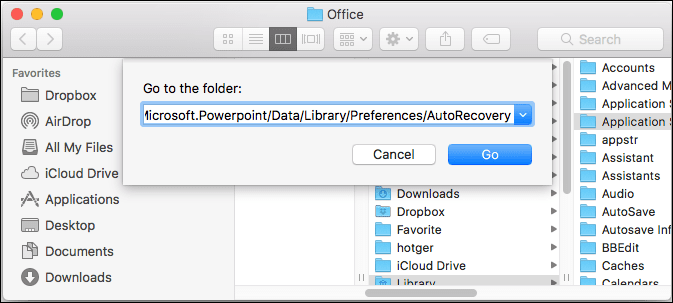
For different versions of Office, the location of the AutoSave folder on Mac is different:
For Office 2016 & 2018:
/Users/Library/Containers/com.Microsoft.Powerpoint/Data/Library/Preferences/AutoRecovery
For Office 2011:
/Users/username/Library/Application Support/ Microsoft/Office/Office 2011 AutoRecovery
For Office 2008:
/Users/username/Library/Application Support/ Microsoft/Office/Office 2008 AutoRecovery
How to Check PowerPoint AutoSave on Mac
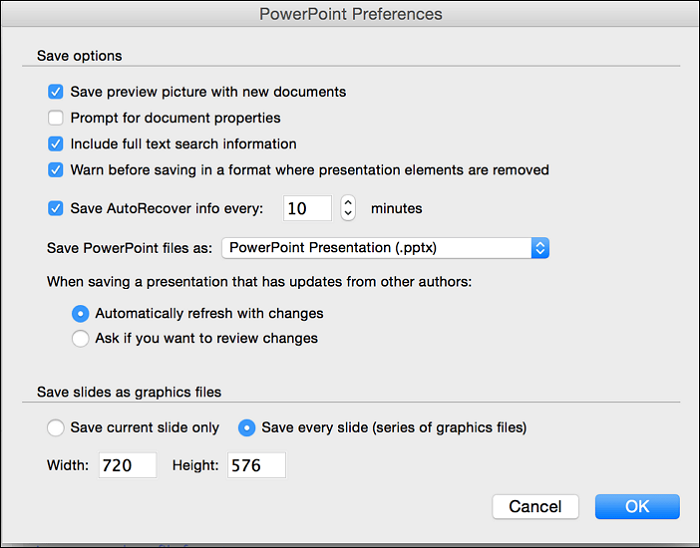
Although we have mentioned that the AutoSave feature is turned on by default, there is the possibility that some programs have disabled this feature without notice. Here we will introduce how to change the PowerPoint preferences.
Step 1. Launch PowerPoint on Mac, and go to Preference.
Step 2. To enable AutoSave, go to the "Save" menu, and check the box next to "Save AutoRecovery info every x minutes". This will turn on the AutoSave feature. If the box is already checked, then AutoSave is already enabled. If not, checking the box will activate it.
Step 3. You can also change other settings in this preference.
Method 2. Recover Unsaved PowerPoint 2016 on Mac from Temp Folder
If you can't find your lost PowerPoint file in the AutoSave folder, you can try searching the Temp folder on your computer. The Temp folder stores launch configurations and cached data for PowerPoint, and your unsaved file might be saved as cache data in it. To recover data from the Temp folder, you can follow these steps:
Step 1. Go to "Applications" > "Utilities" and double-click "Terminal".
Step 2. In Terminal, enter "open $TMPDIR" and you'll be directed to the TMP folder where files are kept temporarily.

Step 3. To open an unsaved PowerPoint file from the "TemporaryItems" folder, find and open the folder, right-click the file you want to open and select "Open with" followed by Microsoft PowerPoint.
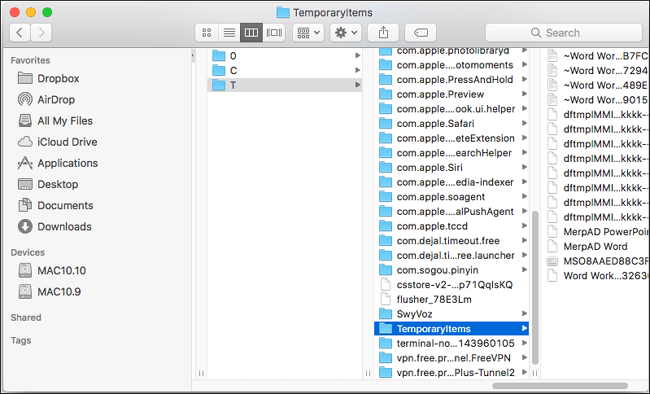
Step 4. Save the PPT file to another location.
Method 3. Recover Unsaved PowerPoint on Mac with Qiling Data Recovery
If the two methods mentioned earlier don't work, consider using third-party data recovery software to recover your unsaved PPT document. This software can scan your computer thoroughly and potentially retrieve the lost file.
We recommend Deep Data Recovery for Mac, a professional data recovery tool that specializes in Mac data recovery.
Why choose Deep Data Recovery for Mac:
- This tool allows you to recover unsaved Office documents, including Word, Excel, PowerPoint, and iWork files, among others, in a straightforward manner.
- This tool allows users to recover deleted files, including those that have been emptied from the trash bin, giving users a second chance to retrieve lost data.
- Supports users to preview the recoverable files before actual recovery.
- 100% safe and trustworthy. Approved by authorized agencies.
To recover unsaved PPT documents on Mac, download Qiling Data Recovery for Mac, install and launch it, select the drive where your PPT file was saved, scan for lost files, preview and select the unsaved PPT file, and click 'Recover' to save it to a safe location.
Step 1. Launch Deep Data Recovery for Mac, select the desired file types, and click "Fast Scan" to initiate the recovery process.

Note: You can choose different search modes based on where and why the data was lost.
Step 2. To recover unsaved files, hover your mouse over the device where you lost the file, then click "Scan".

Step 3. After scanning, click on "Type" and expand "Unsaved Documents", then select the exact file type (e.g. Word, Excel, Powerpoint, Keynote, Pages, Numbers) that you lost without saving.

Step 4. Double-click the unsaved file to preview it, select the correct version, and click "Recover" to save it to a secure location on your Mac.
You May Also Interest In: Recover Word after Accidentally Clicked Don't Save.
Don't Hesitate! Recover Unsaved PowerPoint 2016 Now
If you've lost an unsaved PowerPoint document, don't panic! First, check the AutoSave and Temp folder to see if the file is still recoverable. If you can't find it there, consider using Deep Data Recovery for Mac as a last resort to try and recover your lost file.
Related Articles
- Recover Deleted GarageBand Files/Tracks on Mac
- Deleted Files Mac But Still No Space: Reasons and Solutions
- Photo Recovery on Mac - Recover the Lost/Deleted Photos and Videos from Camera SD Card
- Full Guide: How to Format the MacBook Pro/Mac
- How to Transfer Windows 10 to SSD
You can transfer Windows 10 to another SSD using Qiling backup, which makes the process easy and efficient. - How to Undelete Files in Windows 10
I accidentally deleted a file? Can I get deleted files back on Windows 10 or undelete in Windows 10. This article explains how to undelete files in Windows 10.
Products
Articles & Tutorials
- Data Recovery
- Data Backup
- File Recovery
- File Backup
- System Backup and Restore
- Disk and Partition Clone
- Technical articles
- Mobile articles
- Disk Master Help
- Windows Data Recovery Tutorials
- Windows Secure Delete Tutorials
- Windows Partition Management Tutorials
- Windows File Backup and Restore Tutorials
- Windows System Backup and Restore Tutorials
- Windows Disk Backup and Restore Tutorials
- Windows Clone Tutorials